




As temps drop in the northern hemisphere and mentions rise, it's the perfect season to bundle up… your media monitoring.
Whether you’re tracking U.S. only coverage, Spanish mentions, or positive feedback, filters help cut through the noise — both in Explore and, newly, in Analyze reports!
Let’s walk through how a brand like Starbucks can use filters to get sharper insights and stay cozy in clean data.
✅ Step 1: Filtering Your Searches
Before you can filter your mentions, you’ll need to open a search in Explore — that’s where all your media monitoring begins.
Here’s how to get started:
-
Head to Explore from the left-hand menu.
-
Either:
-
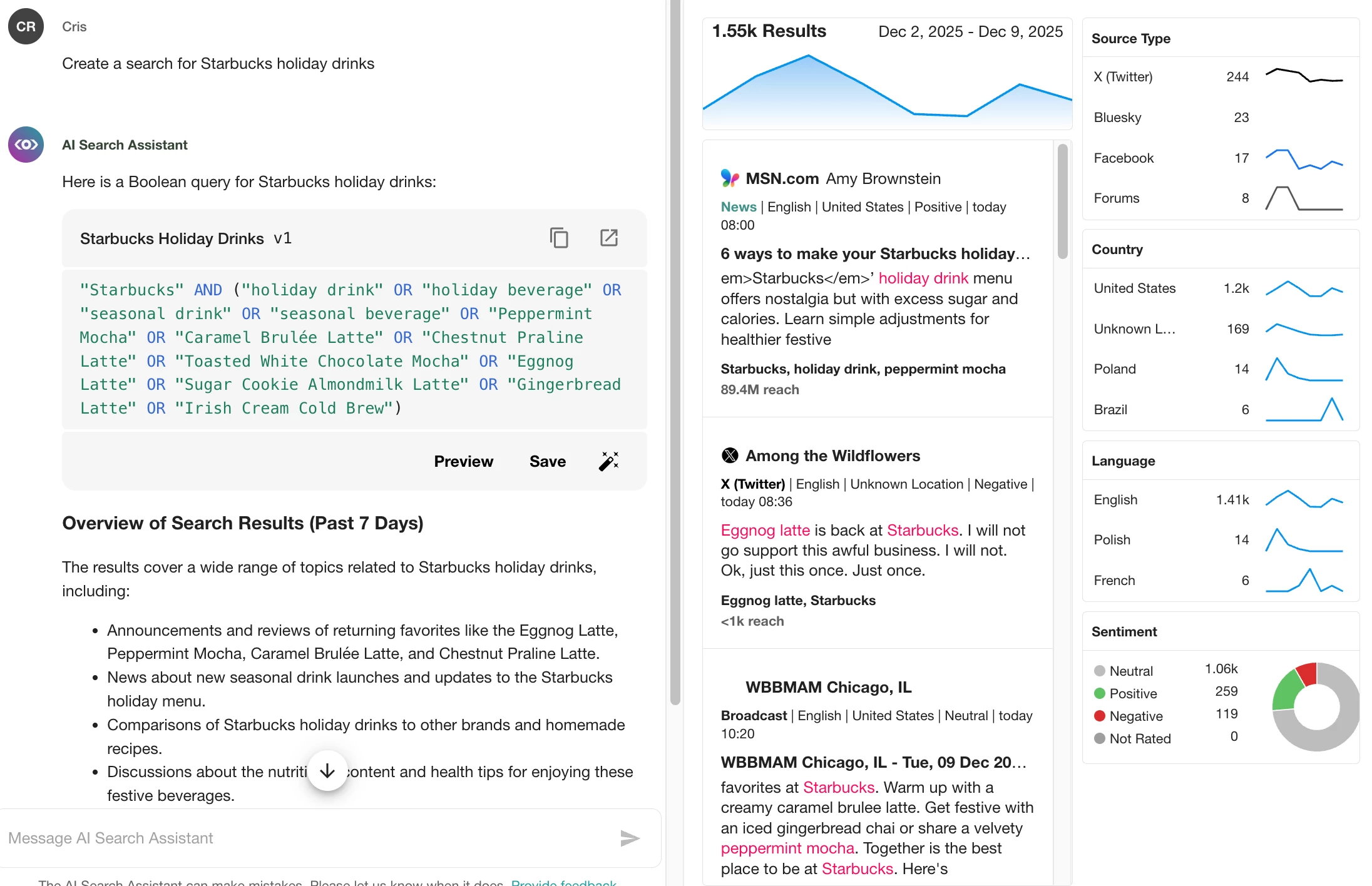
Create a new search (you can use the AI Search Assistant to help!), or
-
Open any existing search, like “Starbucks Holiday Drinks.”
-
Once your results load, it’s time to filter!
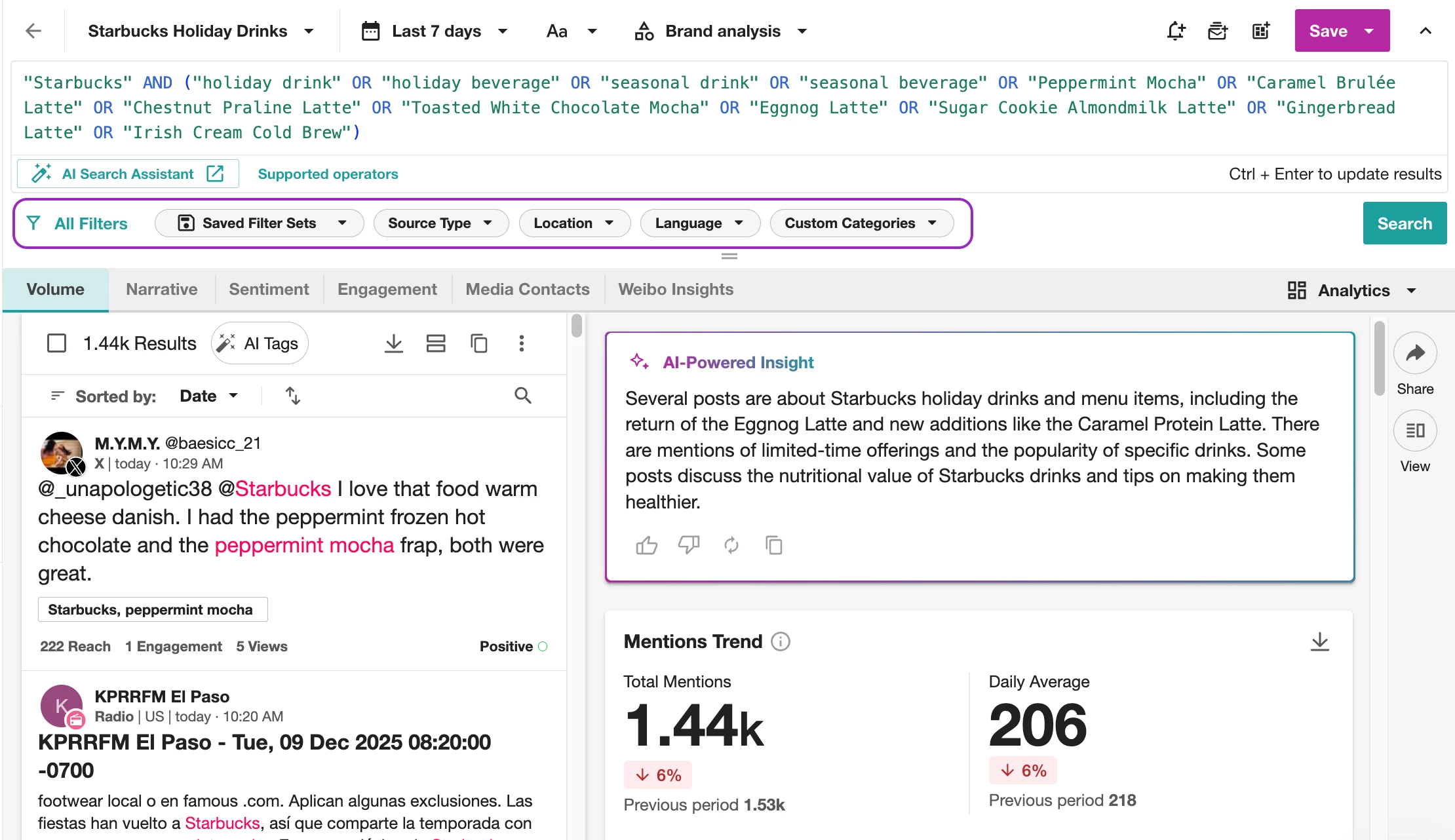
Once your search loads, you’ll see filter options appear right below the search bar, options like:
-
Source Type – Just want social media or news? Choose your channels.
-
Location – See mentions in a specific region (e.g., U.S. only).
-
Language – Narrow your results by language.
-
Custom Categories – Use pre-set Boolean strings to focus on themes like:
-
🎄 Holiday Drinks
-
("Peppermint Mocha" OR "Caramel Brulée Latte" OR "Chestnut Praline Latte" OR "Toasted White Chocolate Mocha" OR "Eggnog Latte" OR "Sugar Cookie Almondmilk Latte" OR "Gingerbread Latte" OR "Irish Cream Cold Brew")
-
-
😬 Service Complaints
-
(Broke OR Broken OR Break OR Breaks OR Damage OR Damages OR Damaged OR Snap OR Snapped OR Snaps OR Smash OR Smashed OR Smashes OR Crack OR Cracked OR Cracks OR Fracture OR Fractured OR fractures OR Tear OR Tore OR Rip OR Rips OR Ripped OR Split OR Splits OR shatter OR Spill)
-
-
💬 Customer Love
-
("customer love" OR "I love" OR "love this" OR "so good" OR "delicious" OR "yummy" OR "amazing" OR "awesome" OR "my favorite" OR "can't live without" OR "highly recommend" OR "obsessed" OR "the best" OR "so tasty" OR "must try" OR "so happy" OR "incredible" OR "perfect" OR "so fresh" OR "treat yourself" OR "craving" OR "hits the spot" OR "so worth it" OR "go-to" OR "addicted" OR "so satisfying")
-
-
🎁 Gift Card Buzz
-
("gift card" OR "gift cards" OR "gift certificate" OR "gift certificates" OR "e-gift" OR "egift" OR "e-gift card" OR "egift card" OR "digital gift card" OR "voucher" OR "gift voucher" OR "promo code" OR "discount code" OR "special offer" OR "redeem code" OR "giveaway" OR "win a gift" OR "prize" OR "contest" OR "sweepstakes" OR "raffle" OR "lucky draw" OR "buzz" OR "trending" OR "going viral" OR "viral offer" OR "viral deal" OR "viral giveaway")
-
-
📎 Check out our list of common Custom Categories here
As soon as you select any filter, make sure to click Apply so it takes effect!
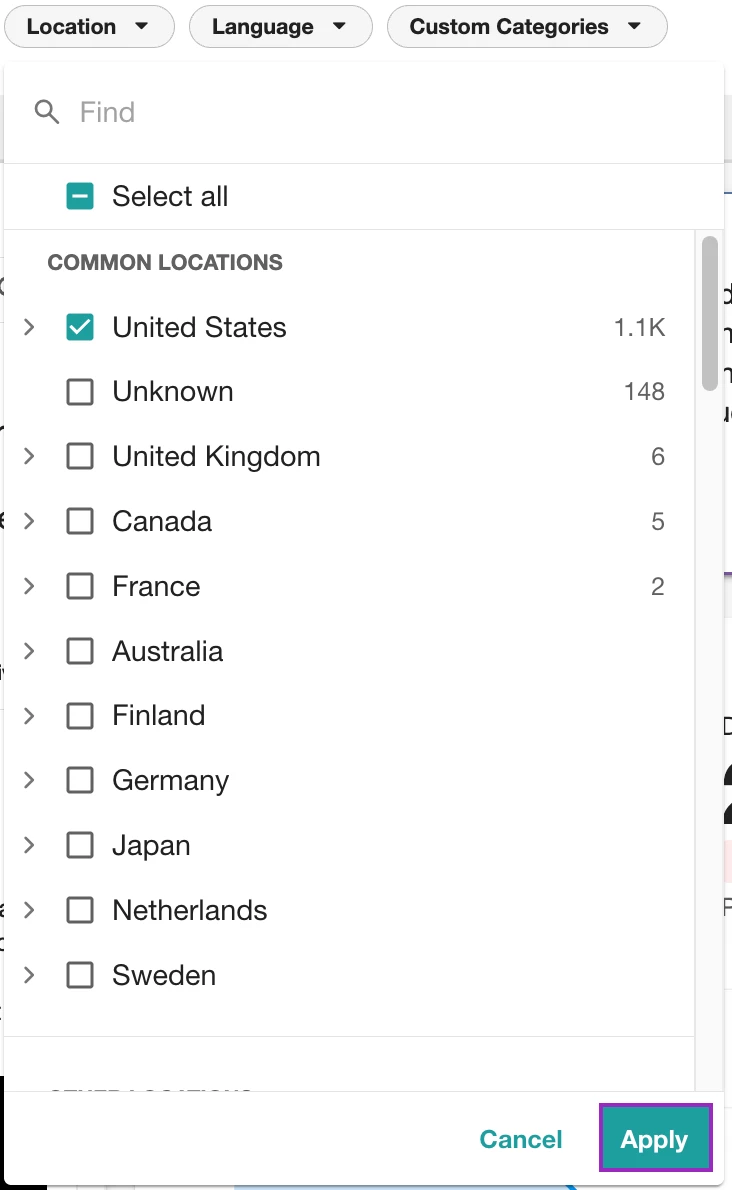
Need more filter options? Click All Filters on the far left to open the full panel.

💡 Pro Tip: Combine filters for more focus — like “only positive Facebook mentions in California.”
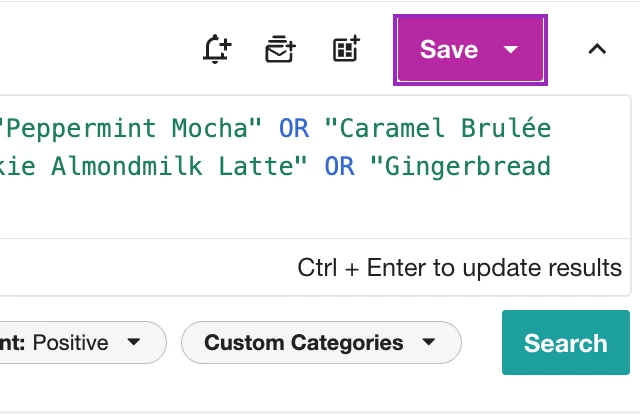
Once your search looks good, hit Save (top right) to easily come back to it later — perfect for recurring reports or seasonal monitoring.
🔍 Step 2: Filtering your Reports
Now that you've mastered filters in Explore, it's time to use those same filter powers in Analyze.
Whether you're building a dashboard to track news mentions or keeping tabs on positive coverage of the Starbucks holiday menu, filters help tailor your insights to what really matters for any report.
To use filters in Analyze:
-
Head over to Analyze and Create or open your dashboard
-
Click All Filters in the top toolbar — this is the only way to open filters in Analyze (different from Explore!).
-
Choose from Source Type, Location, Language, Sentiment, or even your Custom Categories.
-
Click on any of these to start filtering, and don't forget to hit Apply for your changes to stick.
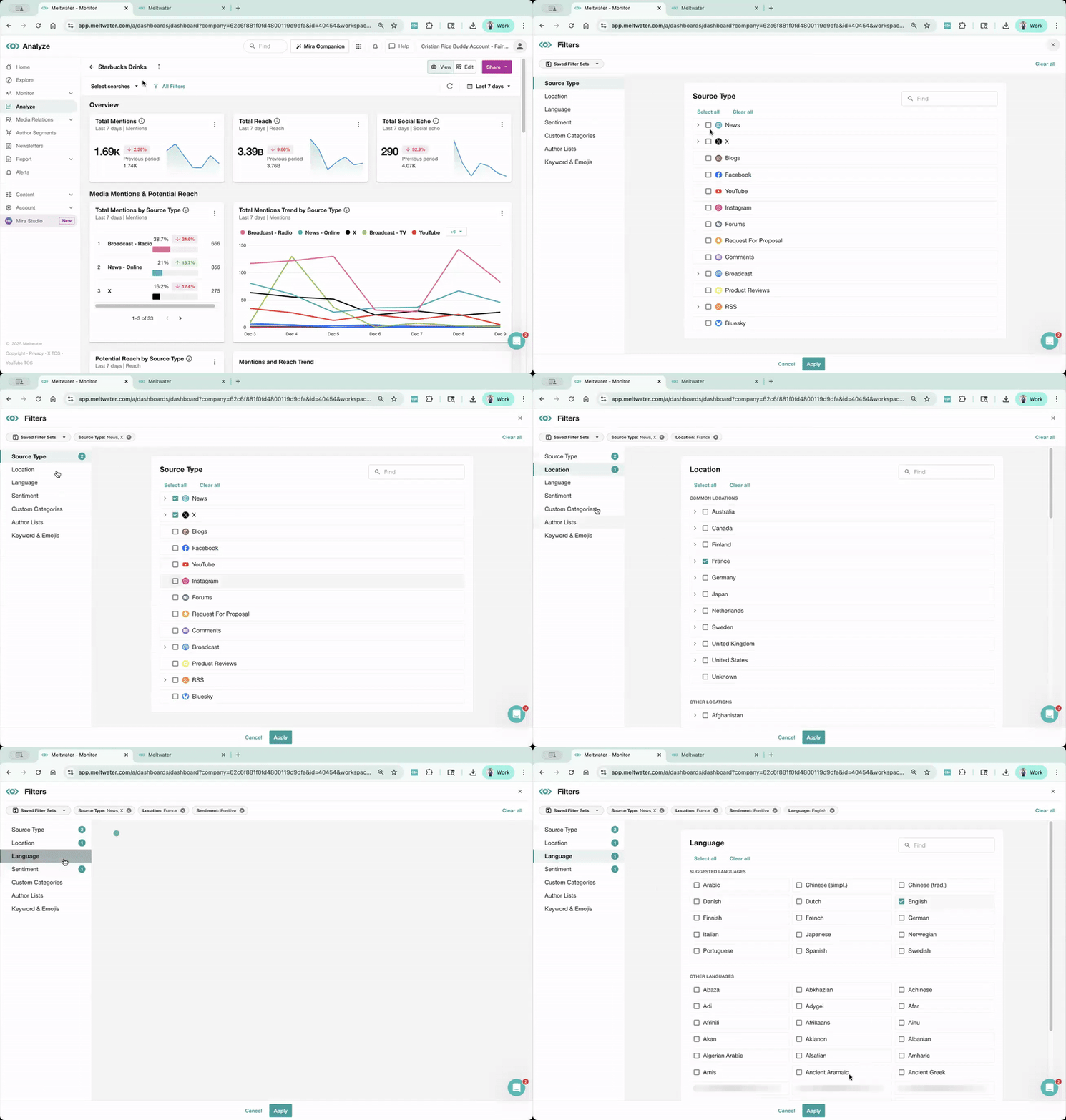
✨ These filters update every widget on your dashboard, so you can slice and dice results just the way you need them — by geography, source type, or even just news articles mentioning eggnog lattes.
Want to see this in action? Check out 🛠️ How to Create a Dashboard Report in Meltwater for a full walk-through.
💾 Step 3: Save Time with Filter Sets
Once you’ve applied your perfect combo of filters — maybe it's positive sentiment, social posts, and English-only — don’t start from scratch next time. You can save that filter combo as a Filter Set to reuse across other searches in Explore or dashboards in Analyze.
📍 Important: You can only save filter sets in Explore. This step happens right on the search view — just click the Saved Filter Sets dropdown and hit Save.
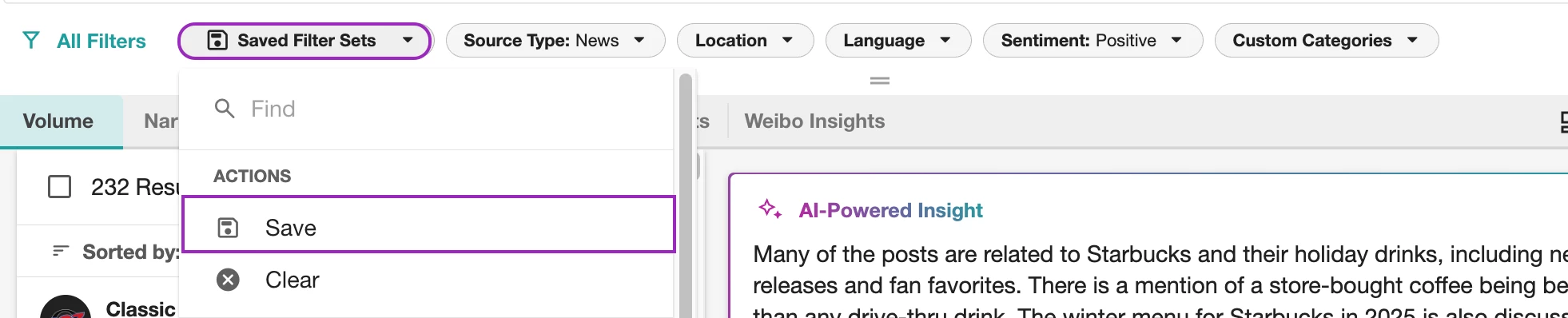
These sets act like quick presets you can toggle on for any future search or report — no need to reapply each filter one by one. Great for common views like:
-
U.S. News Only
-
English Social Coverage
-
Positive Broadcast Mentions
Once saved, your Filter Sets become available to apply in both Explore and Analyze dashboards.
What Filter is Your Favorite?
What’s your go-to filter? Drop it in the comments and share your favorite way to cut through your mentions.
And don’t forget: Join our live Getting Started with Alerts, Digest Reports & Monitor workshop on Thursday. Learn how filters, alerts, and reporting all work together to make your life easier.