



🎒 Back-to-School Reset: Get Your Meltwater Organized for the Busy Season
Summer's winding down. The out-of-offices are coming down and the inbox is filling back up.
But if your Meltwater setup went a little quiet over the break with an old search, no real dashboard, alerts you never got around to turning on — you're not alone. Think of this workflow the same way you might clean out your backpack before the first day of school.
And to show you what a really organized setup looks like, we'll point to how Katie Washington, Marketing Manager at Atrium Hospitality runs her whole program on these exact same building blocks.
🎯 What you'll walk away with
A clean, reusable setup: one focused search, saved and named so you never rebuild it, a simple dashboard, and one alert working for you.
👋 Meet your back-to-work guide: Katie Washington
Katie is a Marketing Manager at Atrium Hospitality and Meltwater's first-ever Fellow, specializing in brand and reputation monitoring. Her entire program comes down to a few simple habits, the same ones you're about to set up. Her Fellow page has the real searches, dashboard, and tips behind it, and we'll link to the relevant piece at each step.
👉 Get to Know Katie Washington, our first Meltwater Fellow
Step 1: Sharpen One Clean Search 🧹
Why you're doing this: A search that's too broad (or was thrown together months ago) buries the good stuff under a wall of irrelevant results. Starting the season with one focused search means everything downstream (your dashboard, your alerts) is built on solid ground.
What to click:
- Go to Explore.
- Click AI Search Assistant to start a new search and describe what you want in plain English and it'll build the Boolean for you. (Prefer to type it yourself? Use Keyword search for a quick one, or Advanced search for full Boolean.)
- Before you trust it, skim the results for junk like missing name variations to include or unrelated topics you need to exclude.
A simple search to copy the shape of:
("Your Brand" OR "YourBrand") NOT ("job" OR "jobs" OR "hiring" OR "careers")
That's three beginner moves in one line: quotes keep a phrase together, OR catches a common spelling variation, and NOT cuts out the recruiting noise that clogs up brand searches. Swap in your own brand and you've got a clean starting point.
How Katie does it (for when you're ready to level up): Katie keeps separate, consistently structured searches for her brand, her executives, and each competitor. She always tests a search before she builds anything on top of it. You can see her real go-to queries here:
👉 Katie's Favorite Boolean Searches
Step 2: Save It and Name It 🏷️
Why you're doing this: The whole point of a reset is not doing this again in October. Saving turns a one-time search into something you (and your dashboard) can reuse all quarter.
What to click:
- With your search built, click Save and give it a name.
- Use a name your future self will actually understand.
Steal Katie's naming trick. She names every search so you can tell exactly what it's watching, at a glance:
Brand Name | Purpose | Monitoring Type
Staples | Back to School Mentions | News Only
When you're juggling a few searches by November, this is the difference between finding the right one instantly and clicking through five searches you don’t know what looks.

👉 New to saving searches? Walk through it here: Setting Up Media Monitoring: Create a Search
Step 3: Build Your "Locker" Dashboard 🗄️
Why you're doing this: A dashboard is your home base. This is the one place your numbers live, so when someone asks "how are we doing?" you're not rebuilding a report from scratch every time.
What to click:
- Go to Analyze → Create Dashboard.
- Pick a template — Brand is a great starting point (or Benchmark if you're comparing competitors).
- Select the saved search from Step 2 → Next → give your dashboard a name.
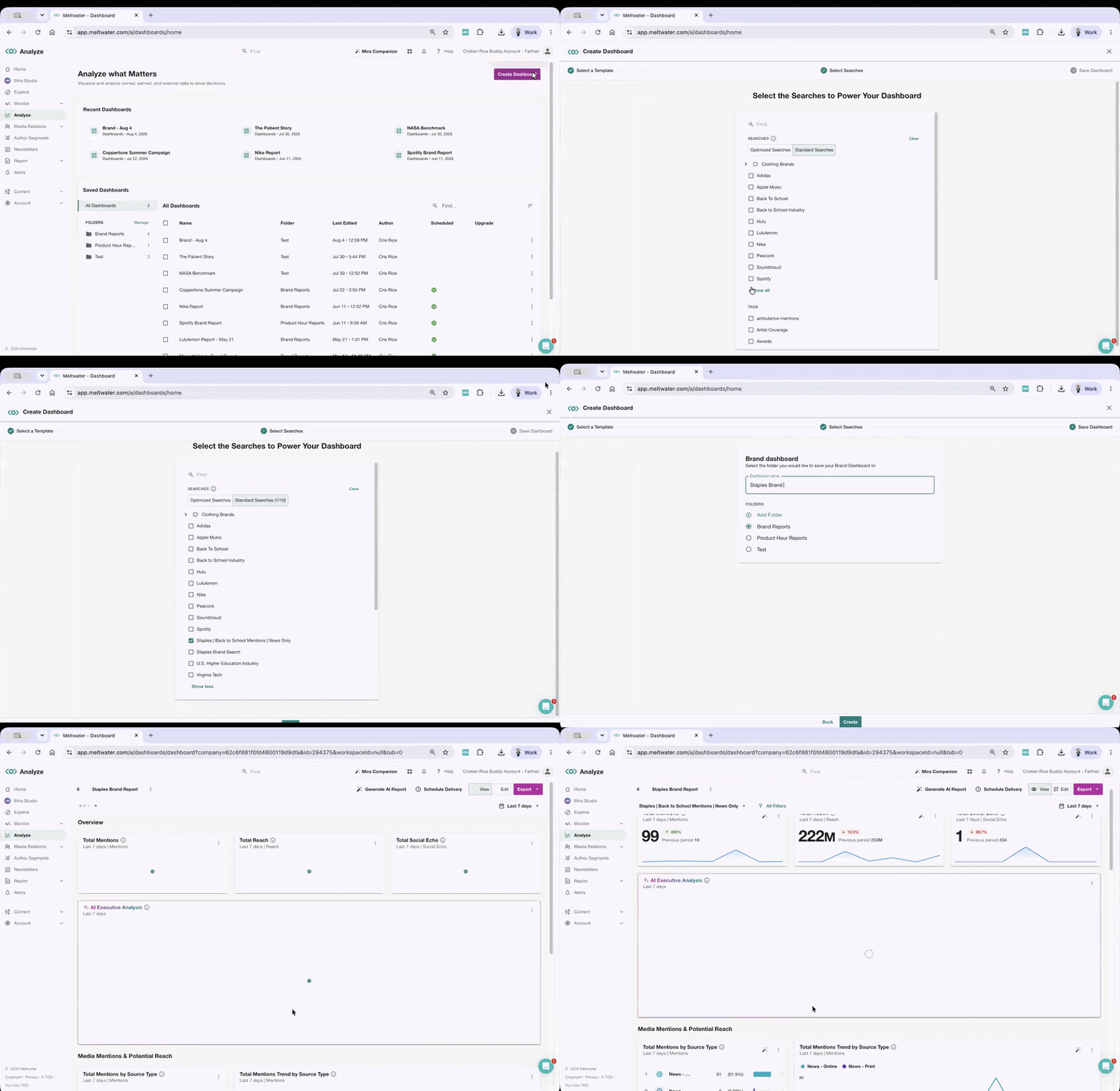
Borrow Katie's mindset and start with the question, not the dashboard. Don't add every widget available. Decide what you actually need to know first (How are we being talked about? What's trending?), then add only the widgets that answer it.
See a finished one. Katie's live corporate reputation dashboard lives on her Fellow page, it's a great "this is what good looks like" reference.
Step 4: Set One Alert 🔔
Why you're doing this: During the busy season you can't sit and refresh Meltwater all day. An alert brings the important stuff to you whether it’s a sudden spike in mentions or unusual coverage so you hear about it in the moment instead of in next quarter's report.
What to click (quickest way is straight from the search you just saved):
- Go to Explore and click into your saved search.
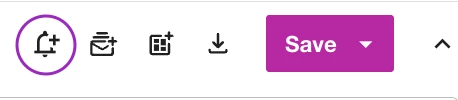
- Click the bell icon (Create alert).
- Pick an alert type like Spike Detection is a great first one; it only pings you when mentions jump unusually.
- Click Next, add yourself as a recipient, and click Save.
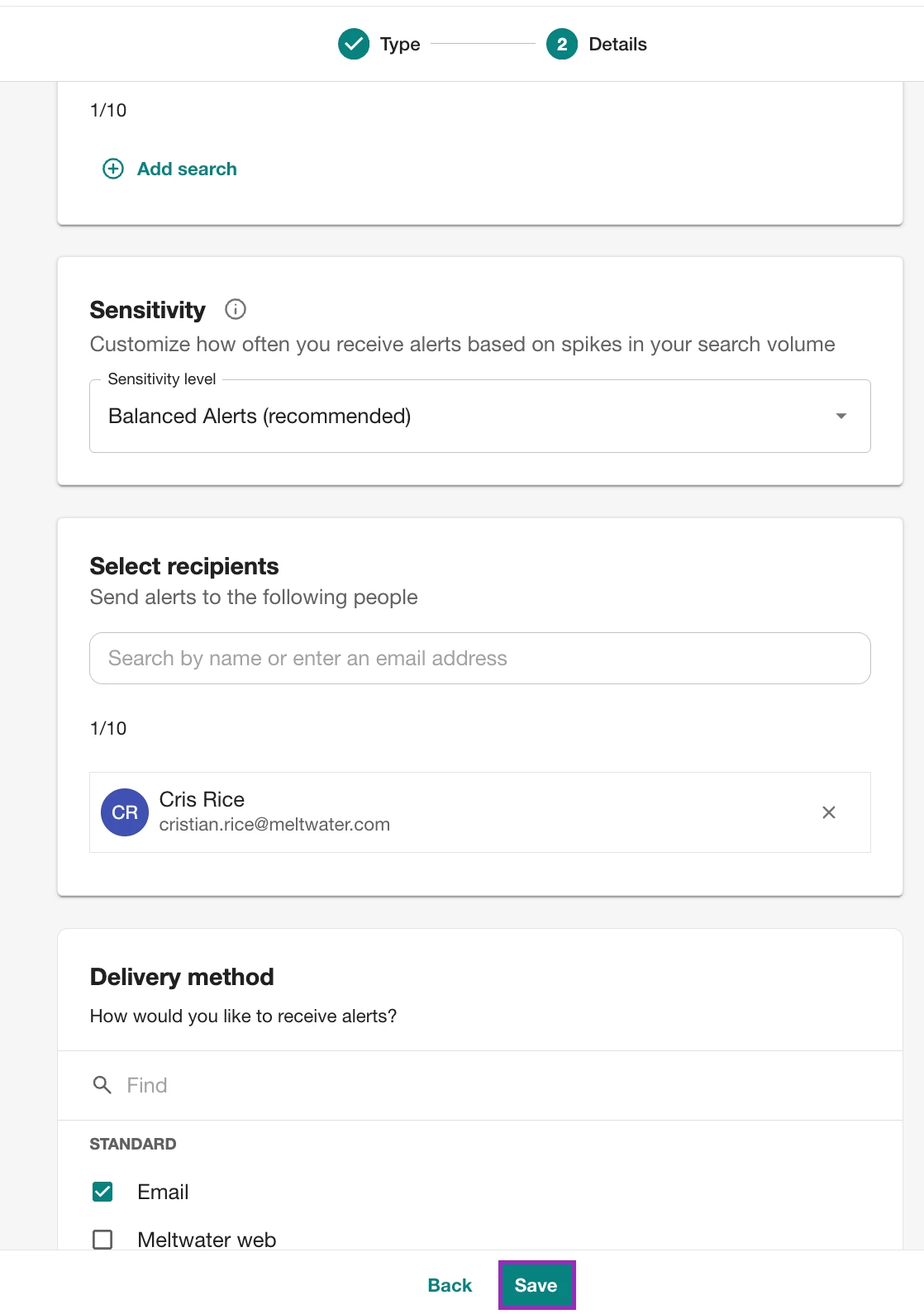
Start simple: one Spike Detection alert on your main brand search is plenty to begin with.
How Katie does it: She runs spike-detection alerts on her brand and her competitors, so when mentions jump she can get on the story early. It's her "don't wait for the scheduled report" habit.
👉 Full walkthrough: Getting Started with Alerts
🎉 The Payoff
In about 15 minutes, you've gone from a stale, one-off setup to a clean system that works for you:
- one focused search,
- saved and named so you never rebuild it,
- feeding a dashboard that explains itself,
- with an alert watching your back.
You'll spend the busy season answering questions instead of rebuilding searches.
And here's the most important lesson from Katie: a dashboard isn't the finish line — the value is in reading it. Her simple habit for that is a three-part summary anyone can copy when sharing results:
What happened → why it matters → what happens next.
When you're ready for more, her Fellow page has the searches, best practices, and tips behind her whole program.
👉 Explore Katie Washington's full Fellow page
📚 Want to Go Further?
- Katie Washington's Fellow Page — Profile / Showcase. Use when you want to see a complete, real-world setup end to end. → link
- How to Filter Your Meltwater Results (Like Ctrl + F) — Article. Use when you want to scan results fast or save a filter to reuse. → link
- How to Add AI Insights to Your Dashboard — Article. Use when a chart leaves you thinking "okay, but what does this actually mean?" → link
- How to Compare Share of Voice using Explore Searches — Article. Use when leadership asks how you stack up against a competitor. → link
- Getting Started with Alerts — Article. Use when you're ready for more alert types (Sentiment Shift, Top Reach) or want to send alerts to teammates. → link
- Trends Center in Monitor: News Tab — Article. Use when you want instant industry trends with no Boolean required — perfect for a back-to-school "what's happening in my space?" check. → link