


How do I remove content from my Explore search?

  • March 27, 2025
  • 7 Replies
  • 81 views
How do I remove content from my Explore search?
Cheyenne
mEmployee
Forum|alt.badge.img+1

To remove content from your Explore search, follow these steps:

  1. Click Explore in the left-hand navigation bar
  2. Select the checkboxes to the left of the article(s) you want to remove
  3. Select the Hide icon.

AD_4nXdrFCcL-Eo6wP8ciJUtgFxJGu08gIgOJW2AhbjFUY8E0q2KbS96RX2oezwtzz-tbV2_wPmoHgMqKtVhq0_0G2n3OBgstXjIZBSpaky_YIMMewXS5lfzGtPxNIZwNnaPHsc9KpYHnQ?key=PRP_mn-nu23KHgkoSuFphZkH


Additionally, consider updating your search keywords or your filter options to remove unwanted articles. Learn more about Removing Content from Explore Results.


 

7 replies

Maria Dehne
mChampion Level 3
Forum|alt.badge.img+63
  • mChampion Level 3
  • April 29, 2025

Thanks! 


Forum|alt.badge.img
  • Explorer
  • January 7, 2026

I can hide the article, but the data still takes the article into account. How can I permanently remove an article?


Laura Stewart
mEmployee
Forum|alt.badge.img+1

Hi ​@HFco this is true for the data displayed in Explore, this is a great observation to raise with our product team as a product enhancement suggestion, you can do this here.

At the moment, if you hide an article this data will be updated in other reporting features of the platform like Analyze, if you’re new to Analyze we’ll be hosting live training session in APAC  → Register Here for ‘Get Started with Report Building’. 

In the meantime, if you use the Explore stream as a source of metric reporting you can remove articles from the count manually by using boolean code. Please see below:


  1. In Explore, open your preferred saved search. 
     
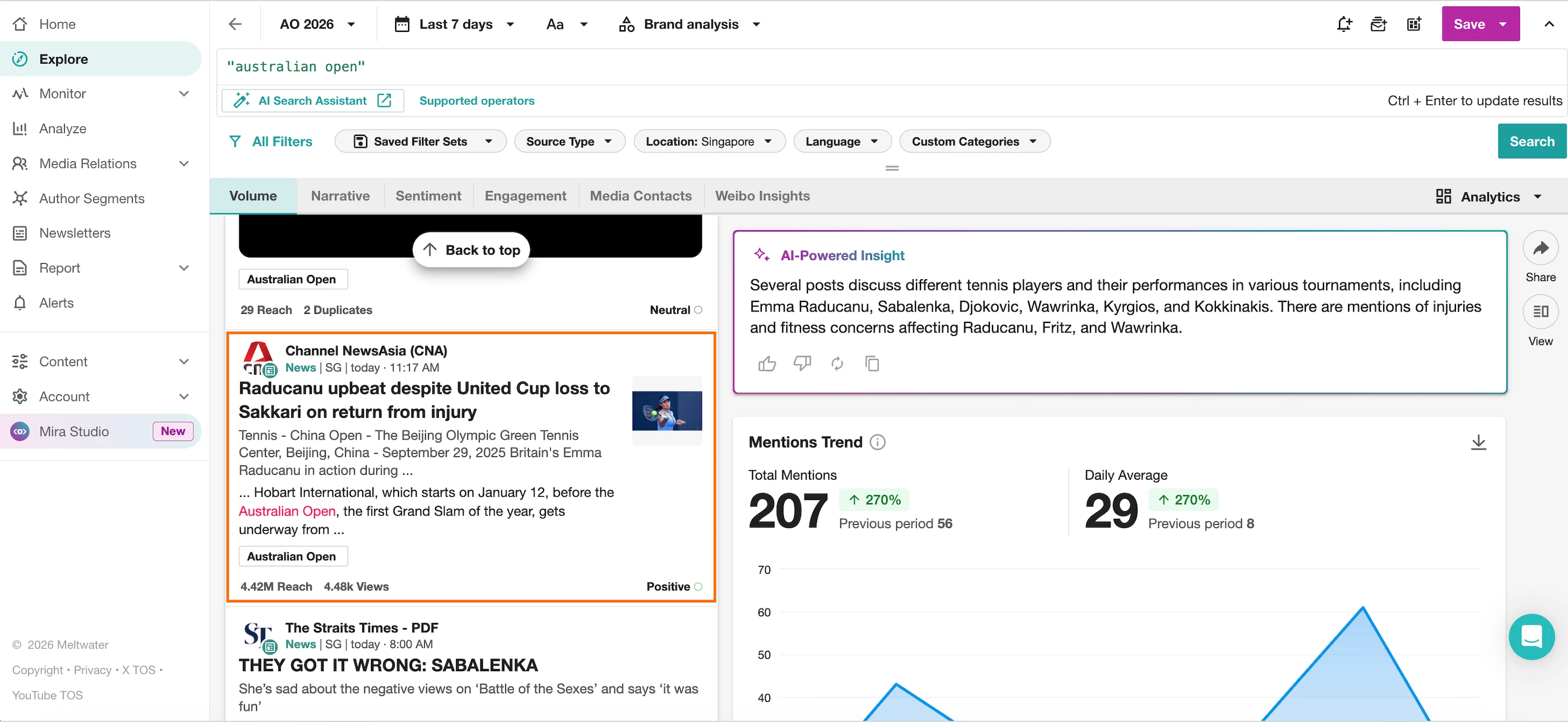
  2. From the content feed, open the article you wish to exclude. Copy the URL link of this article. 


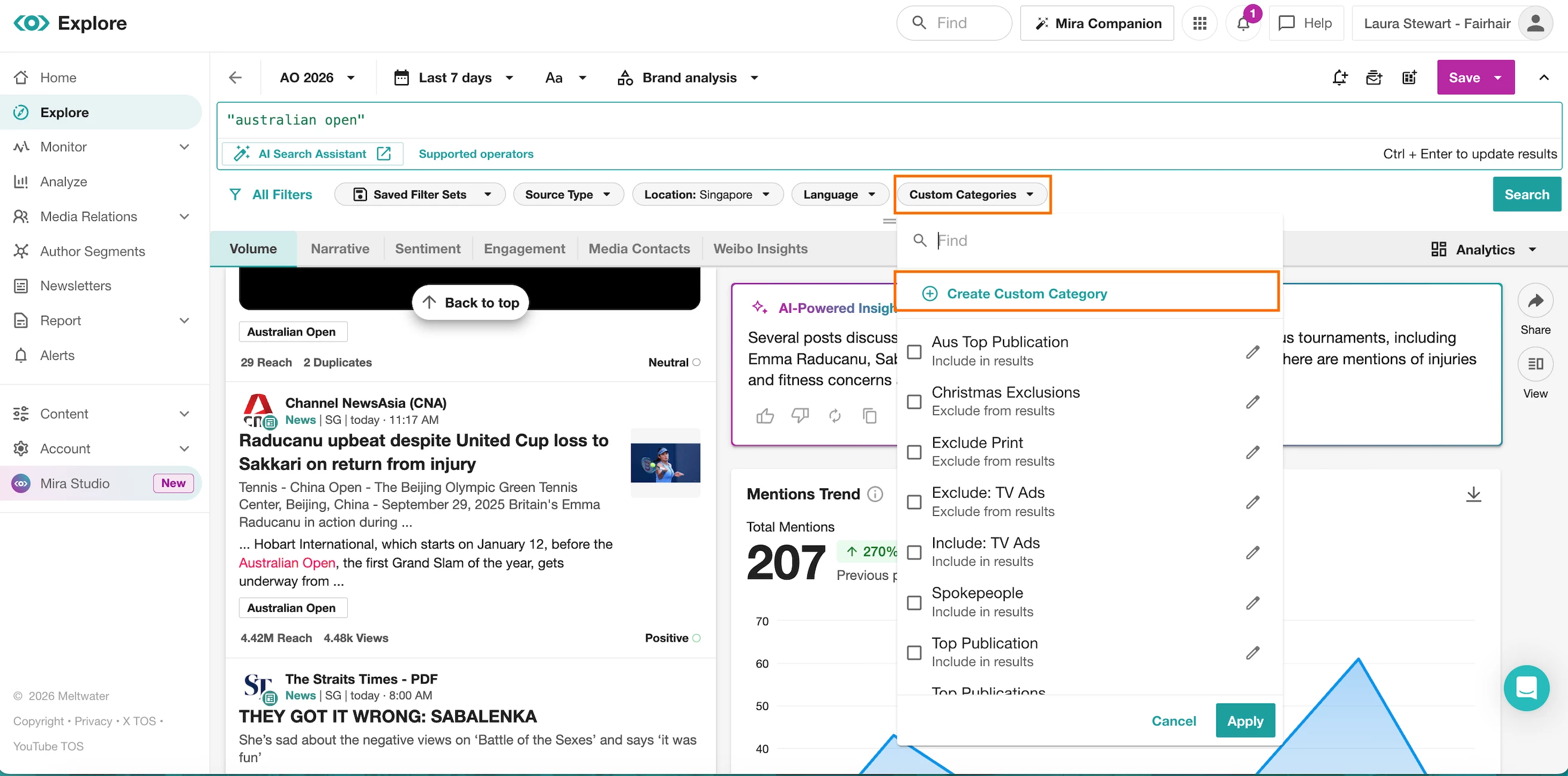
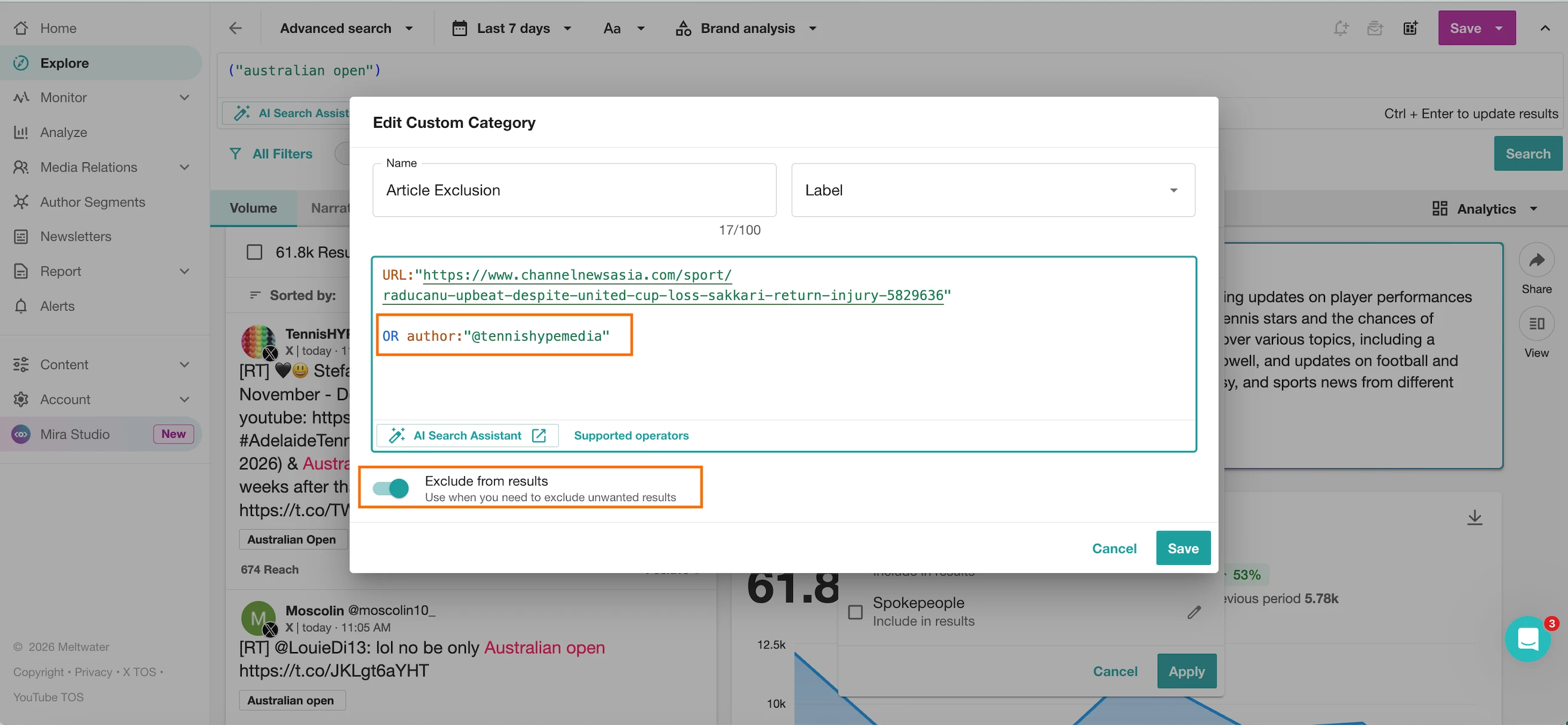
  3. Select Custom Categories. Create New Category 
     
      
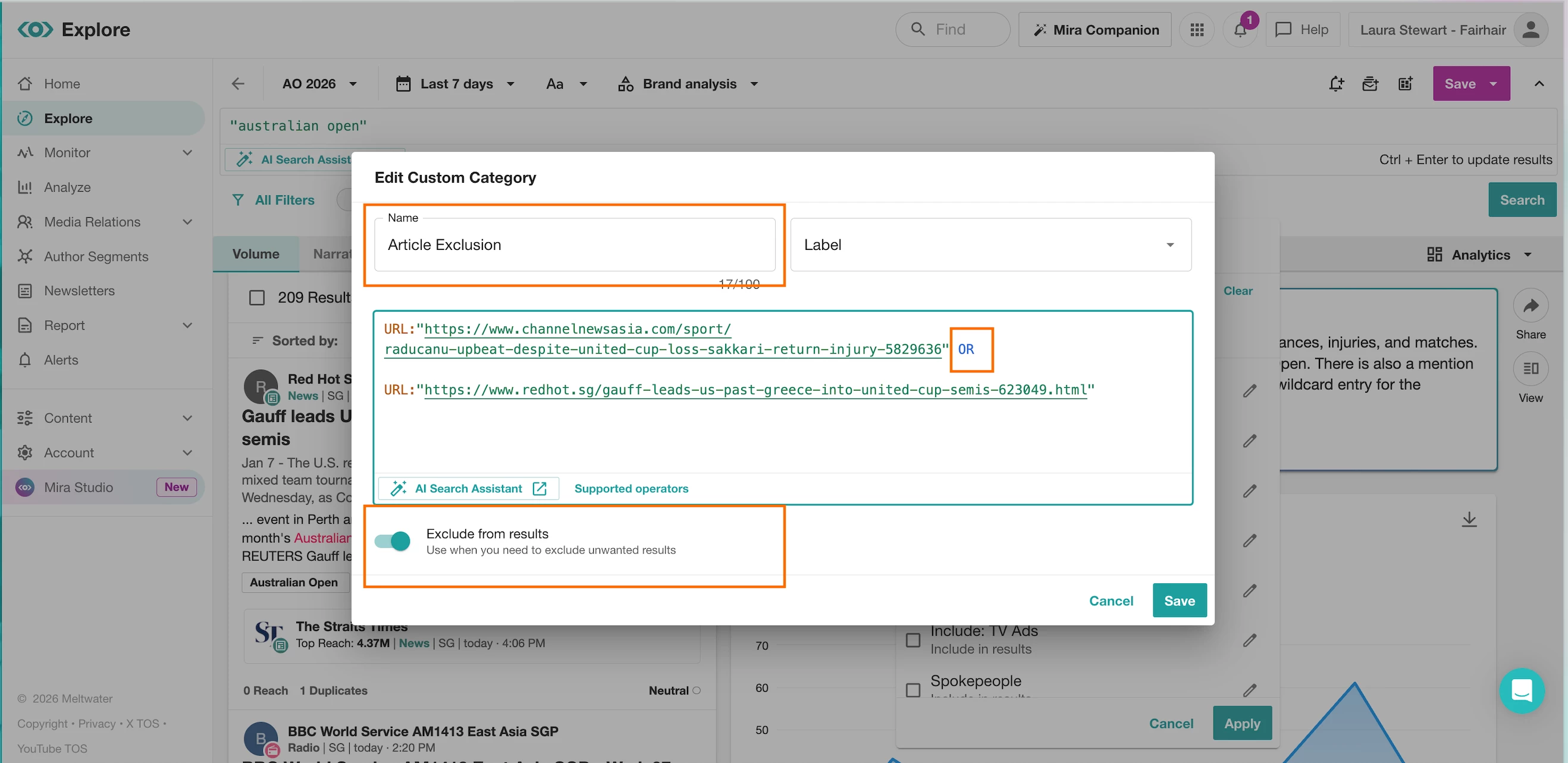
    4. Paste the URL of the article into this category using the boolean code “URL:*insert URL link*”. 
    • Name this Category 
    • Select Exclude from results
    • Select Save

      💡 TIP you can always add more articles to this category by inserting the boolean operator OR . This guide will cover Customer Category functionality. 


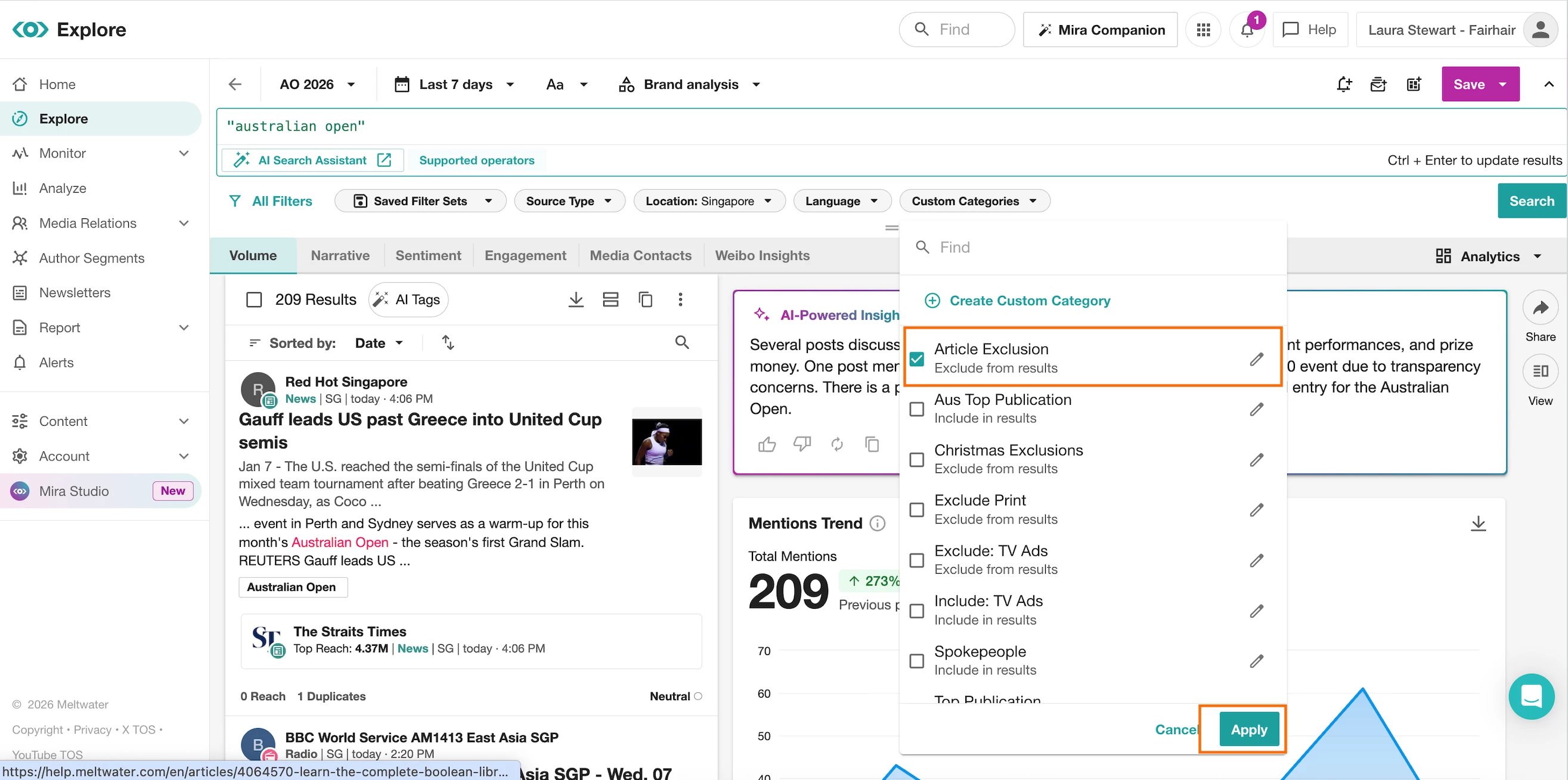
  1.  Apply this Custom Category to your Explore Search


  2. Once a Custom Category is applied always select the Save button. 


Forum|alt.badge.img
  • Explorer
  • January 12, 2026

Hi Laura,


Thank you for this response, this method does not seem to exclude social media posts such as those from “X”.

Is there a way to exclude these?


HFco


Laura Stewart
mEmployee
Forum|alt.badge.img+1

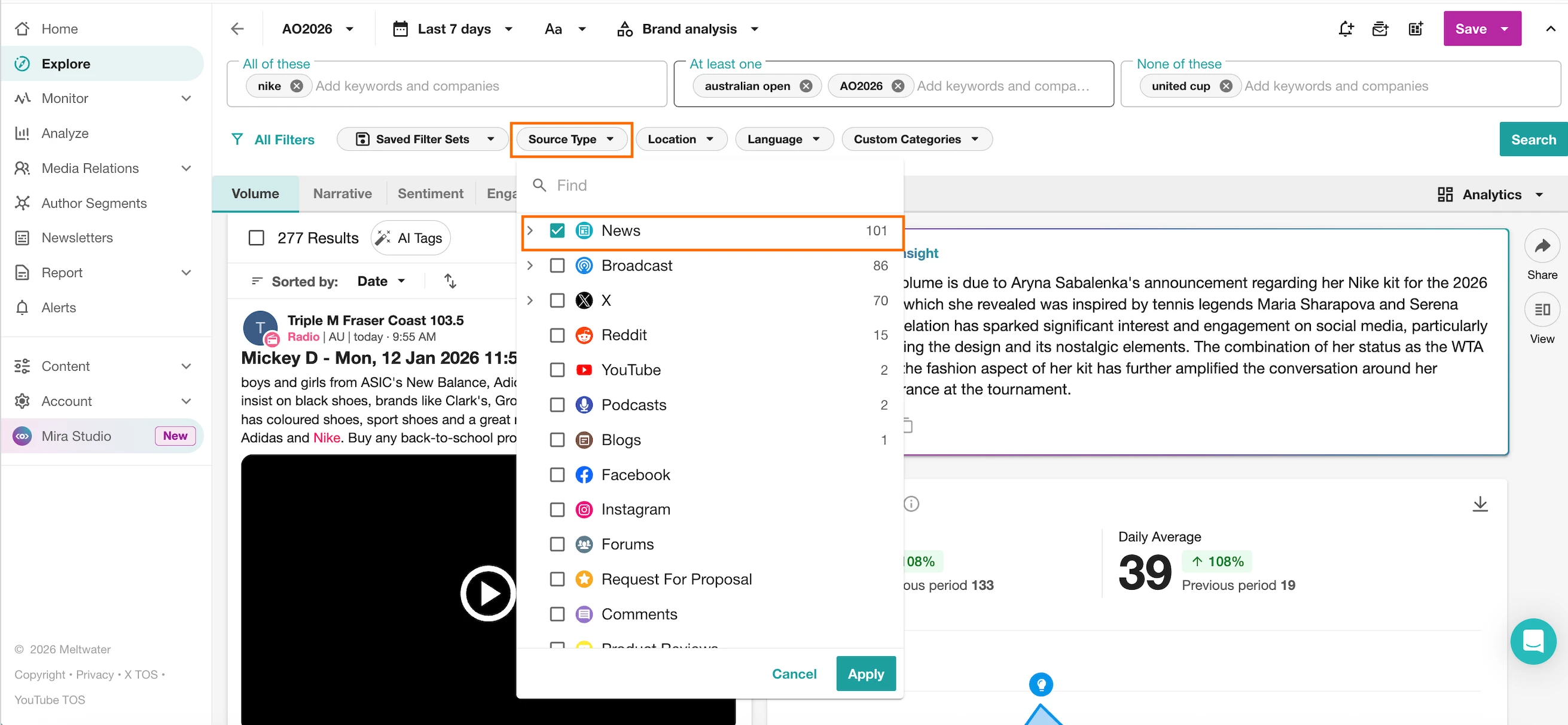
Hi ​@HFco, absolutely - you can use the source type filter alongside your custom category to refine for specific sources 

​​​​​​

In Explore, in your saved search, click the ‘source type’ filter and select the sources you want to see. This will by default exclude all sources you have deselected removing them from the results. 


Forum|alt.badge.img
  • Explorer
  • January 12, 2026

Unfortunately, our brand name is the same as a famous coffee growing region and a lot of posts about this region get caught up in our reporting, I don’t want to exclude X posts entirely just certain ones however, using the custom categories tool and attaching the link does not work for X posts. I have tried filtering by country, but this also inhibits the report. If I could simply delete some of the results from the explore page that would solve a lot of issues. 


Laura Stewart
mEmployee
Forum|alt.badge.img+1

Hi ​@HFco thanks for the clarification - you can use the custom category to exclude specific X mentions. 
 

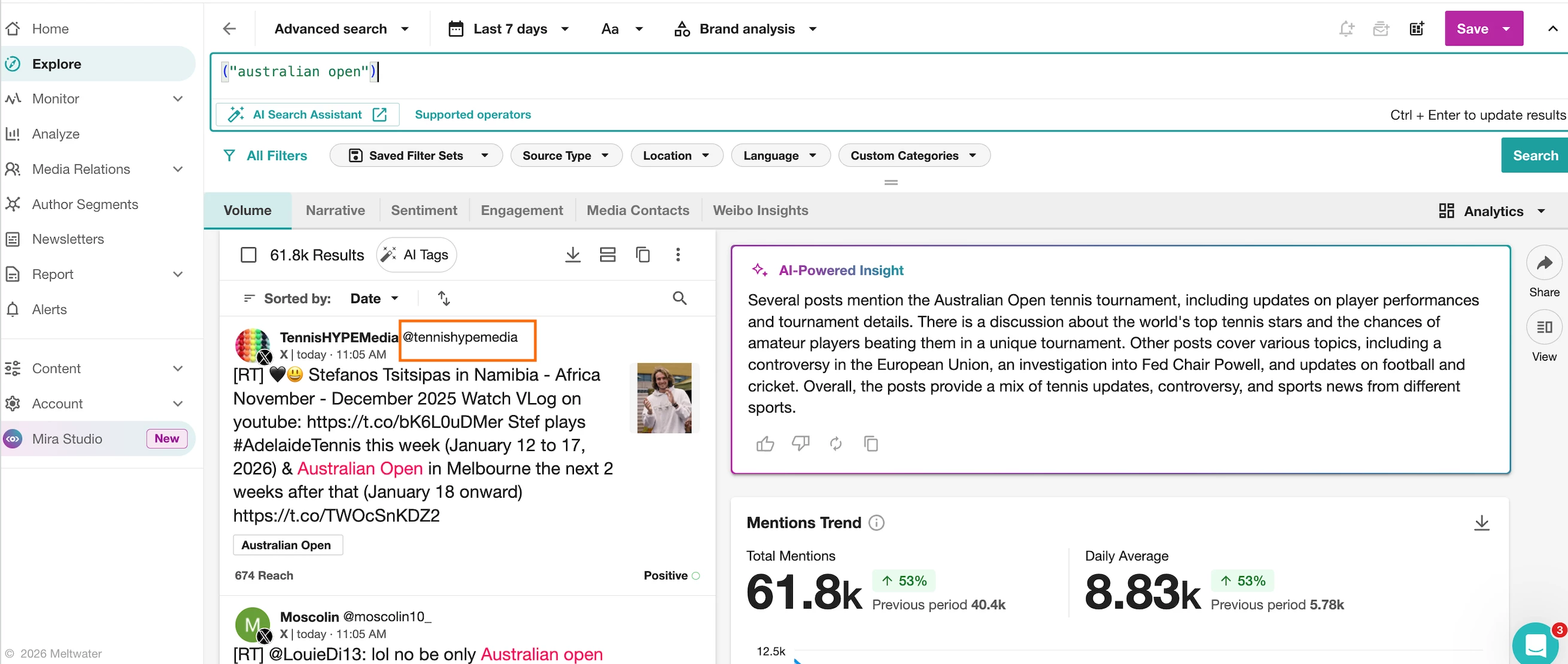
  1. Copy the handle of the X mention/post you’d like to exclude 


  2. Either in the existing Custom Category you created, or in a separate one (you can apply more that one custom category to a search) add this handle to the Custom Category using the Boolean operator author: “insert@handle”


    💡 In this Boolean Library, you’ll find more Boolean operators to help exclude specific types of X content in the social operators section. Click Here