




🇦🇺 Australia: Broadcast FAQs
Media Connect Broadcast Integration is an add-on feature that expands your monitoring beyond online content to include Australian and New Zealand television & radio. Broadcast searches provide access to both original audio/video content and searchable transcripts directly within Meltwater.
This article will cover
Before You Begin
Broadcast monitoring requires one of the following subscriptions:
- Broadcast Australia and New Zealand (ANZ customers)
- Broadcast Australia and New Zealand or Broadcast Global (Rest of World customers)
If you're unsure whether Broadcast monitoring is included in your subscription, contact your Meltwater Account Team.
View Broadcast Content in Explore
Use Explore to search, view, and analyze broadcast content.
To view broadcast content:
- Click Explore in the left-hand navigation menu.
- Open an existing search or create a new search (learn how to Create a Search.)
- Click the Source Type filter.
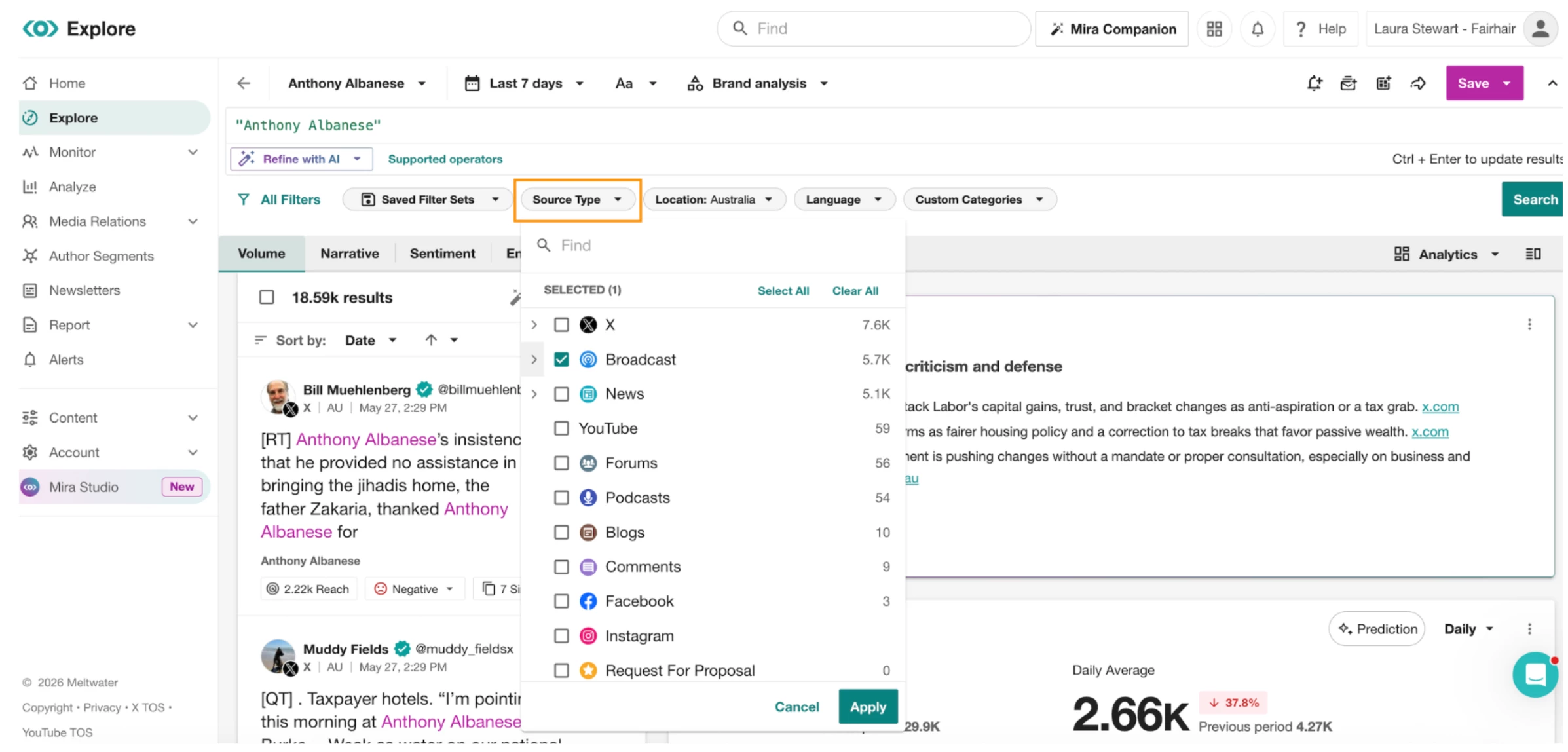
- Select Broadcast.
- Click Apply.
- Results will default to the last 7 days. Adjust the date range using the date picker in the upper-right corner.
Filter for Specific Broadcast Stations
Create a Custom Category to focus on specific stations or networks.
📺 Watch: Filtering for Specific Broadcast Stations
To create a Custom Category:
- Click Explore in the left-hand navigation bar
- Open an existing search or create a search (learn how to Create a Search.)
- Click the Source Type drop-down in the Filter Bar
- Select Broadcast
- Select Apply
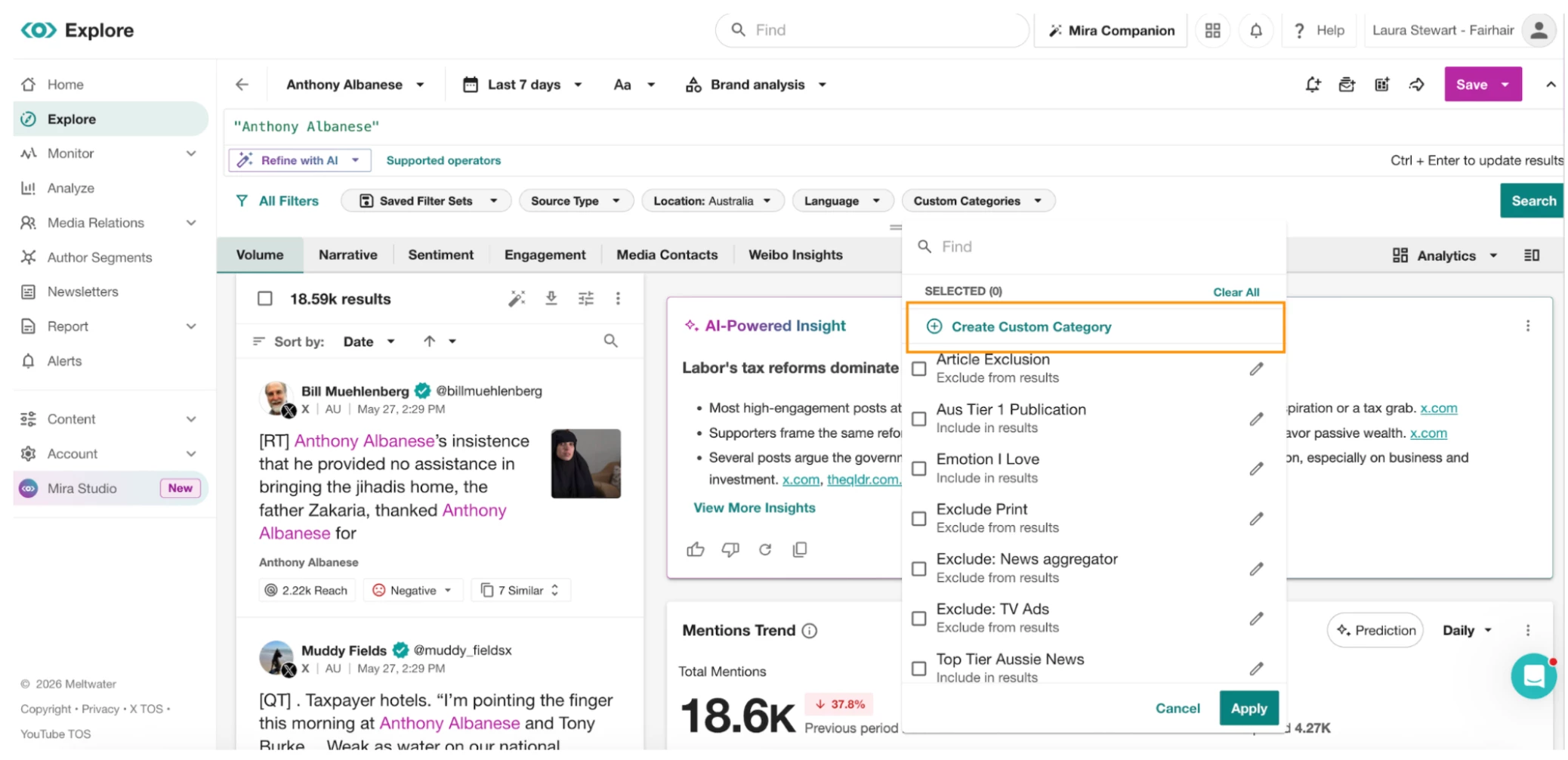
- Click the Custom Categories filter.
- Select Create Custom Category
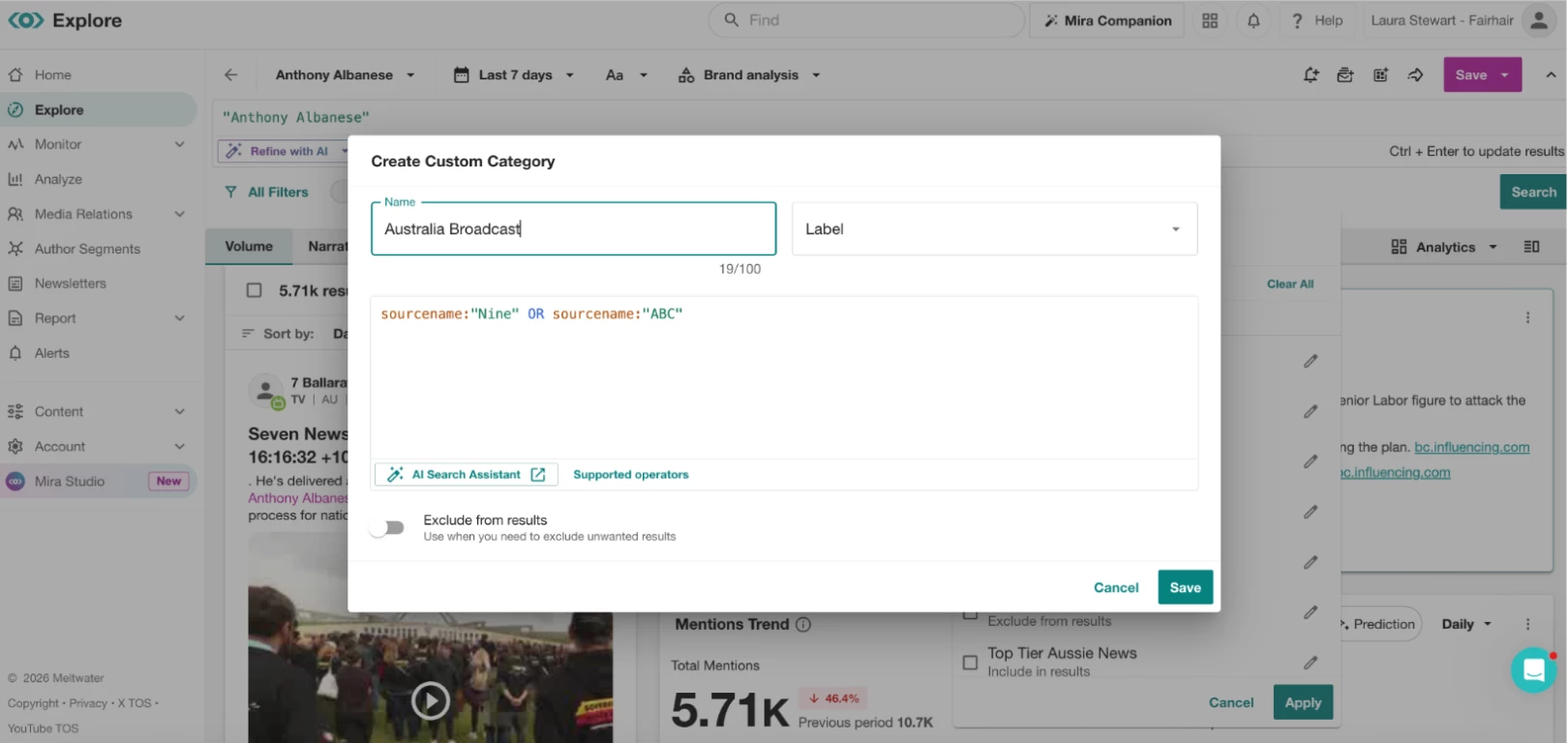
- Enter a category name (for example, Key Broadcast Stations or ABC24).
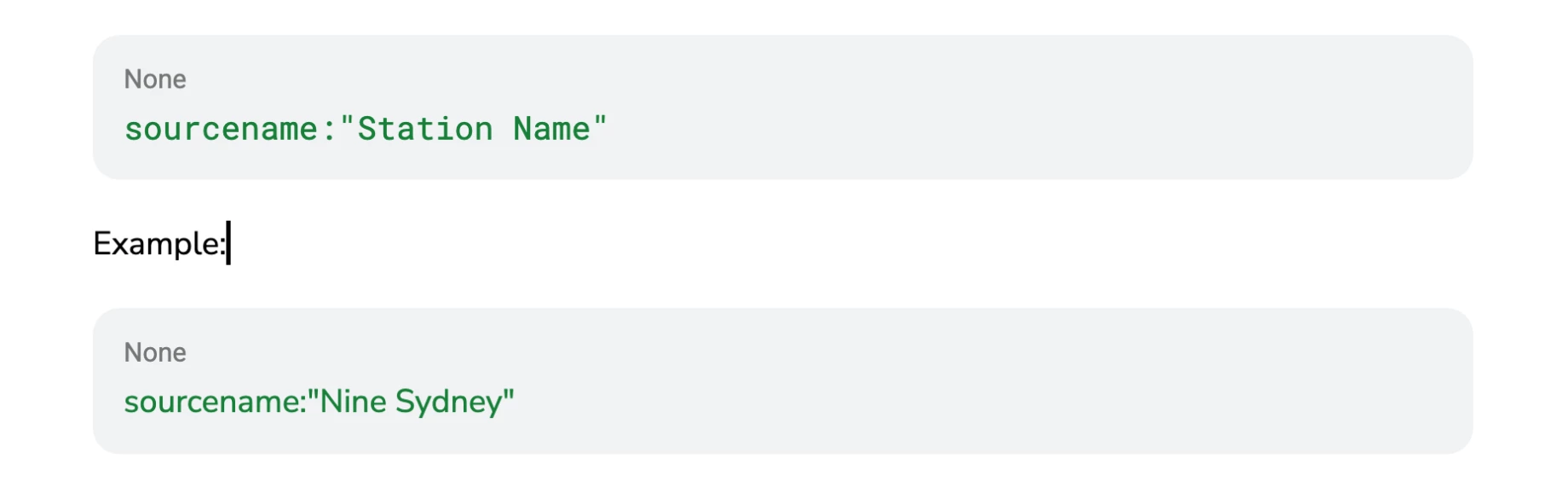
- In the Boolean field, enter:
- Click Save.
- Select the checkbox next to your new category.
- Click Apply.
*Note: Broadcast source names must match the exact source naming convention used in Meltwater. CLICK HERE to view the full source list name to add to your Custom Categories.
Clip and Share Broadcast Content
Broadcast clips can be created directly from the media player.
📺 Watch: Clipping and Sharing Broadcast
Clipping
- In Explore or Monitor, click the segment headline.
- The broadcast player will open in a new window.
- Use the transcript panel to locate the section you want to clip.
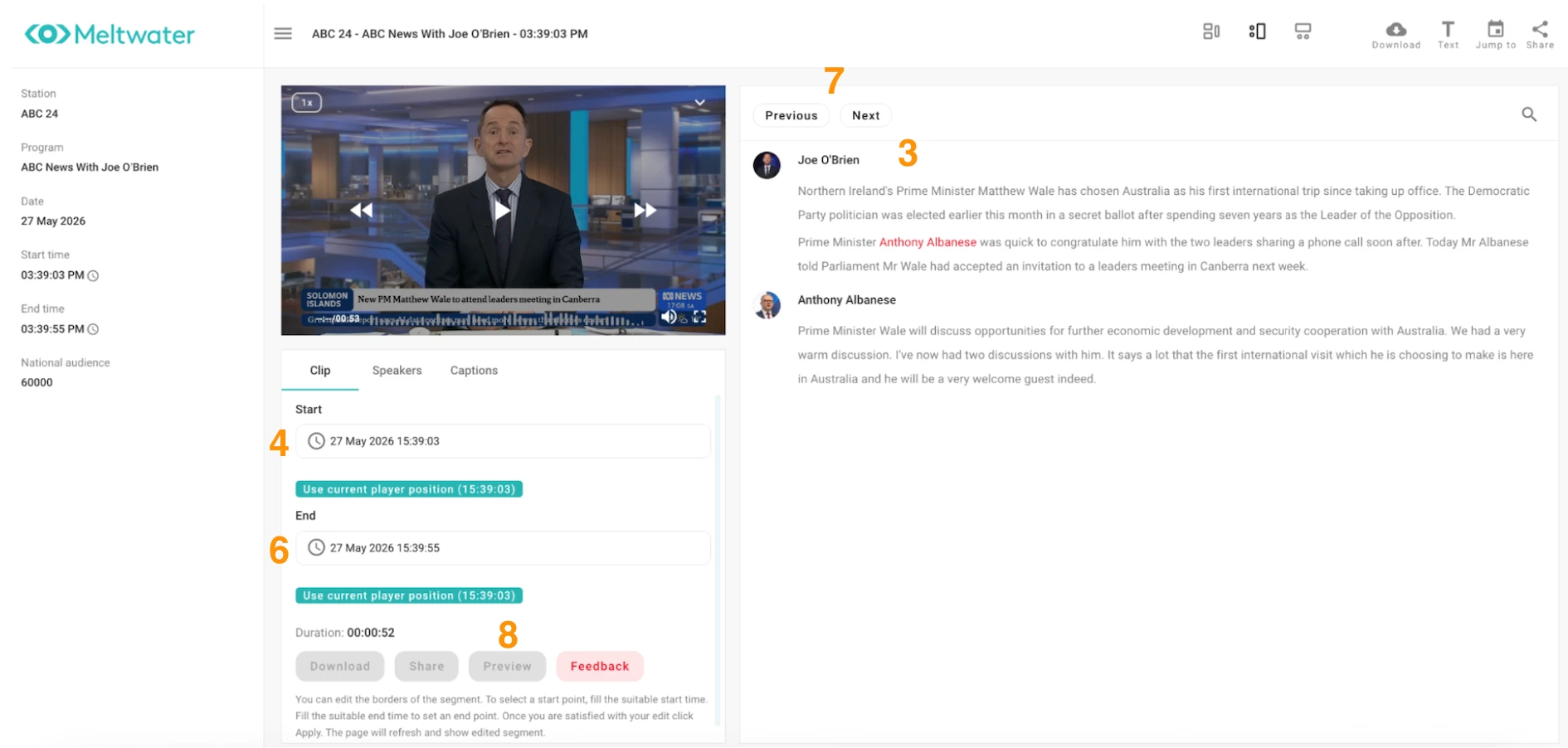
- Click Use Current Player Position to set the clip start time.
- Navigate to the desired endpoint.
- Click Use Current Player Position again to set the clip end time.
- Use Previous or Next to extend the clip range by up to three additional minutes.
- Click Preview to review the clip.
Share a clip
- Click Share in the top-right corner of the player.
- Select your preferred sharing option.
Note: You can preview and share clips up to approximately 20 minutes in length.
Download a clip
- Click Download in the top-right corner of the player.
Download a transcript
- Click the Text button in the top-right corner of the player.
- Download the PDF transcript file.
Save Broadcast Content Using Tags
Tags provide an easy way to organize and revisit broadcast coverage for reporting and analysis.
Follow this Step by Step guide
Remove Broadcast Advertisements from Results
Ad Detection technology for ANZ Broadcast accurately identifies and filters out commercial advertisements from TV and radio content in real-time.
Follow this Step by Step guide
Create Broadcast Notifications
Stay informed about new broadcast mentions using Alerts or Reports.
Create an Every Mention Alert
- Select Alerts from the navigation menu.
- Click Every Mention.
- Select Create Alert.
- Click Next.
- Click Add Search.
- Select your broadcast search or searches you want to monitor.
- Click Save.
- Configure content settings.
- Add up to 10 email recipients.
- Click Save.
Note: If your search contains additional source types, alert notifications will include those results as well.
Add Broadcast Content to Newsletters
To add content to a newsletter:
- Open an Explore search or Monitor.
- Hover over the broadcast result.
- Click Add to Newsletter.
- Select an existing newsletter draft or create a new one.
- Choose the section where the content should appear.
Frequently Asked Questions
Can I access historical broadcast data?
Historical availability depends on your account type.
New customers (as of March 2025)
-
Historical ANZ broadcast content is available from April 1, 2025 onward.
-
Interactive clips are available from your subscription start date.
Existing customers (before March 2025)
-
Historical TVEyes content remains available.
-
Coverage may extend back to 2018, depending on the source.
What broadcast data can be exported?
The following fields are available for export:
- Title
- Hit Sentence
- Country
- Region
- State
- City
- Language
- Sentiment
- Key Phrases
- Reach
- National Reach
- Local Reach
- Episode Reach
- AVE
How is reach calculated?
Television
Reach data is sourced from OzTAM and RegionalTAM and enhanced using Meltwater's AI and statistical modeling.
Radio
Reach data combines GfK, Nielsen, and OzTAM datasets with Meltwater's proprietary calculations.
What will be Displayed?
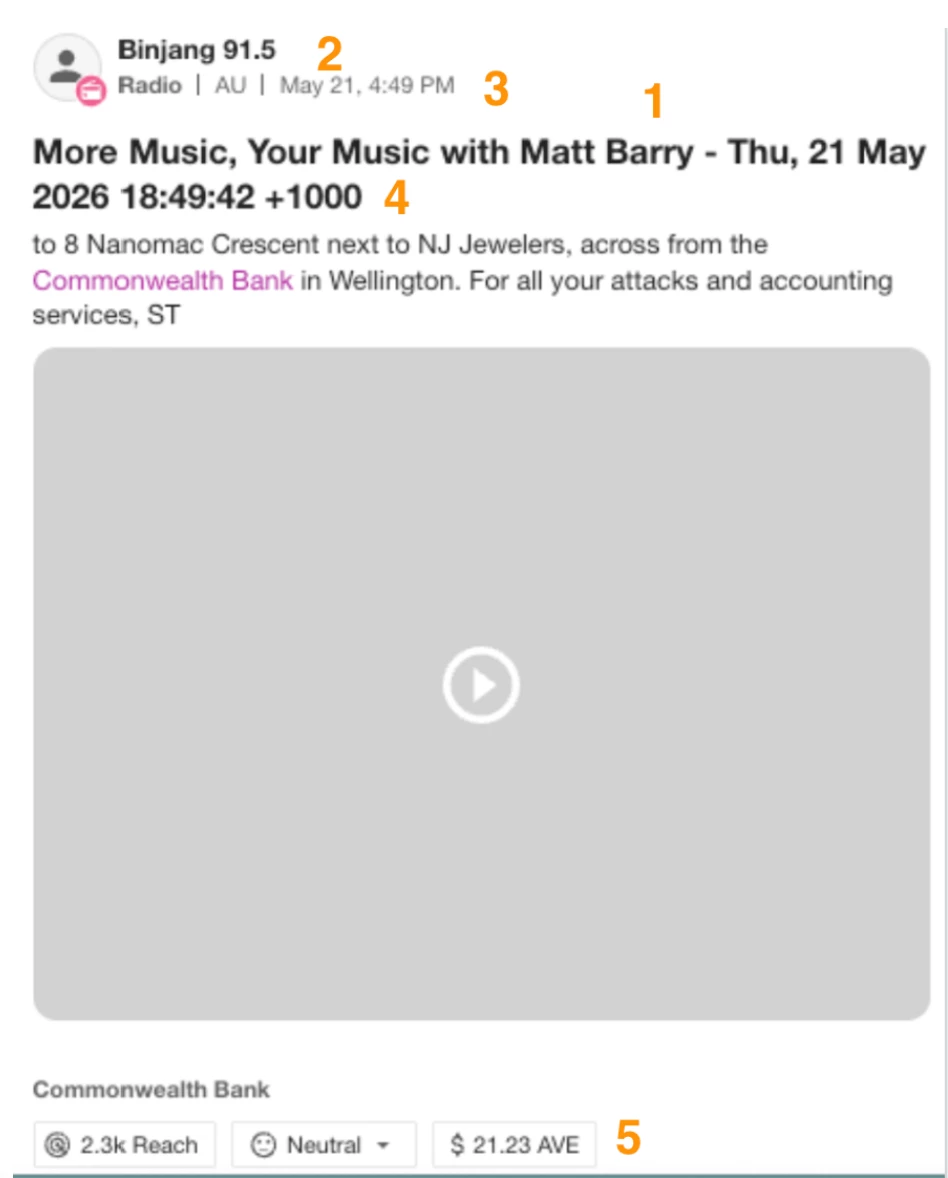
Broadcast content results display the title (1), station name (2), TV, radio, or podcast indicator (3), air date and time (4), and reach, sentiment, and AVE metrics (5).
When do media links expire?
Broadcast media links expire one year after the original air date
How do I request a new broadcast source?
Contact your Meltwater Account Manager to request additional broadcast coverage.
Need More Help?
Join an upcoming Client Success Manager Office Hours session or contact Meltwater Support for assistance.