


Rather than rebuilding your layout each week or month, create it once and reuse it for every distribution. This gives you:
-
A consistent look and feel
-
Less manual editing
-
Faster turnaround for each edition
Think of it as setting the stage—once your template is ready, all that’s left is adding the content.
-
Click on Newsletters in the left-hand navigation bar
-
Select the Create New drop-down
-
Click Manual Newsletter
-
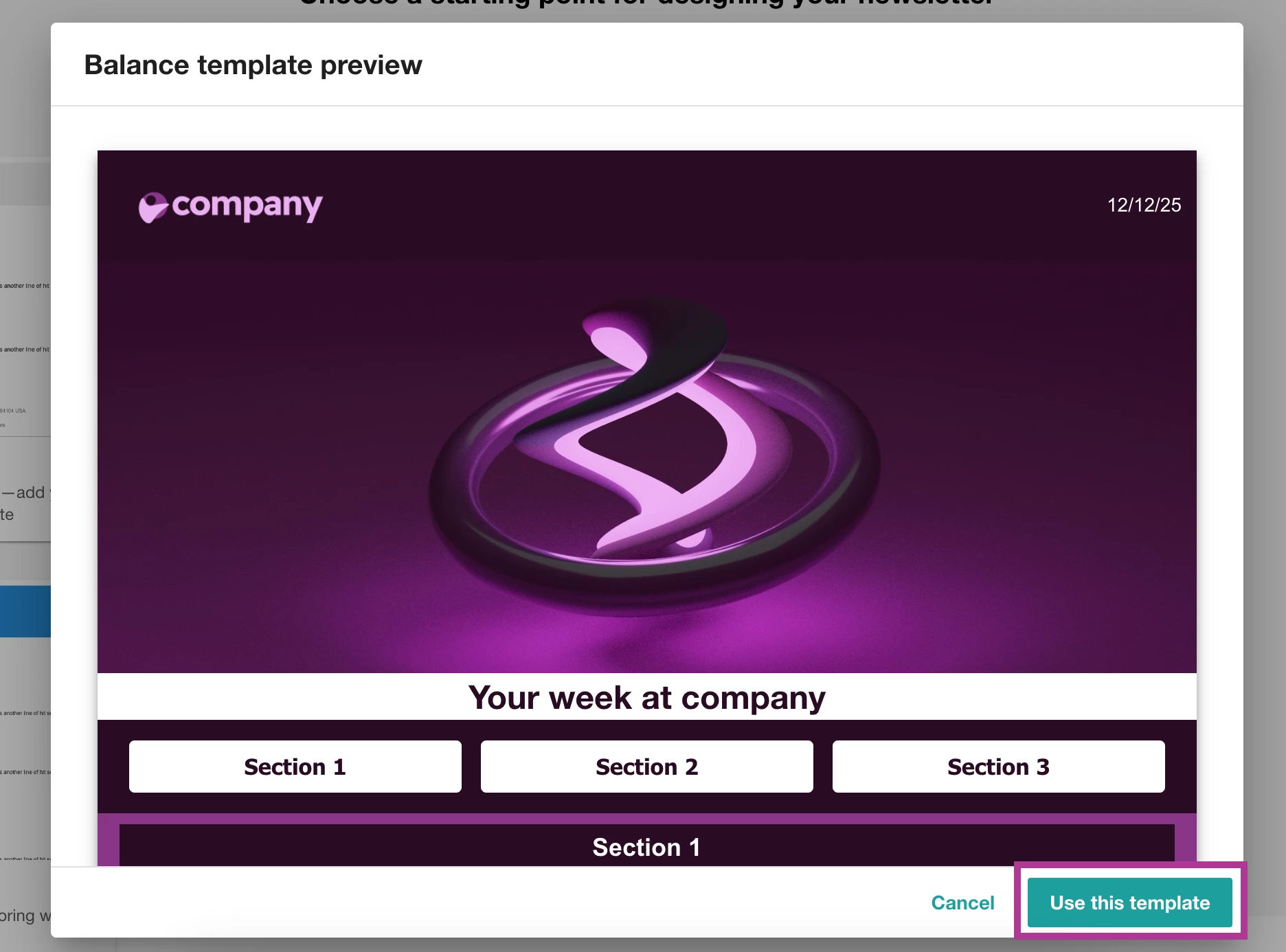
Select Start from scratch to create a branded newsletter template or select a premade template
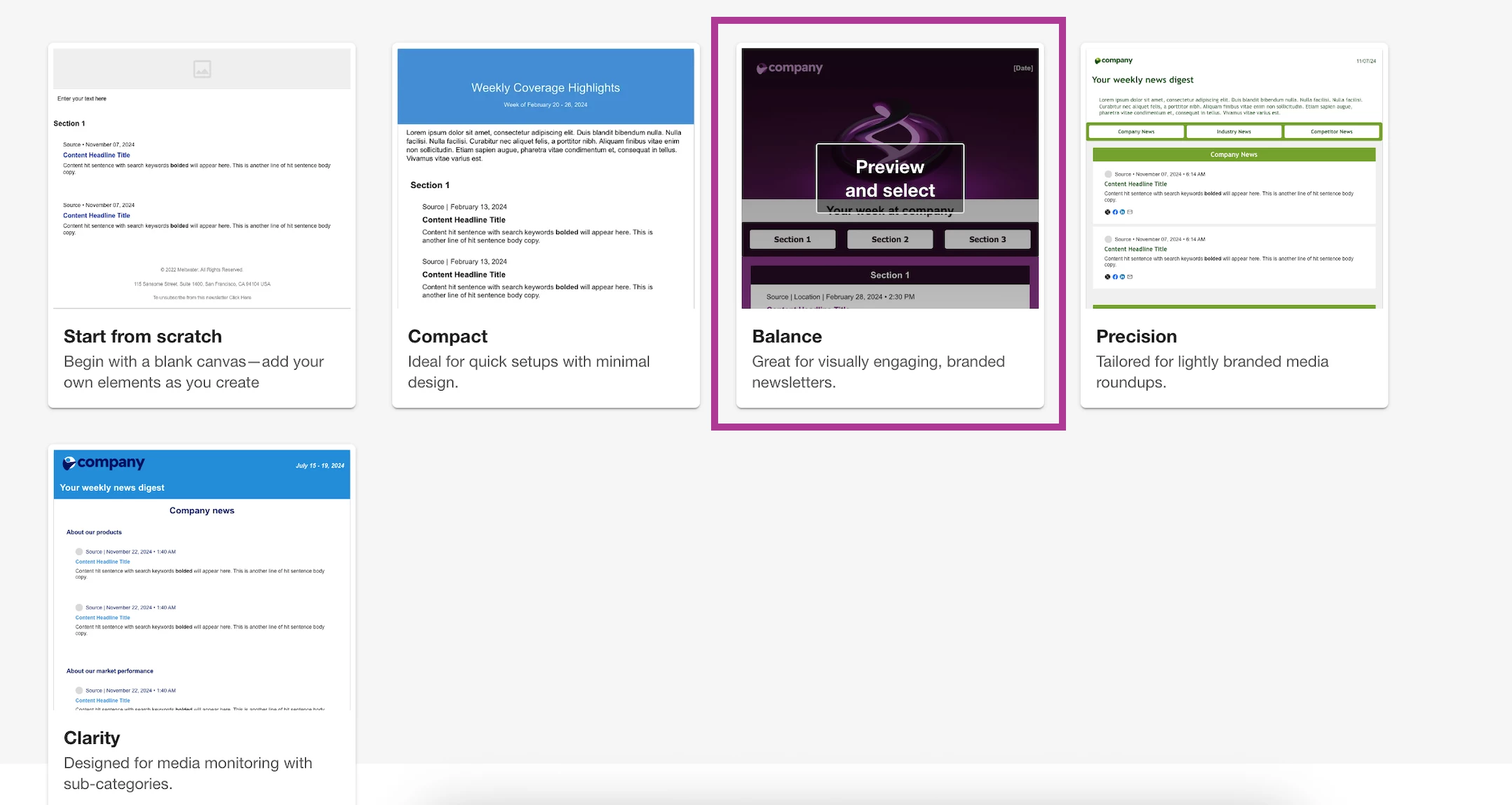
- Select Use this template in the bottom right-hand corner
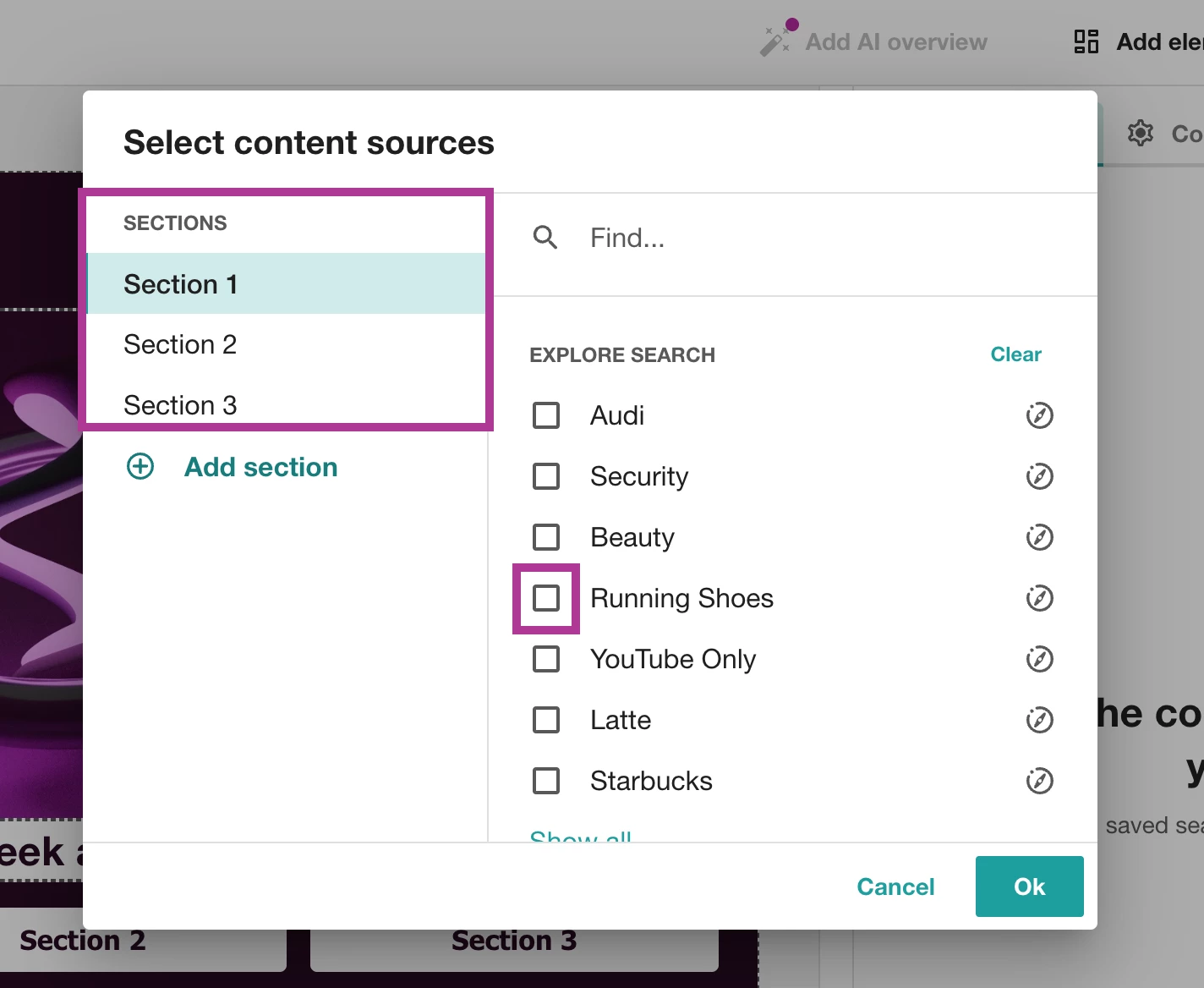
- Select the checkboxes to the left of Explore Searches or Tags you want to add to each of the corresponding sections found on the left-hand side of the pop up
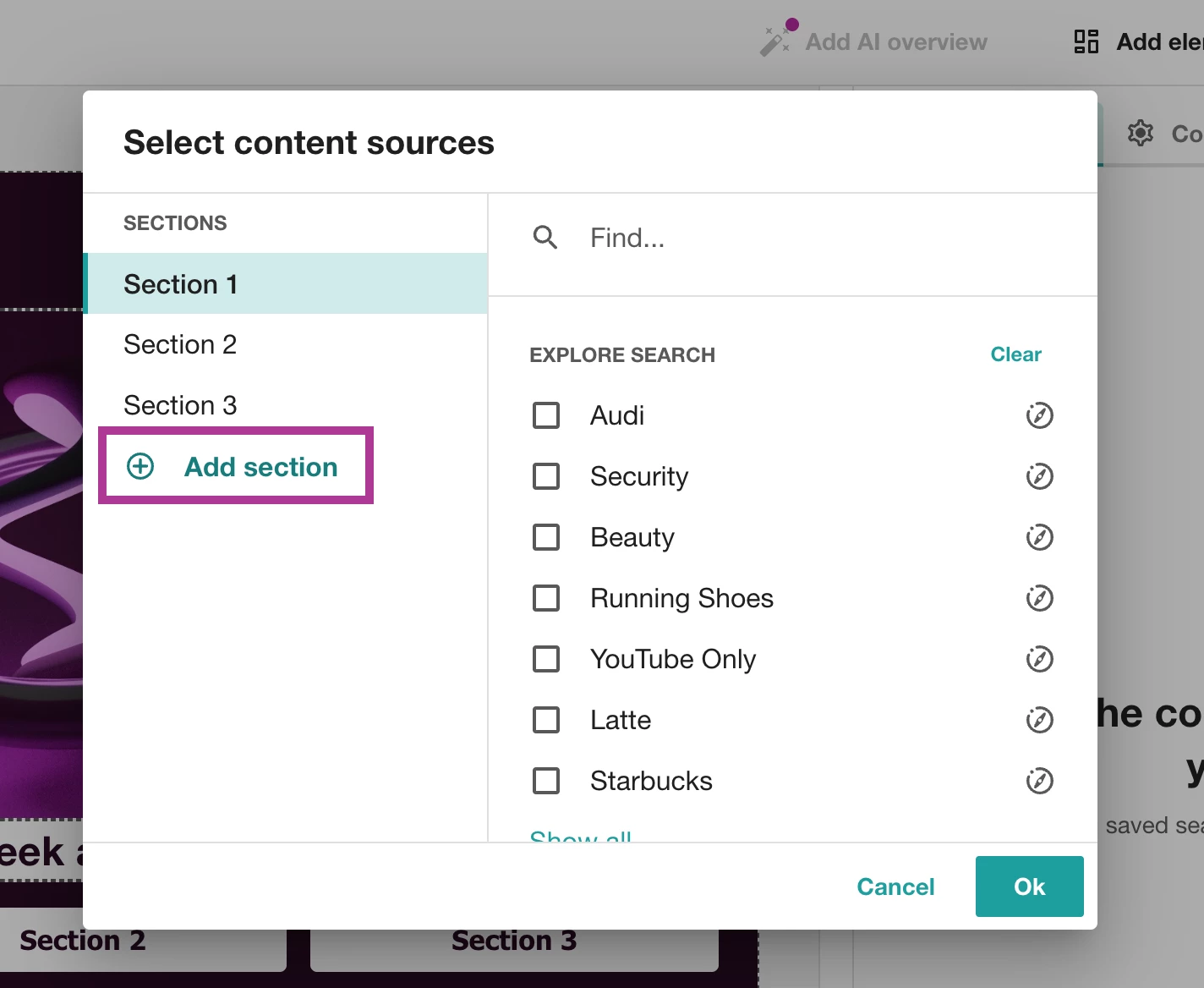
- Click Add Section as needed
- Once complete, click OK
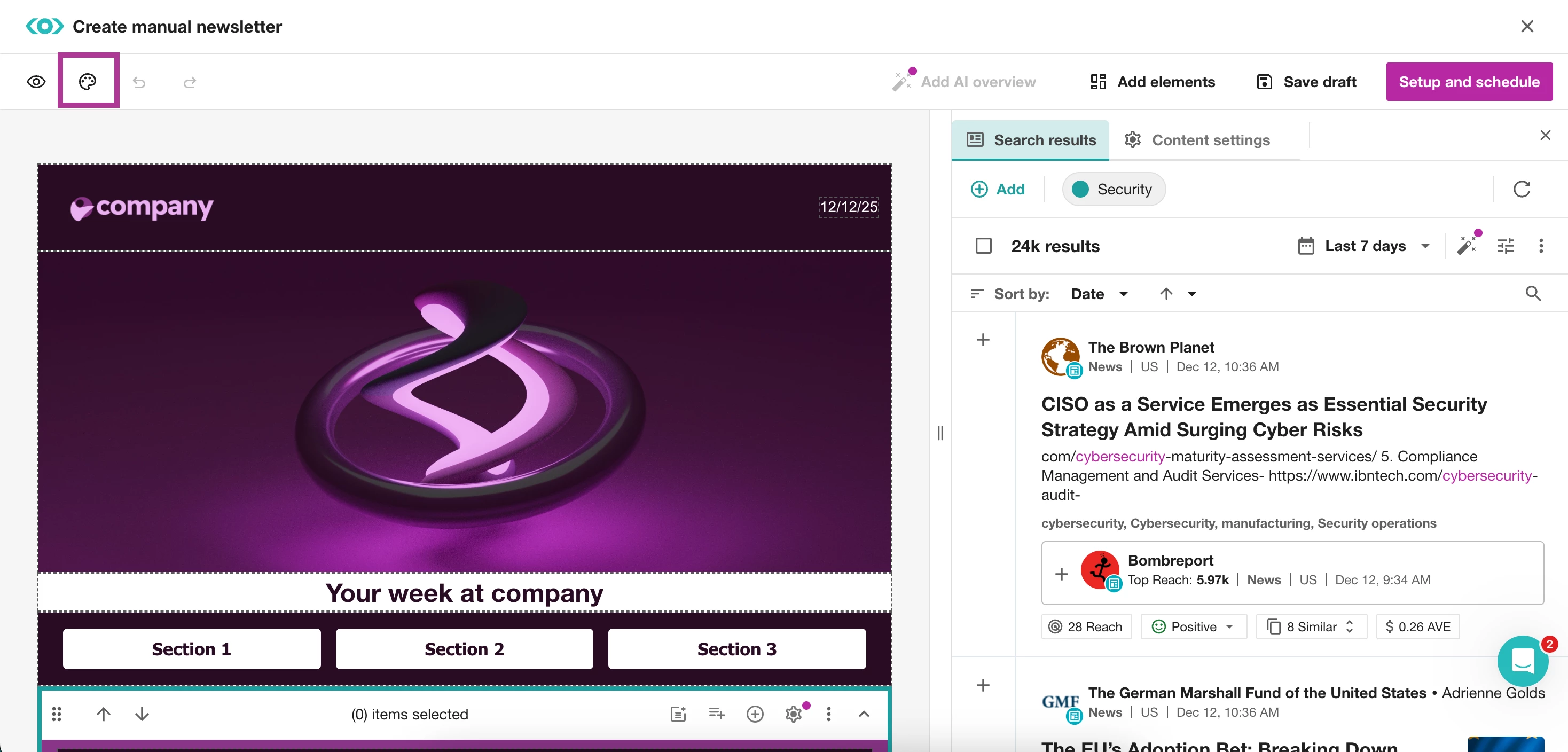
- Select Global Style in the top left-hand corner to adjust styles such as
- Font
- Colors
- Page Background
- Body Background
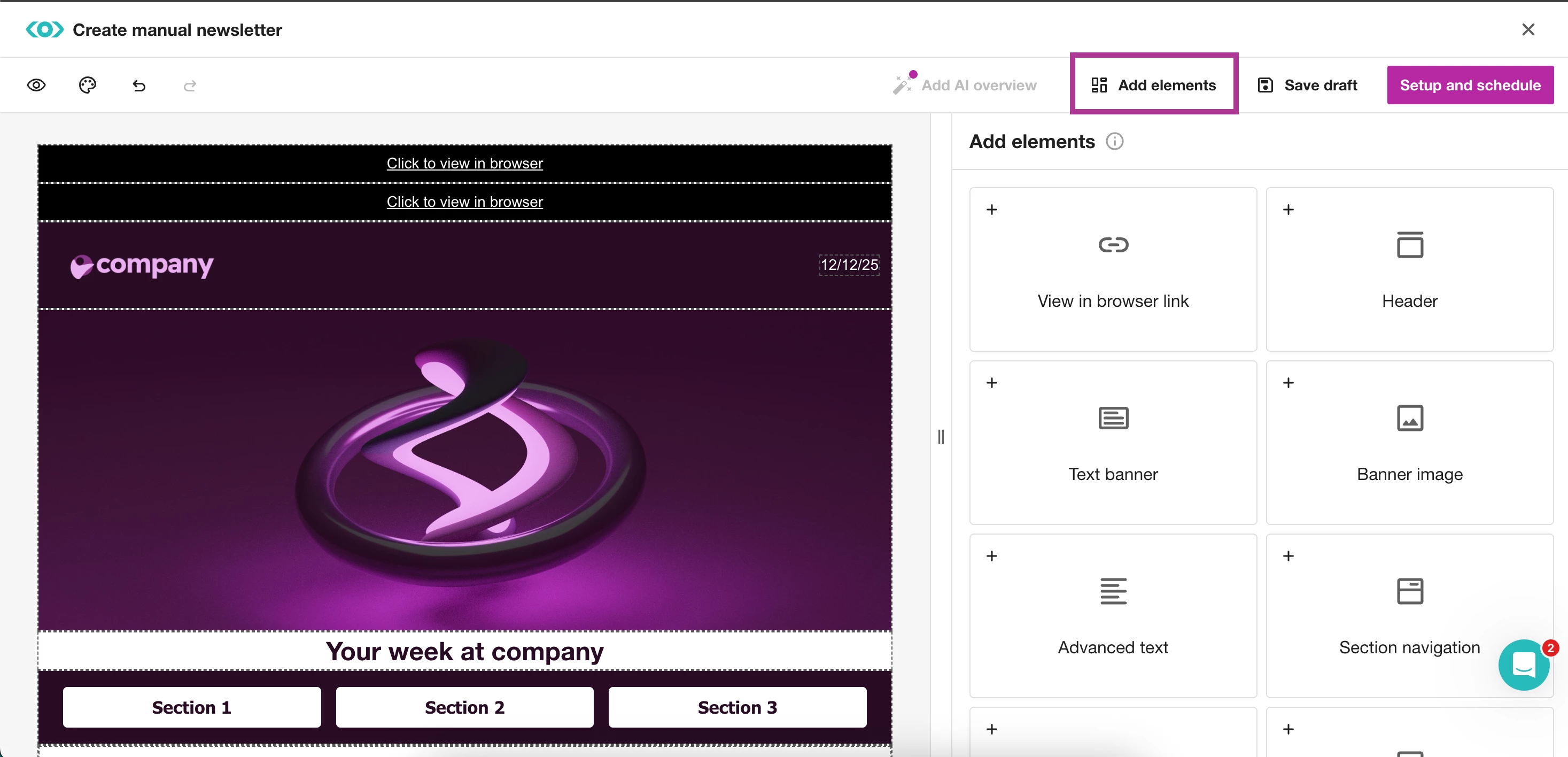
- Select Add Elements to add any of the following
- View in Browser Link: Adds text link to view in browser - ideal for long newsletters
- Header: Includes optional logo, date, and primary text
- Text Banner: A large centered textbox and optional subtitle
- Banner Image: A large banner filled with an image
- Advanced text: A compact textbox that supports hyperlinks, often used for summaries
- Section Navigation: Buttons that link directly to each section
- Simple Text: A small textbox for a sign off or slogan
- Section: A section to organize your content in
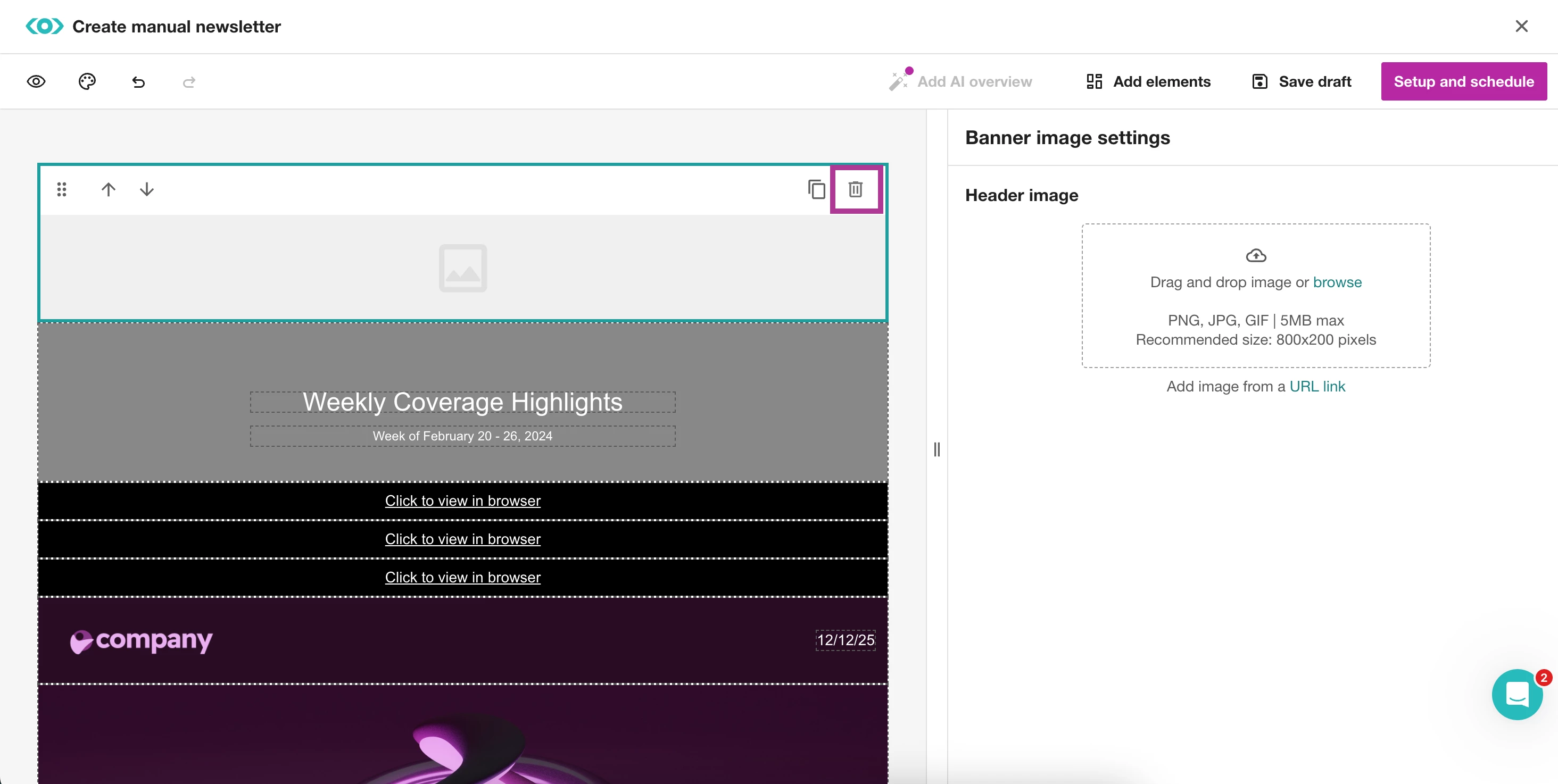
- To remove an added element
- Click on the element
- Select Delete
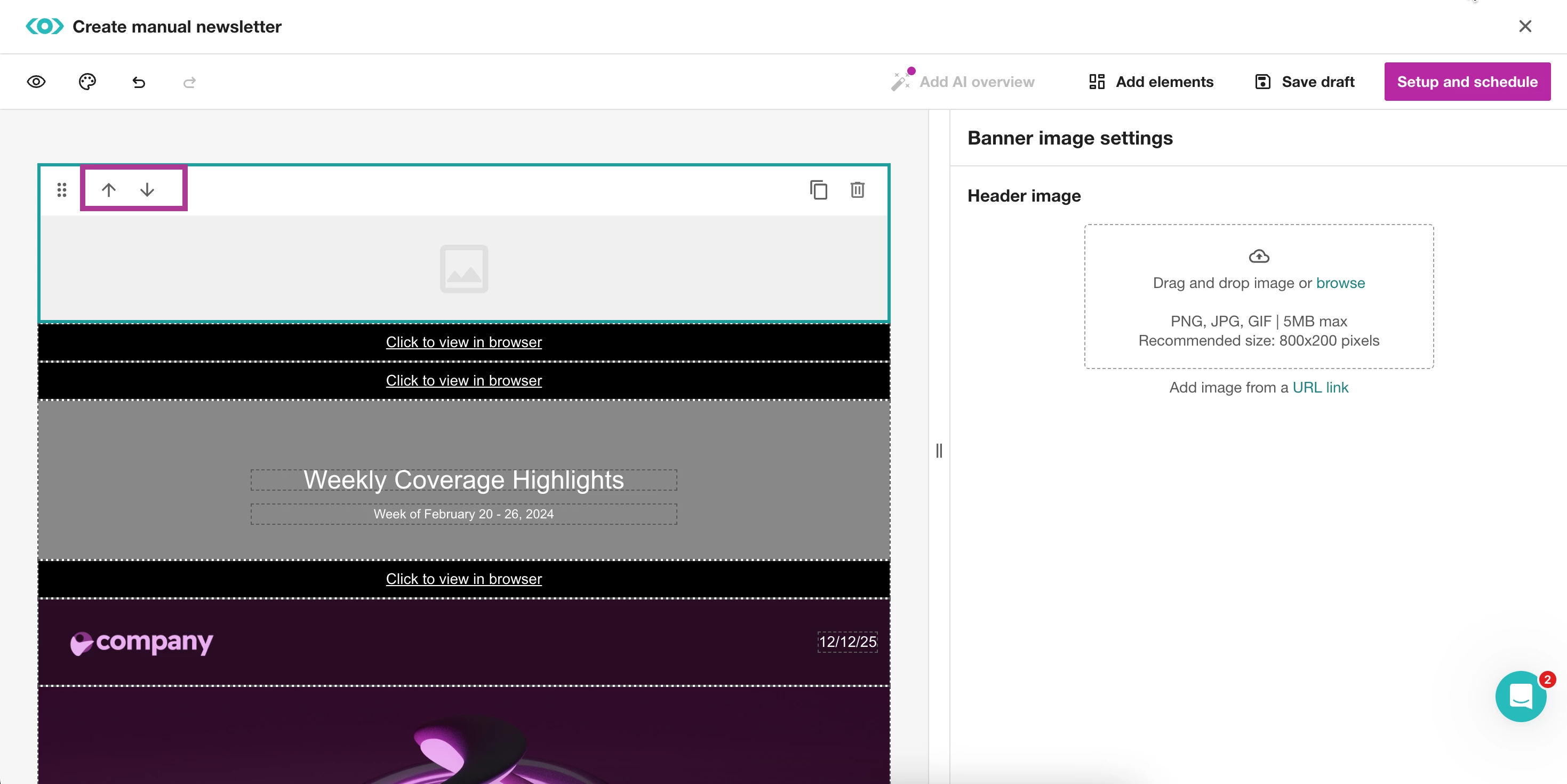
- To reorder elements, select the up and down arrows
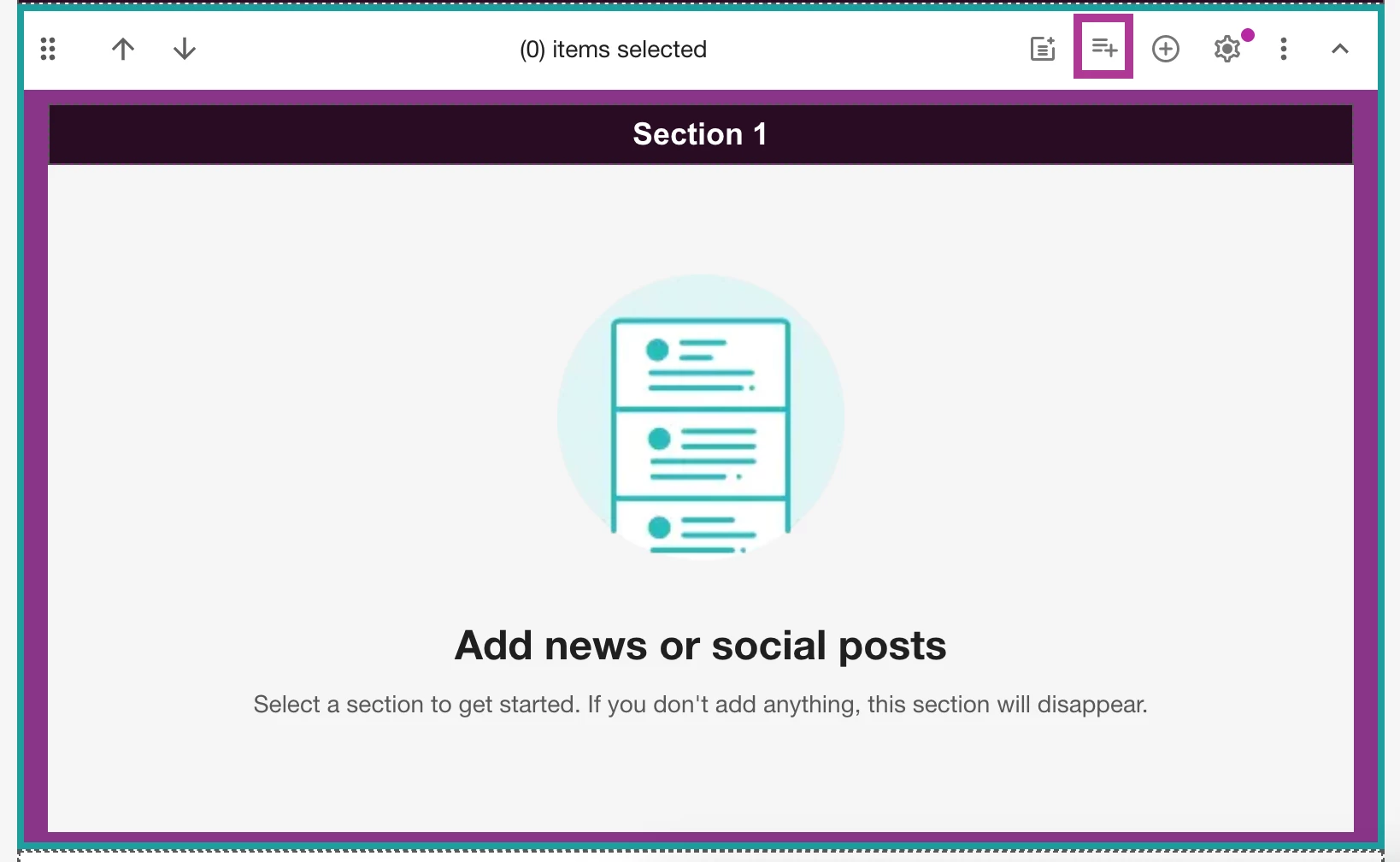
- For additional organization in your Sections, click into a section
- Select Add subsections
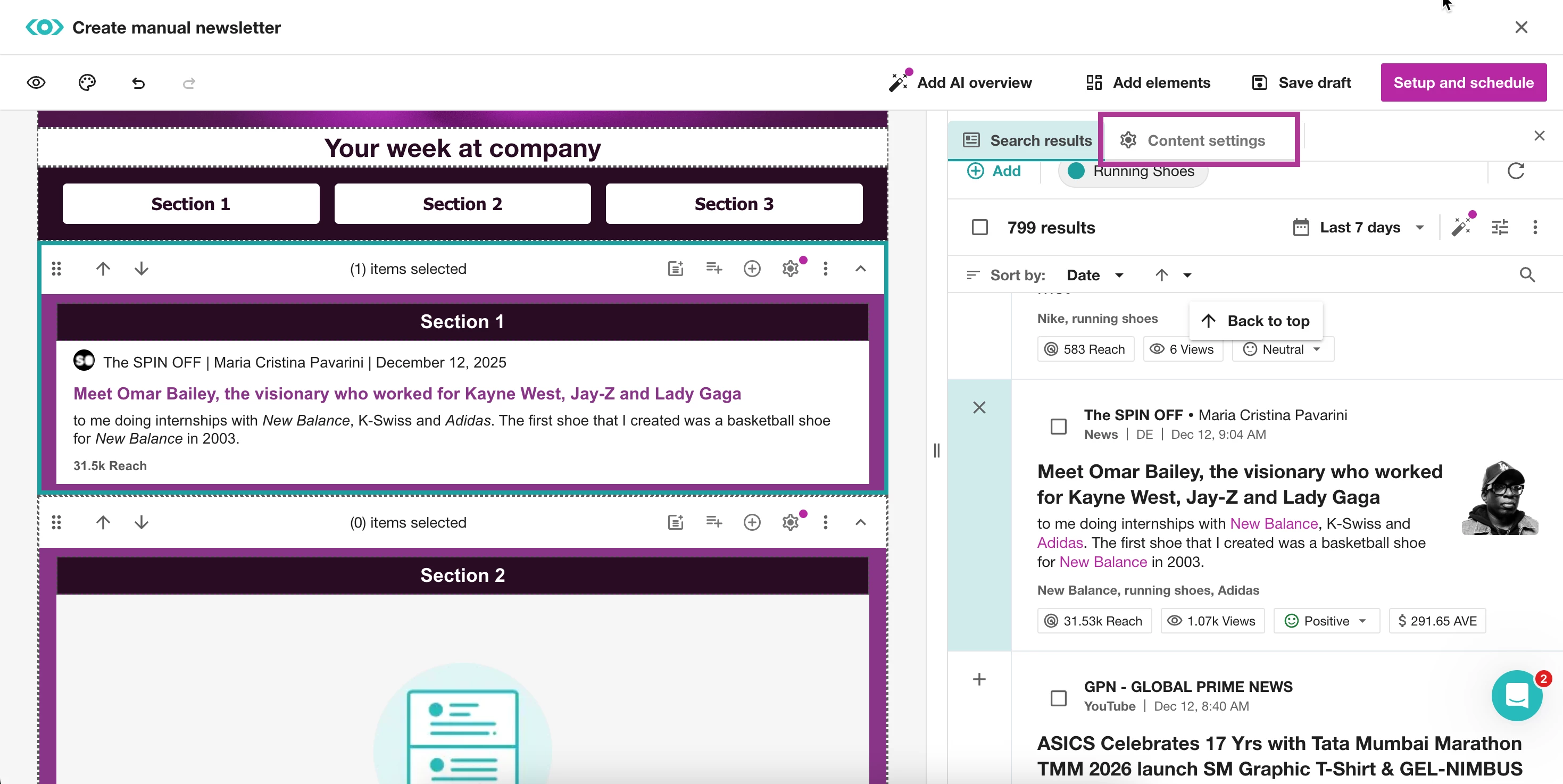
- To customize how articles display, click into a section
- Select the + icon to the left of an article you want to add
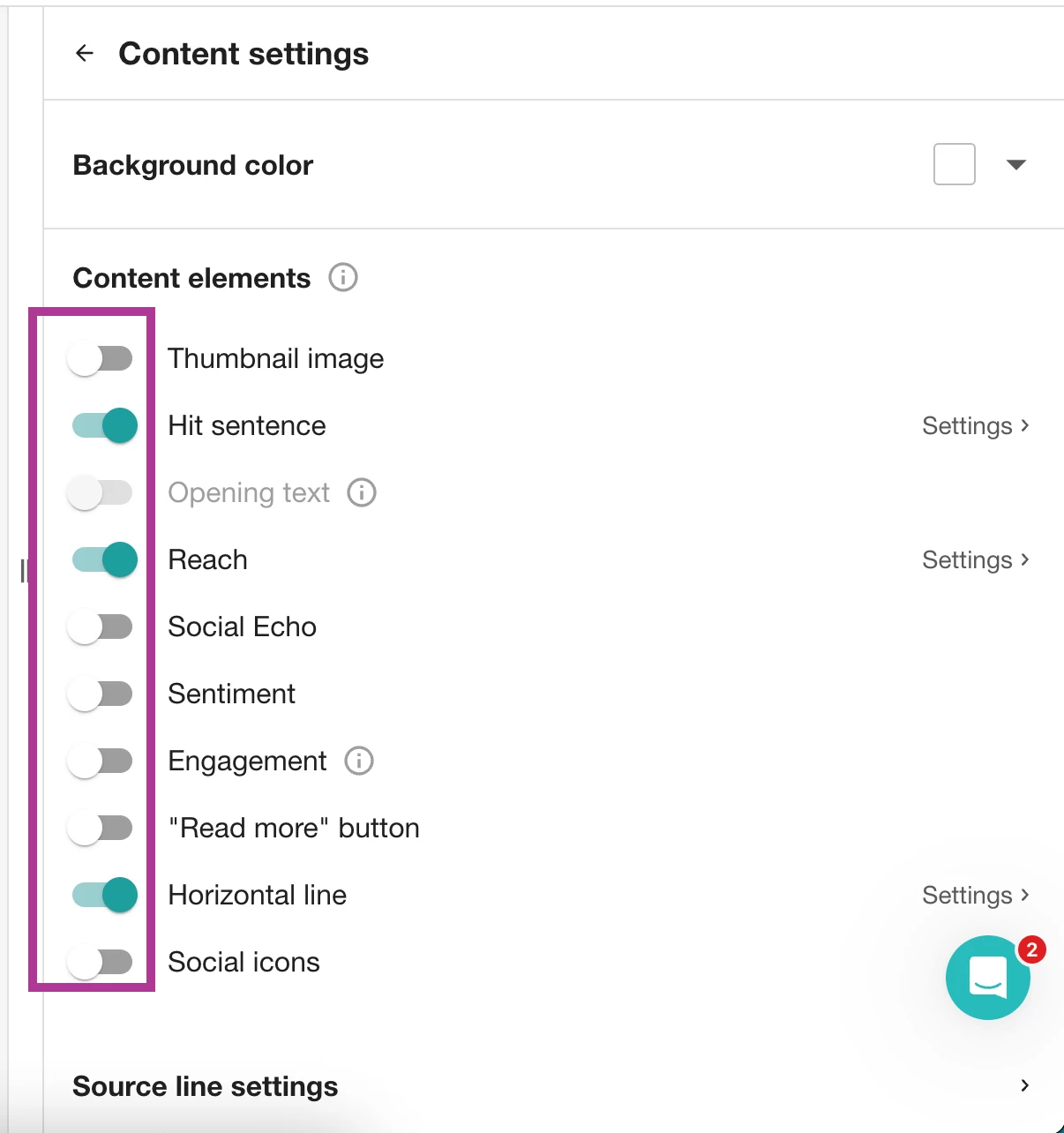
- Click Content Settings
- To control how mentions appear, toggle option on and off
-
To show or hide the author's name in the Source line
-
Select Source Line Settings
-
Toggle off Show Author Name
-
- Click on Save Draft if you need to exit the newsletter creation area at any point