



Mastering Content Organization: A Guide to Using Tags in Meltwater
With the vast amount of data and media coverage generated around your brand, competitors, or industry trends, staying organized and on top of it all can be challenging - tagging content makes it much easier!
If we think back to our grade school days, tags act just like our folders did. Science went in the yellow folder, math went in the blue, and so on (which color went with which subject is up for debate… but that’s a conversation for another day 😉). This helped us organize which content went with each subject or topic instead of having one big binder full of paperwork scrambled together in no particular order.
Tagging allows you to organize content in ‘folders’ for better categorization, analysis, and reporting.
Use Cases for Creating Tags
Tagging content in Meltwater is completely dependent on your workflow and preference. However, below are instances in which you might consider creating a tag:
- Tracking Campaign Performance: Tagging is ideal for monitoring and evaluating the performance of specific marketing or PR campaigns. By tagging all media mentions related to a campaign (e.g., "Summer_2024_Campaign"), you can easily pull reports and analyze the effectiveness of your messaging, media outreach, and audience engagement.
- Crisis Management: In a crisis, staying organized is crucial to track relevant media mentions, emerging narratives, and public perception. By tagging crisis-related mentions with terms like "Crisis_X" or "PR_Issue," you can swiftly monitor updates and changes in media sentiment.
- Monitoring Competitors: Tagging is an excellent way to track competitors' media activity and understand how they are being discussed in the market. You can create a dedicated tag for each competitor (e.g., "Competitor_A" or "Brand_X") and filter results to compare media coverage, sentiment, or specific product launches.
- Event or Conference Coverage: When your company is involved in an industry event, conference, or trade show, tagging all related media mentions helps you assess the impact of your presence at the event. Tags such as "Event_Conference2024" or "TradeShow_Expo2024" can track media coverage before, during, and after the event.
- Product Launches: For organizations launching new products or services, tagging all mentions related to the launch provides a centralized way to analyze the rollout’s success. Tags like "NewProduct2024" help you capture every piece of coverage related to the product's release, from press articles to social media mentions.
- Analyzing Industry Trends: Tracking and tagging content related to industry trends helps you stay informed on key topics that may impact your business. By tagging mentions like “AI_Tech_Trend” or “Sustainability_Trend,” you can analyze how often these topics appear in the media and what the sentiment surrounding them is.
Creating a Tag in Meltwater
- Click Explore or Monitor in the left-hand navigation bar
- Open an existing search in Explore or Content Stream in Monitor
- Hover over the article you want to tag in the Content Stream

- Select the Tag icon

- Select Create Tag or add to an existing tag
- Enter the tag name if you are creating a new tag
- Click Save
- Click Apply
Learn more about Tagging Content in Meltwater. To leverage our AI Tagging, learn more about AI Tagging.
Reporting on Tagged Content
Now that you’ve created tags, what’s next? Reporting on them!
Report on the tags you’ve created using Custom Dashboards. This is a great way to paint the picture to your stakeholders on your campaign, new product launch, or general coverage collected under a tag.
To do so, follow these steps:
- Click Analyze
- Select Get Started
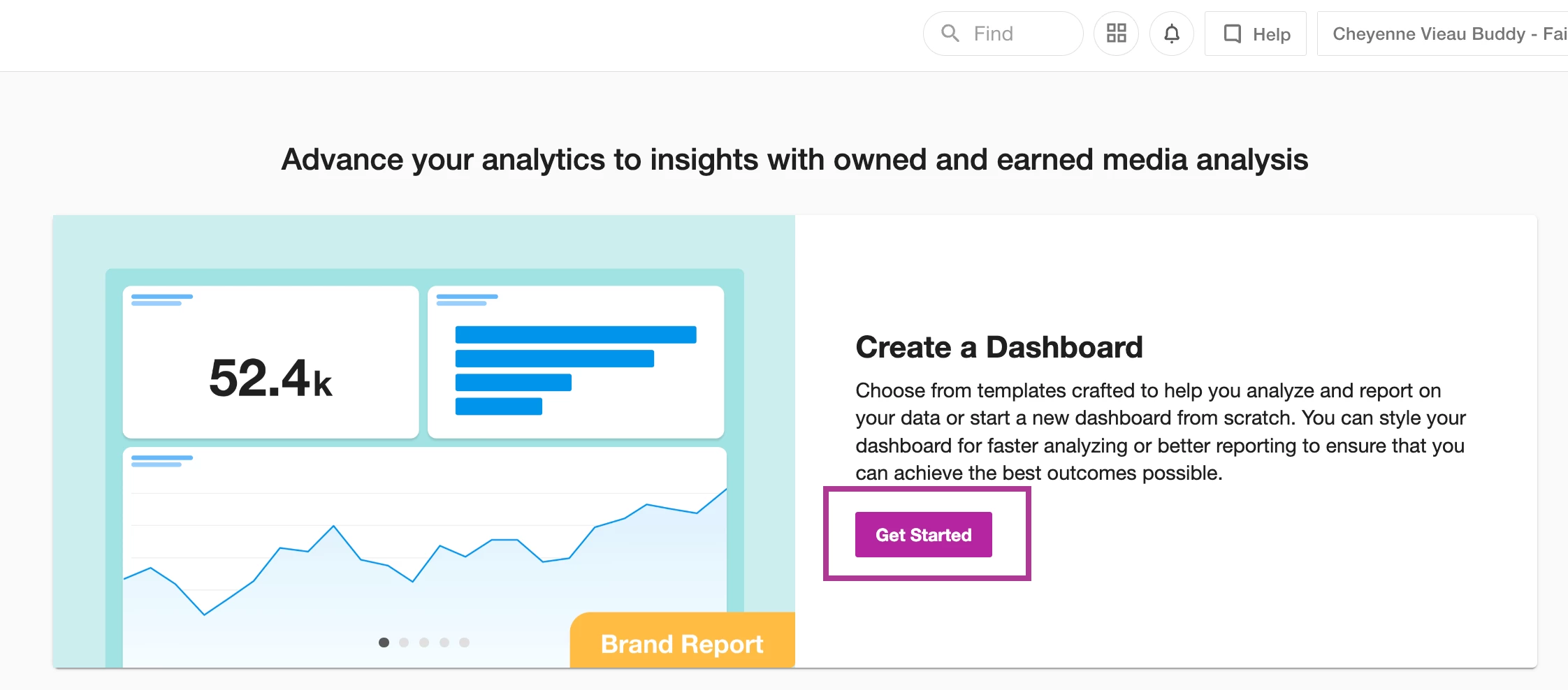
- Select a Dashboard Template
- Scroll to Tags at the bottom of your screen
- Select a Tag or Tags
- Click Generate
You’ll notice this process is nearly identical to creating a dashboard with an existing Search. Only this time, since we’ve selected a Tags folder, the data that loads into the dashboard widgets will only include the content in the tagged folder.
Regardless of the types of tags you’re creating, by incorporating a consistent tagging strategy, you’ll streamline your workflows and gain more precise insights from your media monitoring efforts.