




How to Track a Major Event Across Different Channels in Monitor⚽

It's your first big event using Meltwater. Maybe it's the World Cup, maybe it's a product launch but suddenly there's a wall of mentions and someone wants a read on "how it's landing."
The problem isn't the volume. It's that you're looking at many multiple different sources/channels as if they were one.
"What are people actually saying about this?"
The answer depends on where you look. The news might be running clean match recaps while X (Twitter) is melting down over a referee call, and the blogs are writing think-pieces nobody's read yet.
In this guide, you'll learn how to organize your Monitor view so each channel tells its own story.
What you'll build
You'll create a Monitor view that compares conversations about the same event across multiple channels.
Instead of combining every mention into one stream, you'll create separate streams for different source types, such as News, X, Forums, and Blogs. Each stream uses the same saved search but focuses on a single channel. You'll then use AI summaries to quickly understand what each audience is talking about.
By the end of this guide, you'll be able to:
- Compare how different channels are covering the same event.
- Identify where narratives differ between news, social media, forums, and blogs.
- Use AI summaries to quickly spot emerging risks, trends, or opportunities without reading every mention.
The entire setup takes about 10 minutes.
Before you start
You'll need:
- A saved search for the event you want to monitor. Streams are built from saved searches. If you haven't created one yet, build your search first using the AI Search Assistant(Just tell it what you want in plain language — for example, "Create a search for England in the World Cup"), then return to this guide.
- Access to Monitor. You'll find Monitor in the left-hand navigation. If you don't see it, contact your account administrator.
Why use separate streams?
When every source is combined into one stream, the loudest conversation usually wins.
A surge of posts on X can bury the fact that news coverage is largely positive. Meanwhile, thoughtful discussions happening in forums or blog
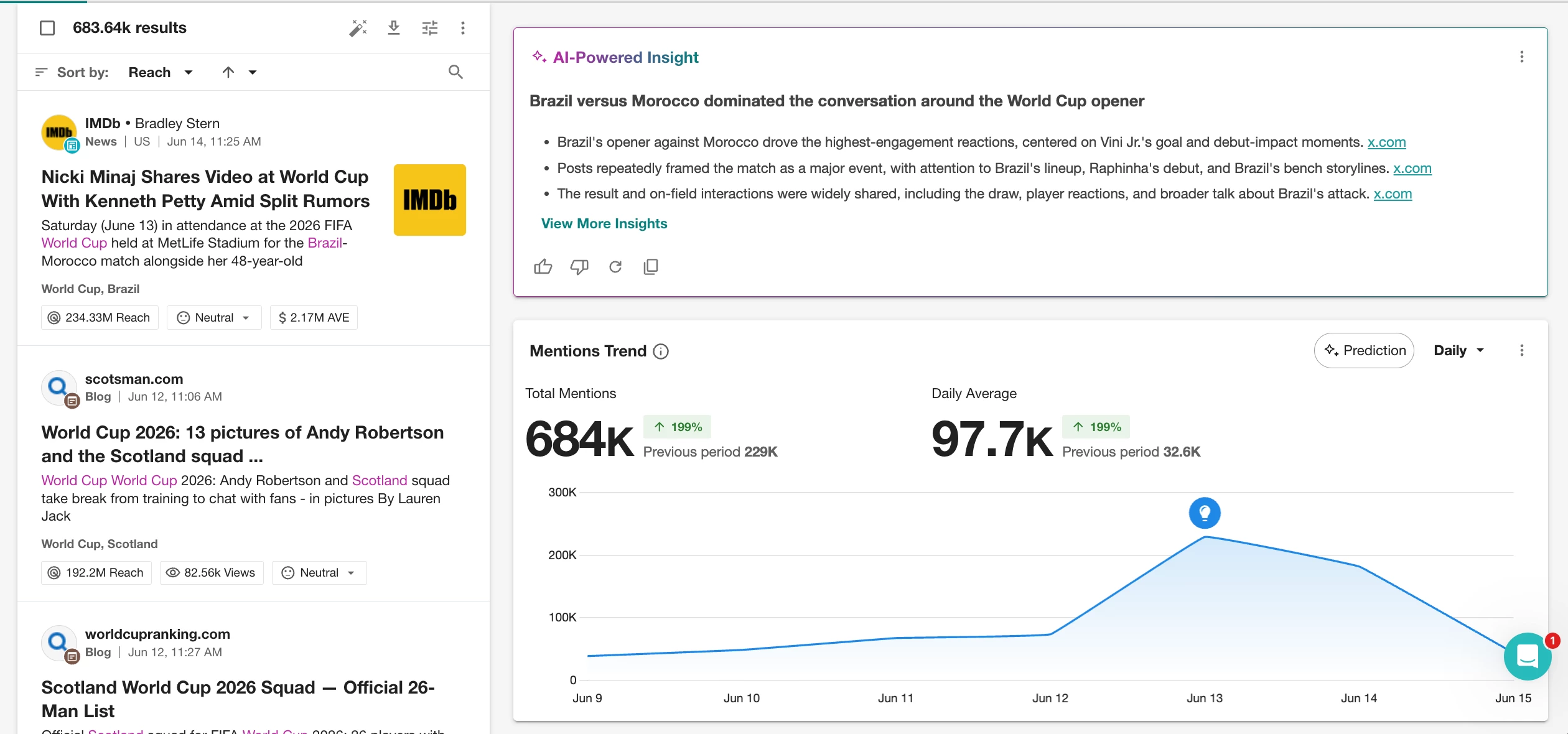
Separating streams by Source Type helps you answer questions like:
- Is social media telling the same story as the news?
- Where is a positive or negative narrative starting?
- Which channel is driving the conversation?
- Is this genuine risk or simply short-lived hype?
Instead of one mixed conversation, you'll have multiple perspectives on the same event.
Step 1: Create your first stream
Open Monitor and select Create View.
The setup panel walks you through three steps:
- Select a saved search - Select the saved search you have created for the event
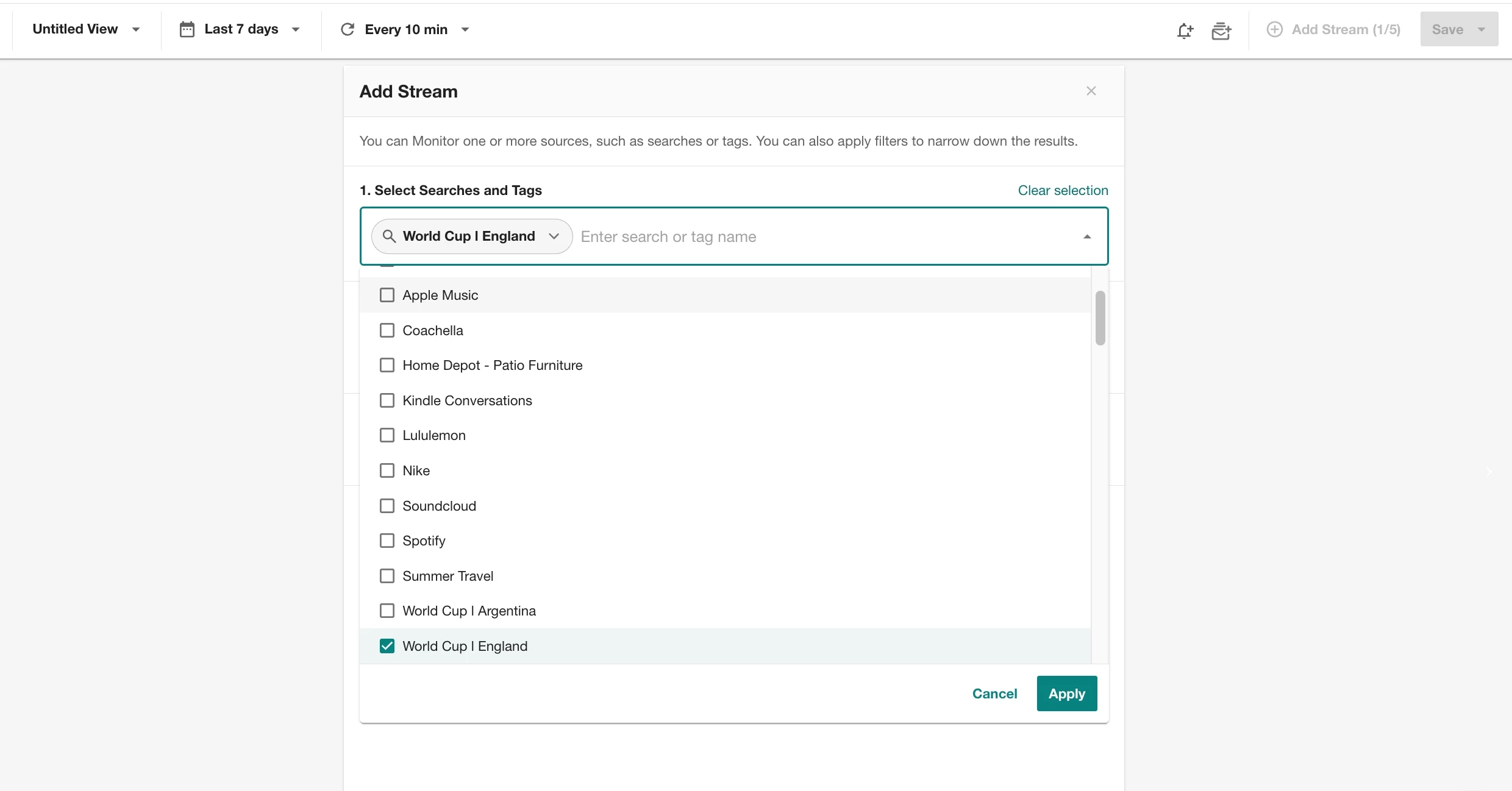
- Name the Stream: We recommend “Event - Source Type this monitor will include”
- For example - England World Cup - News
- Add filters: click Show Filters, open Source Type, and select News.
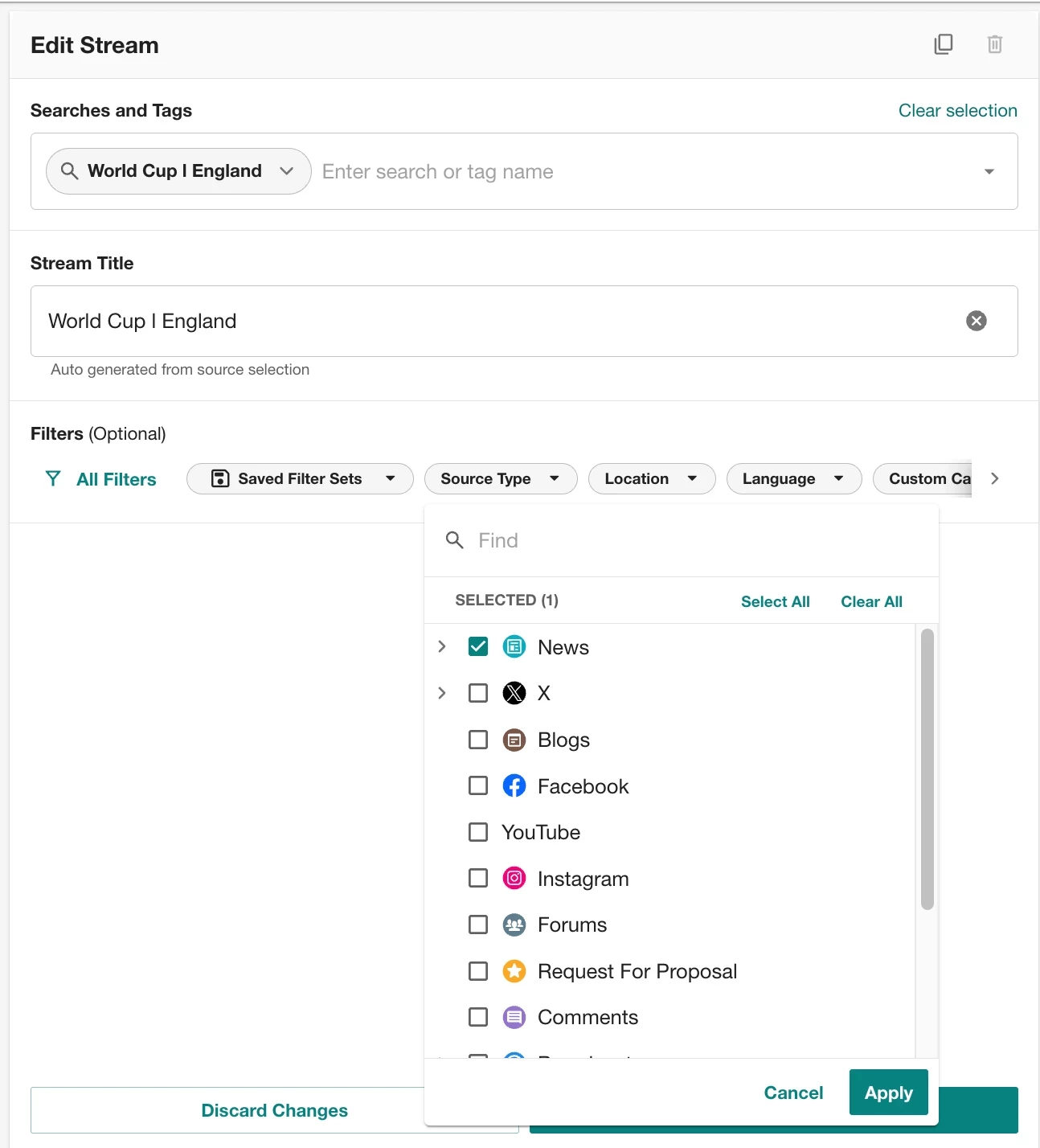
- Click Add Stream.
Because you filtered it right at creation, this stream is clean from the start and it shows only news mentions. That's your "what's the official story" view: match recaps, journalist coverage, headlines.
What you're doing: isolating one conversation so it isn't drowned out by the others. Next, we add the other channels alongside it.
This is your News stream. Next, we're going to slice it by other channels.
Step 2: Add Streams for other media types
Now you'll repeat the process using the same saved search for each media type. Monitor lets you add up to 5 content streams side by side, so instead of flipping between filters, you can watch every channel at once.
Click the + (Add Stream) button at the top right (you'll see a counter like "Add Stream 1/5" ). This drops in a new empty stream next to your first one. Set this one up the same way, but filter it to a different Source Type.
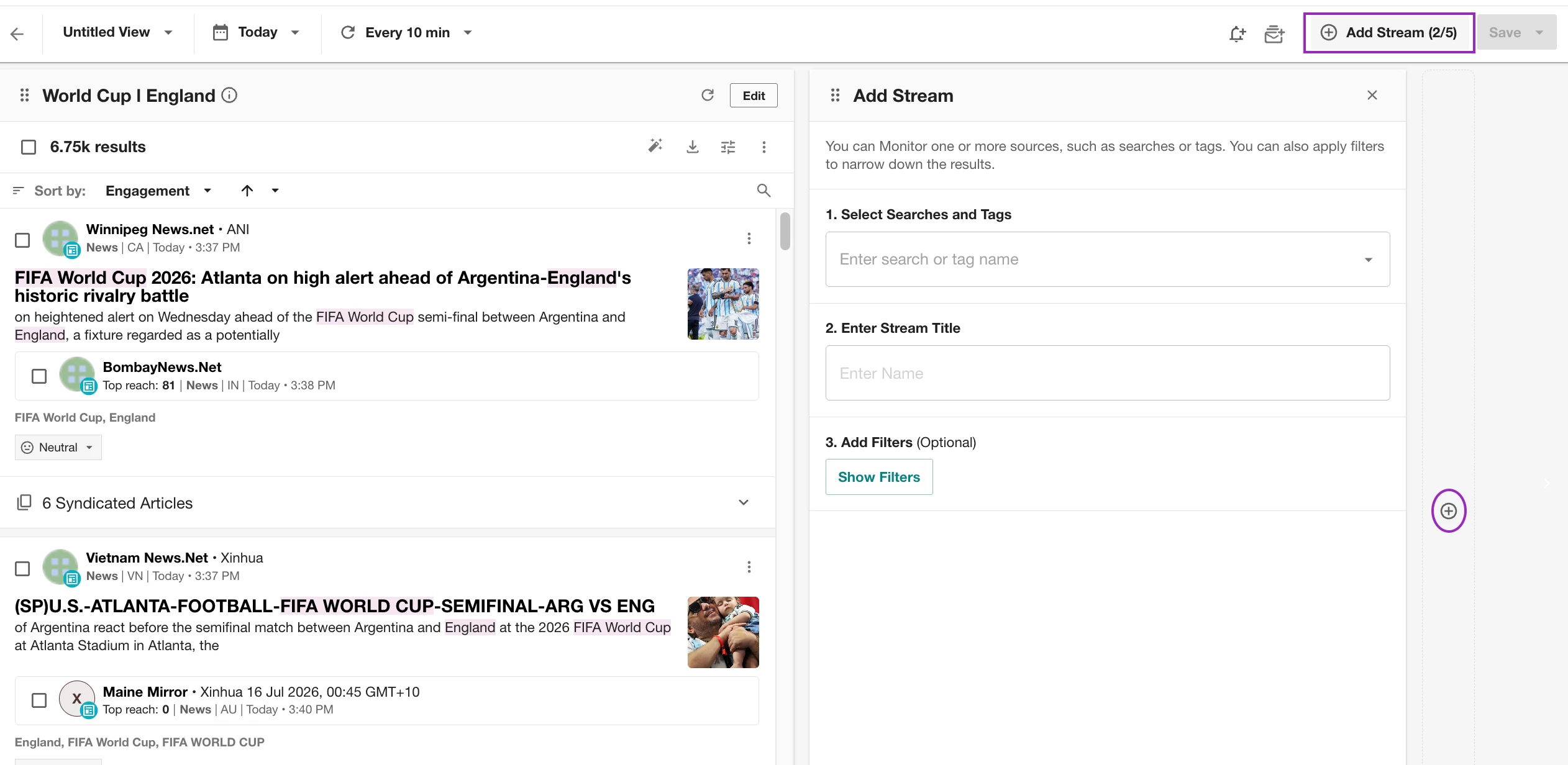
Repeat until each channel has its own stream:
- News → the official narrative
- X → real-time fan and public reaction
- Forums → deeper tactical debate and superfan opinion
- Blogs → slower-burn think-pieces and analysis
-
Depending on your use case, you can also create streams for Broadcast, Podcasts, or other available source types.
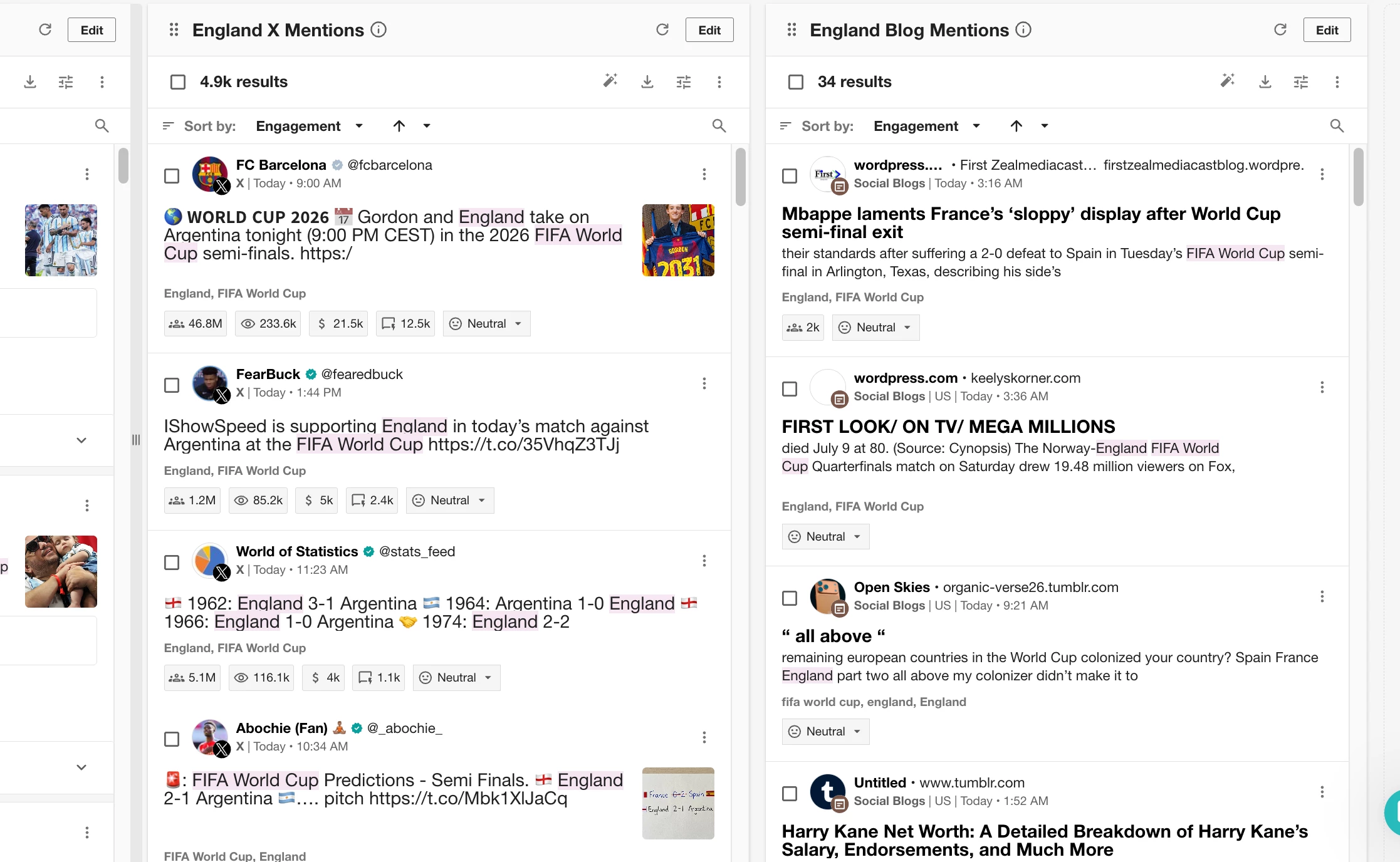
Now you have four parallel windows into the same event, each telling its own piece of the story.
Step 3: Summarize each stream with AI
Now, you don't have to read thousands of mentions to see how the channels differ. Each stream can summarize itself.
In any stream, click the AI wand (the ✨ "AI Powered Features" icon near the top of the stream), then toggle on Summarize Results.
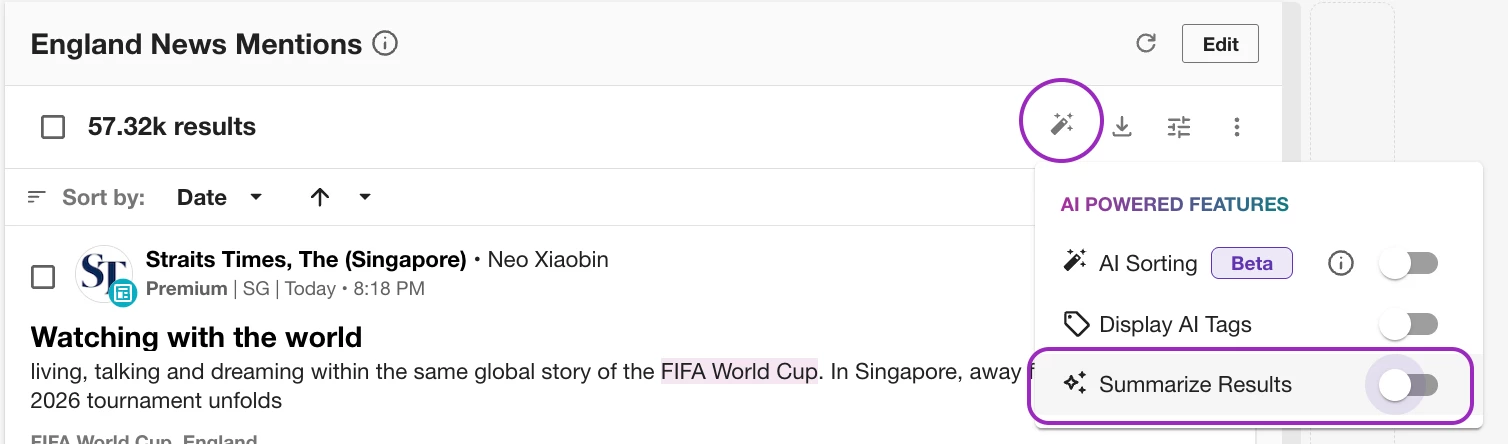
Meltwater reads the stream and returns a written summary of the most frequent topics, the themes, debates, controversies in a few seconds.
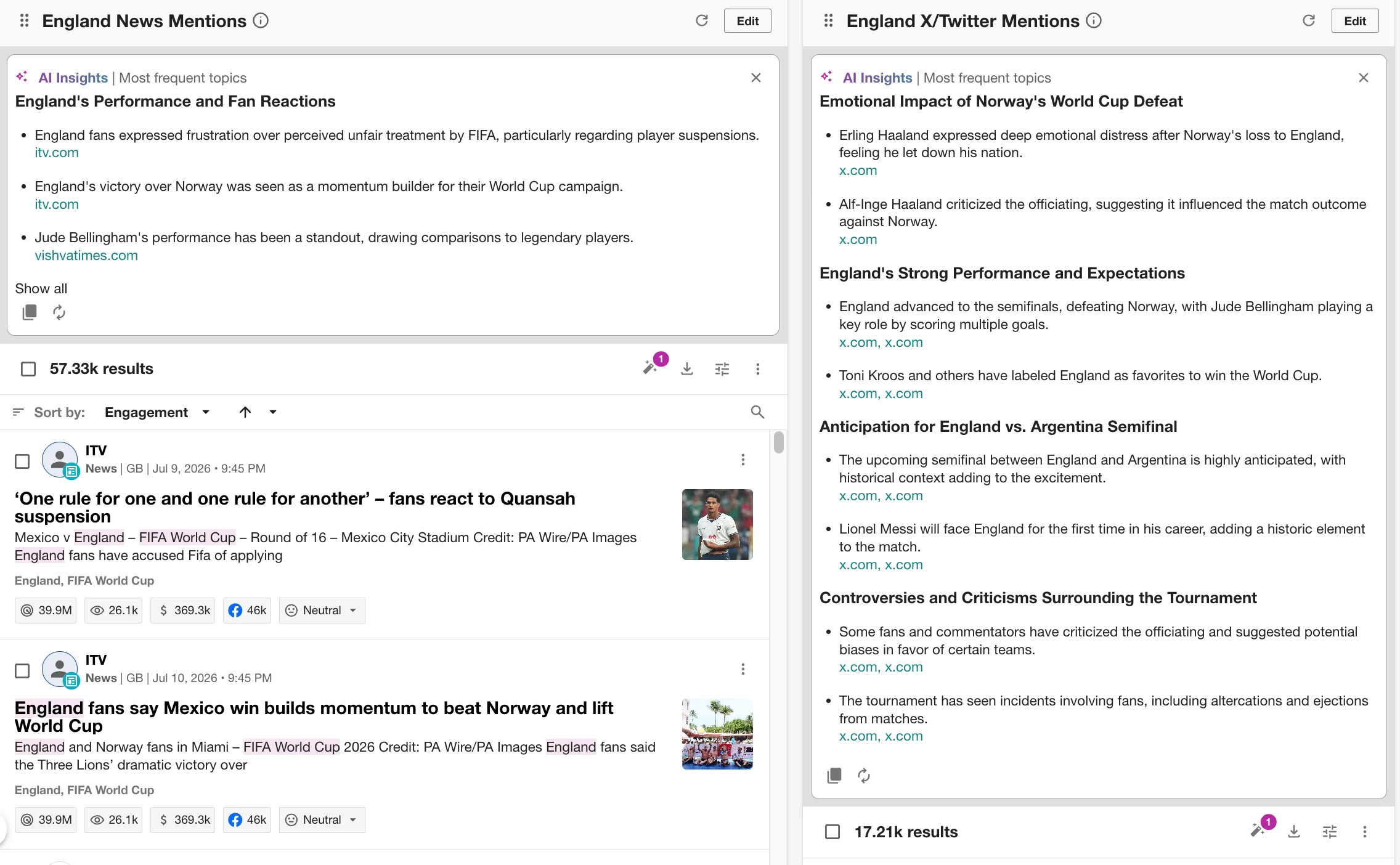
Do this for each of your streams.
Now with the summaries next to each other, read and see where the channel narratives differ. For example, tracking England during a big match, you might see:
- X summary: anticipation and historical rivalry, key players like Jude Bellingham, and controversy over the referee appointment — the emotional, real-time reaction.
- Blog summary: slower, analytical takes, a rival team's "sloppy" performance, a coaching change on the horizon — the think-piece angle that hasn't hit social yet.
- News summary: the straight match facts and official coverage.
Same event, different stories; and you have all of them without scrolling. That contrast is the insight: when one channel is fixated on something the others aren't, that's your signal worth a closer look.
What you're doing: letting AI do the reading so you can focus on comparing.
Compare the conversations
This is where the workflow becomes valuable. Rather than asking, "What are people saying?" you can ask:
"Who is saying what?"
For example, during a major England match you might see:
News
- Match highlights and official reporting.
- Quotes from players and coaches.
- Tournament coverage.
X
- Emotional reactions.
- Debate about referee decisions.
- Celebration or frustration from fans.
Forums
- Tactical analysis.
- Player performance discussions.
- Predictions for upcoming matches.
Blogs
- Longer opinion pieces.
- Coaching analysis.
- Broader commentary about tournament trends.
Each channel provides a different perspective on the same event.
When one channel is focused on something the others aren't, you've found an insight worth investigating.
The payoff: See the whole story, not just the loudest part
Because each stream summarizes itself, you're reading plain-English takes on the same event side by side. That makes two things easy to catch:
Risk signals. Trouble usually starts small: a forum thread or a burst of posts before the news picks it up. When the X summary flags a controversy the news summary hasn't, that gap is your head start.
Amplification patterns. When the same theme shows up across multiple summaries at once, it's about to go big. One channel is noise; the same story everywhere is a moment.
And when something's worth sharing, hit Copy on the AI Insight and drop it straight into Slack, an email, or a deck to share with others.
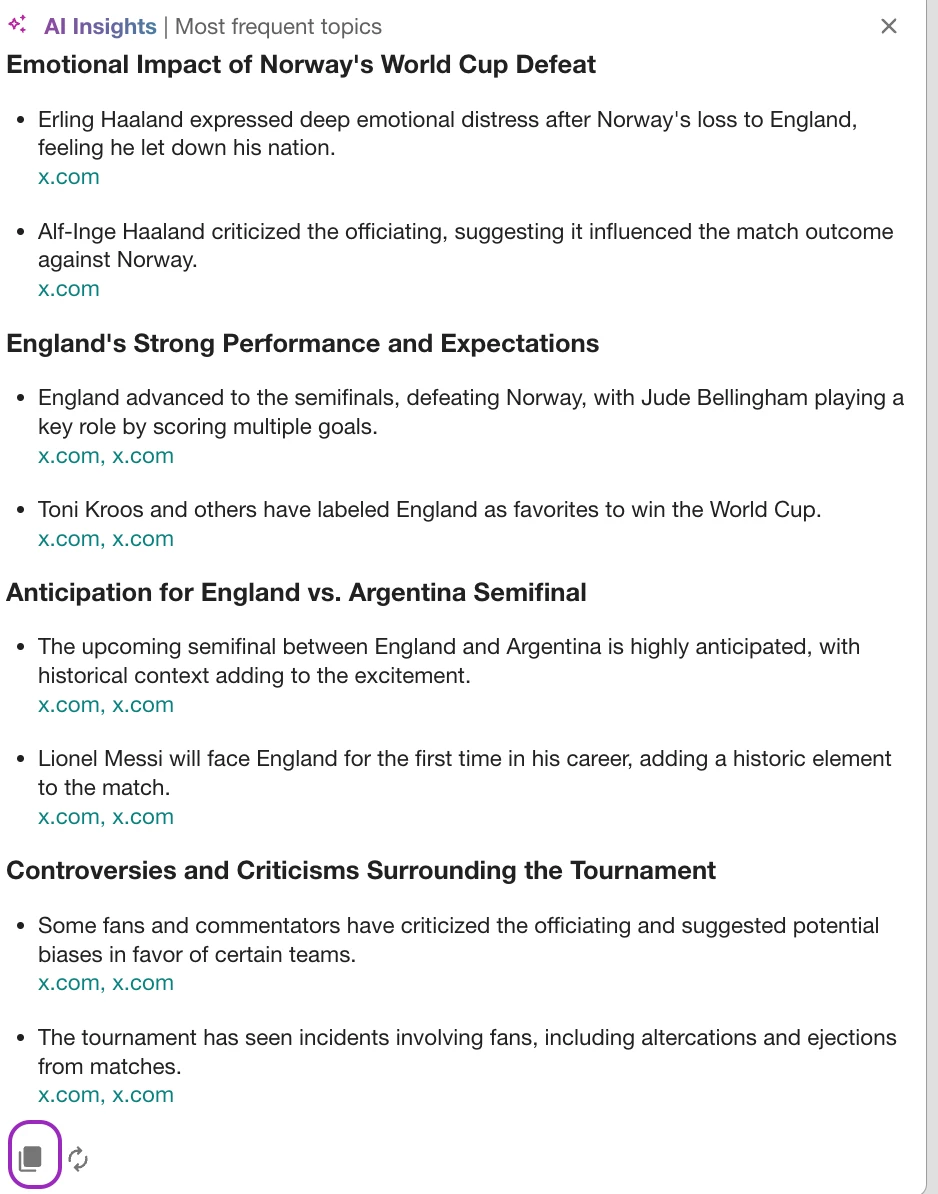
Less scrolling, faster reads, enough lead time to act before a story is everywhere.
Want to see it in action?
Want to see this kind of multi-channel tracking in action? Meltwater's live FIFA prediction tracker on our website pulls World Cup conversation across Twitter, Reddit, news, and broadcast in real time — It's a great example of how viewing channels separately helps reveal the complete story behind a major event.