




🏖️ Going on Vacation? Don't Forget These Meltwater Tips
How to prep your Meltwater monitoring before PTO
Before the sunscreen goes on and your out-of-office replies kick in, make sure you set up Meltwater to keep watch while they're off enjoying the sun.
Here's how you can prep for time away while keeping media monitoring and insights on track with no laptop required at the beach.
By the end of this, you'll have Meltwater catching what matters, keeping your stakeholders in the loop, and quietly organizing everything for you — all while you're offline.
✅ Step 1: Check Your Searches
Why: Everything from your saved searches trickles downstream to your alerts, your digest emails, your reports. If the search is solid, the rest takes care of itself.
Before you head out, make sure you've got at least one saved search in Explore set up to catch the mentions that matter most while you're away.
Say you're on the comms team at Coppertone® and you're finally taking that beach week. Summer is your busiest season, so before you log off, your search needs to cover three things:
- Your brand name and any variations (e.g., Coppertone, #Coppertone)
- Seasonal or campaign terms you're running (e.g., #SummerSkin, SPF, beach season)
- Crisis-related keywords like recall, benzene, contamination, or skin reaction
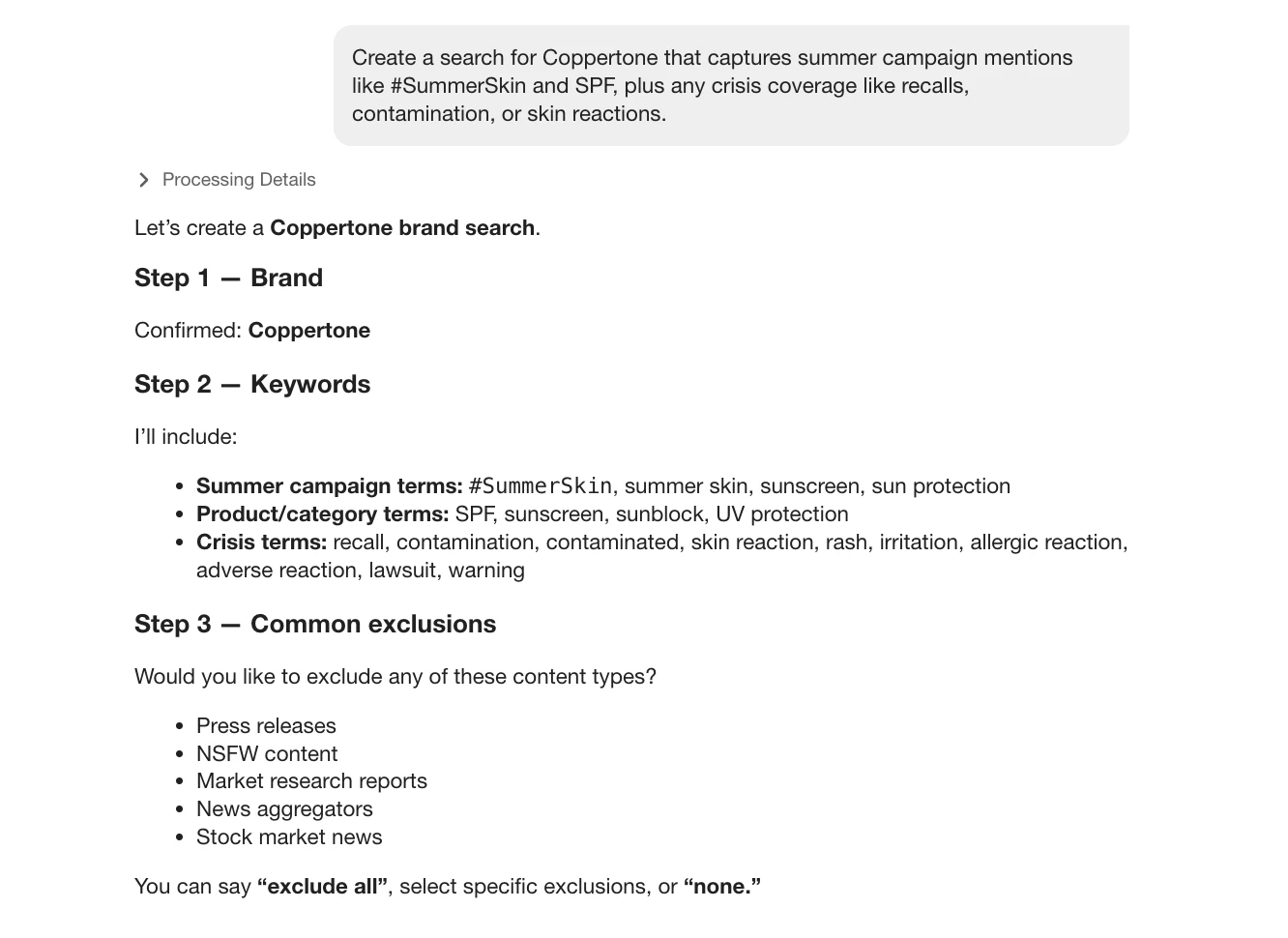
The easiest way to build this? Let the AI Search Assistant do it for you. Just describe what you want in plain language and it'll generate the search for you. Try a prompt like:
"Create a search for Coppertone that captures summer campaign mentions like #SummerSkin and SPF, plus any crisis coverage like recalls, contamination, or skin reactions."
💡 Heads up: Before it generates the search, the assistant will usually ask if you want to exclude any content types — like press releases, market research, news aggregators, or NSFW content. You can say "exclude all," pick specific ones, or "none" to keep everything. Once you answer, it builds the final Boolean for you.
The assistant then turns that into a ready-to-use Boolean search you can preview, tweak, and save.
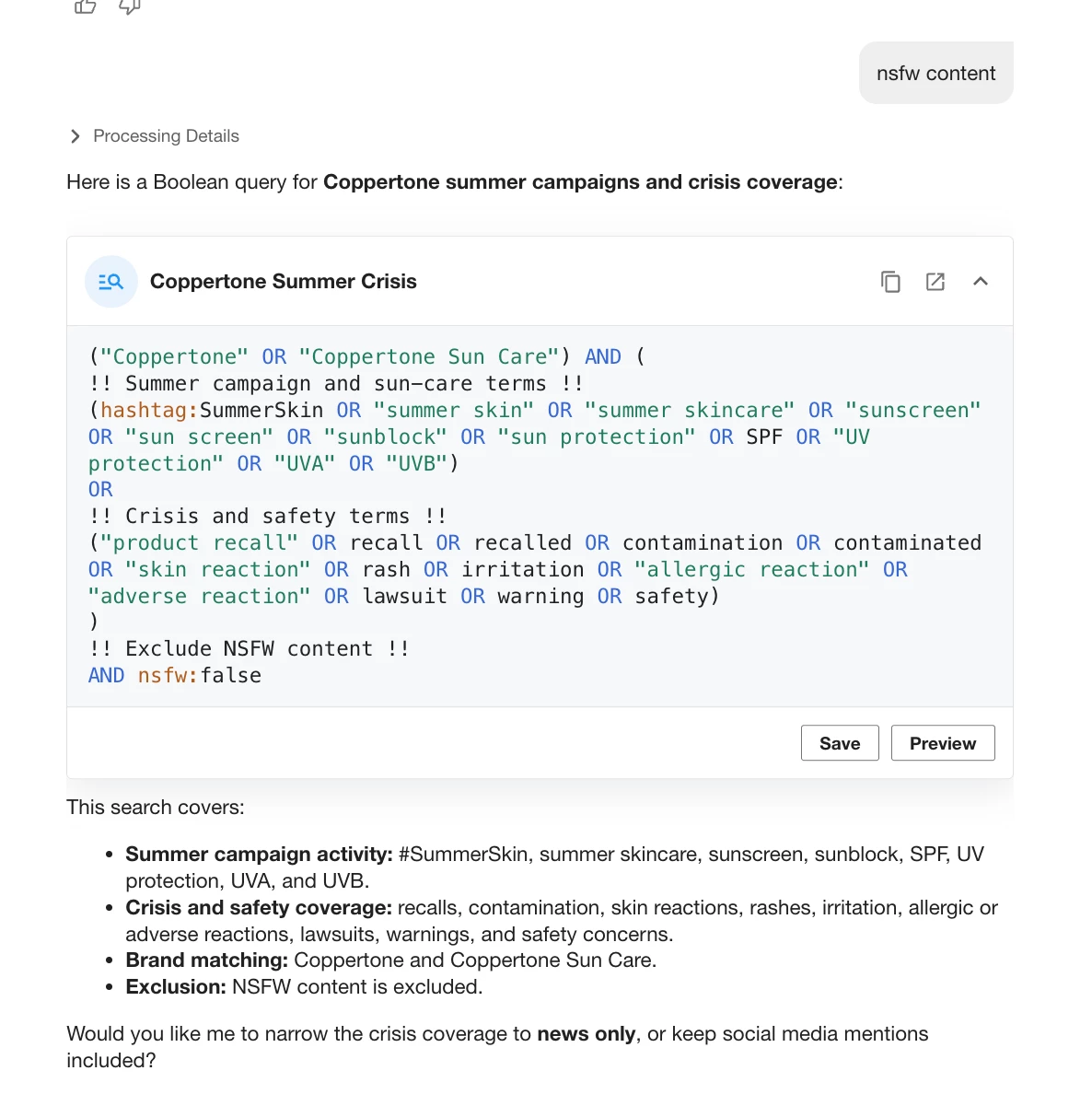
🔍 To check: Head to Explore, open an existing saved search, and confirm it's tracking the keywords most likely to pop up while you're away.
Just getting started? Learn how to use the AI Search Assistant to help generate search terms based on recent and upcoming coverage.
🔔 Step 2: Turn On Smart Alerts
Why: You don't want to check the platform every five minutes from a beach chair. Meltwater pings you the moment something worth knowing happens.
Before you sign off, enable Alerts on your most important searches so you're notified if something unusual happens while you're out.
At a minimum, we recommend you set up:
- Spike Detection Alert — Get notified if there's a sudden jump in mentions (a viral post or unexpected news moment). Perfect for catching big moments without constantly checking in.
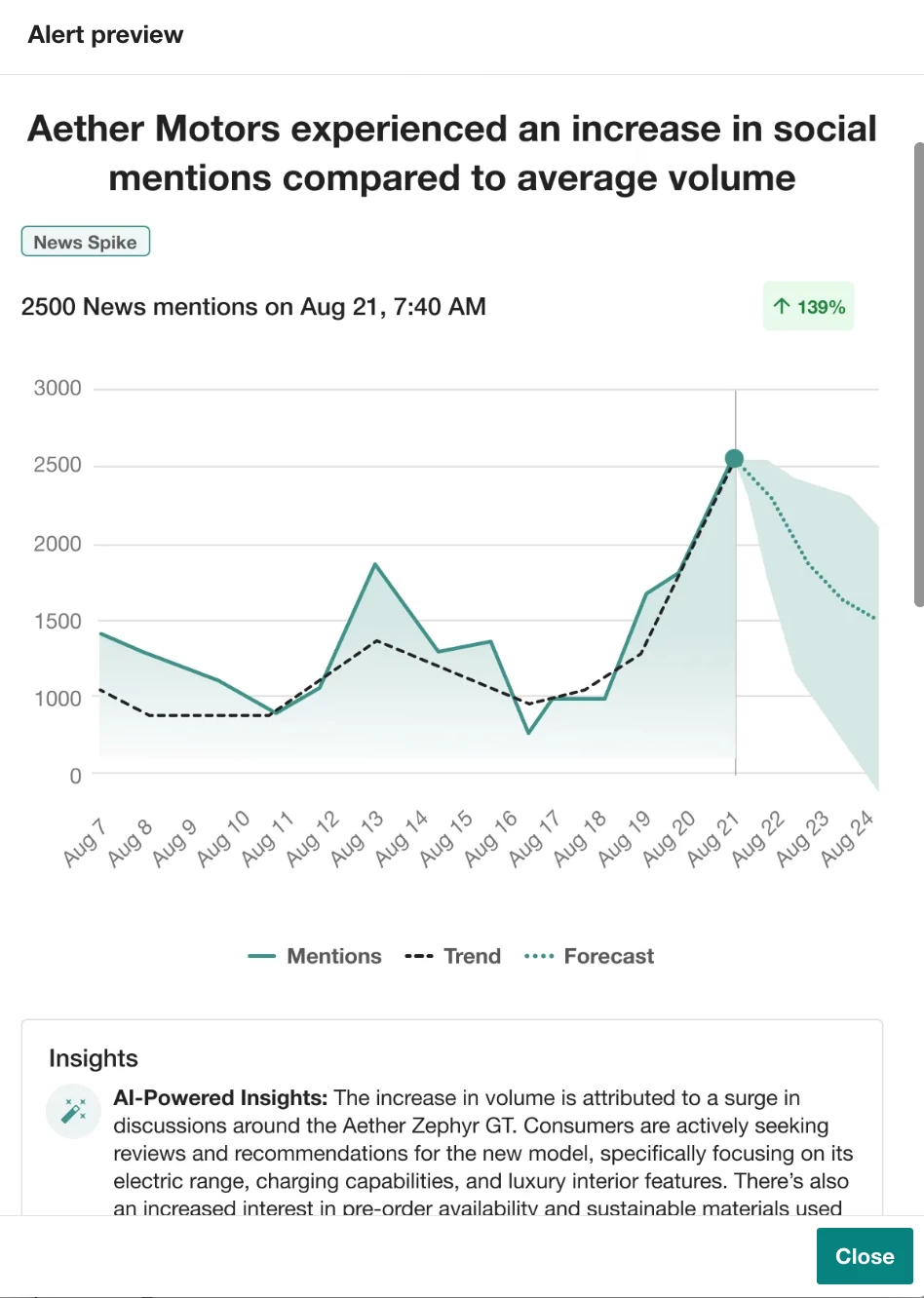
- Sentiment Shift Alert — Get a heads-up if coverage turns more negative (or more positive) than usual, so you can stay ahead of any brand risk right from your phone.
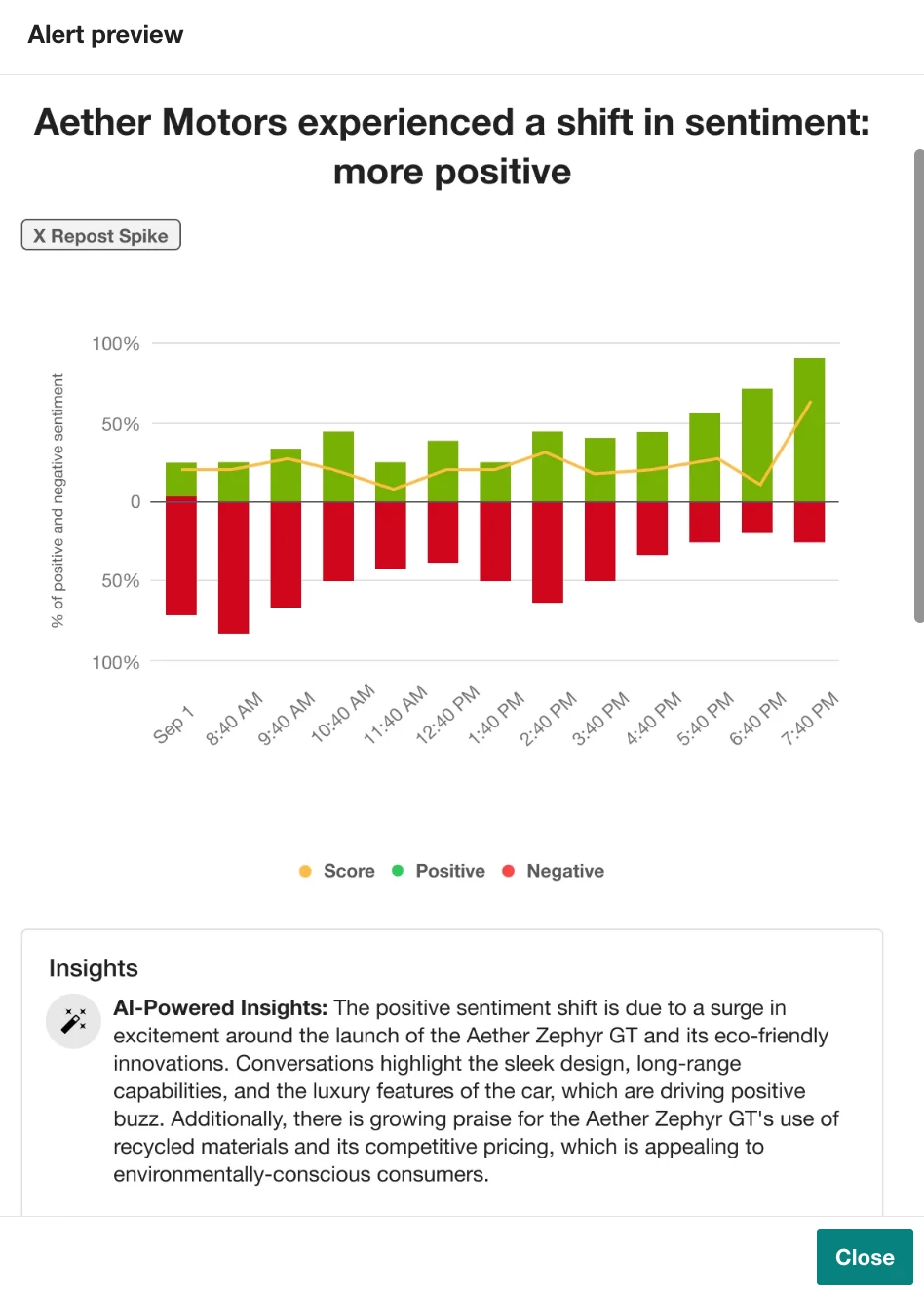
🔧 To check
- Go to Alerts
- Click Create Alert
- Select the checkboxes to the left of the Alert name
- Click Next
- Select your saved searches from Explore (you can add up to 10 per alert)
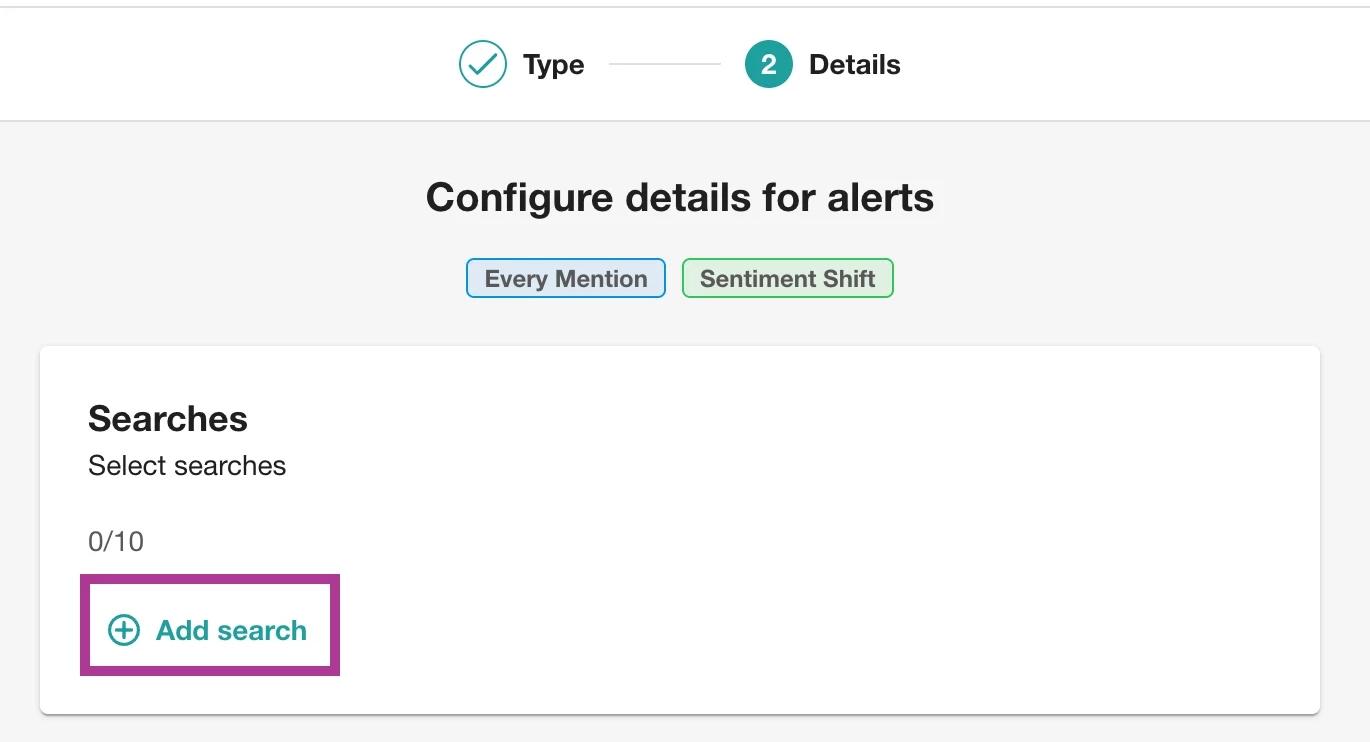
- Select your recipients by selecting the checkbox next to their name or adding their email address
- Select your delivery method (any email, Slack Channel, or Teams channel)
- Click Save
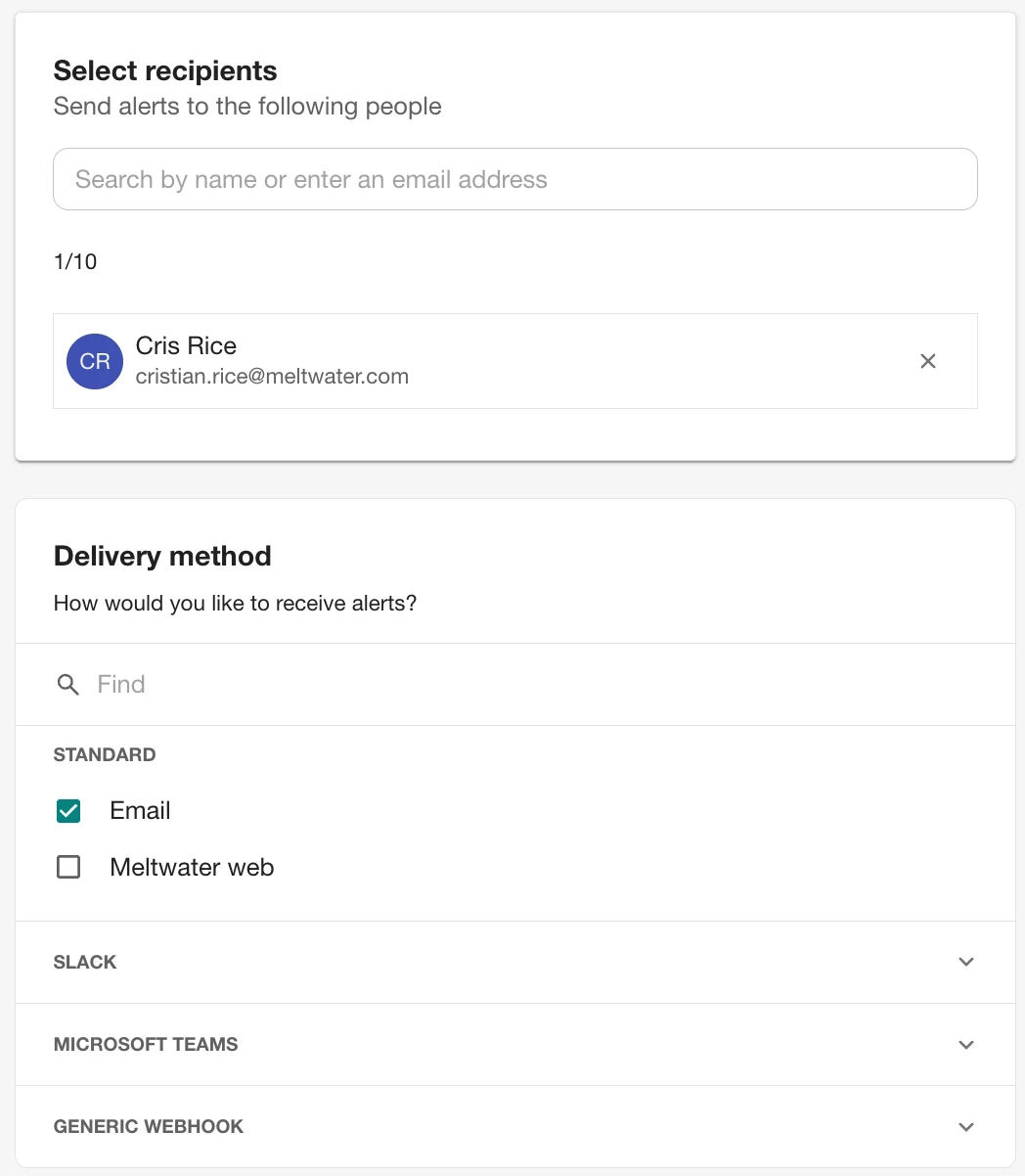
💡 Good to know: Alerts can be delivered to any email, Slack channel, or Teams channel so the right people get pinged wherever they are. (Recipients don't need a Meltwater login for alerts; an email address will do.)
📬 Step 3: Set Up a Daily Digest
Why: Alerts catch the unusual. A Daily Digest keeps you (and your stakeholders) casually in the loop on everything. This is one clean email summary a day, no logging in required.
Every morning, your team can get a snapshot of the previous day's coverage landing right in their inbox. Easy to skim with your morning coffee (or from the pool).
📈 To set it up
-
Go to the Report drop-down in the left-hand navigation bar
- Select Digest Reports → Create Report
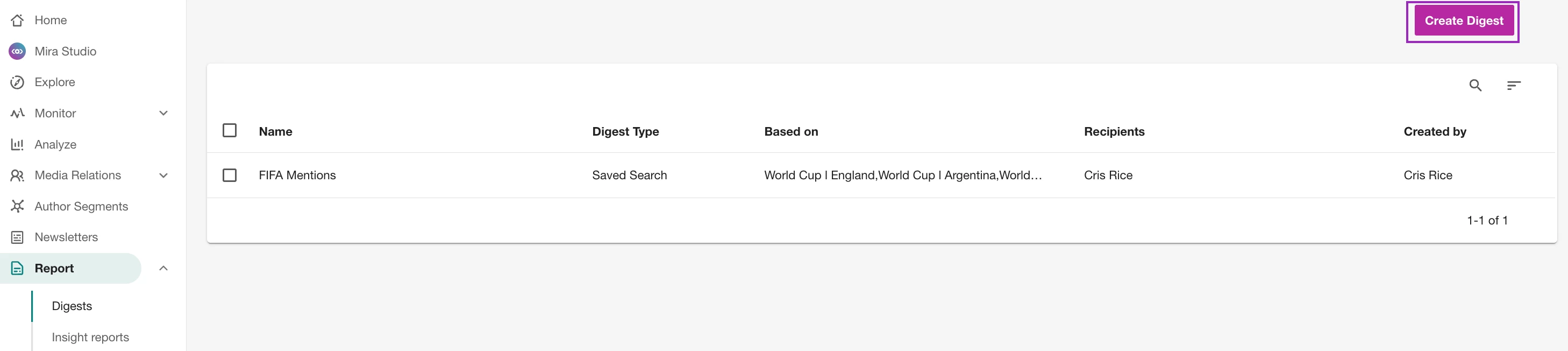
Then customize the below:
- Frequency: Choose Daily (you can also do hourly during a crisis, or weekly if that's your pace)
- Subject Line: Give it a clear name so it's easy to spot in a busy inbox (e.g., Coppertone — Coverage Recap)
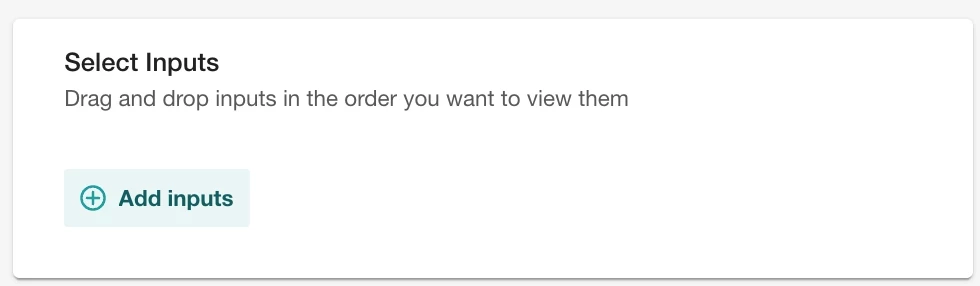
- Inputs: Add the saved search from Step 1, this feeds all the mentions you’re looking for
- Format: Pick HTML so recipients can click straight into the live articles (PDF is just a static snapshot)
- Days & time: Monday–Friday at 8 AM is a solid default, and Monday's digest sweeps in everything from the weekend
- Recipients: Add your teammates so the right people stay covered while you're OOO
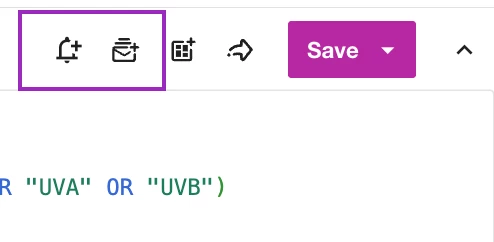
💡 Pro tip: You can turn Daily Digests and Alerts on from one place using the icons at the top right of the screen while you're inside a saved search.
Note: Digest recipients need to be Meltwater users on your account.
🏷️ Step 4: Auto-Sort Mentions with Tagging Rules
Why: If you're expecting a busy summer (campaigns, customer chatter, a heat wave of mentions), the last thing you want is to come back to 1,000+ unsorted mentions. Automated tagging keeps everything organized while you're off-grid.
Set up Rules-Based Automation to:
- Tag campaign mentions — anything that includes "SummerSkin" or "beach tour" gets tagged as Summer 2026
- Flag potential issues — mentions with words like complaint, reaction, or recall get tagged so your team can triage them fast
- Organize by keyword, source, or sentiment — so what matters is easy to find the second you're back
🧭 To set one up
- Click the downward arrow next to Content
- Select Automation
- Click Create Rule
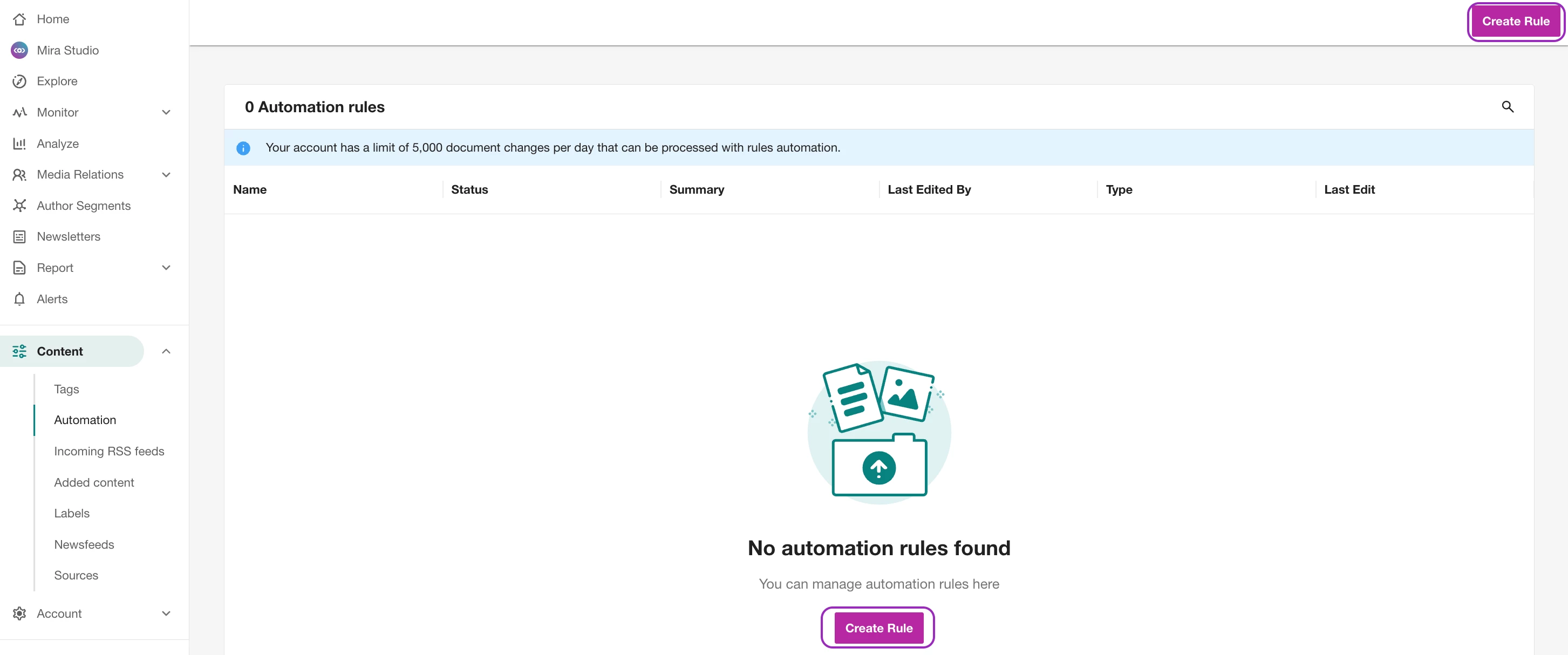
From there it's three quick screens:
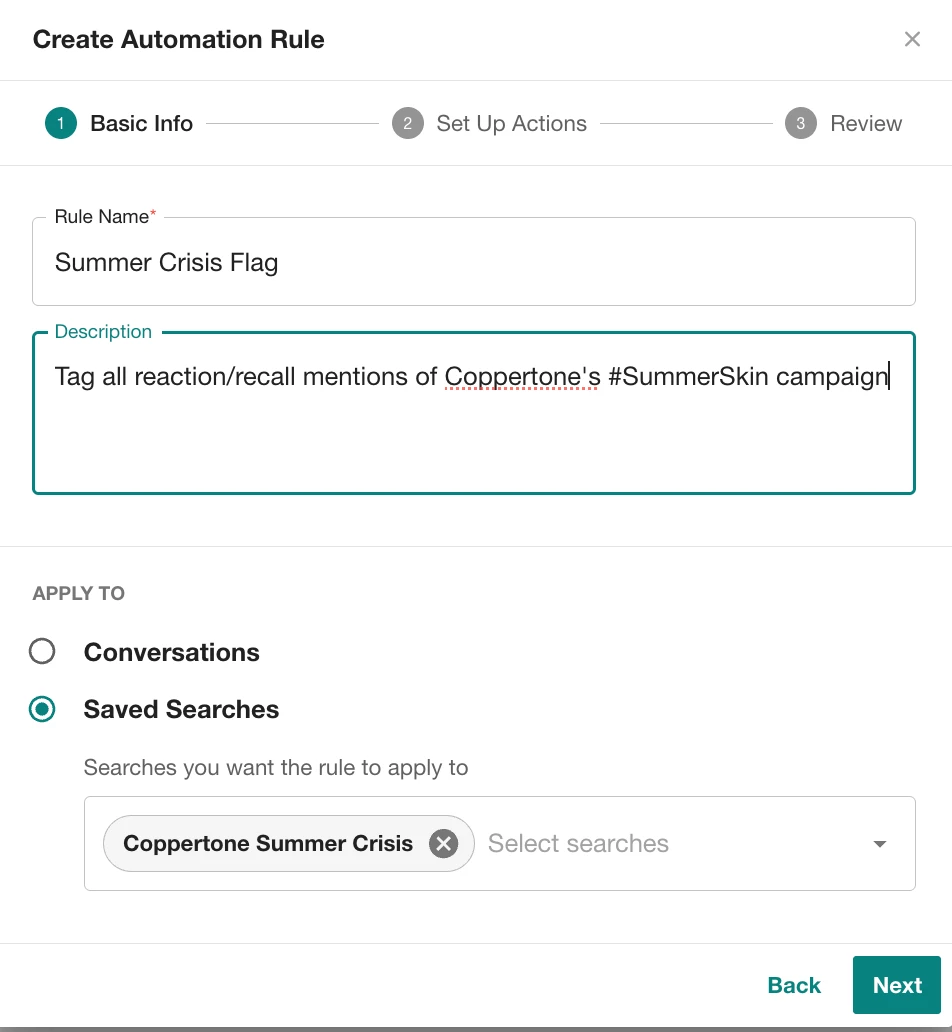
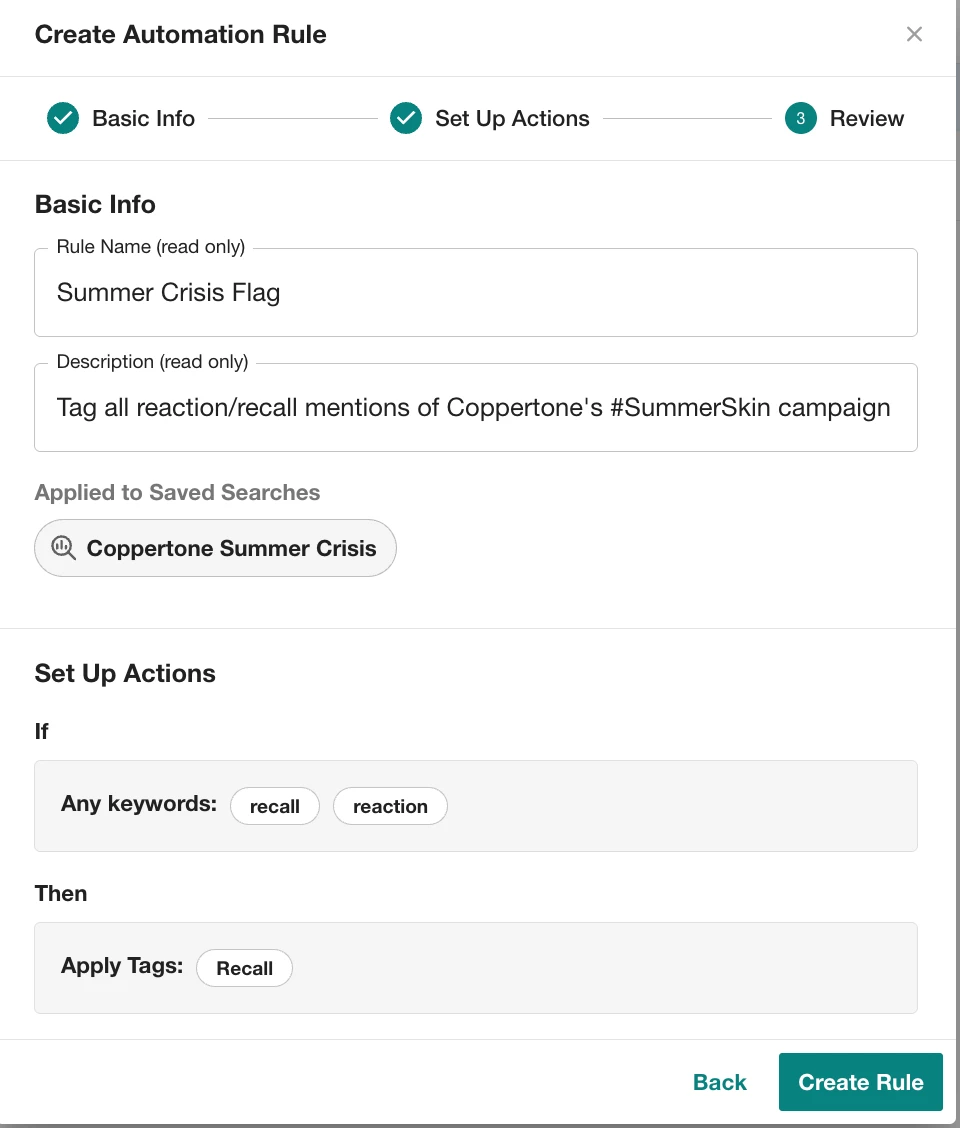
- Basic Info — Give your rule a clear name (e.g., Summer crisis flag) and a short description. Under Apply to, choose Saved Searches and pick the search from Step 1. Click Next.
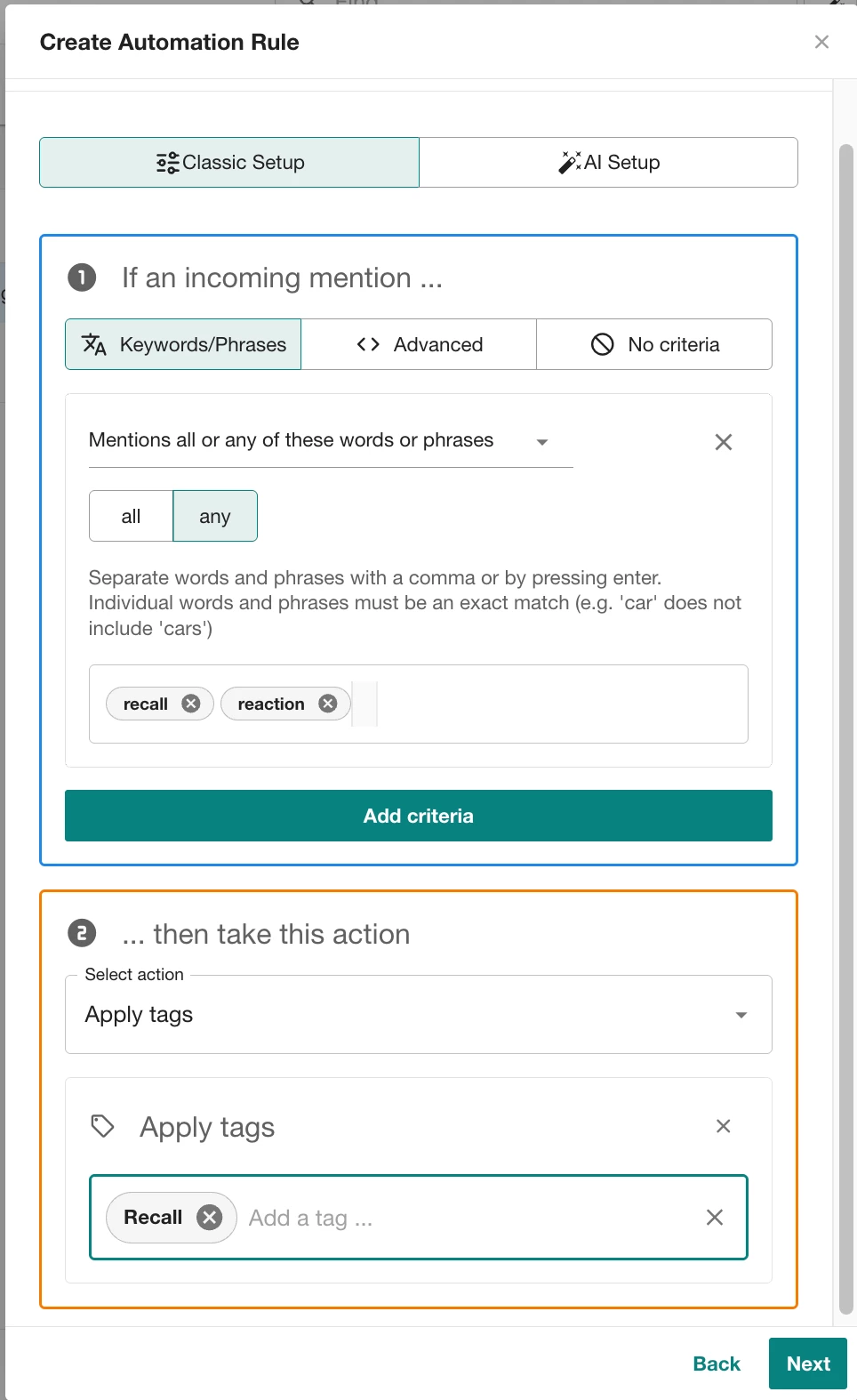
- Set Up Actions — Tell the rule what to watch for and what to do:
- Set your criteria — the keywords that trigger the rule (e.g., recall, reaction). You can also pick No criteria to apply the action to every incoming mention.
- Choose an action — Apply tags, Change sentiment, or Hide post. You can stack more than one on a single rule.
- Prefer not to build the logic yourself? Click AI Setup, pick a suggested example or describe your rule in plain language, and let it do the work — same idea as the Search Assistant back in Step 1.
- Review — Give everything a final look and click Create Rule.
💡 One thing to know: Automation only works going forward, it won't sort mentions from before the rule existed so set this up before you head out of office to catch everything while you're gone.
This helps everyone find what matters fast and skip the manual sorting when you return from vacation.
📊 Step 5: Automate Your Reports
Why: Your stakeholders still expect their weekly or monthly recap with a vacation or not. Instead of building it by hand on the plane, let Meltwater deliver it on a schedule.
📁 To set it up
- Head to Analyze.
- Already have a dashboard you check regularly? Just click the name to open it; you can schedule that one as-is.
- Starting fresh? Learn how to Create a Dashboard here (the Earned Media Measurement Report is a popular starting point).
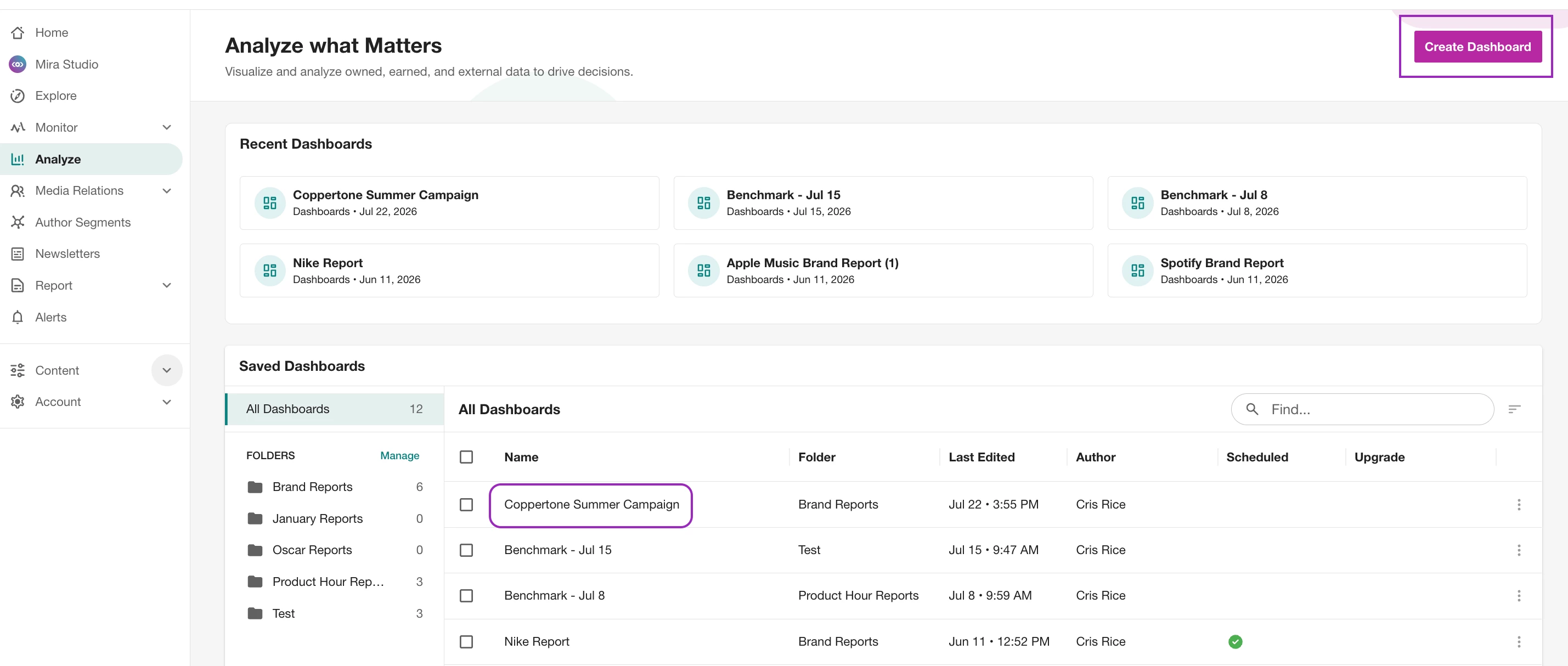
Either way, you'll have a report full of the good stuff: mentions, reach, sentiment, and top coverage. Then:
- Use the date range selector at the top to set your reporting window (weekly, monthly, quarterly)
- Click ⏰ Schedule Delivery in the top right
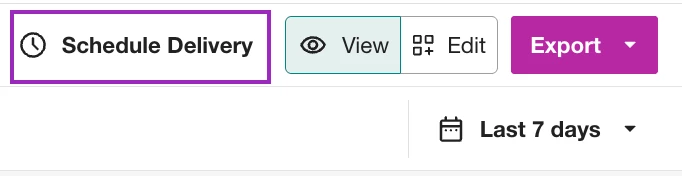
- Select Create schedule in the first popup
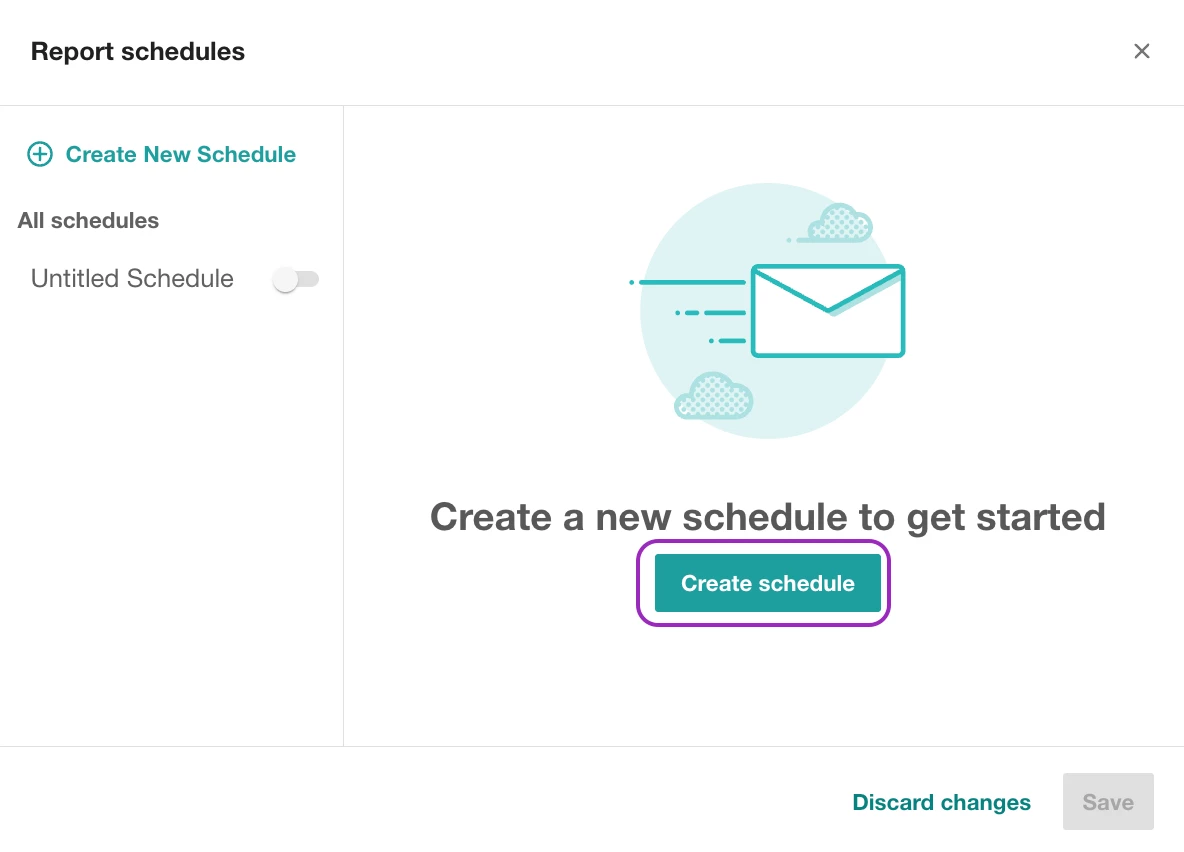
- In the next popup, set the report's name, recipients, Report type (PowerPoint or PDF), and schedule (daily, weekly or monthly) → click Save.
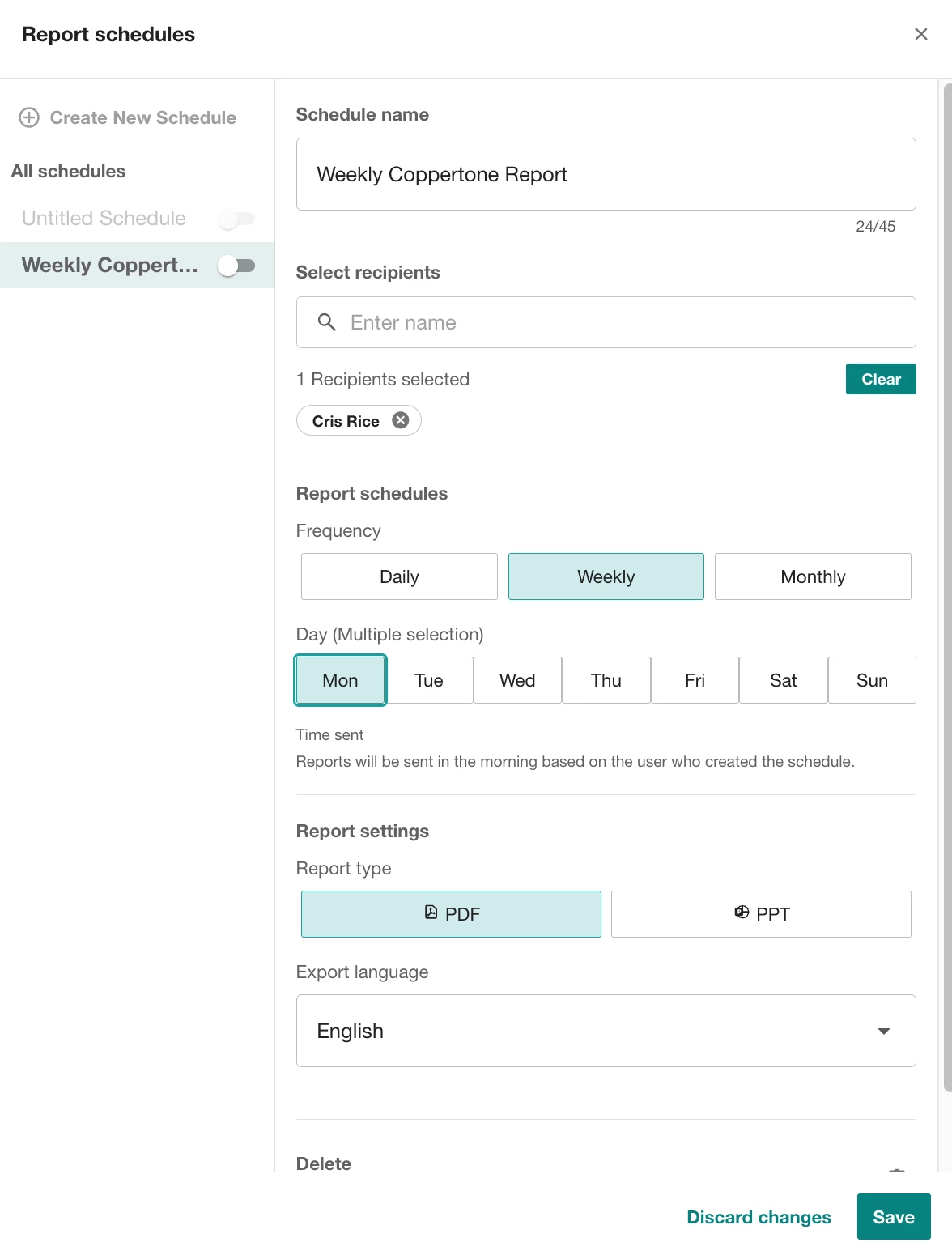
Now the report lands in the right inboxes automatically so leadership stays informed while you're away.
Note: Scheduled report recipients need to be Meltwater users on your account.
🎁 Now, You're Ready to Relax
You've got:
✅ Searches confirmed
✅ Alerts watching for spikes and sentiment shifts
✅ Daily digests landing in the right inboxes
✅ Tagging rules quietly sorting mentions in the background
✅ Reports scheduled to send themselves
So go ahead and turn on your out-of-office email, grab the sunscreen, and let Meltwater keep working while you recharge. ☀️
Happy summer! 🏖️