




Define your ideal audience, tone, content themes, and values. Klear then surfaces tailored summaries and fit-based recommendations.
This article will cover:
Setting Up AI Personalization
To set up AI Personalization, follow these steps:
-
Select your Account Name in the top right-hand corner
-
Click Settings
-
Click AI Personalization
-
Navigate to the Brand Summary and Ideal Influencer Description sections
-
To add Multiple Brand Summaries
-
Click Manage Brands
-
Select Add Brand Summary
-
Name your brand
-
Upload an optional avatar
-
Add a description that reflects its values, voice, and positioning.
-
Click Save Brand
-
-
To add New Ideal Influencer Profiles
- Navigate to Influencer Persona
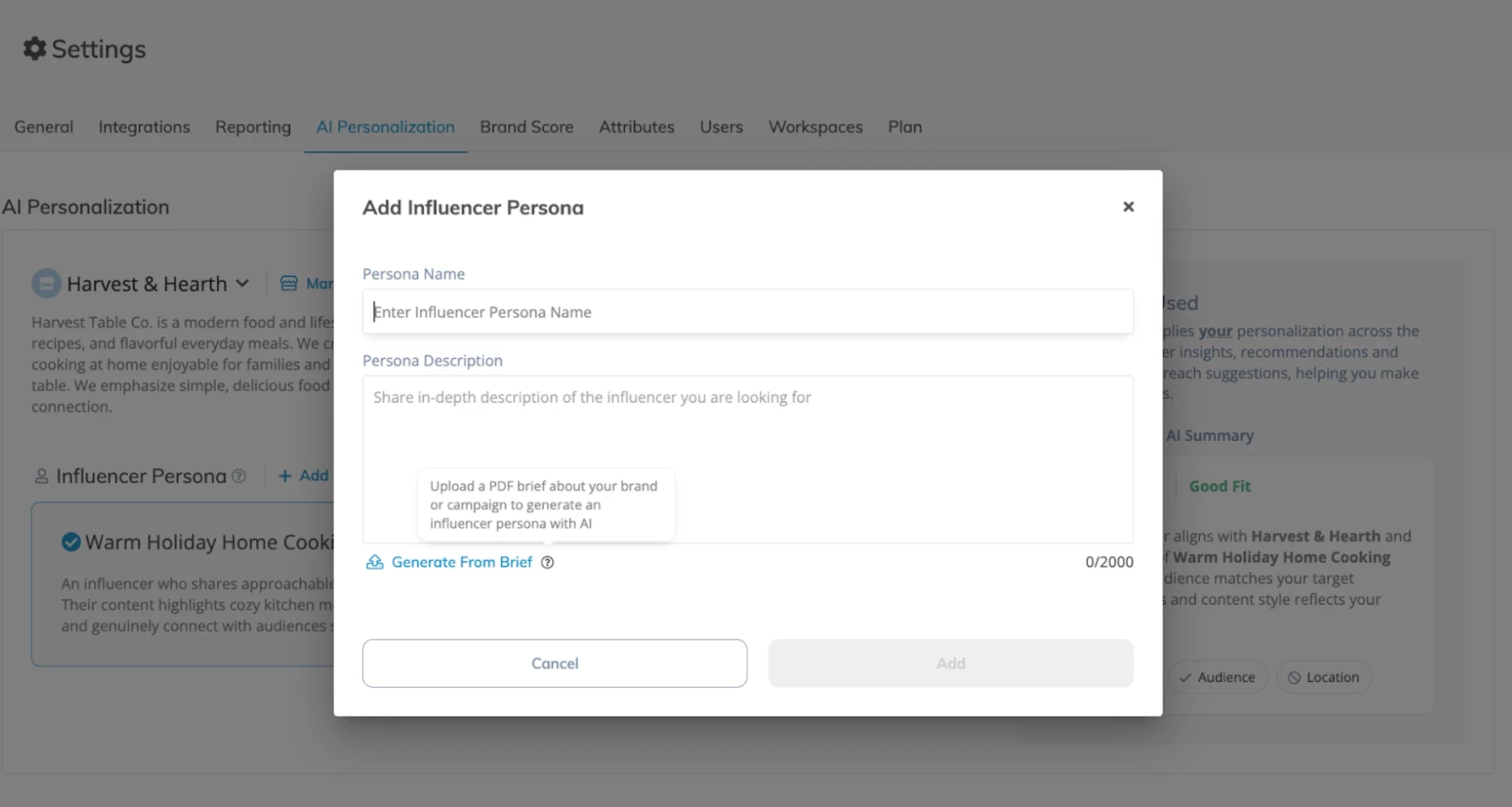
- Click + Add New to create an Ideal Influencer Persona.
- Fill in the persona details manually, or click Generate from Brief to upload a campaign brief and let AI generate a persona for you.
- Click Manage Brands to add or edit Brand Summaries at any time
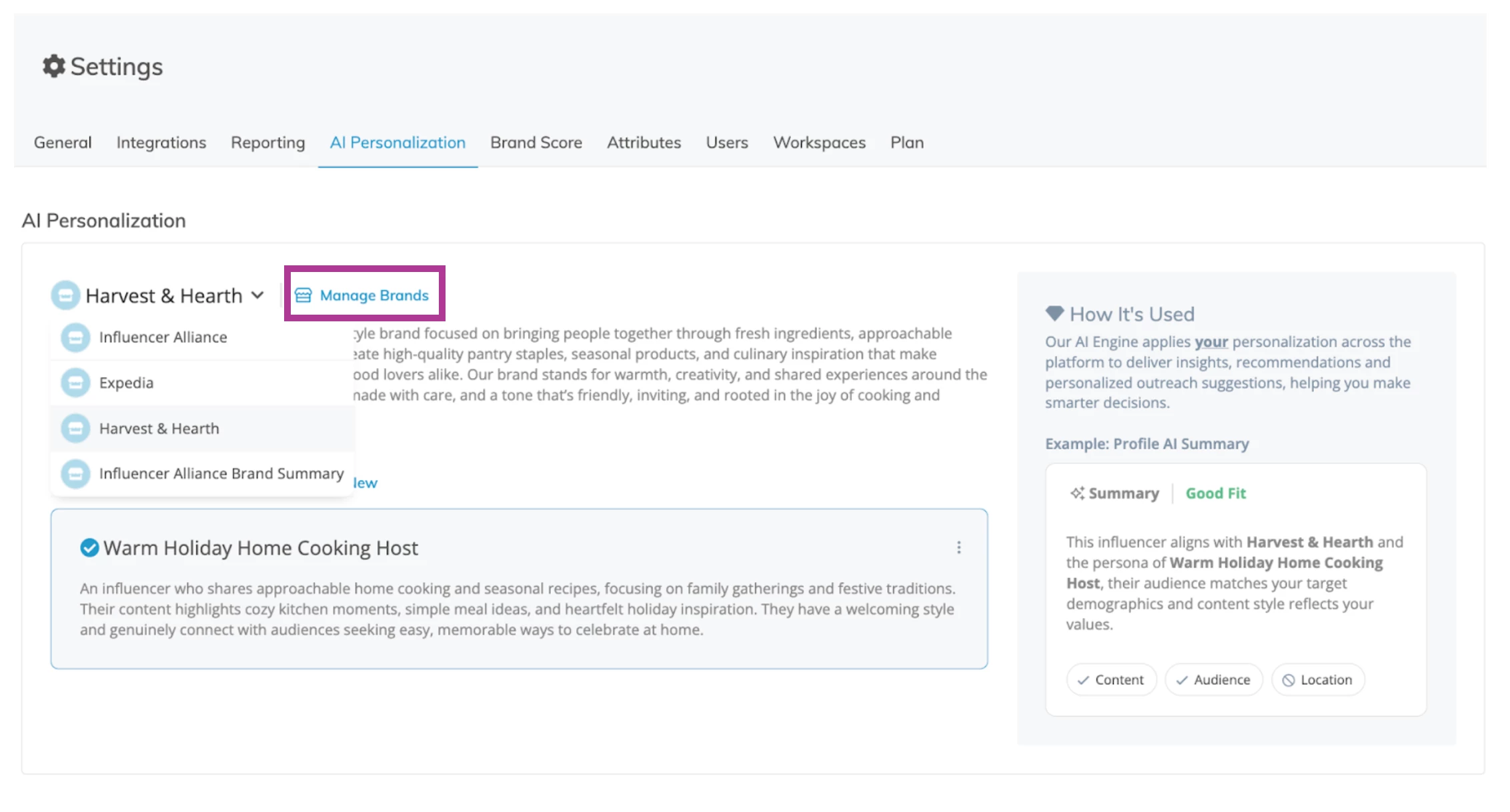
Note: Your selected brand and persona setup will personalize AI-generated summaries across the platform. Your choices are saved to your account, so you can switch setups as your campaigns evolve, while still allowing your team to view all Brand Summaries and personas for collaboration.
Switching Brand Summaries and Influencer Criteria To See Updated Insights
-
Revisit your AI Personalization settings anytime to change which Brand Summary and Ideal Influencer profile are applied to your account.
Note: You can create multiple profiles or view and use the profiles your teammates have created. The profiles you choose to apply will only affect your account and will not change anyone else’s settings.
-
Your AI summaries and insights will instantly update to reflect your selected settings.