




Explore+ Admins and Standard+ users can now convert any Standard Search into an Optimized Search. This brings the full search-creation workflow — including the AI Search Assistant — into a connected flow.
This article will cover:
Saving a Standard Search as an Optimized Search
To save a Standard Search as an Optimized Search, follow these steps:
Note: You must be a Standard+ or Admin users can create or edit Optimized Searches, so they are the only users who will see the search type selection. Standard and View-Only users will not see this option.
- Click the Explore in the lefthand navigation bar
- Open an existing search
- Select the Save drop-down in the top righthand corner
- Click Save as
- Enter a search name
- Select Optimized
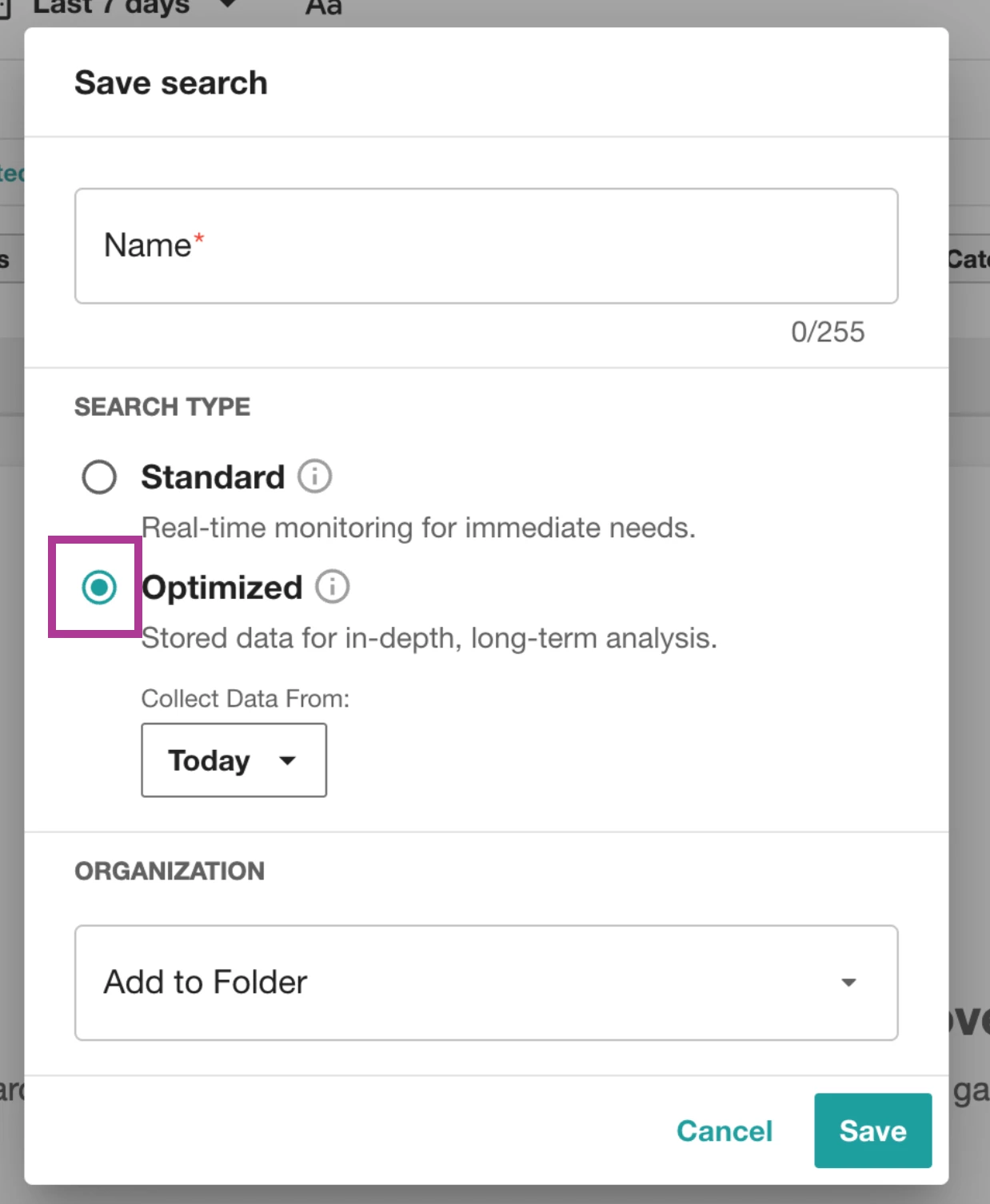
- Choose whether to enable data collection going forward
Note: As an option, select a historical date range to import data from Meltwater’s archive
- Add your search to a Folder
- Click Save
The new Optimized Search appears alongside your other Explore+ assets.
Understanding Historical Data
When saving as Optimized, Admins can optionally pull historic content into their private index:
- Choose from preset windows (7 days, 30 days, quarter, year) or set a custom range
- Data is added from Meltwater’s full archive
- Account-level private index limits still apply
- Large retroactive imports may take time
Notes & Limitations
Learn more about Boolean supported by Explore but not supported by Explore+:
These metrics are supported in Explore but not in Explore+
- "Metrics."
- "enrichments.socialScores."
- "enrichments.socialScoresUpdateTime"
Any nested query will NOT work, example :
enrichments.namedEntities[Name:"Smithfield" AND sentiment.discrete:v]
Boolean supported by Explore+ but not supported by Explore
- enrichments.contentClassification
- enrichments.image.content.objectClassification
- enrichments.image.typedNamedEntities.*
- enrichments.entitySentiment.*
- enrichments.mergedEntitySentiment.*
- enrichments.typedNamedEntities.*
- enrichments.keyPhrasesSentiment.*