



🇦🇺 Australia: Streem to Meltwater Migration Guide

You're moving from Streem to a platform that tracks more data, gives you more control over your clips, and lets you monitor multiple streams at once. This guide covers the key differences you'll notice and how to set yourself up for clean reporting from day one.
In this article you’ll find:
Reach & AVE: Why Your Numbers Will Change
When you start pulling reports in Meltwater, your Reach and AVE numbers will likely be higher than what you saw in Streem — even if your actual coverage volume hasn't changed. Here's why:
Reach
- Streem tracks desktop-only audiences
- Meltwater tracks desktop + mobile audiences. Since mobile now accounts for the majority of media consumption, Meltwater's reach figures reflect a more complete picture of your actual audience.
👉 For a full breakdown of how Meltwater calculates reach, see How Meltwater Calculates Reach
AVE (Advertising Value Equivalency)
- AVE is calculated from reach
- Because Meltwater reach is higher (desktop + mobile vs. desktop only), your AVE will also increase
👉For a full breakdown of how Meltwater calculates reach, see How Meltwater Calculates Reach
What this means:
Higher reach and AVE in Meltwater doesn't mean your media performance suddenly improved. It means the platform is capturing audience data that Streem wasn't measuring.
How to Keep Your Reporting Consistent
You have three options to manage the transition cleanly.
Option 1. Communicate the change to Stakeholders
The simplest approach. Let internal stakeholders know that increases in Reach and AVE are driven by a platform change, not a performance spike. Key points to share:
- Meltwater measures monthly unique visitors; Isentia used weekly — a longer measurement window naturally produces higher numbers
- Meltwater includes mobile audiences; Isentia tracked desktop only
- The AVE formula hasn't changed — the underlying reach data is more comprehensive
- This is a one-time recalibration, not an ongoing trend
Option 2. Adjust your AVE calculation
Meltwater's default AVE formula uses $0.37 USD per estimated viewer. You can adjust this value to bring your Meltwater reports closer to your historical Isentia figures if continuity matters more than accuracy.
To add and configure an AVE widget:
- Open your dashboard in Analyze (or create one using Create a dashboard using this guide)
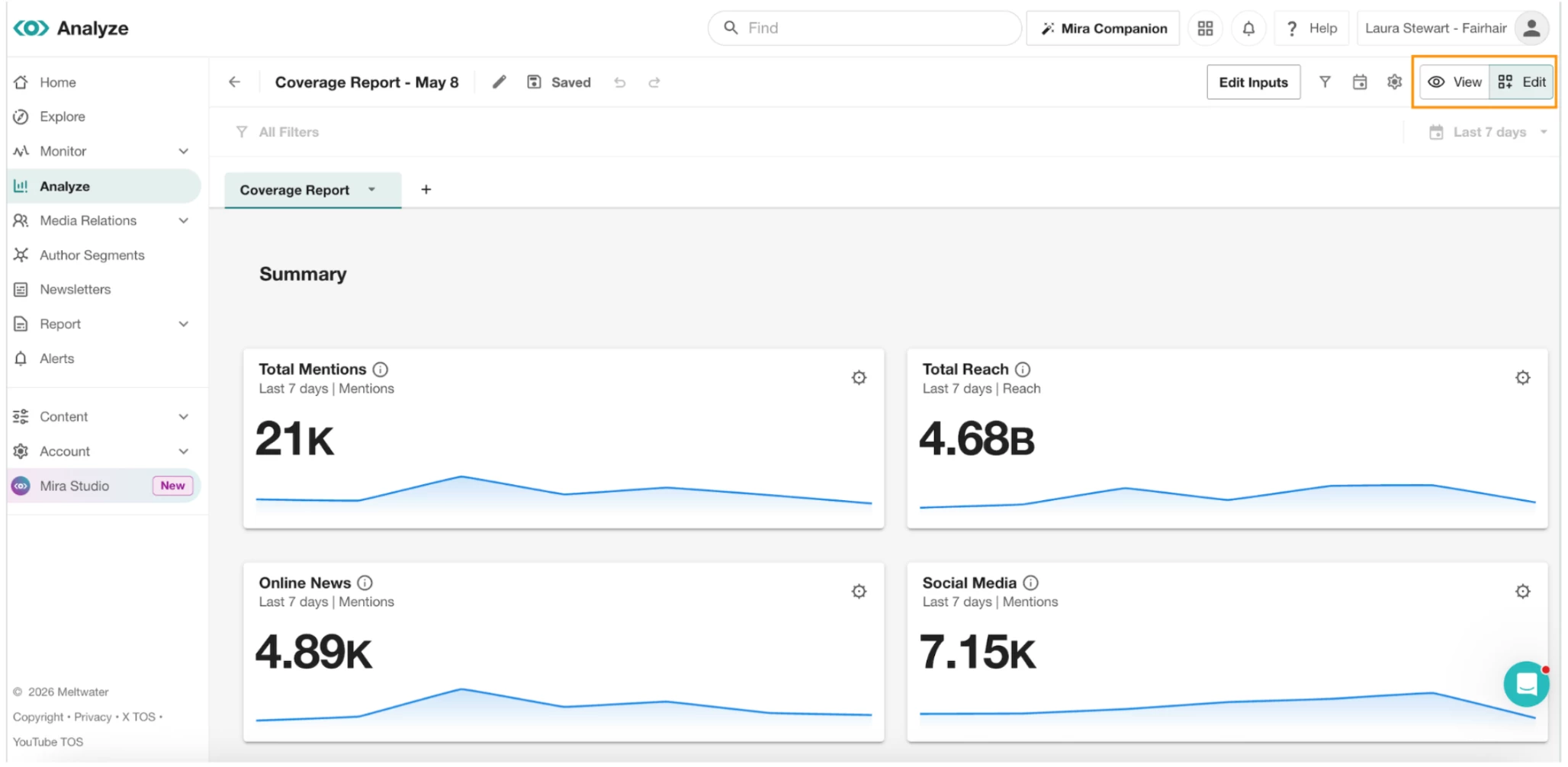
- Click Edit in the top right corner
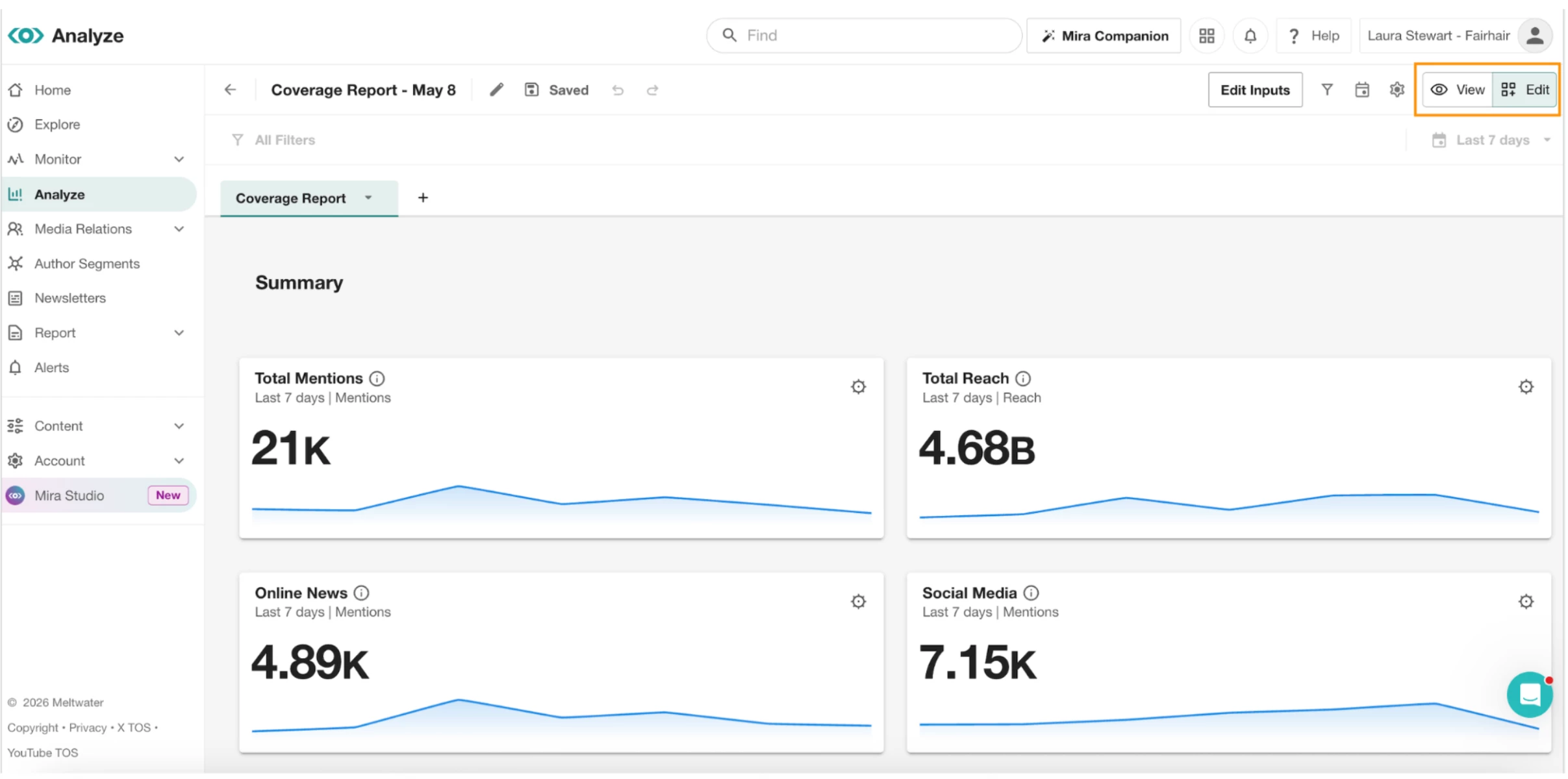
- Navigate to an existing row (with one or two widgets)
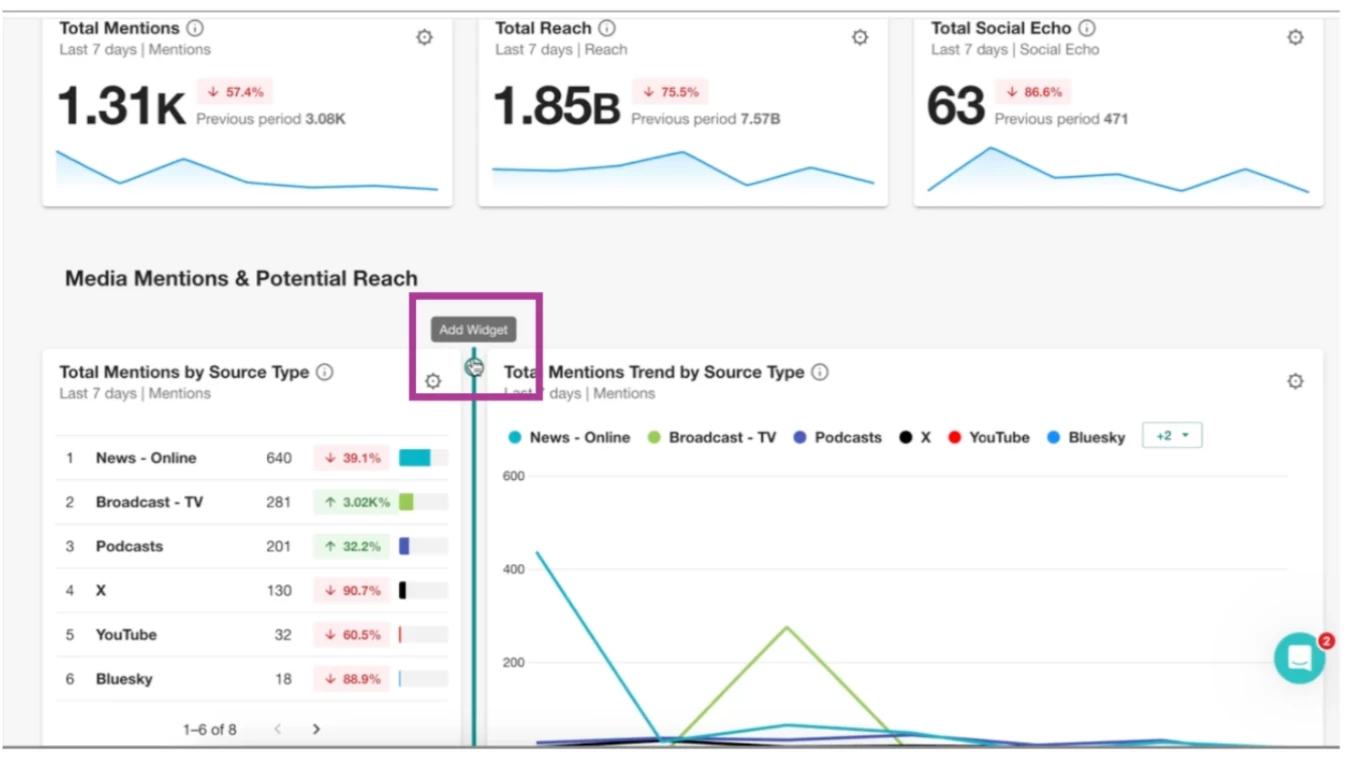
- Click Add Widget
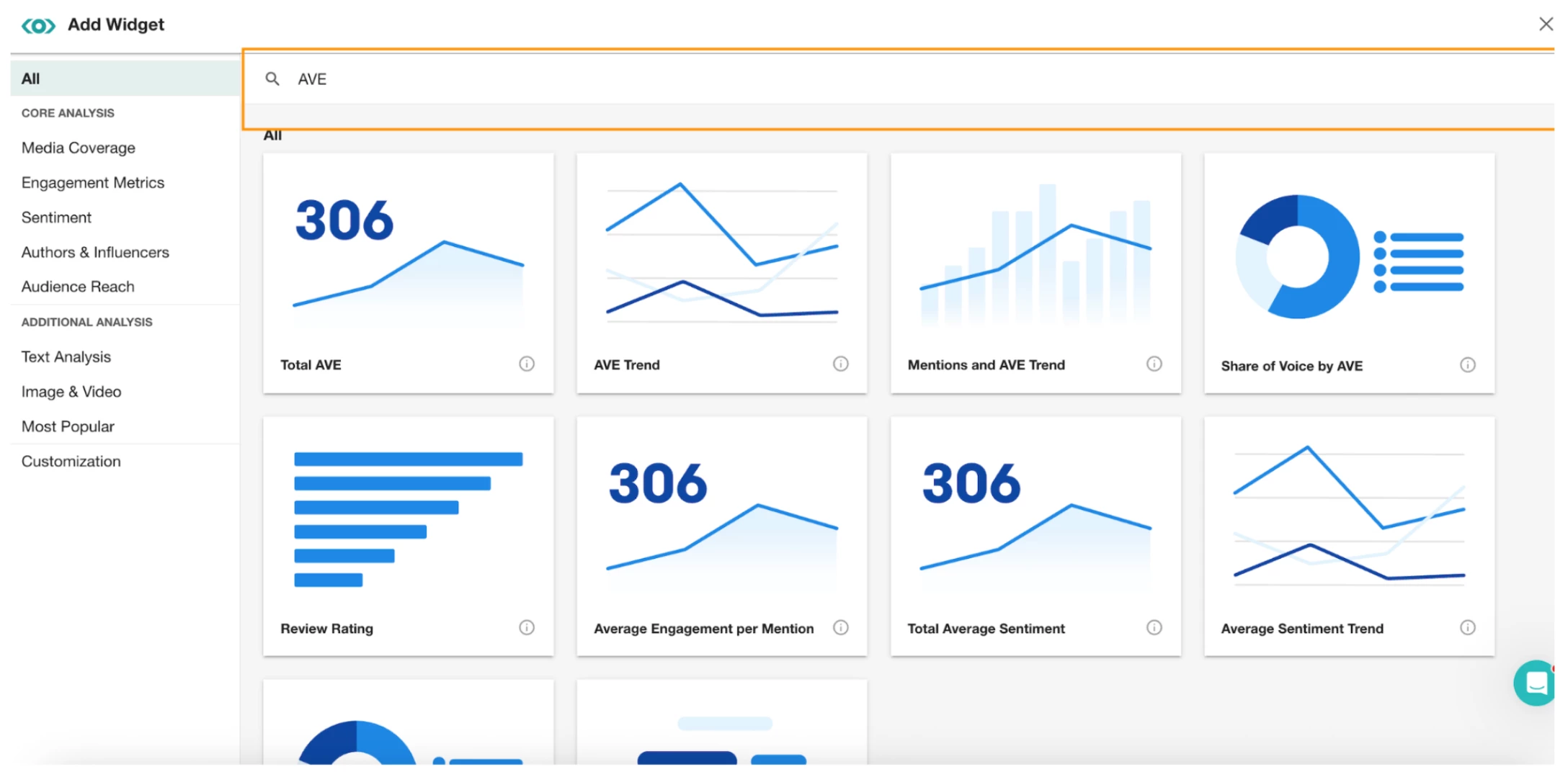
- In the pop-out window, Search for AVE metrics that suit your reporting (you can also search for Reach widgets)
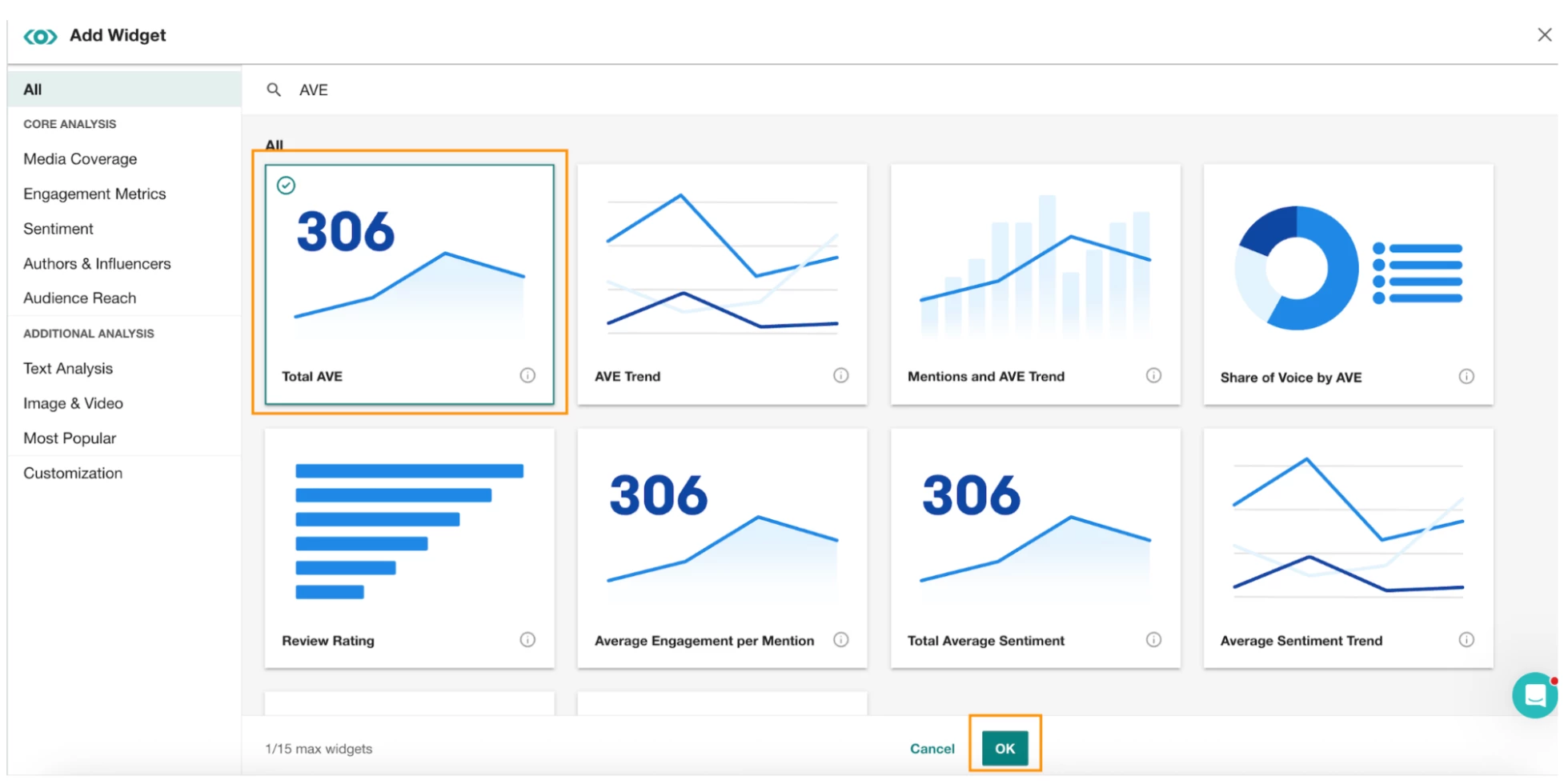
- Select your preferred AVE widget and press OK
- In the configuration window that opens, update the AVE formula and currency to match your needs
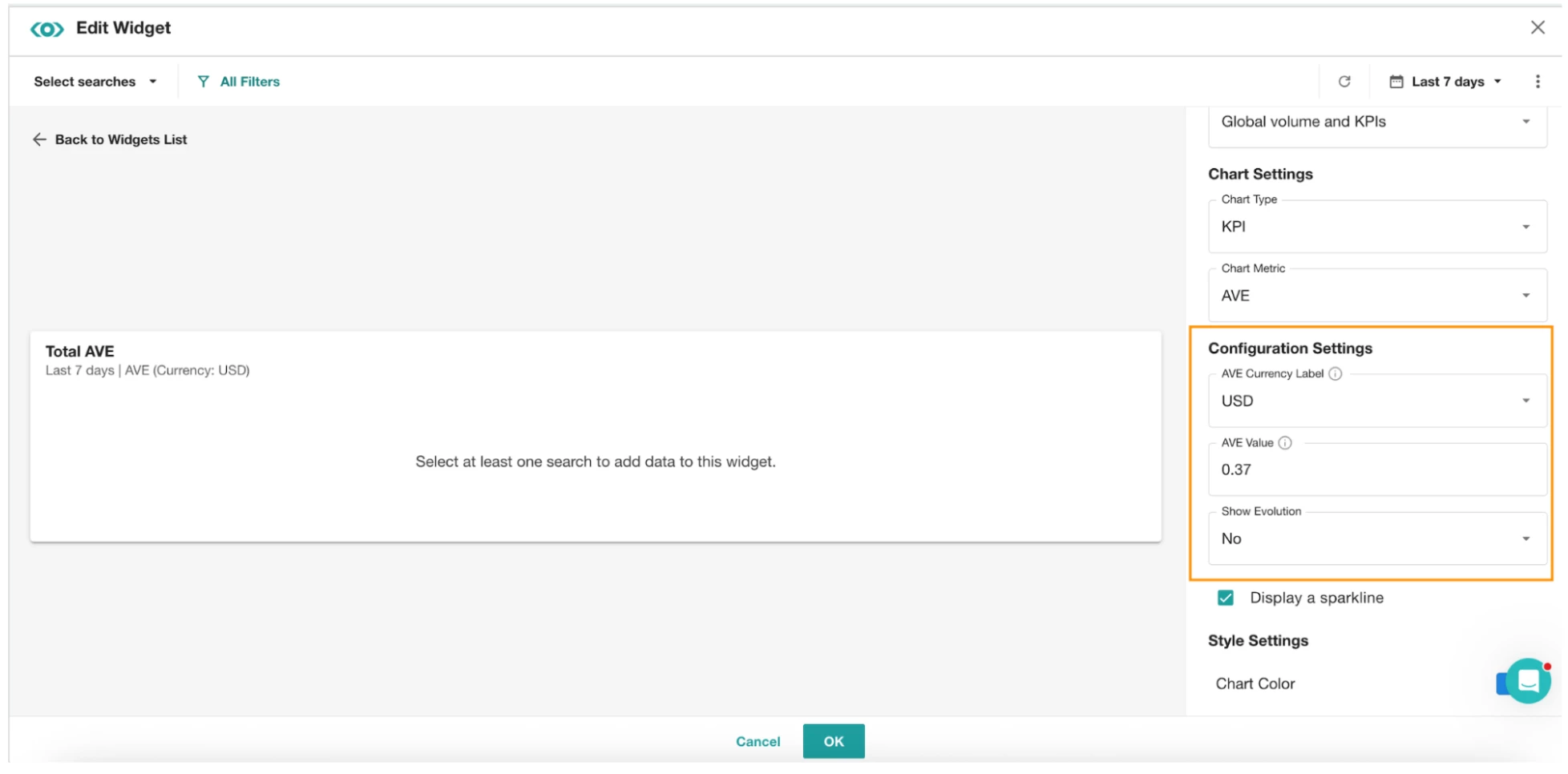
- Press OK to save
Option 3. Create a new reporting benchmark
Use Meltwater's own historical data to set a new baseline. Compare the past 12 months in Meltwater against your Isentia reporting, then use the Meltwater figures as your go-forward benchmark.
To create a benchmark comparison:
- Open your dashboard in Analyze (make sure you've already added your AVE or Reach widgets using the steps above)
- Click Edit
- Click the calendar icon
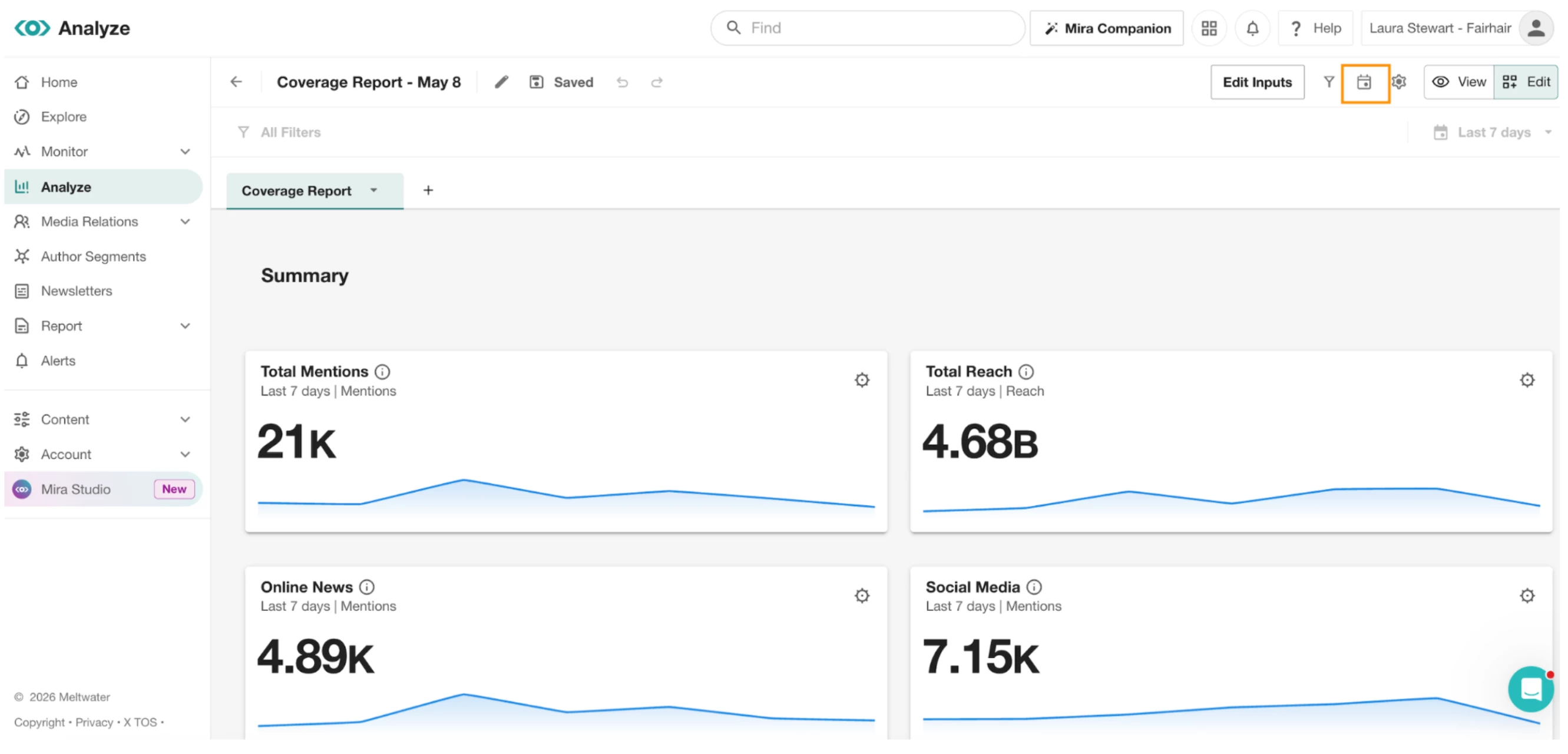
- Select last year from the pop out window
- Click the drop-down arrow on your dashboard tab.
- Select Duplicate
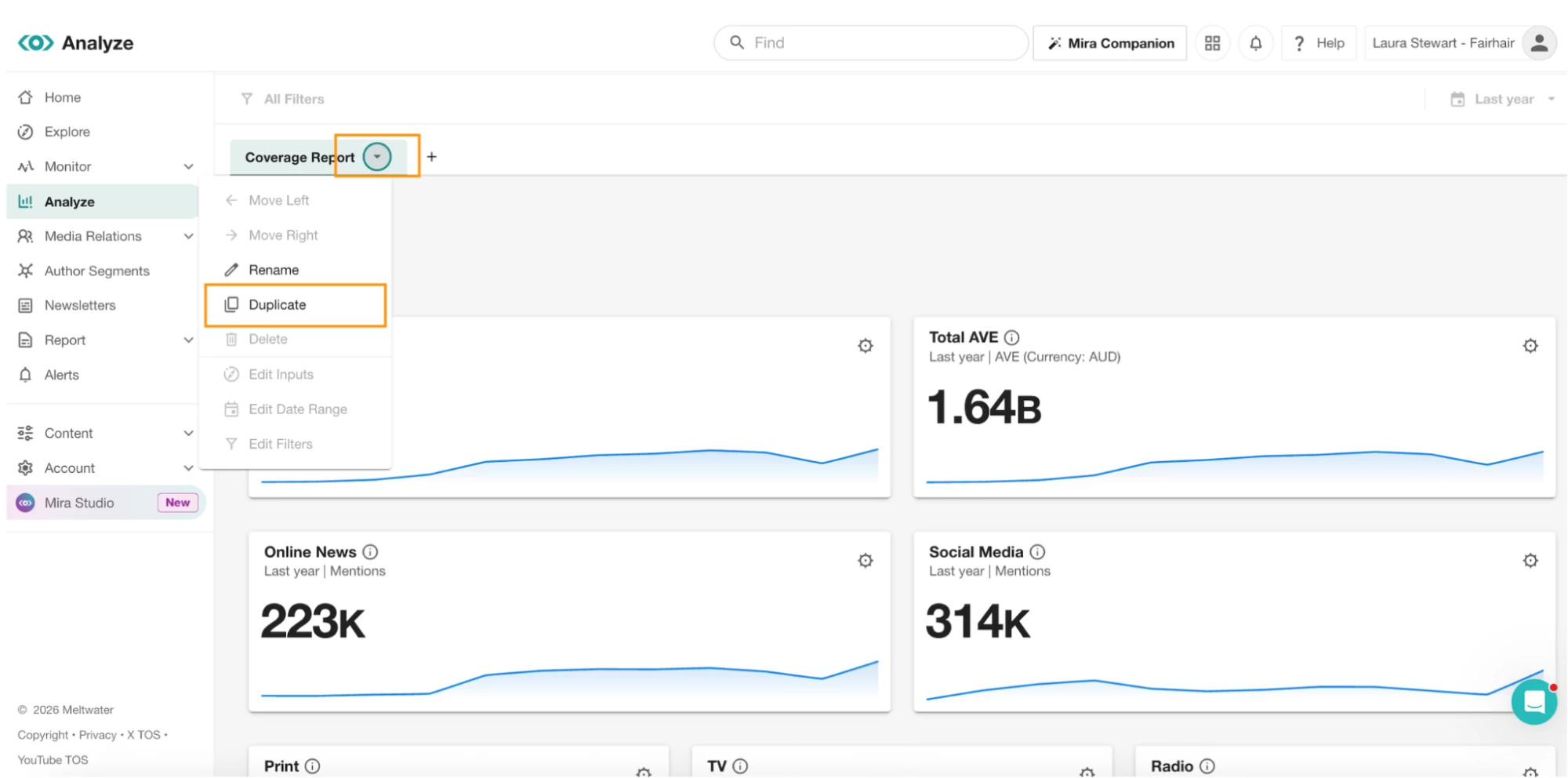
-
In the new duplicated tab, click the drop-down arrow and Edit Date Range
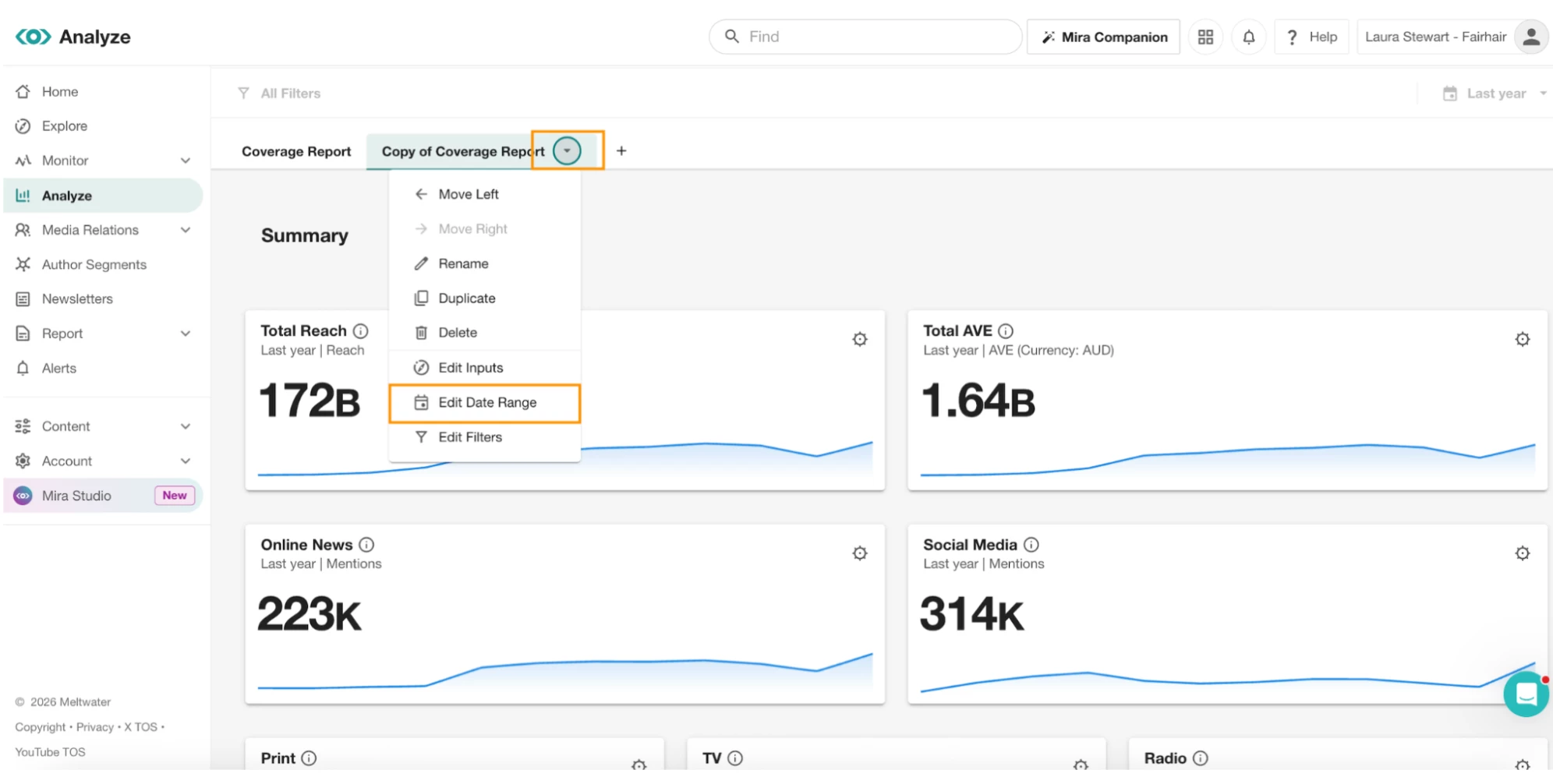
- Select this year in the pop out window
You now have two tabs — one showing last year's data and one showing this year's — giving you a clear before-and-after view to anchor your new reporting baseline.
Monitors: Recreating Streem’s Live Feed (and Then Some)
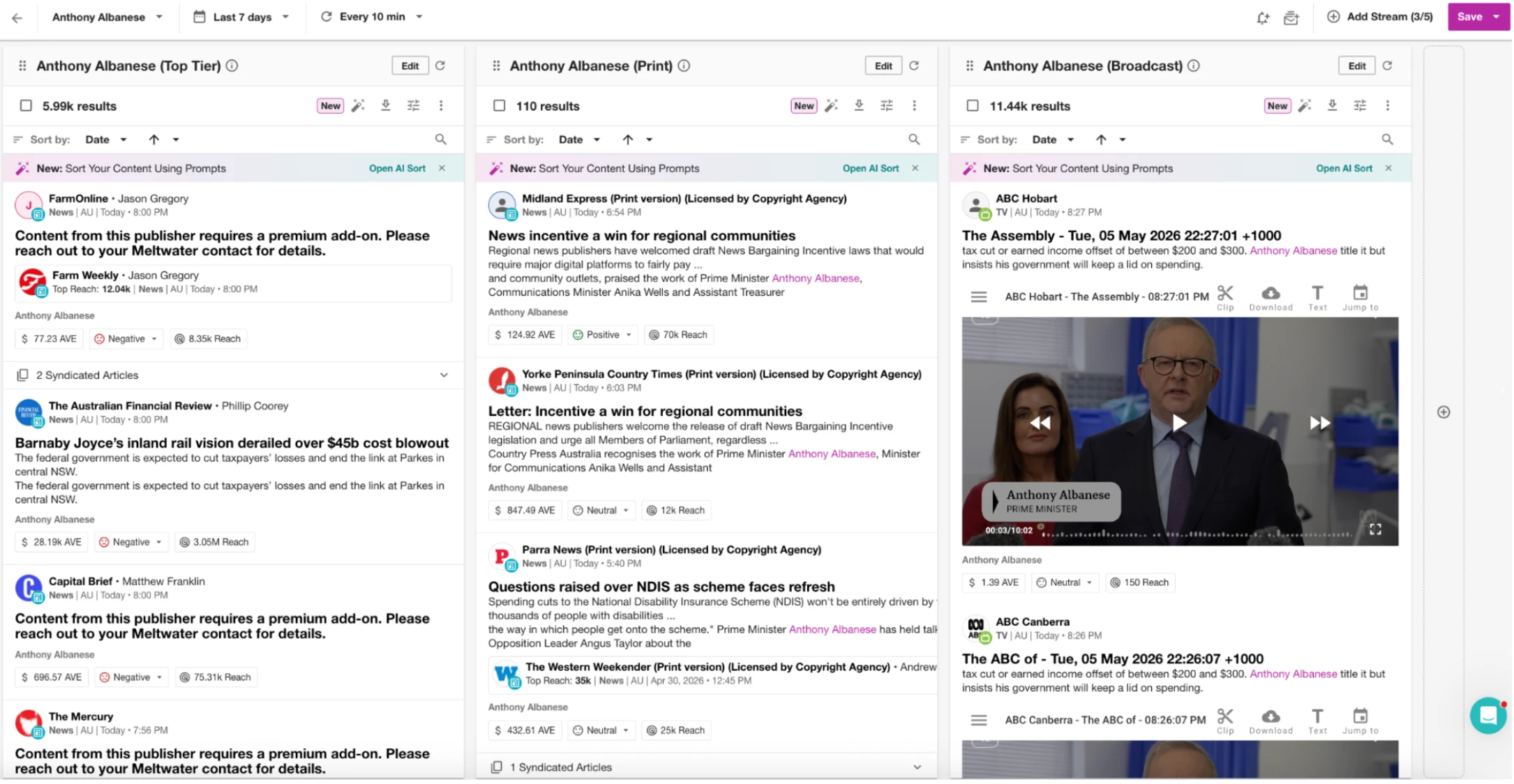
If you relied on Streem's live streamed view, Meltwater's Monitors feature gives you the same real-time feed with one significant upgrade: you can view multiple streams side by side in a single dashboard.
Before You Start:
Make sure you've created and saved your searches in Explore. If you haven't, follow this guide to set up your searches.
To Create Your Monitor
Follow the step-by-step instructions here.
Once set up, your Monitor will display a live, continuously updating feed—similar to Streem, with greater flexibility to customise which streams appear and how they're arranged.
Want a Live Walkthrough?
Join the APAC Get Started with Alerts, Digests and Monitors session or watch the APAC recording.
Broadcast Clipping: 10 Minutes Instead of 30 Seconds.
This is a significant upgrade. In Streem, broadcast clips were capped at 30 seconds. In Meltwater, you can clip up to 10 minutes of broadcast content — enough to capture a full segment for reporting rather than just a soundbite.
Watch this walkthrough to learn how to clip specific sections of your broadcast mentions or extend the clip duration to capture the full segment you need: