

Australia: Finding Specific News Coverage

Need to find a specific article, online mention or broadcast clip?
Follow the options below to locate your specific mentions.
Option 1: Search Using Keywords
(use for The Australian and other Newscorp publications)
Use this method when:
- The publication sits behind a firm paywall
- You don't know the exact headline or URL, you only have a heading and subheading on the paywall page
📺 Watch: Search Using Keywords
Steps
- Identify a few unique terms from the article, such as:
- Company names
- Executive names
- Topics discussed
- Unique phrases
- Navigate to Explore
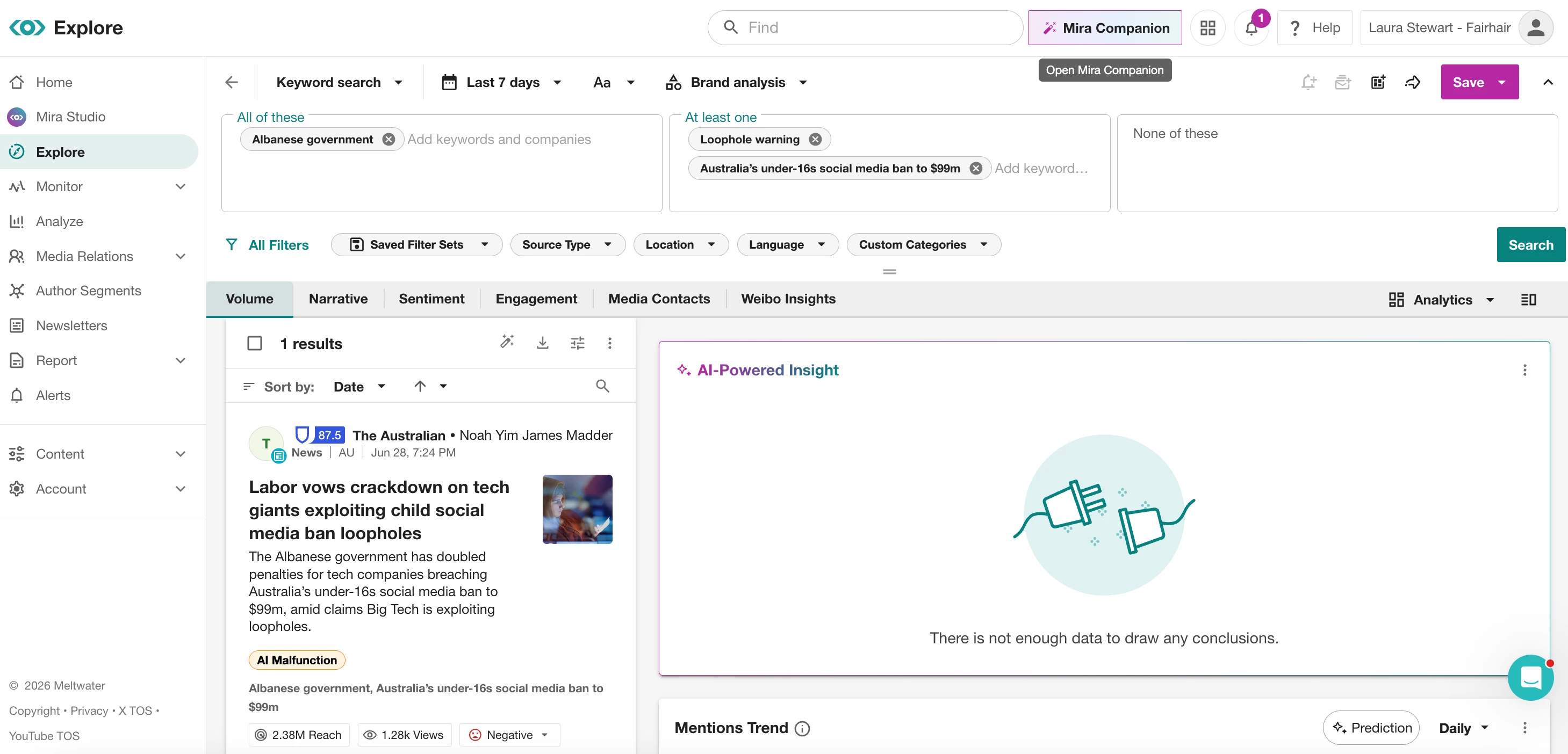
- Open the Keyword Search.
- In the All of these box enter your company keywords or executive names/spokespeople
- In the At least one of these box enter unique keywords specific to the article
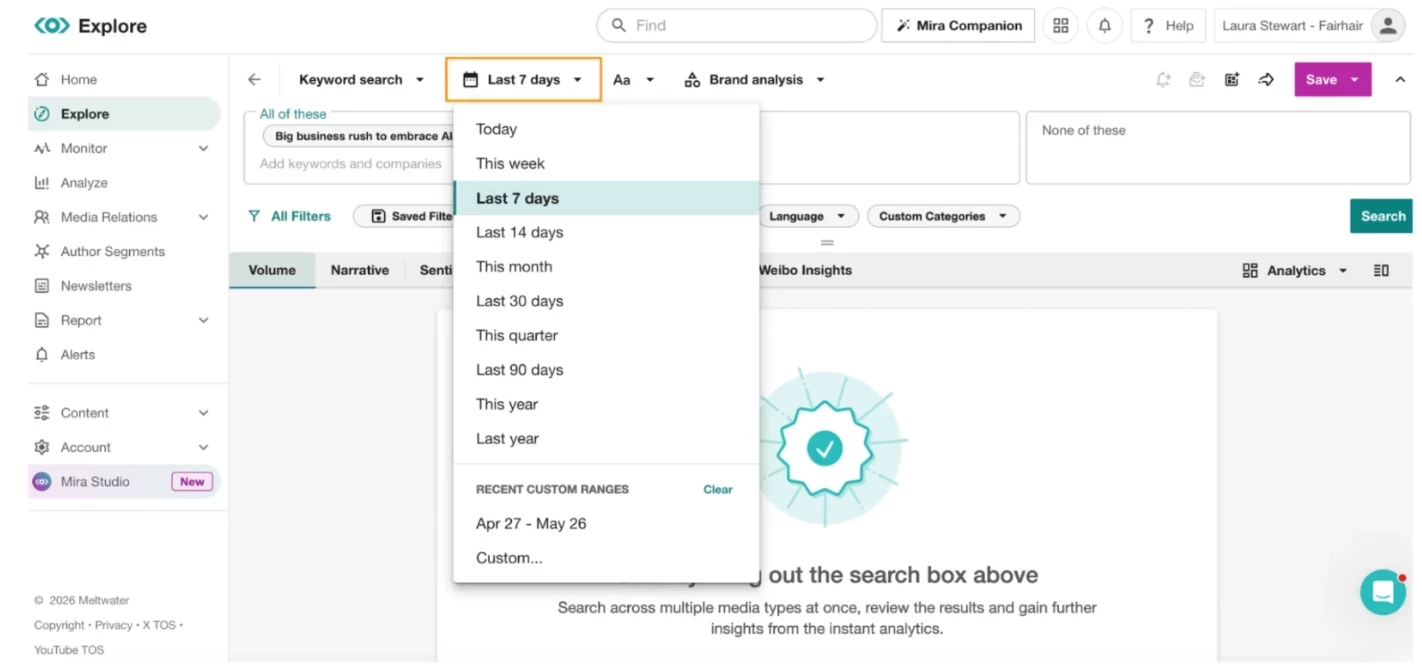
- In the date picker, adjust the date range to include the publication date.
-
Select Search.
-
The article will appear in the content stream below.
**note if your article does not appear, try a different combination of keywords using this method
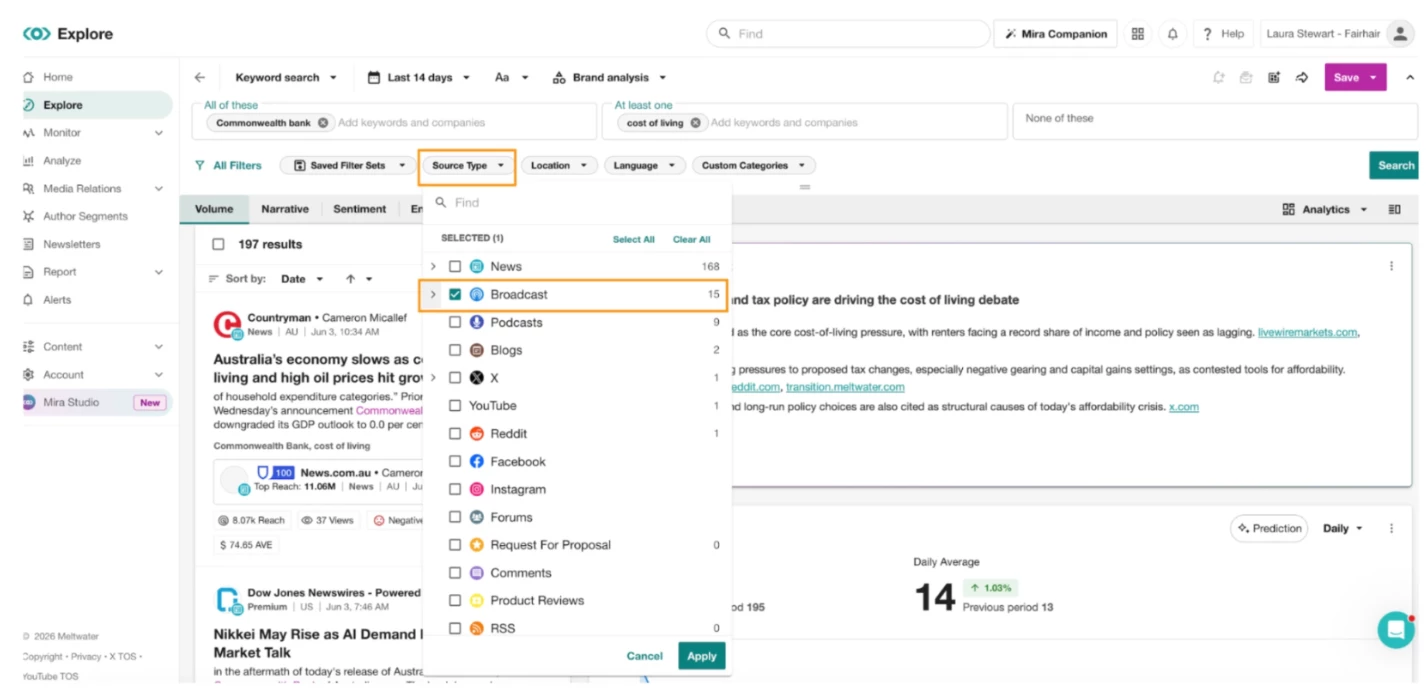
💡 For Broadcast: repeat these steps using keywords from the broadcast segment and change the Source Filter to Broadcast
Option 2: Search by URL
(use for the AFR)
Use this method when:
- You have the article link available
- The publication uses a stable URL structure
📺 Watch: Search by URL
Steps
- Copy the article URL.
- Navigate to Explore.
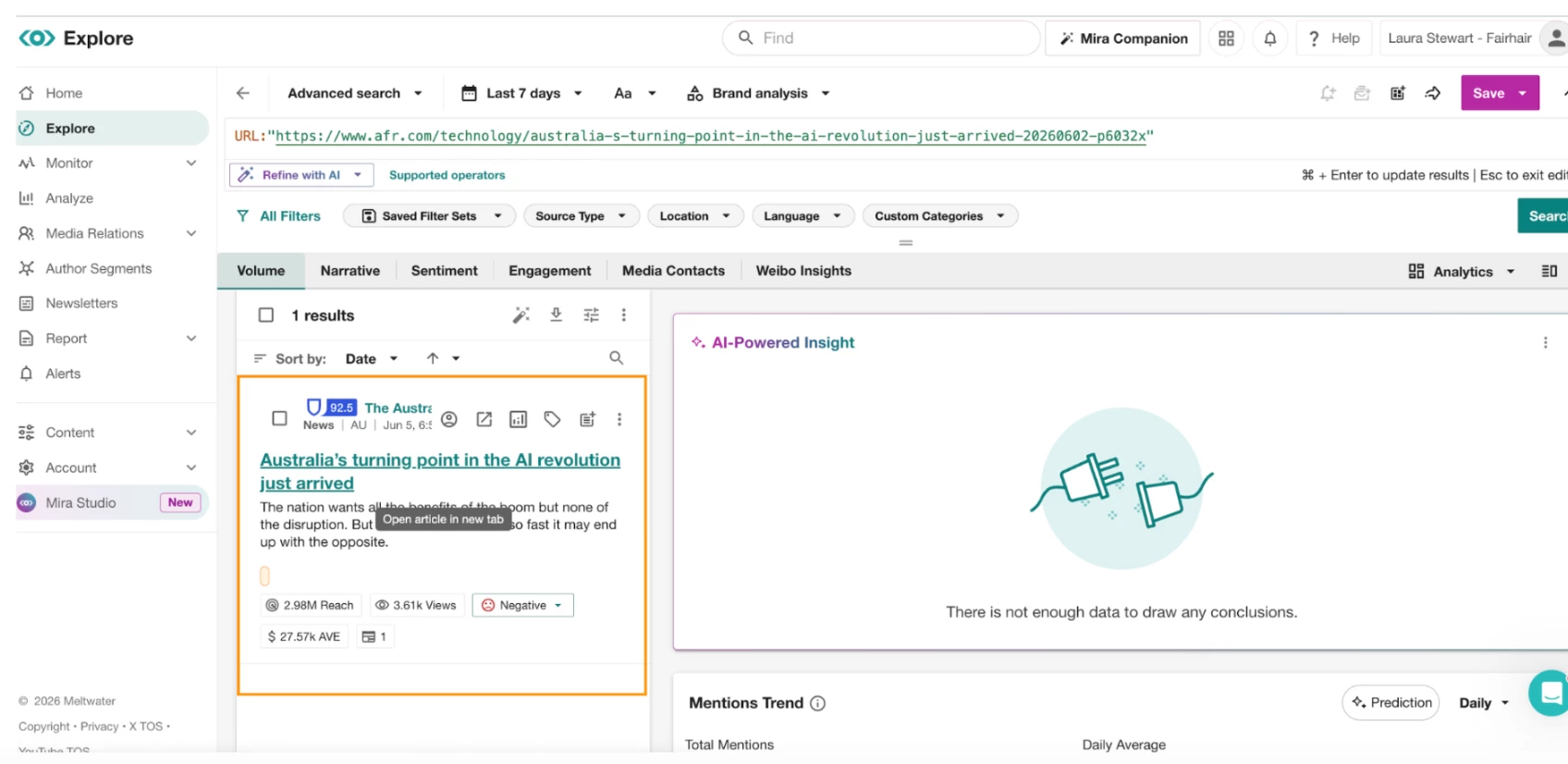
- Open Advanced Search.
- In the search box enter: URL:"paste article URL here"
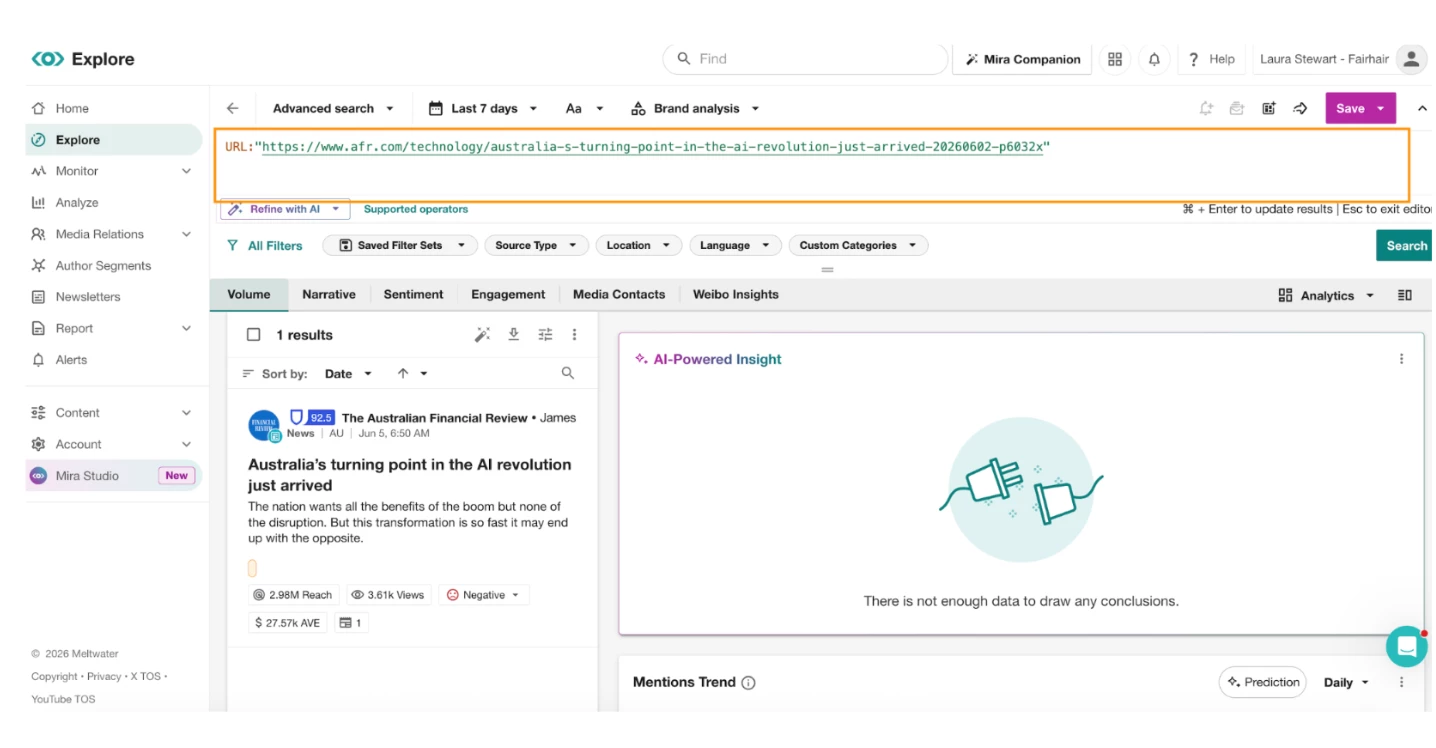
- In the date picker, adjust the date range to include the publication date.
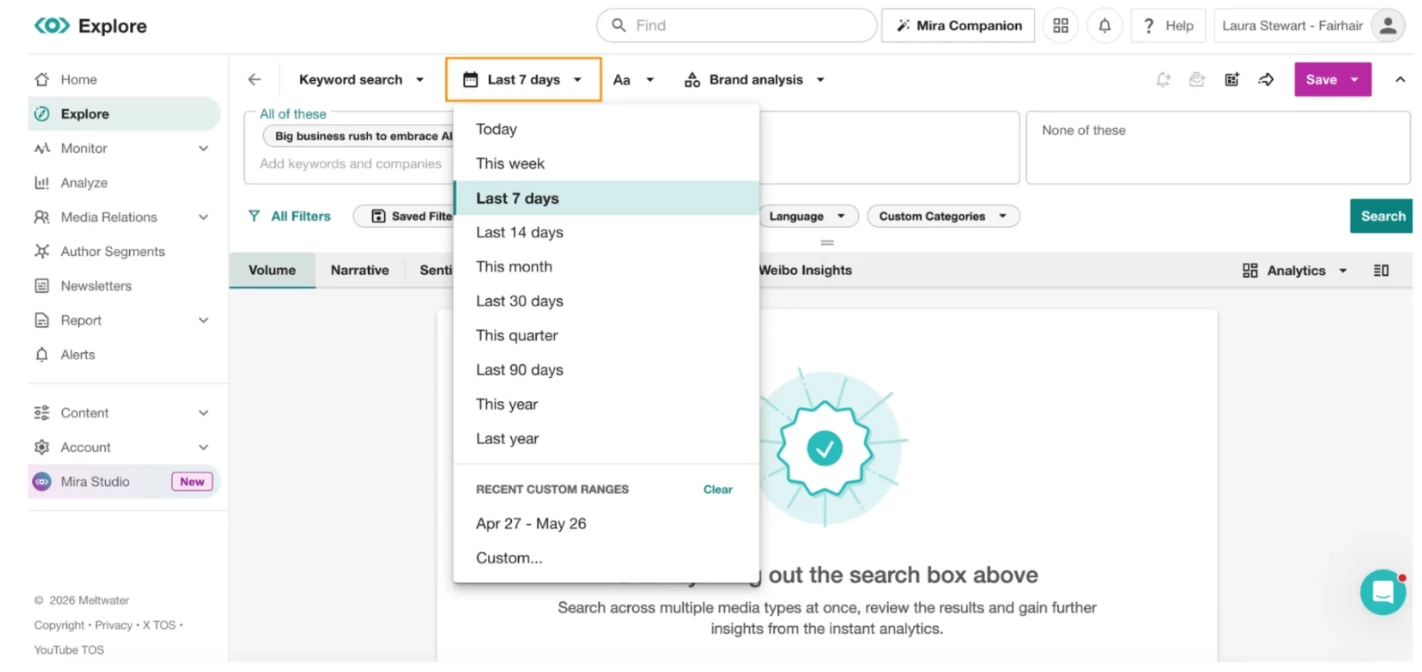
-
Select Search.
-
The article will appear in the content stream below.
Option 3: Search by Headline
Use this method when:
- You can see the full headline
- The content was published recently
📺 Watch: Search by Headline
Steps
- Copy the article headline

-
Navigate to Explore.
-
Select Keyword Search.
-
Paste the headline into the All of these search box
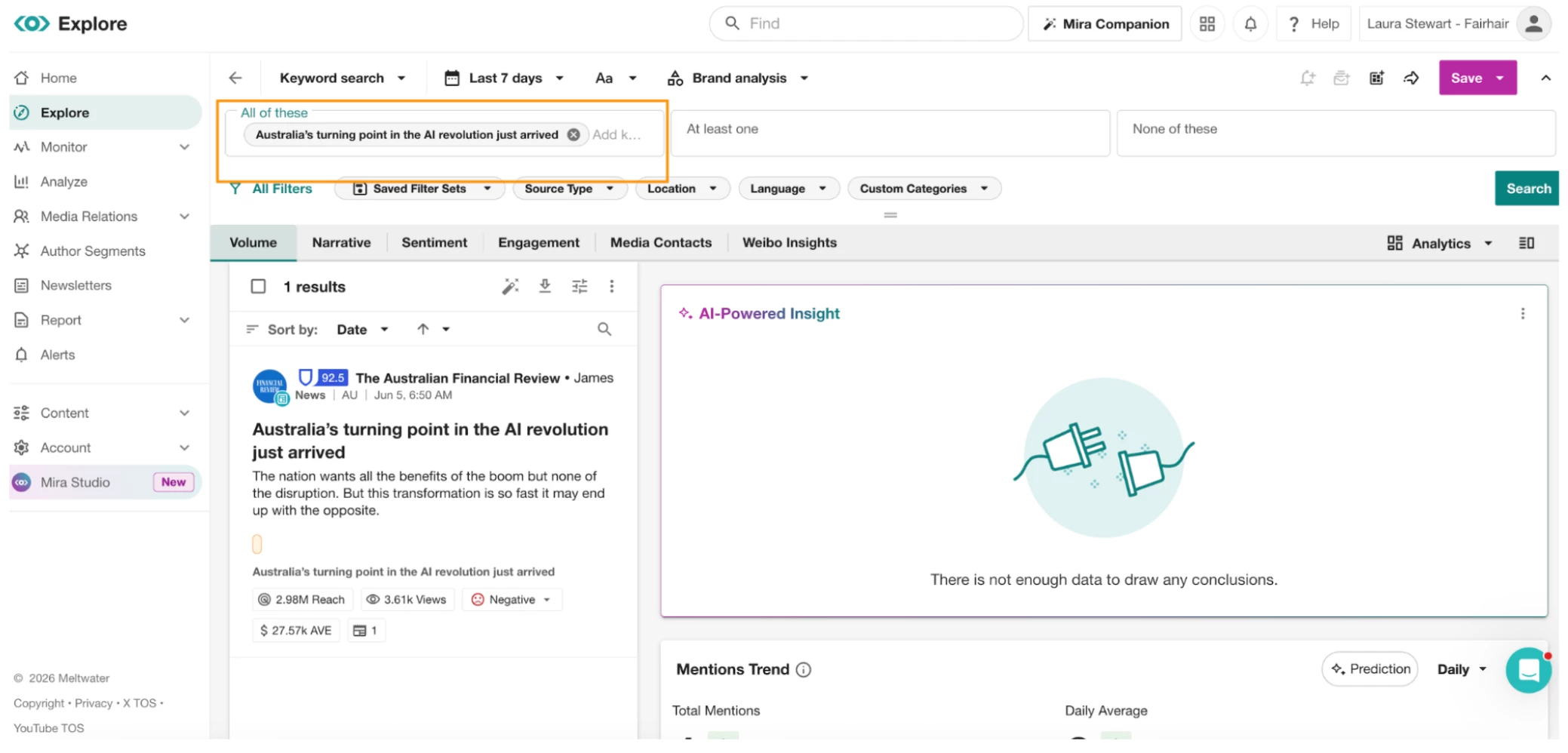
- In the date picker, adjust the date range to include the publication date.
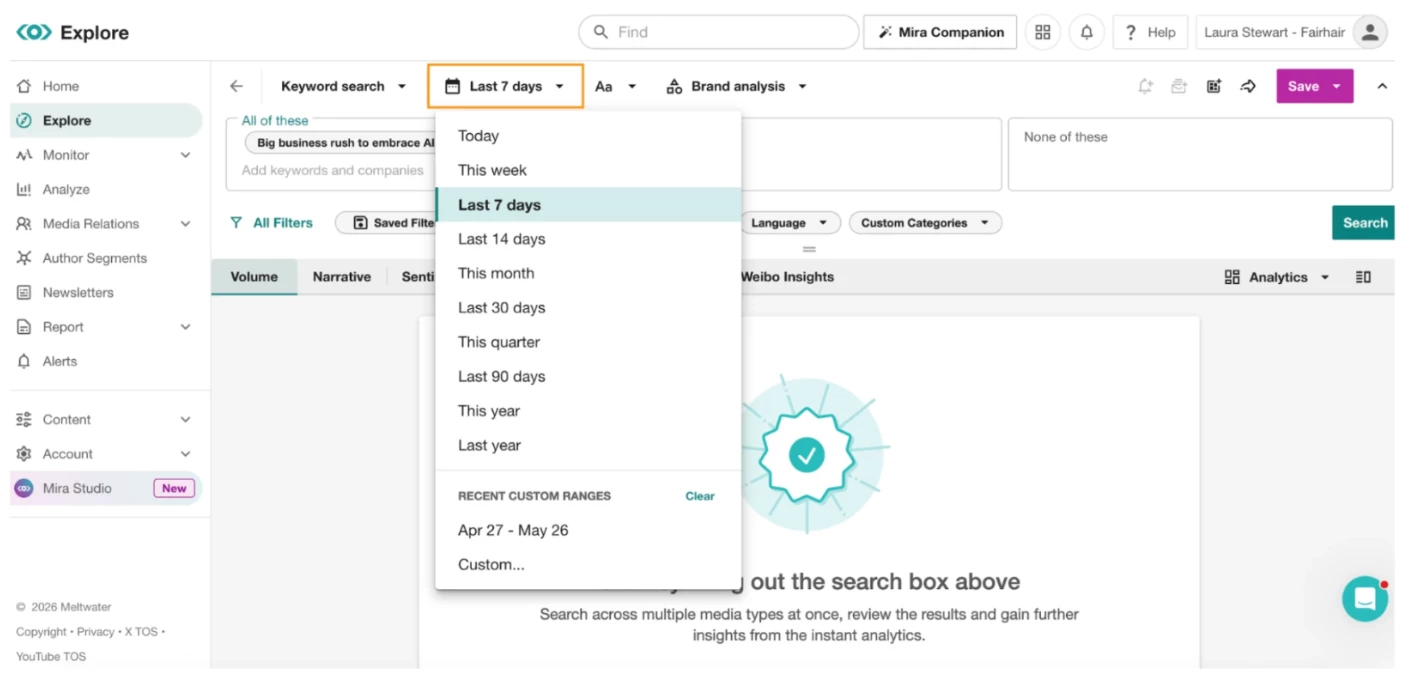
-
Select Search.
-
The article will appear in the content stream below.
💡 Sometimes headlines can change, if you can’t locate the article using the headline search option, try Option 1 from this article.
Using the Meltwater Chrome Extension
If you're a Google Chrome user, the Meltwater Chrome Extension can help you quickly determine whether content is available in Meltwater.
🔗 Follow this Step by Step Guide
Sharing Coverage
Once you've found the content, you can share it directly from Meltwater.
Options include:
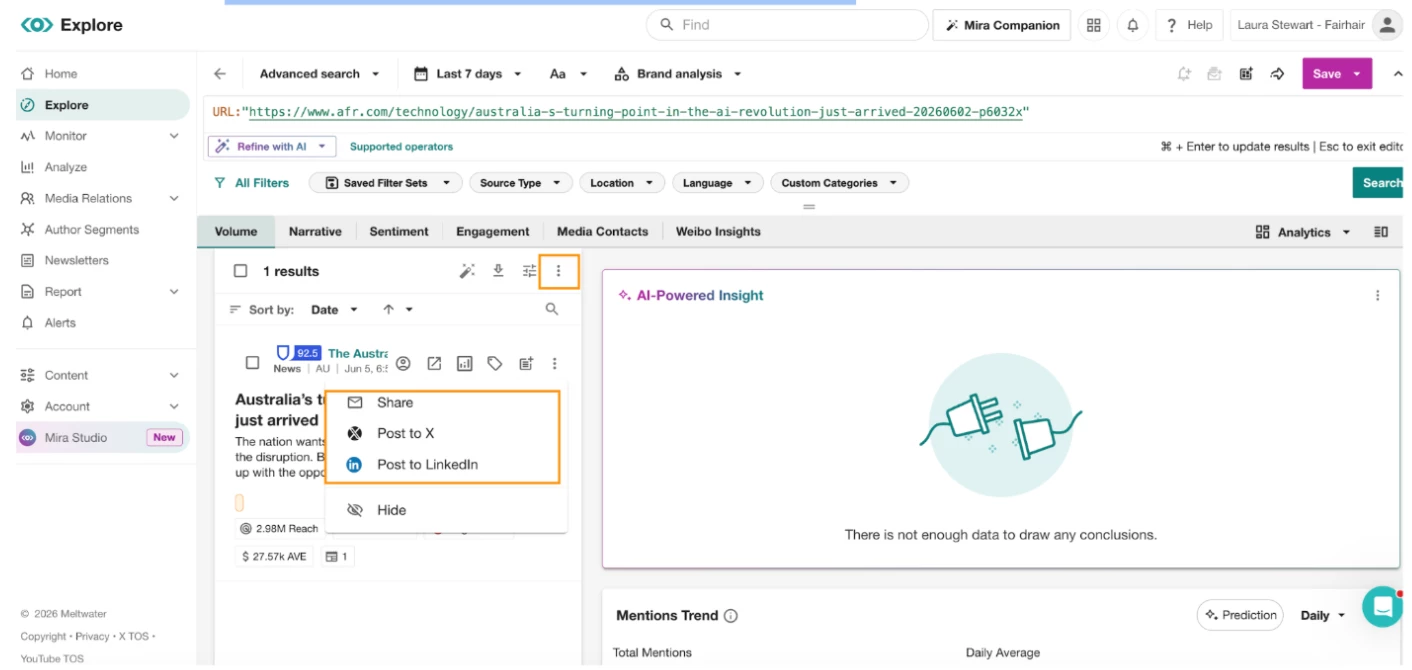
- Using the Share button
- Hover over the article
- Select the more options
- Click Share via email or post to social media
- Copying the article link
- Hover over the article headline
- Right click and copy link