



🛠️You've inherited someone else's Meltwater account. Here's how to make it yours.

Your account already has searches built — keywords, filters, saved queries you didn't set up. That's actually a head start. This guide walks you through how to audit what's there, improve what needs fixing, and connect it to work that matters.
→ By the end of this guide, you'll know how to evaluate an existing search, use the AI Search Assistant to improve it, and connect it to dashboards, alerts, or reports — without starting from scratch.
Step 1: Pick one search and open it
Orient yourself before you change anything
Your Action:
- Go to Explore
- Click on one of the Saved Searches. Don't try to audit everything at once.
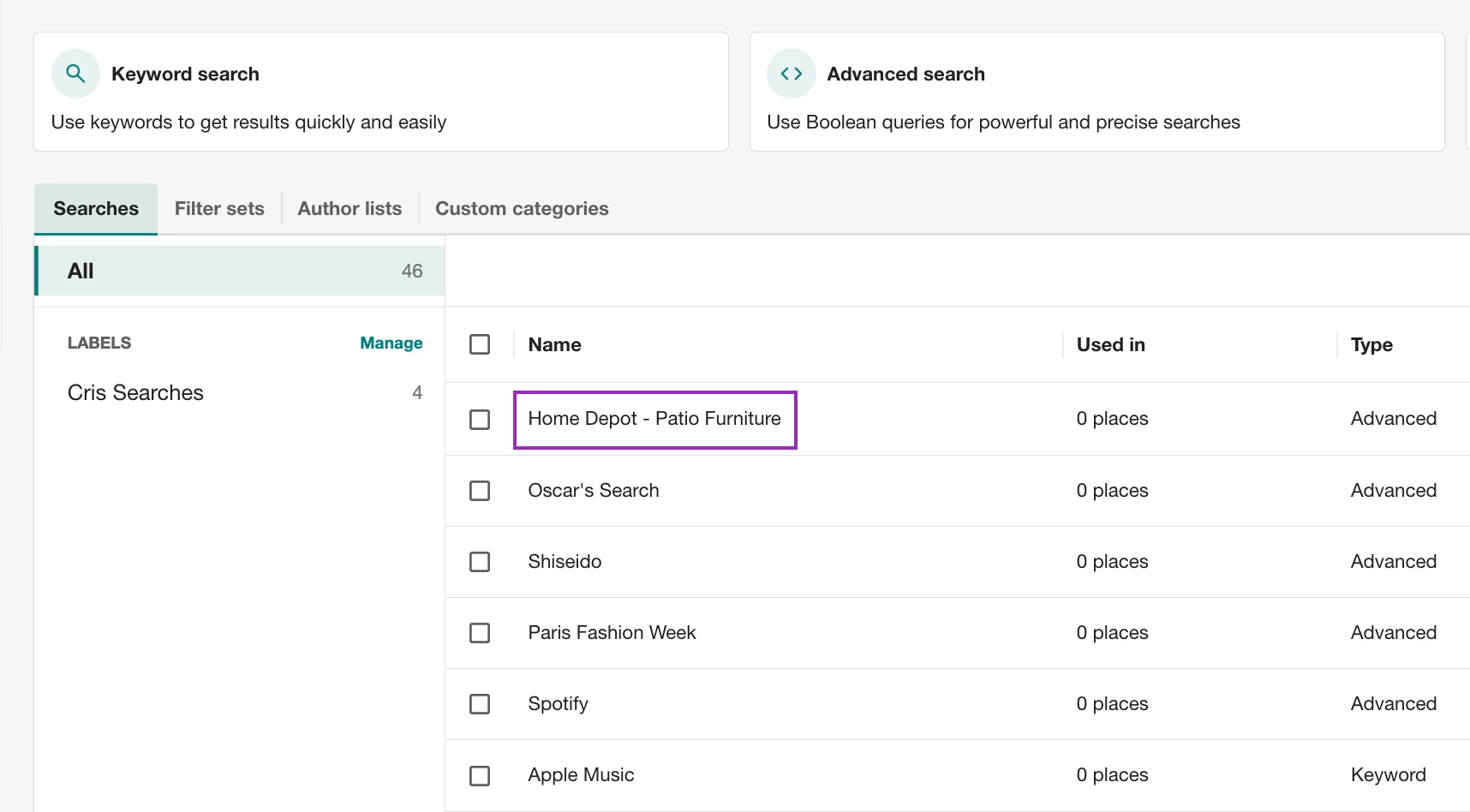
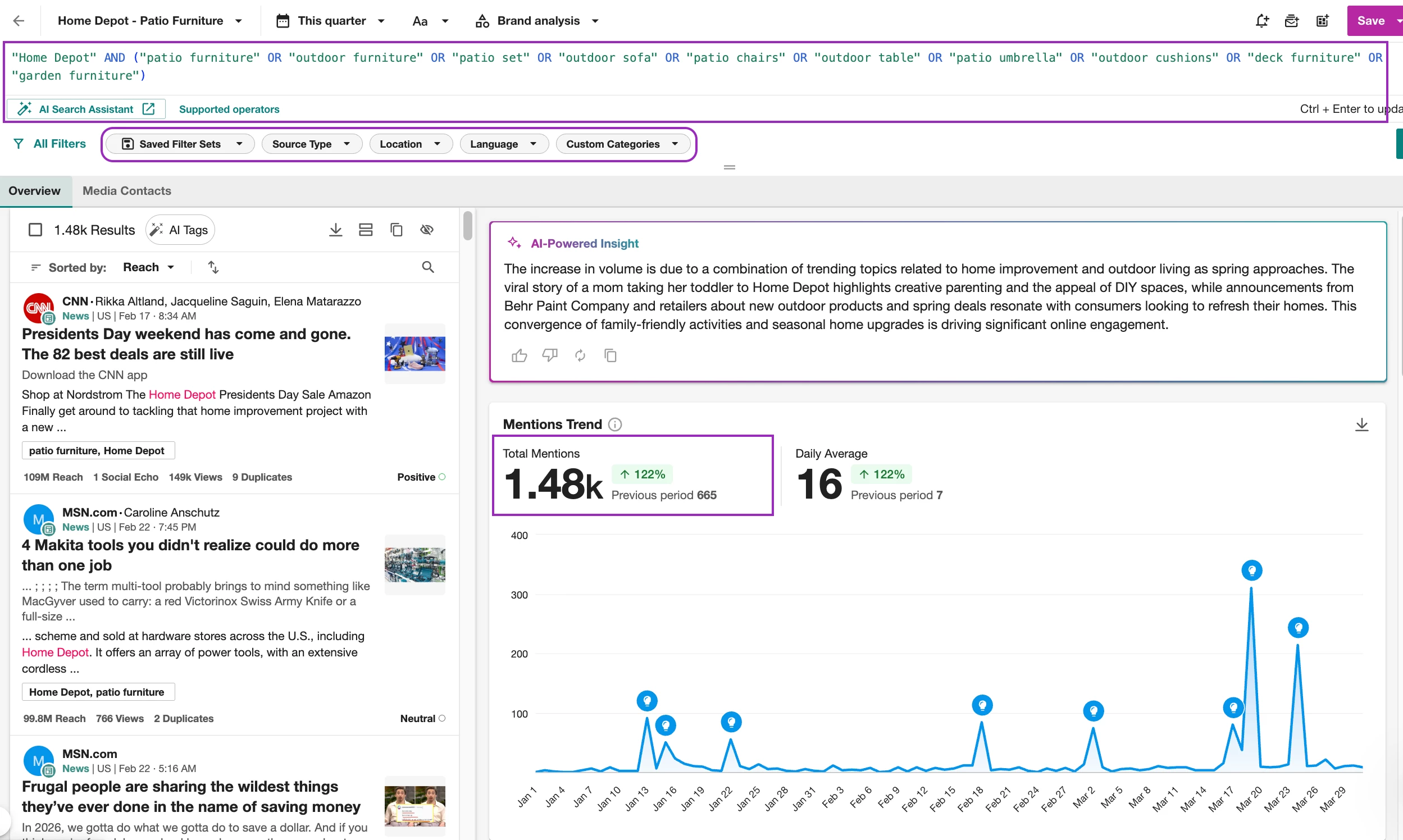
- Once opened, look at three things to get a picture of what was built:
- What keywords are being used in the search string
- What filters are applied (Source Type, Location, Language)
- How much volume (Total Mentions) is coming in
Step 2: Read the results with a critical eye
Decide what's working and what isn't. This is your Quality Check.
Scroll through the results and ask:
- Are these mentions actually about the right topic?
- Am I seeing a lot of unrelated content (noise)?
- Does anything obvious seem to be missing — big coverage, seasonal terms, related phrases?
Common patterns: A search titled "Home Depot – Patio Furniture" might surface generic furniture content that has nothing to do with Home Depot. Or it might miss phrases like "outdoor seating" or "backyard sets." Both are fixable.
By the end of this step, you should have a rough sense of whether the search is broadly accurate, noisy, or missing coverage. That's all you need before moving on.
Step 3: Use AI Search Assistant to Improve the search
Fix problems faster than manual editing
Now that you know what's wrong, open the AI Search Assistant. Instead of manually rewriting the query, let it do the heavy lifting..
Try prompts like:
“Make this search more specific to Home Depot patio furniture”
“What keywords am I missing for this topic?”
“Expand this search to include related product terms”
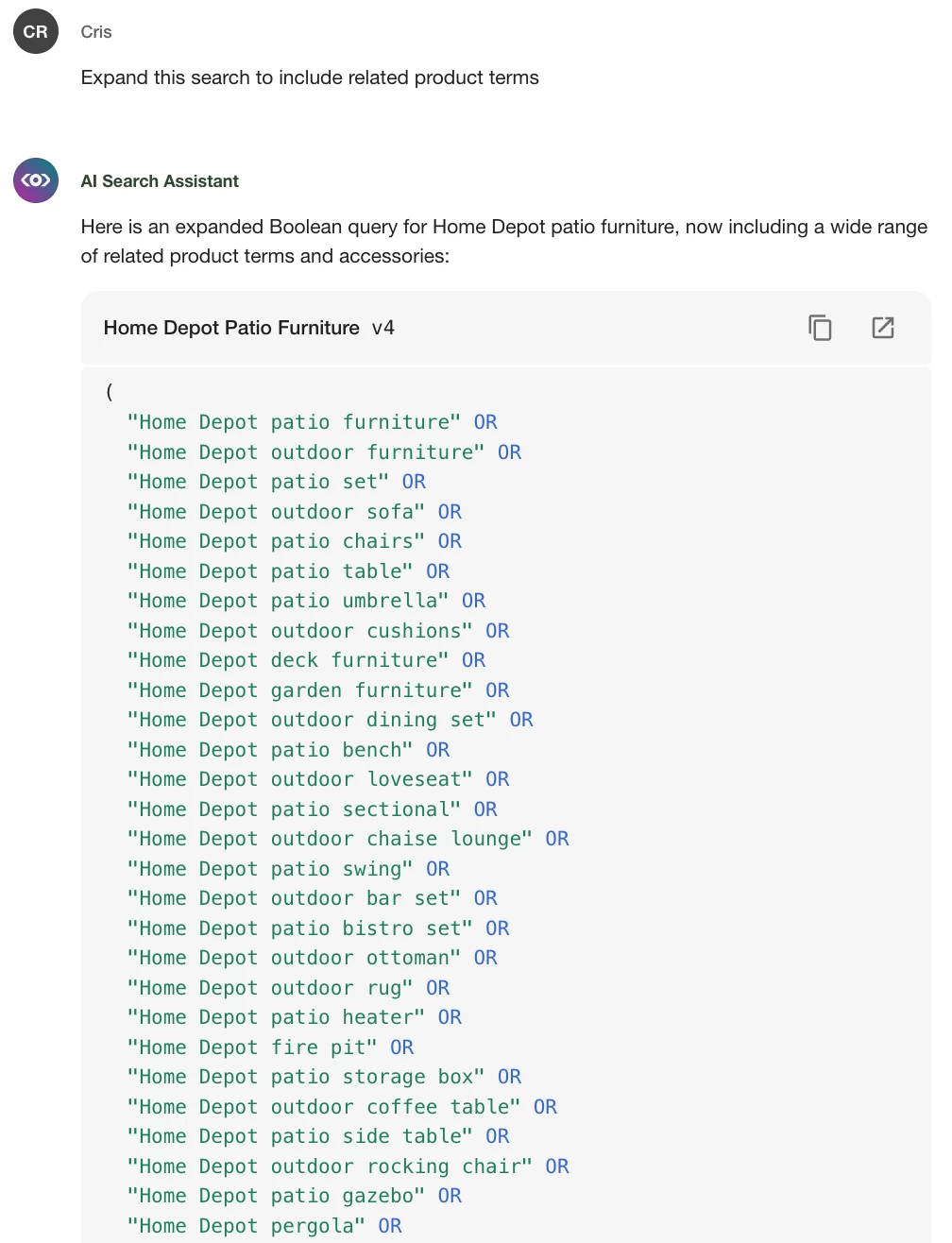
The AI Search Assistant will suggest keyword variations, identify noise sources, and flag gaps in coverage. You don't have to accept every suggestion — review them and take what makes sense.
If you're not sure where the query needs help, just describe the problem: "I'm seeing a lot of results that aren't about Home Depot specifically — how do I fix that?"
Step 4: Validate, adjust, and save
Before saving, use the preview panel to check whether the updated query is actually returning better results. Run the same mental check as Step 2:
- Is the noise reduced?
- Is the relevant coverage there?
Make small adjustments if needed, then Save the search.
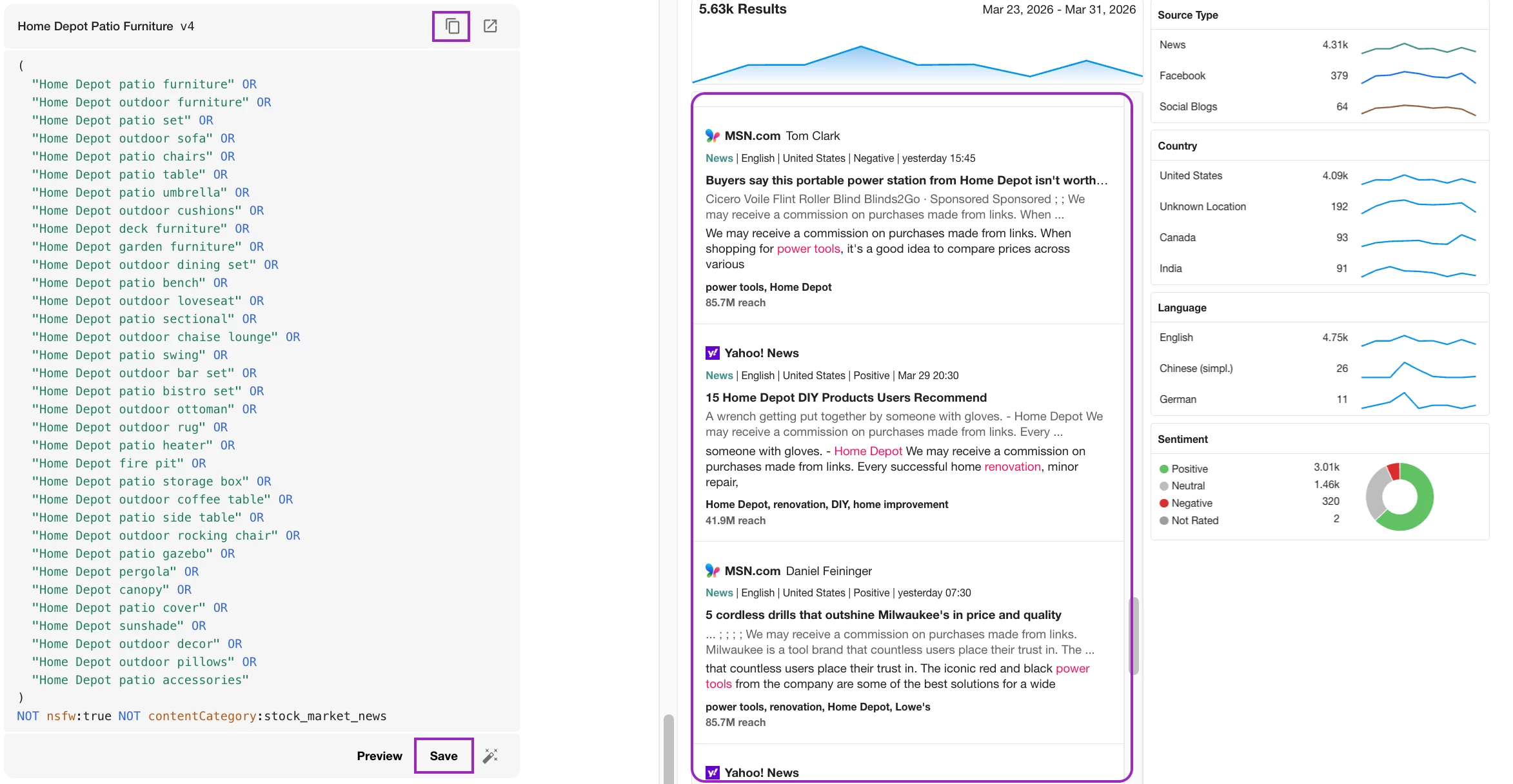
DEFINITION OF DONE
The results reflect your actual topic. You're not spending 30 seconds per result asking "why is this here?"
Now Put That Search to Work
Once you hit save, the Explore Search page will open again. From here you will be able to take action and create outputs your team will use:

- Email Alerts (Bell Icon) - Create an email alert for this Search to get notified when something spikes or goes viral
- Daily Digest (Envelope Icon) - Create a Daily Digest Email so you can send scheduled summaries to stakeholders
- Reporting (Dashboard Icon) - Build a dashboard to monitor coverage over time - Build a dashboard to monitor coverage over time
- or if you have Mira Studio you can track trends over time.
🚀 Want to Keep Improving?
If you want to go further, here are a few next steps:
- Course: Start refining your searches with the Advanced Learning Path Course in Meltwater Academy
- Workshop: Watch the Advanced Trend Analysis workshop to uncover patterns in your data
- Playbook: Browse the Use Case Playbooks to find workflows that fits your goals
- Post: Learn more with the Using AI Search Assistant article