




How to Filter Your Meltwater Results (Like Ctrl + F for Media Monitoring)
You’ve run a search… and now you’re staring at a wall of results.
Maybe you’re tracking something broad like Adidas, but right now you only care about one thing:
👉 conversations about Messi
By the end of this guide, you’ll know two simple ways to instantly find what you need—without rebuilding your search every time.
🧭 Step 1: Quickly scan your results (like Ctrl + F)
What you’re doing: Spot-checking mentions in seconds
Once you have a search built, results will load in Explore or Monitor.
Go to the content stream (where the articles/posts appear). At the top of that stream, you’ll see a magnifying glass icon.
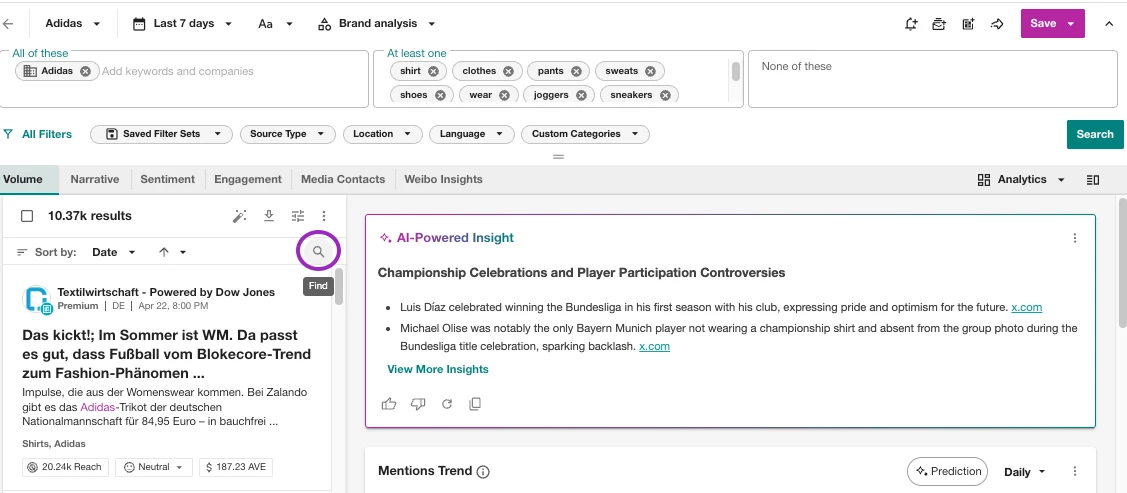
Click the magnifying glass icon first, then type in a keyword—like “Messi”—to search within your results.
It’s the fastest way to answer questions like:
- “Is Messi being mentioned right now?”
- “Which articles include both Adidas and Messi?”
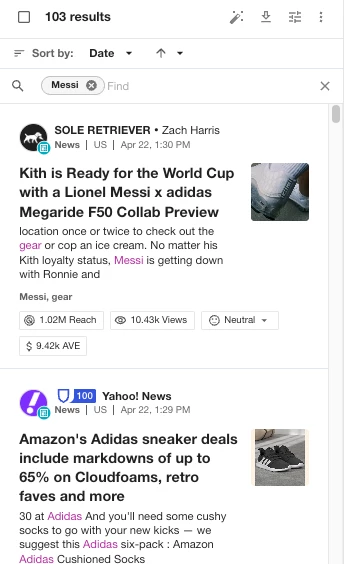
Think of this as your quick scan.
It’s perfect when you want a fast answer without changing your setup.
🔎 Step 2: Use a Keyword Filter (Then Save It to Reuse Anytime)
What you’re doing: Turning a one-time search into something repeatable
If you find yourself searching for the same thing more than once (like Messi mentions), it’s time to make it stick.
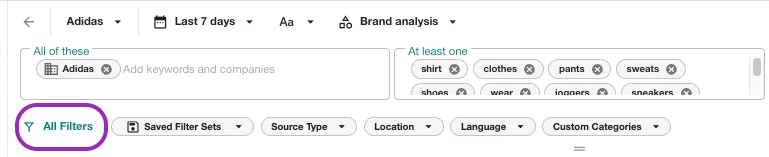
While in the same search, Click All Filters → then go to Keyword & Emojis
Add your keyword in the search bar (e.g., Messi)and click Apply.
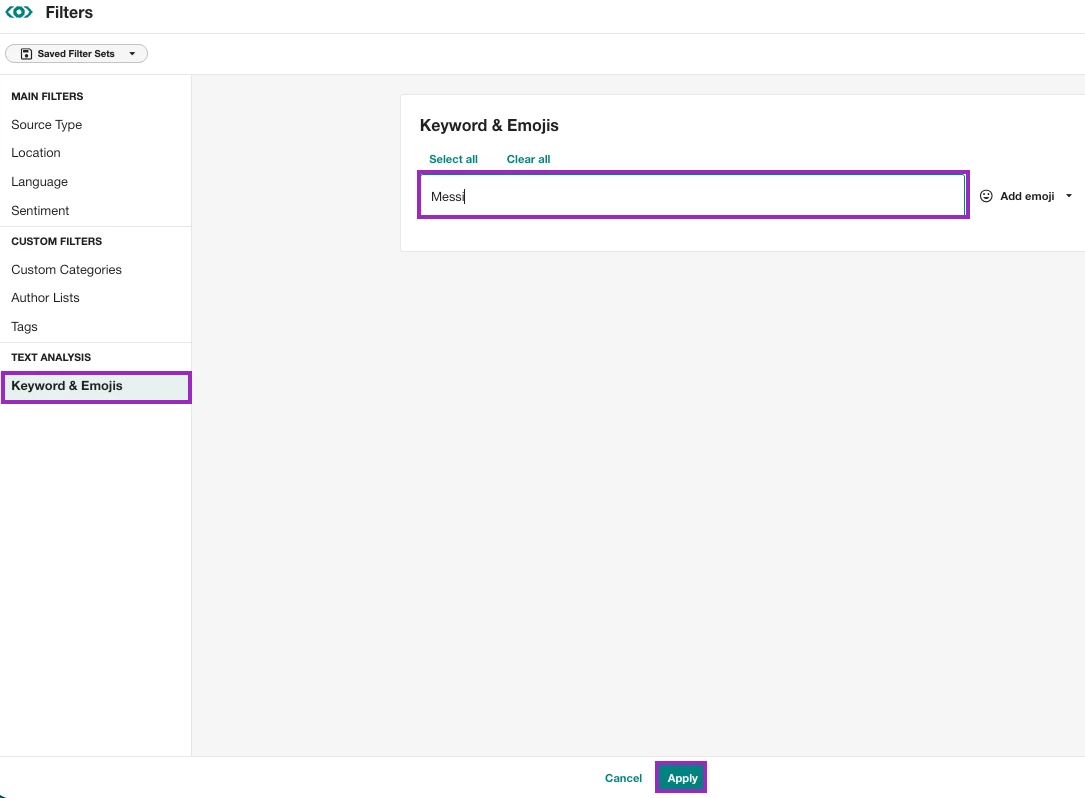
👉 This will filter your results immediately—you’ll see only mentions that include that keyword.
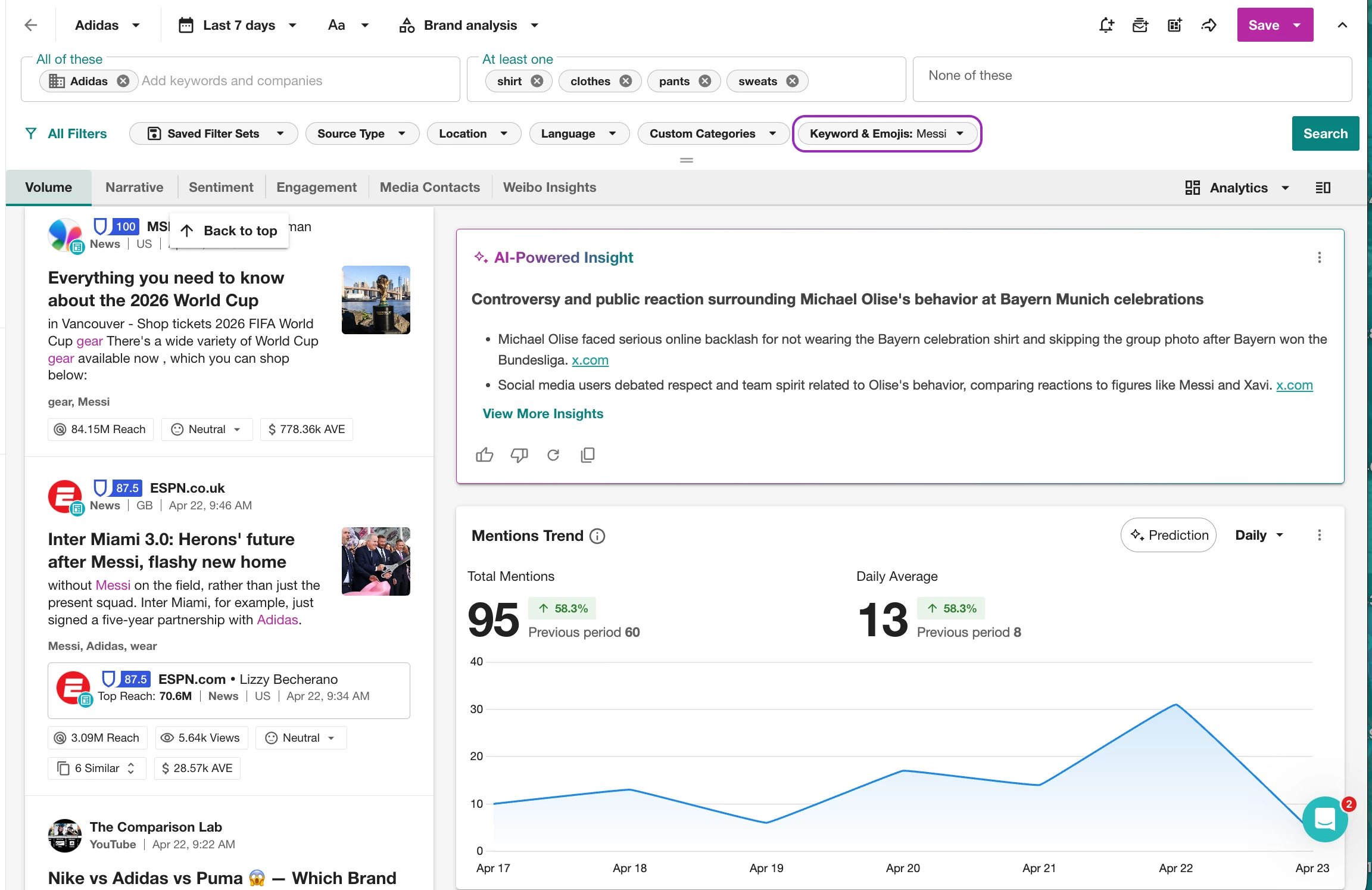
💾 Want to reuse this later?
If you don’t want to redo this every time:
- Click Saved Filter Sets
- Select Save and name to store this exact filter combination under
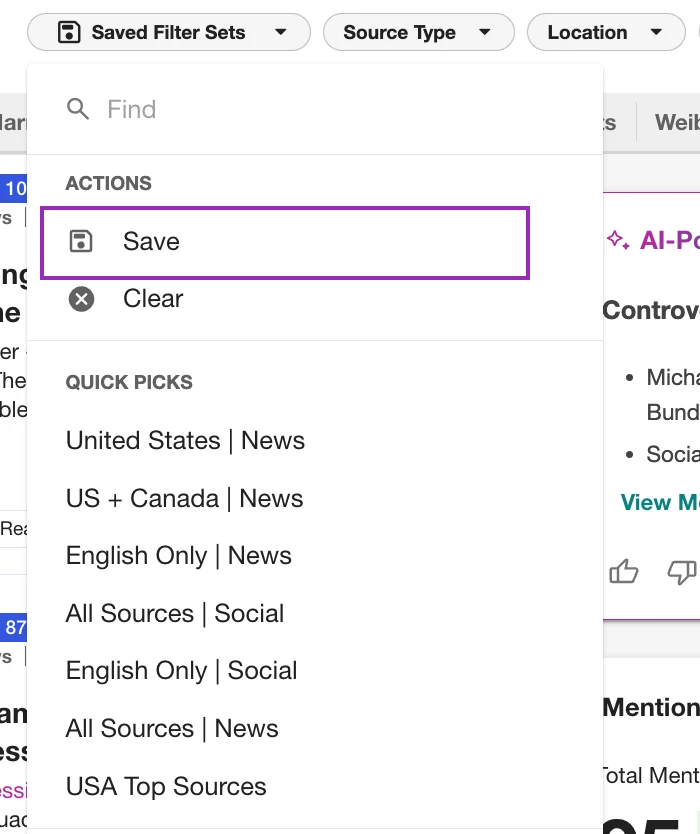
Now you can apply it to any Explore search, Monitor view or Analyze dashboard
📌 Don’t forget to save your view
To keep both your search and your filters:
👉 Click Save (top right)

This saves your filtered search or Monitor view so you can come back to it anytime.
🎯 The payoff
Instead of constantly editing searches or digging through results…
You can now:
- Scan instantly with the magnifying glass
- Save what matters with filters
- Reuse your work across dashboards and reports