

Cris Rice
mEmployee
mEmployee
August 21, 2025
Tutorial

✨How Do I Train Meltwater to Sort Mentions by What I Care About?

  • August 21, 2025
  • 4 Replies
  • 179 views

If you find yourself constantly tagging the same type of content or wanting to hide irrelevant articles, there’s an easier way. Meltwater’s Automation lets you teach the platform what matters to you, and now you can even describe your rule in plain language to generate a smart preview with AI Setup.


🛠️ Step 1: Open the Automation Tab

In Meltwater, go to the Content section in the left-hand navigation bar, then click into Automation.

AD_4nXdgZGTfZ9hWYYvWb9mMPPq9tfEcEGCySYxPJ9F53YedqzdYJk2YTtxKDmJHTXFh_e1KYvJLOtxyIbaAu9A23Amr10lcGGoWi5APRCMa7m2857ROrrDGCArdGGD-T-whyaHuFeDaJg?key=03nXOetyFHaYZACGSb9HyQ

This is your Rules dashboard where you can see any existing rules, who created them, and when they were last edited.


Step 2: Click “Create Rule”

Hit the purple Create Rule button to launch the setup. This will open a simple pop-up where you’ll name your rule and write a quick description.

AD_4nXfnx-mNhMJOphzejFkzNh0yg_hbtO2-x6S3fraFHfMIj4k4XEaBNCXnVq4JuP_U6NM3HL33itQ_e-lp6nGmqjjHfs4WYjaUr9ACAaMVxnJRcSq13jmW0s6Q6A4cjFnUvVNKFwfmsQ?key=03nXOetyFHaYZACGSb9HyQ

You'll also select if the rule applies to:
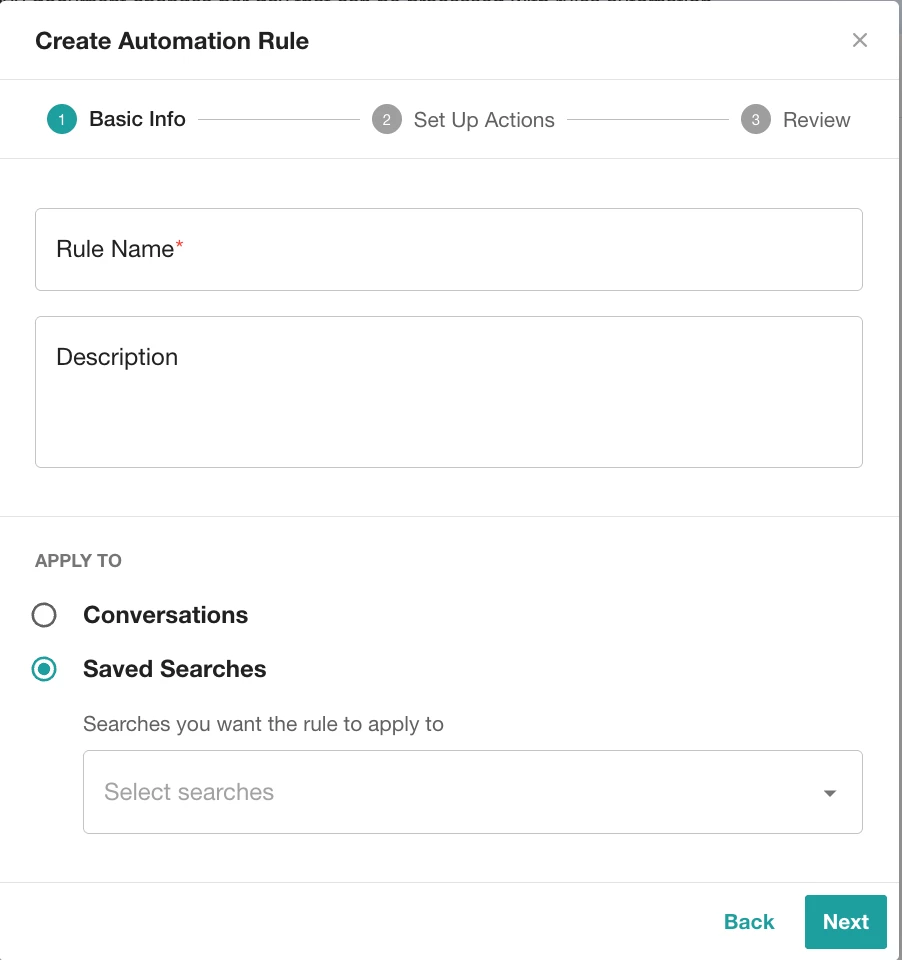
  • Saved Search Results in Explore
  • or Owned Social Accounts Engage


🔍 Step 3: Set the Criteria


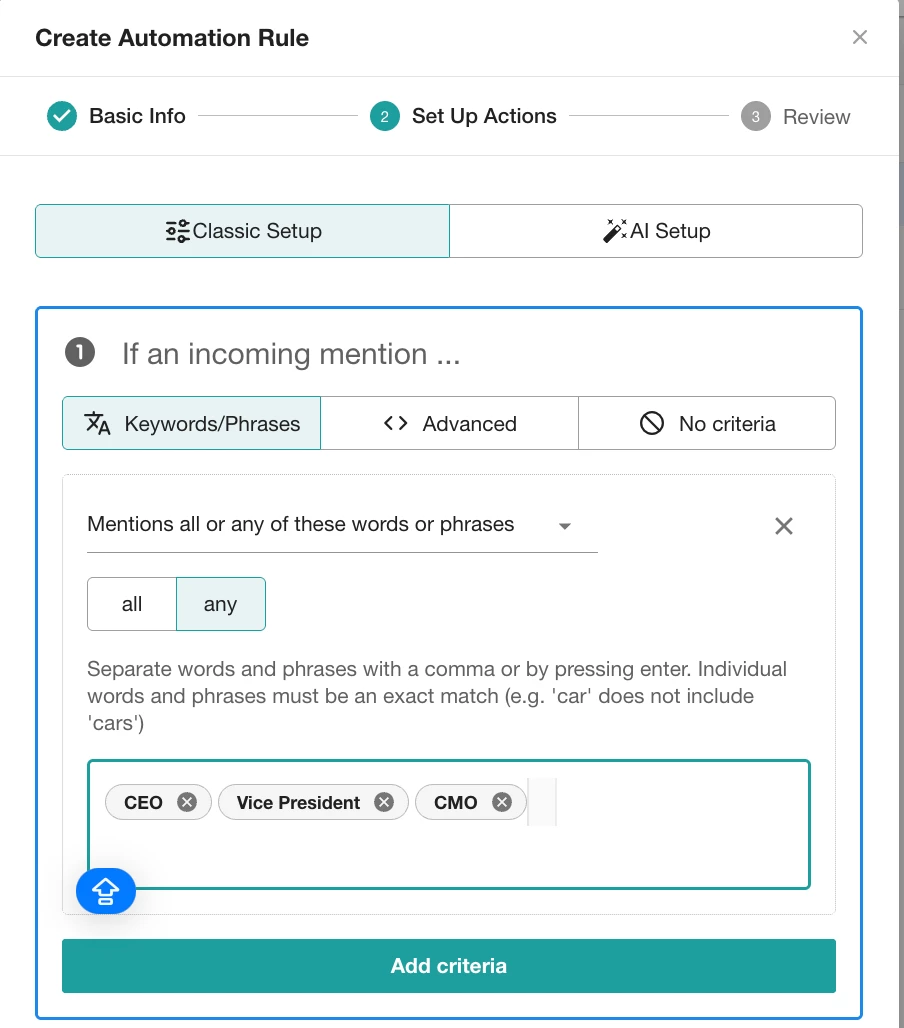
Choose what content should trigger your rule:

  • Keywords/Phrases: To match with any or all words or phrases entered.

  • Advanced: To match an advanced boolean expression.

  • No Criteria: To apply rule to all incoming results. No filter criteria will be applied
     

  • AI Setup: Select one of the suggested examples. The system will generate a rule preview. You can fill in any missing parts (marked in brackets [ ])
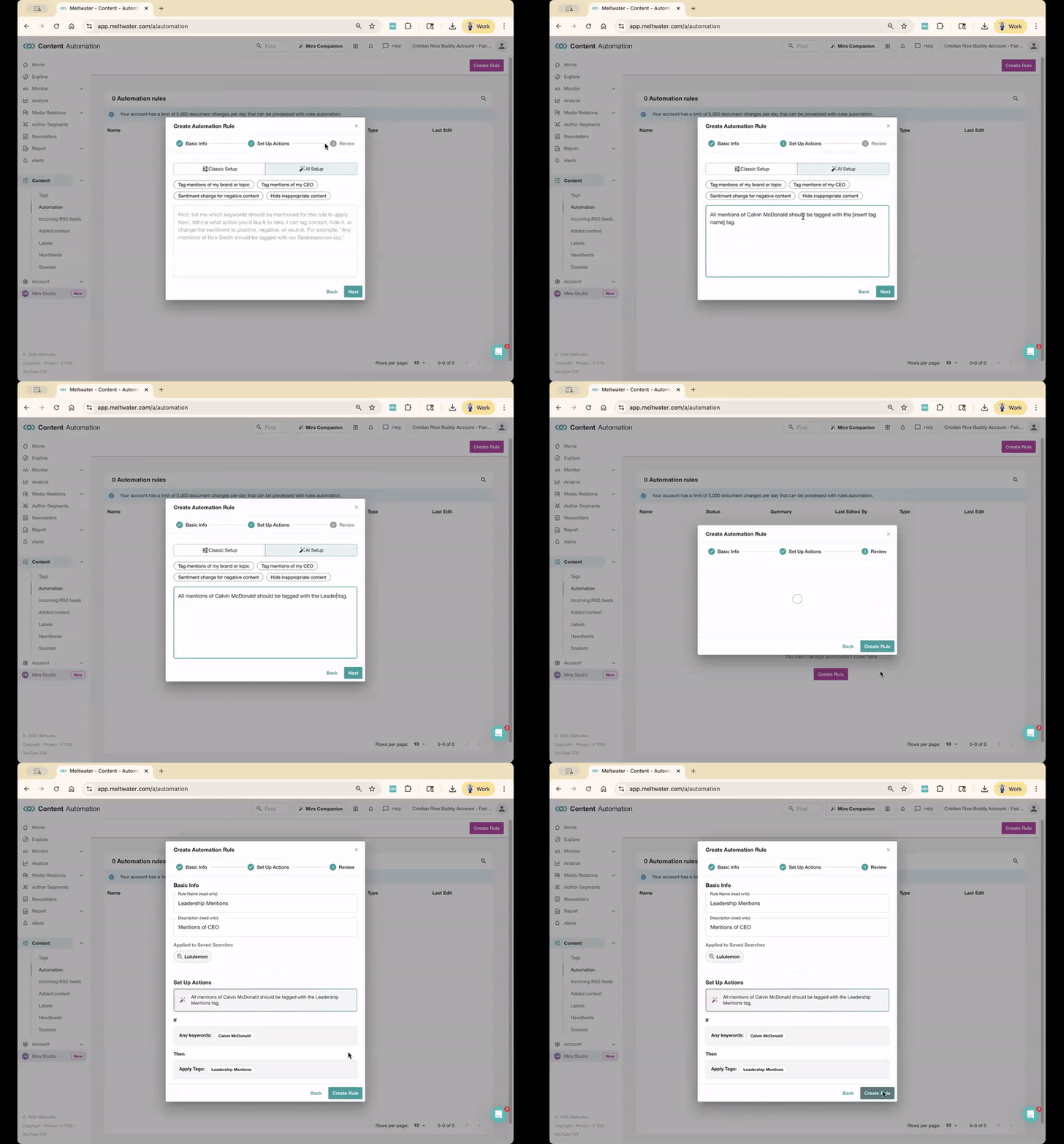


Then enter your terms (if needed) and move on to actions!


Step 4: Choose the Action(s)


Now tell Meltwater what to do when your conditions are met. You can choose:

  • Apply a Tag (e.g. “Risk,” “Leadership Mentions" or “Customer Feedback”)
  • Change Sentiment
  • Hide the Mention (from Monitor, dashboards, and reports)

AD_4nXeQENReTMIXtOk-SJpR302uw5wyjq_H8aVHOfPvmrGZATn14f2Om7UC1hr1A6RDFQAcadohFBhbLm_LNeB0CtT_hwuYHFgadqV_DPHMbJFJiGhijrJRjECA7ZHJU3afYZ-co44lnw?key=03nXOetyFHaYZACGSb9HyQ


💡 Pro Tip: You can combine actions! One rule can tag, hide, and change sentiment all at once.


✅ Step 5: Click Create

Once everything looks good, hit Create to activate your rule! It will run automatically from that moment on, sorting future mentions that match your rules.

AD_4nXcUaAoFLG83gj1by-TfdkcTB_bCLilyIwhpyAKgadxLGzFGV_Zv8F5Dooh-ro6zM6bEq9ib0G7RNW24SBC-Kve1KU8nMXQ9Er65UUhSnTr-2y4FaSpz3zQuR5io9nQgBKUxZlAdmw?key=03nXOetyFHaYZACGSb9HyQ


Want to See It in Action?

Join our upcoming Product Hour: Getting Started with Digests, Alerts & Monitors where we’ll show a live walkthrough of rules-based automation and how it ties into real-time monitoring.

Let us know what topics you’re using Meltwater to automatically tag!


4 replies

Maria Dehne
mChampion Level 3
mChampion Level 3
August 21, 2025

Interesting, thank you! 

Will Swope
mChampion Level 3
mChampion Level 3
August 21, 2025

Hi ​@Cris Rice 

This could potentially solve an issue I’m dealing with right now about closed captioning for broadcast mentions, giving some bizarre versions of a name that we track. It would help to track those mentions while not having to completely redo the search, which I would rather keep as is. I’d like to see it in action. The product hour you mentioned - is that the one this evening (U.S. time zones), or is there another one?

Will Swope
Cris Rice
mEmployee
Cris RicemEmployeeAuthor
mEmployee
August 21, 2025

@Will Swope Yes, that’s the right workshop! We run it monthly, but feel free to join our upcoming Customer Office Hours (every Wednesday @ noon ET) we’ll take a look at your account together and help you get everything set up.

Will Swope
mChampion Level 3
mChampion Level 3
August 21, 2025

@Cris Rice Tonight’s workshop will be a great learning session. From there, I’ll work with it over the next few days. As soon as I can make one of those Wednesday sessions I’ll bring my questions and know you and your team will have some great insights and guidance!

Will Swope