



🔍 Compare Metrics Over Different Periods with Ease in Analyze
Analyzing your campaigns, media coverage, or social media performance is not just about the numbers in isolation—it’s about understanding trends over time. Comparing metrics across different periods is a critical practice that helps you unlock valuable insights, make smarter decisions, and improve your overall strategy.
Today, we’ll walk through how to compare different periods in Meltwater’s Analyze tab - but first, here are a few things to consider:
- Are your search terms accurate in Explore?
- Because Explore searches power Analyze Dashboards, it is important to ensure Explore results provide what you’re looking for. If the search results do not provide what you need, you might need to edit your Boolean string. Learn more about Editing and Updating a Boolean String.
- What are the different periods you want to compare?
- Choose the two (or more) periods you want to compare (e.g., last 7 days vs. the previous 7 days).
Now, let’s build a dashboard for the first period.
- Click Analyze in the left-hand navigation bar
- Select Get Started

- Select a Dashboard or Template
Note: Canvas layout and Slide layout are great options if you want to pick and choose each insight to include in your dashboard (these are our more manual options). However, our recommendation is to select a template such as Campaign Report Template, Brand Report Template, or Coverage Report Template for a more streamlined process. These templates come pre-built with our most common insights for each use case – don’t worry, they can also be edited as needed!
- Select your inputs
- Click Generate
- At the top of your screen, click Select a date
Note: This will be the first period you have identified as a period you want to compare.

- Choose from the preset date range options or select Custom
- If you have selected Custom, select your start and end dates
- Click Apply
You’ve now created a dashboard for the first period. Let’s make a second tab in that dashboard for the second period directly from this page.
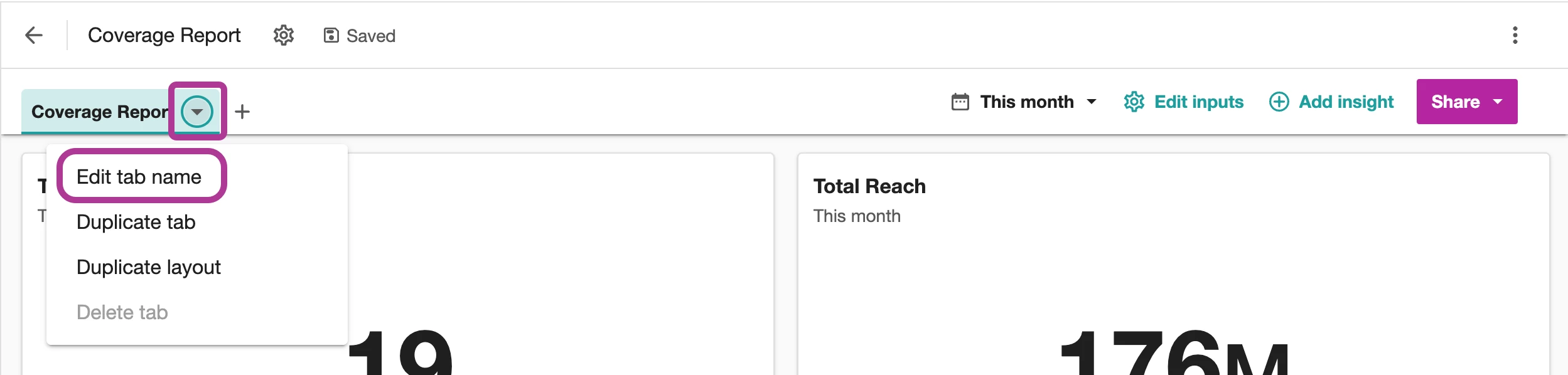
- Click the drop-down next to the tab name
- Select Duplicate tab
Note: Duplicating the tab copies and pastes all insights and changes you may have made to them. This will help you save time in scenarios where you want to compare the exact same data over different periods.

- You will automatically be taken to the new tab
- To edit the date range of the new tab, select the current date range at the top of your screen (ex. This month as seen in the screenshot above)
Note: This will be the second period you have identified as a period you want to compare.
- Choose from the preset date range options or select Custom
- If you have selected Custom, select your start and end dates
- Click Apply
- Repeat steps 10-16 as needed to create tabs for all the different periods you have identified you want to compare
And you’re done! Toggle between tabs to drill into and compare metrics and key themes between the two (or more) periods.
Tip: Rename each tab to reflect each date range for easy viewing. To do so, follow these steps:
- Select the drop-down next to the tab name
- Click Edit tab name
- Enter a new name
- Click Save
Example:
