




Adding Journalists and Media Contacts to Meltwater
Creating a Journalist Profile
Have a journalist you'd like to reach out to—but can’t find them in Meltwater? No worries! You can manually add media contacts to your media list in just a few quick steps.
This is super useful when you’re working with niche publications, freelance writers, or up-and-coming content creators who may not be in the global media database (yet!).
Here’s how to do it:
- Select the Media Relations drop-down in the left-hand navigation bar
- Click Media Lists
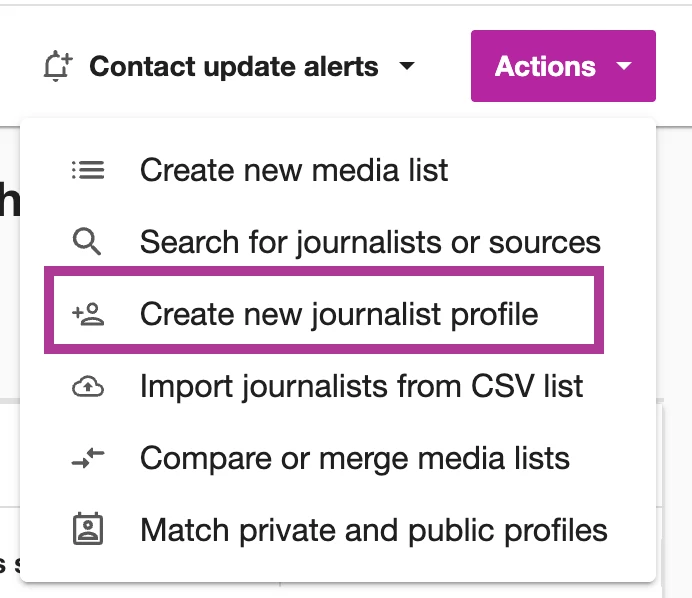
- Select the Actions drop-down in the top right-hand corner
- Select Create a new journalist profile
- Fill out all fields marked with an *
💡Tip: The more details you include, the easier it is to personalize your outreach and track your interactions over time. Think of this as your own mini CRM for media contacts!
- Add them directly to any Media List
Note: After adding the new profile to a new or existing media list, privately created or imported contact profiles appear in the Private contacts tab on the Media Lists page.

- Click Save
Importing Media Lists from a Spreadsheet
If you already have a list of journalists or media contacts you trust and don’t need to research further, you can quickly bring them into your Meltwater account using the import feature. This saves you time and helps you get started right away with lists that matter.
Here’s how:
- Select the Media Relations drop-down in the left-hand side navigation bar
- Select Media Lists
- Click Actions in the top right-hand corner
- Select Import journalists from CSV list

- Download a template
- Decimal Point Format: for those in U.S, U.K, Australia & China
- Decimal Comma Format: for those in Germany, France & the Nordics
Note: If you have contacts with umlaut characters, please use the Decimal Comma Format for those contacts, and your CSV is in UTF-8 format.
- Fill out the template accordingly. When complete, save it to your computer and then upload it in the Import CSV file section of the import workflow.
- If you are interested, you can try our Contact matching feature, which will attempt to match the contacts in your CSV file with those in our database. If matches are found, they will be added to a media list created specifically as a result of this action, and you will be able to find that media list, named with a timestamp, in your account.
Note: Contact matching attempts to find matches based on the email address and name of the contact. The email address must be an exact match, while the name accounts for spelling variations or abbreviations.
- If you'd like to include your uploaded contacts into a new or existing media list, select Add to media lists
- Click Add contacts
- You will receive an in-app alert, as well as an email, when the import is complete.
