


Using Mira on Meltwater Mobile
Ask questions, explore trends, and get AI-powered insights wherever you work.
Mira helps you understand media coverage and social conversations without manually reviewing every article.
From Meltwater Mobile, you can ask questions, summarize trends, compare coverage, generate charts, and prepare updates for stakeholders.
Mira is available to all Meltwater customers, regardless of subscription tier.
This guide explains how to use Mira, focus your analysis with saved searches and Projects, and continue previous conversations.
Ask Mira a Question
You can start a conversation with Mira in two ways.
Option 1: Use a guided prompt
Guided prompts help you get started with common PR, communications, and marketing tasks.
- Open Meltwater Mobile.
- Select Mira.
- Choose a prompt from the prompt library.
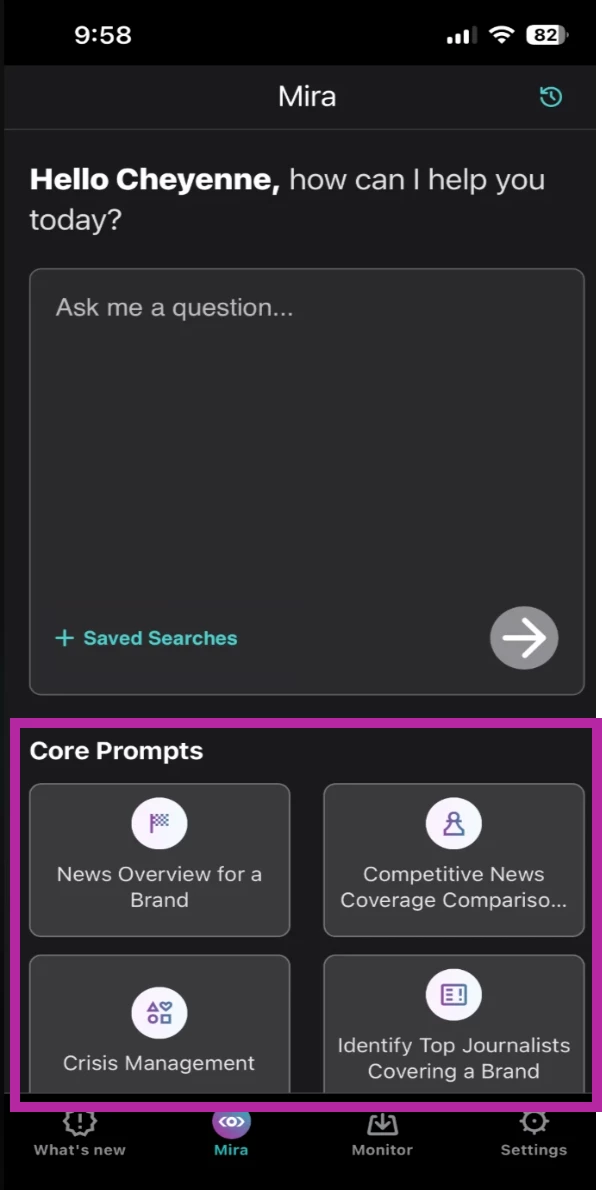
- Add the requested brand or topic.
- Submit your prompt.
Option 2: Write your own prompt
- Click Mira.
- Enter your question in the textbox
- Select the arrow to submit.
- Ask follow-up questions or provide additional context as needed.
What can you ask Mira?
| Your Goal | Example Prompt |
| Brand Monitoring | "Summarize the most important news coverage about our brand over the past 24 hours." |
| Competitive Intelligence | "Compare news coverage of our brand and our top competitor this week." |
| Crisis Monitoring | "Summarize the latest coverage about this developing issue. What concerns are being discussed?" |
| Media Relations | "Who are the top journalists covering our brand this month?" |
| Press Release Analysis | "Analyze the media coverage generated by our latest press release. What themes are emerging?" |
| Industry Trends | "Create a brief summarizing the most important news and trends in our industry this week." |
| Executive Briefing | "Create a short executive briefing summarizing the most important developments affecting our brand today." |
📌 Tip: Include the topic, timeframe, and type of insight you need to help Mira provide a more focused response.
Ask follow-up questions
You can continue the conversation to explore a topic in more detail.
For example, after asking Mira to summarize brand coverage, try:
- "What are the main themes driving this coverage?"
- "Which stories should our communications team prioritize?"
- "Create a chart showing coverage volume over the past seven days."
- "Show the top themes in a graph."
Mira can generate charts and graphs to help you visualize coverage and trends.
Use Saved Searches to Focus Mira's Responses
You can select one or more of your existing Explore saved searches to give Mira context for your questions.
This is useful when you want Mira to analyze coverage you're already tracking.
How to select saved searches
- Click Mira.
- Select + Saved Searches.
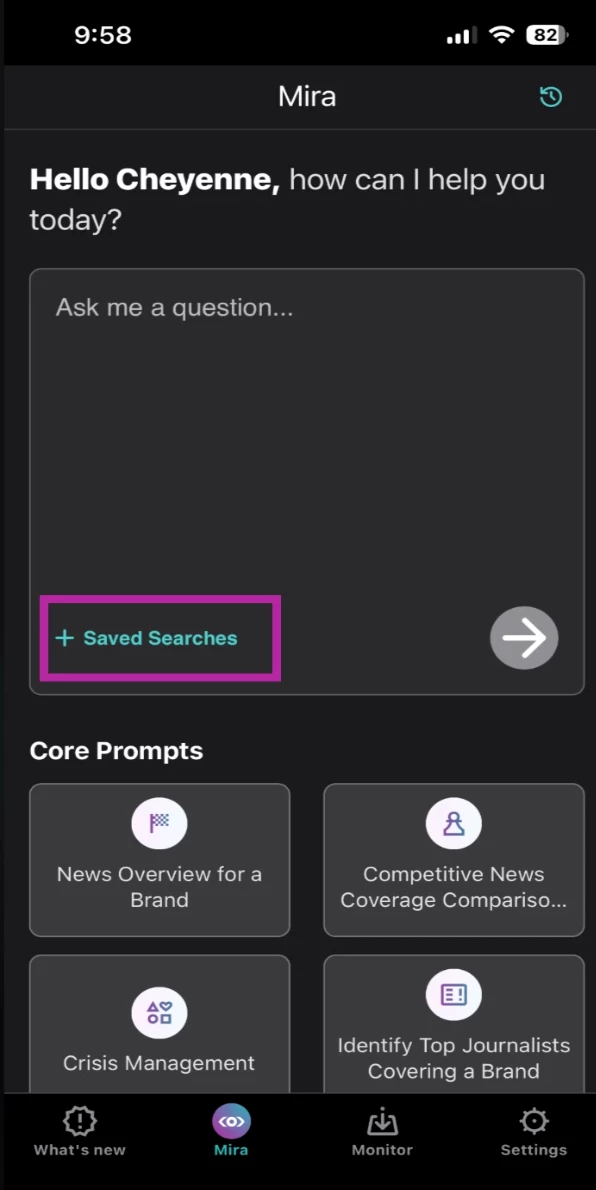
- Browse your available Explore saved searches.
- Select one or more searches.
- Select Apply.
- Enter your question.
- Select the arrow to submit.
Mira uses the selected searches as context for its response.
Example: Compare your brand with a competitor
You want to understand how your brand's coverage compares with a competitor.
- Select Mira.
- Click + Saved Searches.
- Choose your brand monitoring search.
- Choose your competitor monitoring search.
- Ask:
"Compare coverage of these two brands over the past seven days. What are the main themes, and which stories are driving the conversation?"
Good to know:
- Saved searches are created and managed in the Meltwater web application.
- You can select multiple searches to compare brands, campaigns, or topics.
- Customers with Explore+ can also use Optimized Searches to provide context for Mira.
- Saved Searches can be used independently or alongside a Mira Studio Project.
Select a Mira Project
Mira Projects help you focus your analysis on a defined dataset associated with a brand, campaign, or research topic.
By selecting a Project before asking a question, you give Mira the context it needs without having to explain it each time.
How to select a Mira Project
- Click Mira.
- Select the Connect Project drop-down
- Choose the Mira Project you want to use.
- Enter your question.
- Submit your prompt.
Mira uses the selected Project's dataset to focus its response.
The selected Project remains active throughout the conversation.
Example: Prepare for a client meeting
You're responsible for communications across several brands.
Before a client meeting, you want a quick summary of the latest developments for one account.
- Click Mira.
- Select the Connect Project drop-down
- Click the client's Mira Project.
- Ask:
"What are the three most important developments affecting this brand in the past seven days? Include key themes and any emerging risks."
Because you've selected the relevant Project, Mira focuses on that dataset.
Good to know about Mira Projects
- Projects must be created in the Meltwater web application.
- You can start a conversation without selecting a Project.
- Once selected, the Project context remains active throughout the conversation.
- Previous conversations display the Project that was active when the conversation took place.
- If you don't have any configured Projects available, you won't see the Project Selection option.
Saved Searches vs. Mira Projects: Which Should You Use?
Both help Mira provide more focused responses, but they serve different purposes.
| Use Saved Searches when... | Use Mira Projects when... |
| You want to analyze coverage from existing Explore searches. | You want to analyze data within an existing Mira Project. |
| You need to compare multiple saved searches. | You're working on a specific brand, campaign, or research project. |
| You're investigating a monitoring topic. | You want to continue analysis using a defined project dataset. |
Can you use both? Yes.
You can combine Saved Searches with a Mira Studio Project to provide more targeted context for your analysis.
Continue Previous Conversations with Chat History
You don't need to start over every time you open Mira.
Chat History lets you revisit previous conversations and continue asking questions.
Your conversation history syncs between the Meltwater web platform and mobile app, so conversations started on either platform are available on the other.
How to access Chat History
- Click Mira.
- Select the History icon in the upper-right corner.
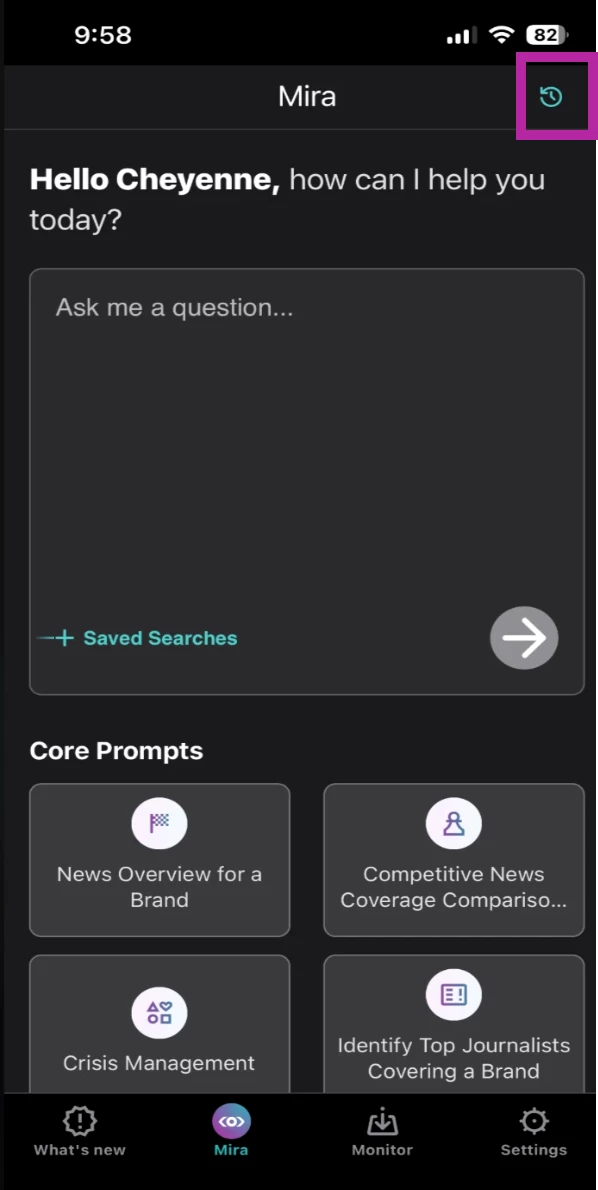
- Browse or search your previous conversations.
- Select the conversation you want to revisit.
- Continue asking questions.
Conversations are organized by recency and include AI-generated titles to make them easier to find.
Example: Continue your analysis on the go
You started researching campaign performance on your desktop before leaving for a meeting.
Later, you open Meltwater Mobile and want to continue that analysis.
- Click Mira.
- Select History.
- Find your previous campaign analysis.
- Open the conversation.
- Ask:
"Based on this analysis, what are the three most important points I should share with leadership?"
You can continue the conversation without repeating your original questions.
Good to know: You can review and continue conversations on mobile. To rename or delete conversations, use Mira in the Meltwater web application.
Put It Into Practice: Create an Executive Briefing
Scenario: You have ten minutes before a leadership meeting and need to understand the latest media developments.
- Select Mira.
- Select the relevant saved searches or Mira Project.
- Ask:
"Create a concise executive briefing covering the most important media developments, emerging trends, and potential risks from the past seven days." - Review Mira's response.
- Ask a follow-up question:
"Which three developments should leadership prioritize, and why?" - Review the supporting coverage before sharing your findings.
Outcome: Turn media intelligence into a focused briefing without manually reviewing every article.