



Getting Started with Meltwater Mobile
Stay informed, monitor media coverage, and uncover insights wherever you work.
Meltwater Mobile gives you access to media monitoring, social listening, and AI-powered insights directly from your phone. Whether you're preparing for a meeting, tracking a campaign, or monitoring a developing story, you can quickly see what's happening and find the information you need.
This guide will help you download the app, personalize your monitoring experience, and navigate its main features.
Step 1: Download and Sign In
Meltwater offers two mobile apps: Meltwater Mobile and Meltwater Engage.
This guide covers Meltwater Mobile, designed for media monitoring, social listening, and AI-powered insights.
- Open the App Store or Google Play Store on your device.
- Search for Meltwater Mobile.
- Select Get or Install.
- Open the app and sign in using your Meltwater credentials.
Download Meltwater Mobile:
Meltwater Mobile automatically guides you through your organization's sign-in process, including Single Sign-On (SSO) and multi-factor authentication (MFA), when applicable. Magic link sign-in is also supported.
Good to know: You must be a user on a Meltwater account to access the mobile app.
Step 2: Choose the Searches You Want to Monitor
Meltwater Mobile automatically syncs your existing saved searches from the Meltwater web platform, so there's no need to recreate them.
Use Pin Searches to choose which searches appear in your What's New feed.
- Click What's New.
- Select the Pin icon.
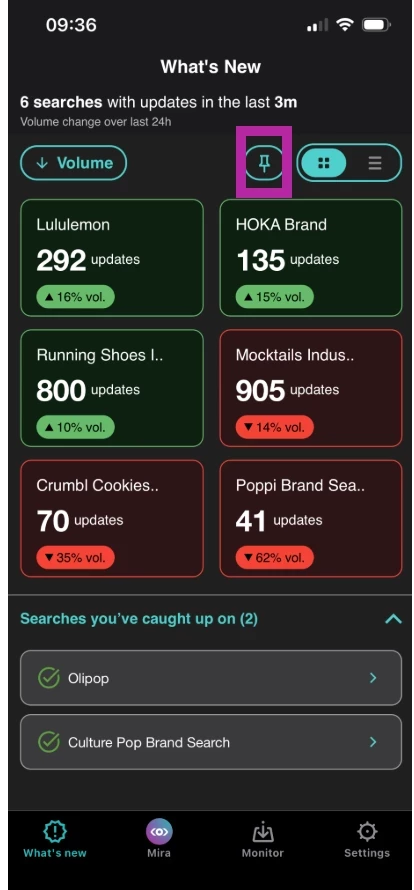
- Choose the searches you want to monitor.
- Select Done.
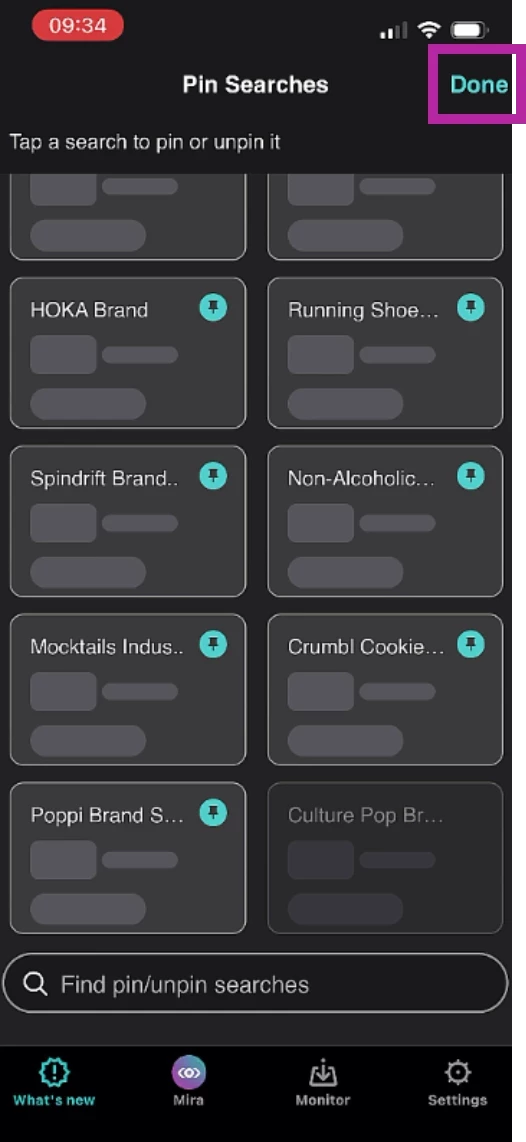
Your pinned searches will appear in What's New, making it easy to review new coverage and changes in volume.
📌 Tip: Start with your most important searches, such as your brand, competitors, or active campaigns. You can update your pinned searches as your priorities change.
Working across multiple brands or teams?
Meltwater Mobile automatically recognizes your active Workspace, helping you access information relevant to your brand, team, or region.
To switch Workspaces, go to Settings → Other → Workspaces.
Step 3: Know Where to Go
Meltwater Mobile has three main areas that work together to help you stay informed.
| Area | What you can do |
| What's New: See what changed | Quickly review new coverage and changes in mention volume across your pinned searches. Use What's New when you want to see what's happening across your monitoring topics. |
| Mira: Understand what it means | Ask Mira questions about media coverage, summarize trends, and explore insights using AI. Mira is available to all Meltwater customers, regardless of subscription tier. |
| Monitor: Explore the coverage | Browse your saved searches and tags, read articles, and investigate specific stories. Use Monitor when you want to review the coverage behind the insights. |
Remember: See → understand → explore
| What's New | Mira | Monitor |
| What changed? | What does it mean? | What's behind it? |
| Review activity | Ask questions | Read coverage |
Step 4: Try Your First Monitoring Task
Scenario: You want to know what's happening with your brand today.
- Open What's New and find your brand search.
- Review the number of new updates and changes in coverage volume.
- Open Mira and ask:
"What are the biggest stories about my brand today?" - Open Monitor to review relevant articles.
You've just used Meltwater Mobile to identify activity, explore insights, and investigate coverage.
Explore More Features
Ready to do more with Meltwater Mobile?
| Article | What you'll learn |
| Learn how to identify changes in coverage, organize your searches, and investigate articles. | |
| Learn how to ask questions, analyze saved searches, select Mira Projects, and continue previous conversations. | |
| Learn how to switch Workspaces, manage notifications, and troubleshoot missing searches. |