



Monitoring Media Coverage with Meltwater Mobile
Track new coverage, spot changes in conversation volume, and investigate stories wherever you work.
Meltwater Mobile helps you stay informed about your brand, competitors, campaigns, and industry without needing to be at your desk.
Two features work together to help you monitor coverage:
- What's New: Identify new coverage and changes in mention volume.
- Monitor: Browse saved searches, investigate stories, and review individual articles.
This guide explains how to use both features to stay informed and take action.
See What's Changed with What's New
The What's New tab provides a quick overview of activity across your pinned saved searches.
Each search card displays two signals.
| Signal | What it tells you |
| Number of Updates | Shows how many new pieces of coverage were captured during the latest What's New refresh. Use this to identify searches with recent activity. |
| Volume Change (%) | Compares coverage volume from the last 24 hours with the previous 24-hour period. Use this to understand whether a topic is receiving more or less attention. |
What do the colors mean?
Color coding helps you recognize significant changes in coverage volume.
| Volume Change | What You'll See |
| Increase of 10% or more | Green |
| Decrease of 10% or more | Red |
Example:
Your brand search shows 135 new updates and a 15% increase in coverage.
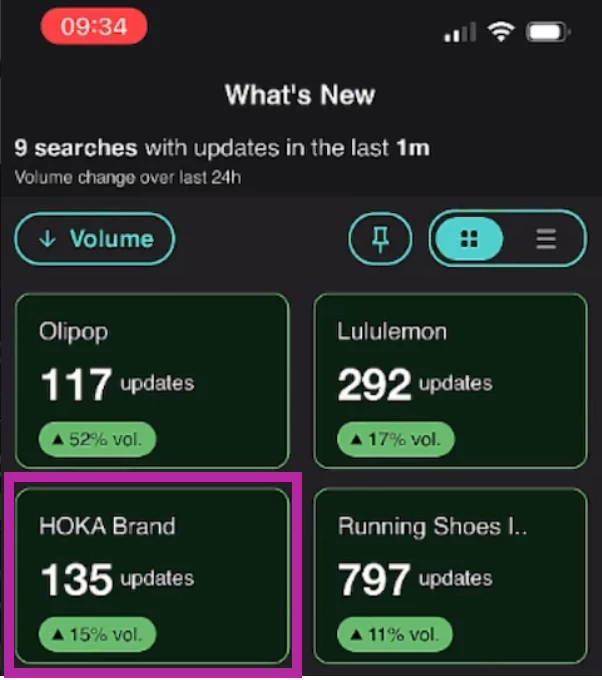
This tells you that new coverage has been captured and mention volume has increased compared with the previous 24-hour period.
You can open the search to investigate what's driving the change.
📌 Tip: An increase in coverage isn't necessarily positive or negative. It's a signal that something has changed and may need your attention.
Sort Searches to Find What Matters
You can organize your What's New feed based on your monitoring priorities.
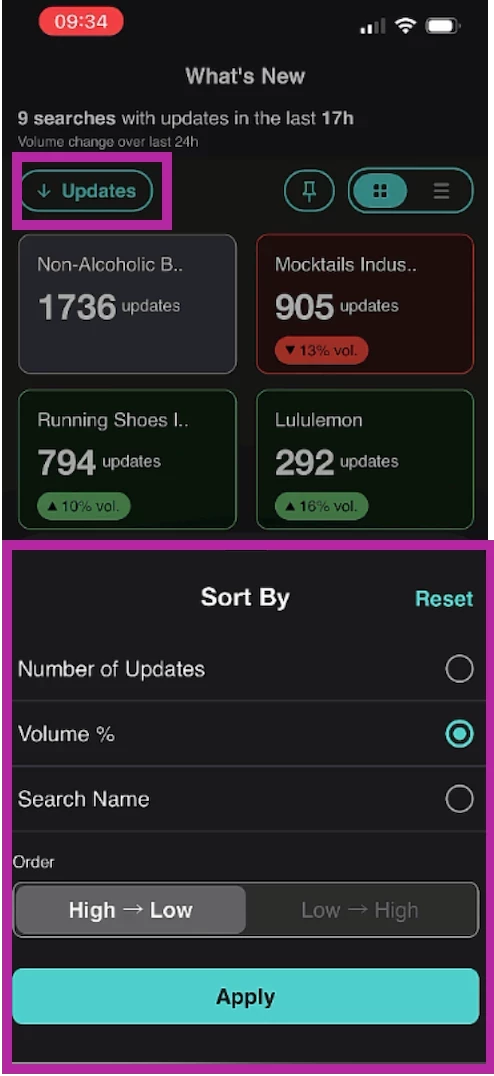
How to sort searches
- Click What's New.
- Select Updates.
- Choose a sorting option:
- Number of Updates
- Volume %
- Search Name
- Select High to Low or Low to High.
- Select Apply.
Which sorting option should you use?
| Your Goal | Sort By |
| Find searches with the most new coverage | Number of Updates: High to Low |
| Identify the largest increases in coverage | Volume %: High to Low |
| Identify the largest decreases in coverage | Volume %: Low to High |
| Find a specific search | Search Name |
Keep Priority Searches Easy to Access
Use Pin Searches to choose which searches appear in What's New.
For example, you might pin searches for your brand, CEO, top competitor, or current campaign.
Pin a search
- Click What's New.
- Select the Pin icon.
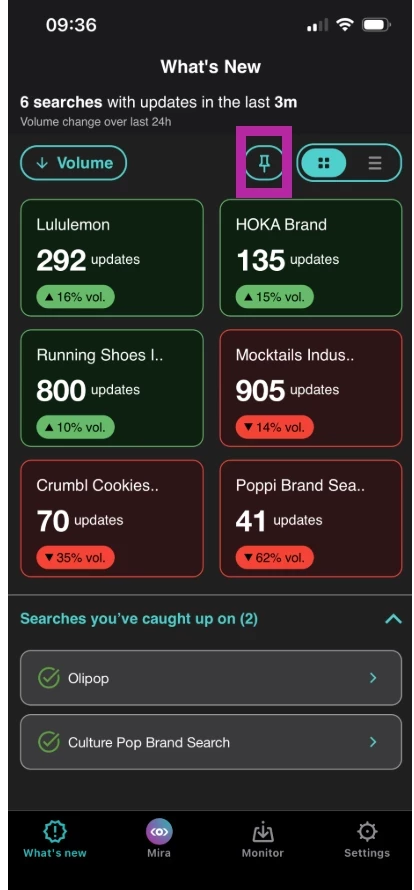
- Choose the searches you want to pin or unpin.
- Select Done.
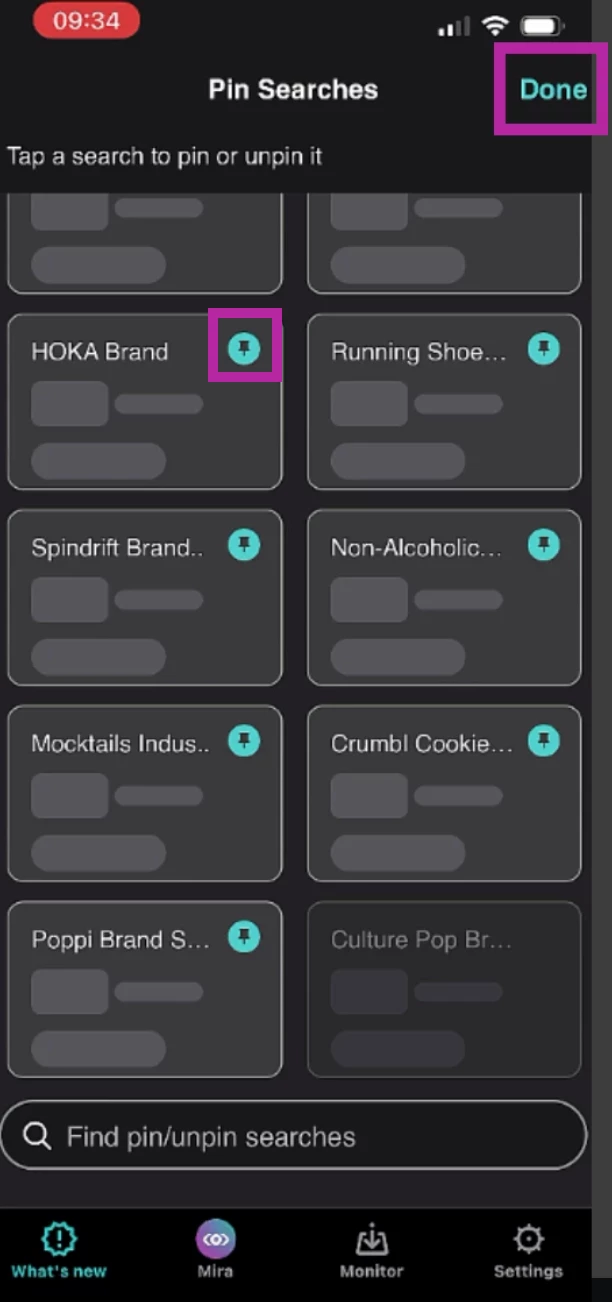
Remove a search from What's New
Swipe a search tile to the left to dismiss it.
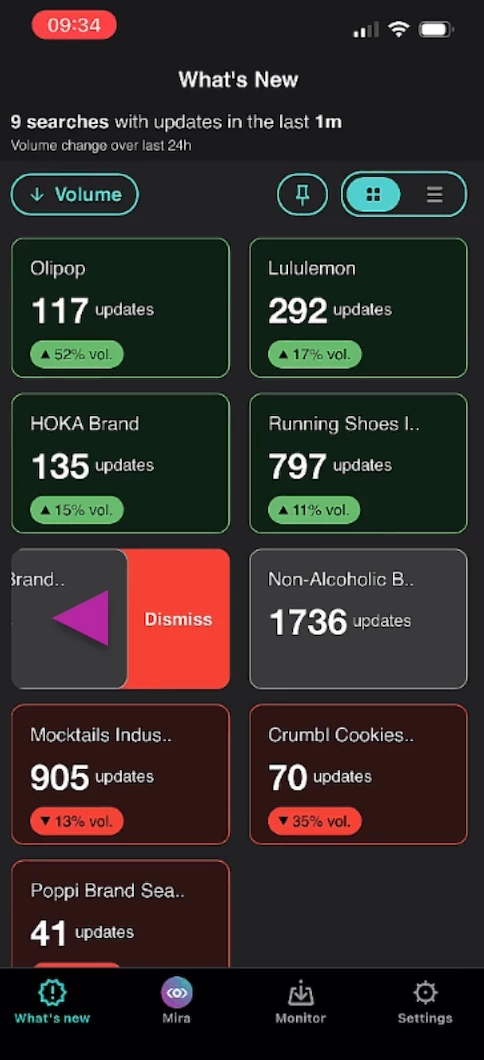
Dismissing a search removes it from What's New but does not delete the saved search from your Meltwater account.
📌Tip: Update your pinned searches when your priorities change. For example, pin a product launch search during a campaign and replace it when the campaign ends.
Customize Your View
You can switch between Grid and List views in What's New.
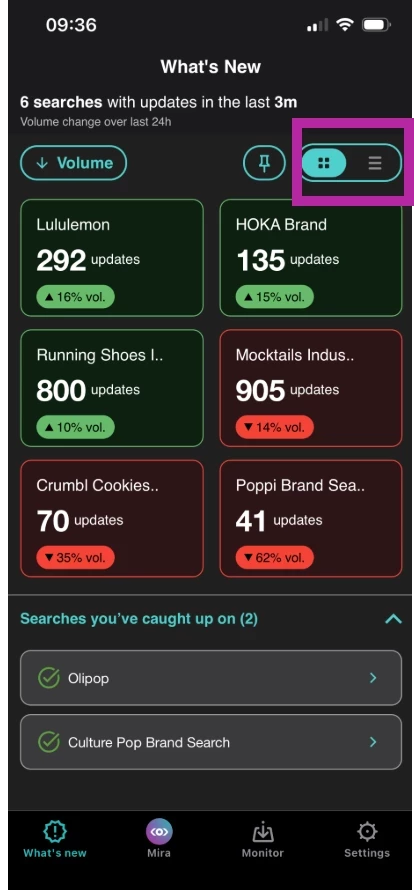
Use the controls in the upper-right corner to choose your preferred layout.
| View | Best for |
| Grid View | Scan multiple search cards at a glance. |
| List View | Browse searches in a compact format. |
Refresh your coverage
To check for new updates, open What's New or pull down to refresh the page.
The app also refreshes What's New when you switch Workspaces or return to the tab after being away.
Good to know: Update counts reflect coverage captured during the latest What's New refresh. Volume % compares the last 24 hours with the previous 24-hour period.
Find Coverage with Monitor
The Monitor tab brings your saved searches and tags together in one organized view.
Use Monitor when you want to investigate coverage in more detail.
Monitor provides access to up to 14 days of articles.
Open a saved search
- Select Monitor at the bottom of the app.
- Browse your saved searches and tags.
- Select a search or tag to review its coverage.
- Select an article to read it.
Filter your searches and tags
Use the Filters menu to choose what you want to browse.
| Filter | What It Displays |
| All | All available saved searches and tags |
| Favorites | Your favorited searches |
| Searches | Your saved searches |
| Tags | Your tags |
To apply a filter:
- Select the All drop-down
- Choose All, Favorites, Searches, or Tags.
- Select Apply.
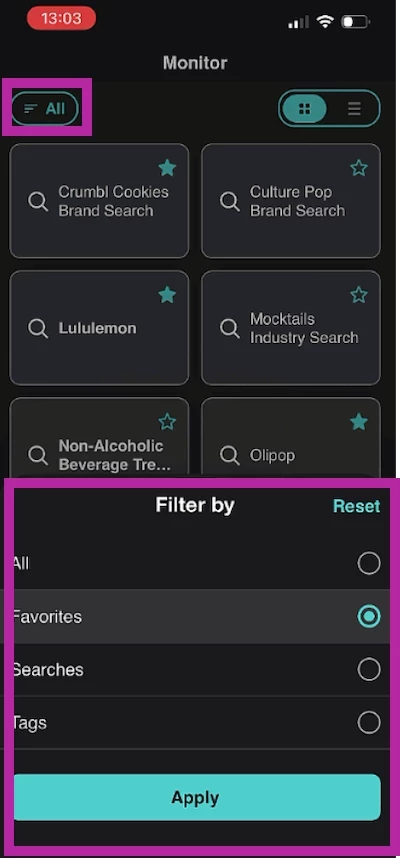
You can also use the search field to find a specific search or tag.
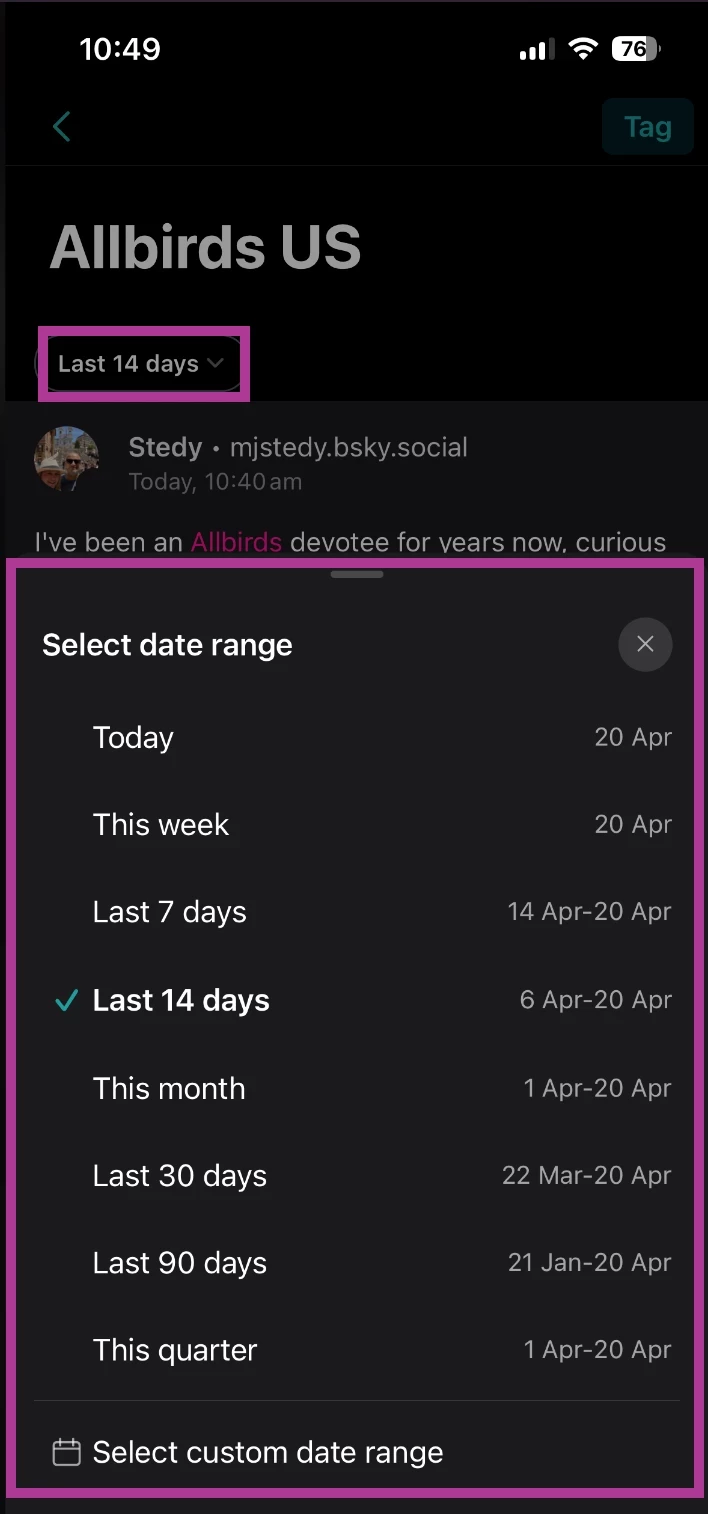
Change the date range
- Open a saved search in Monitor.
- Select the date range.
- Choose your preferred available date range.
Change your view
Use the controls in the upper-right corner to switch between Grid and List views.
Read and Take Action on Articles
You can open articles directly within Meltwater Mobile.
The in-app article view lets you review coverage and take action without leaving the app.
Share an article
- Open an article.
- Select Share.
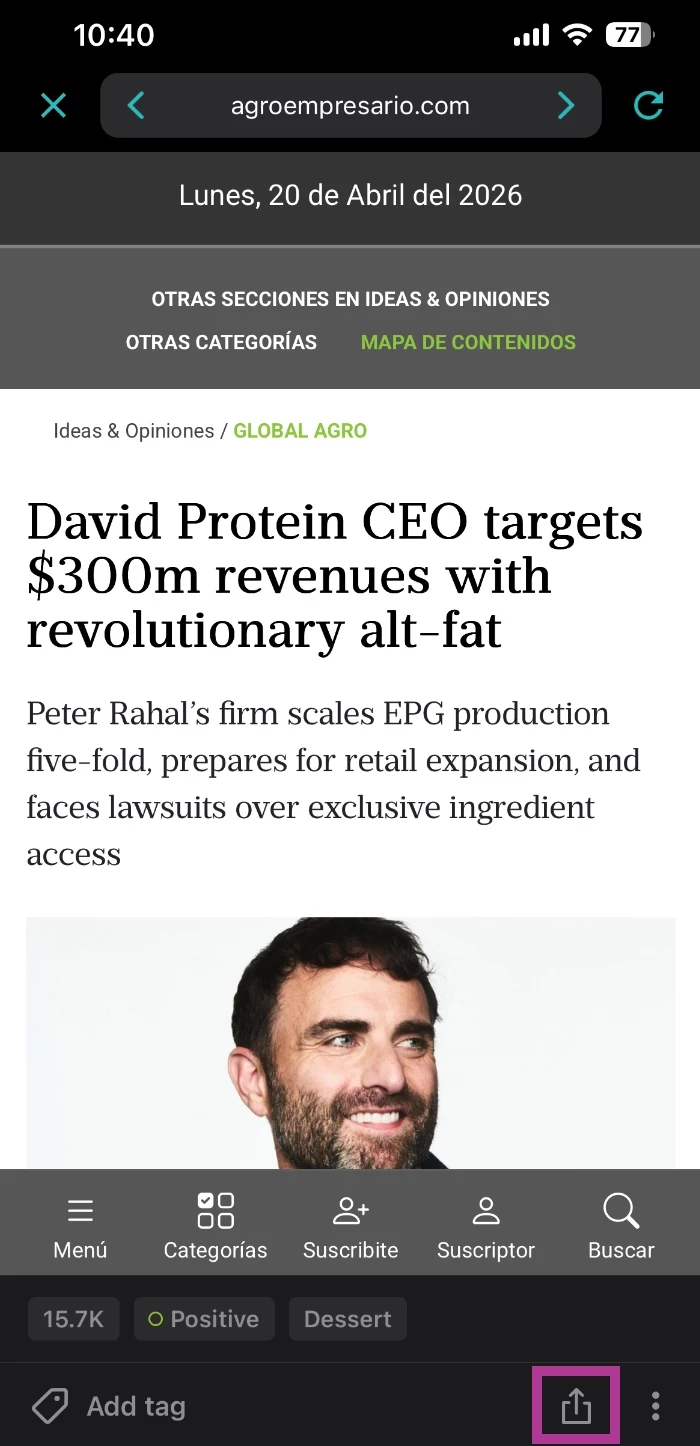
- Choose your preferred sharing method.
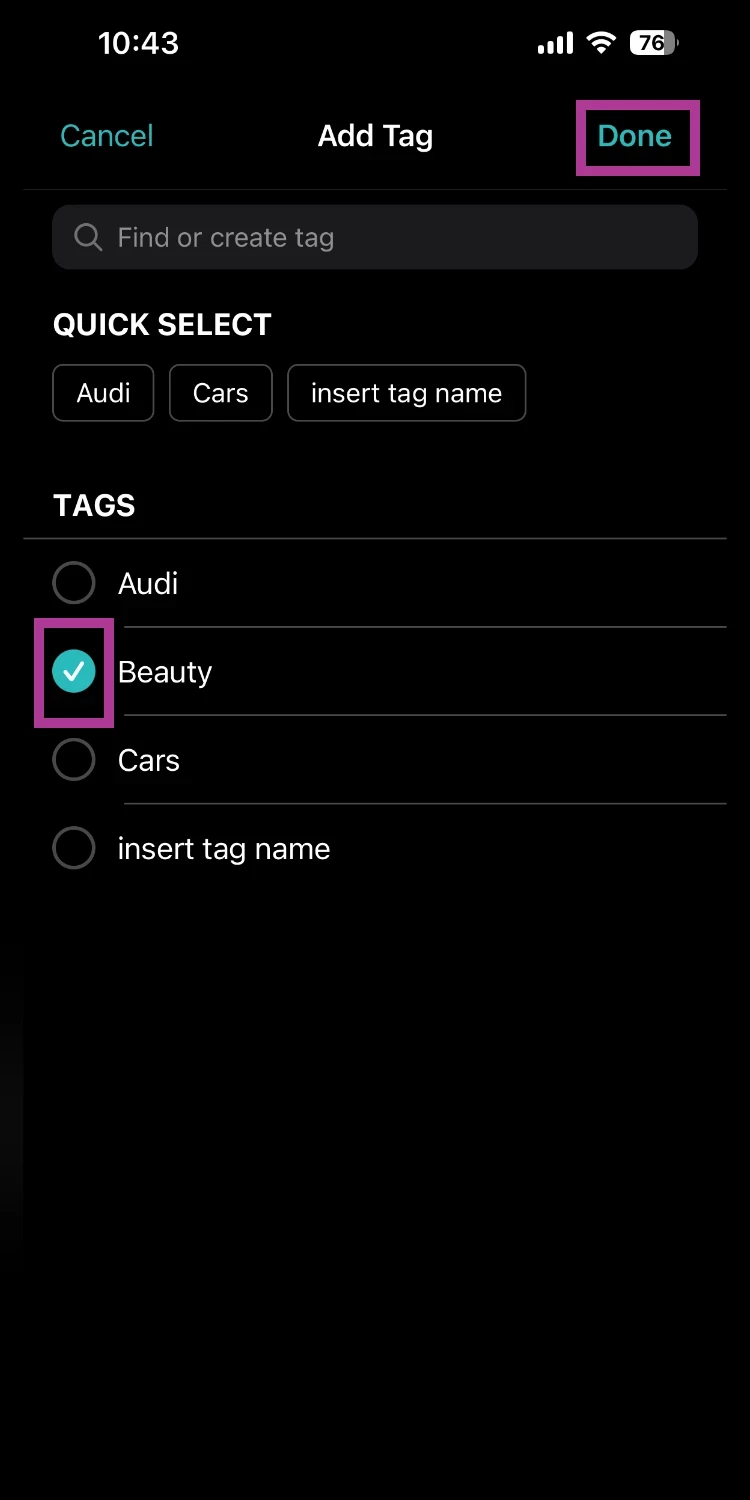
Add tags to an article
Tags help organize coverage by campaign, topic, competitor, or issue.
- Open the article.
- Select Add Tag.
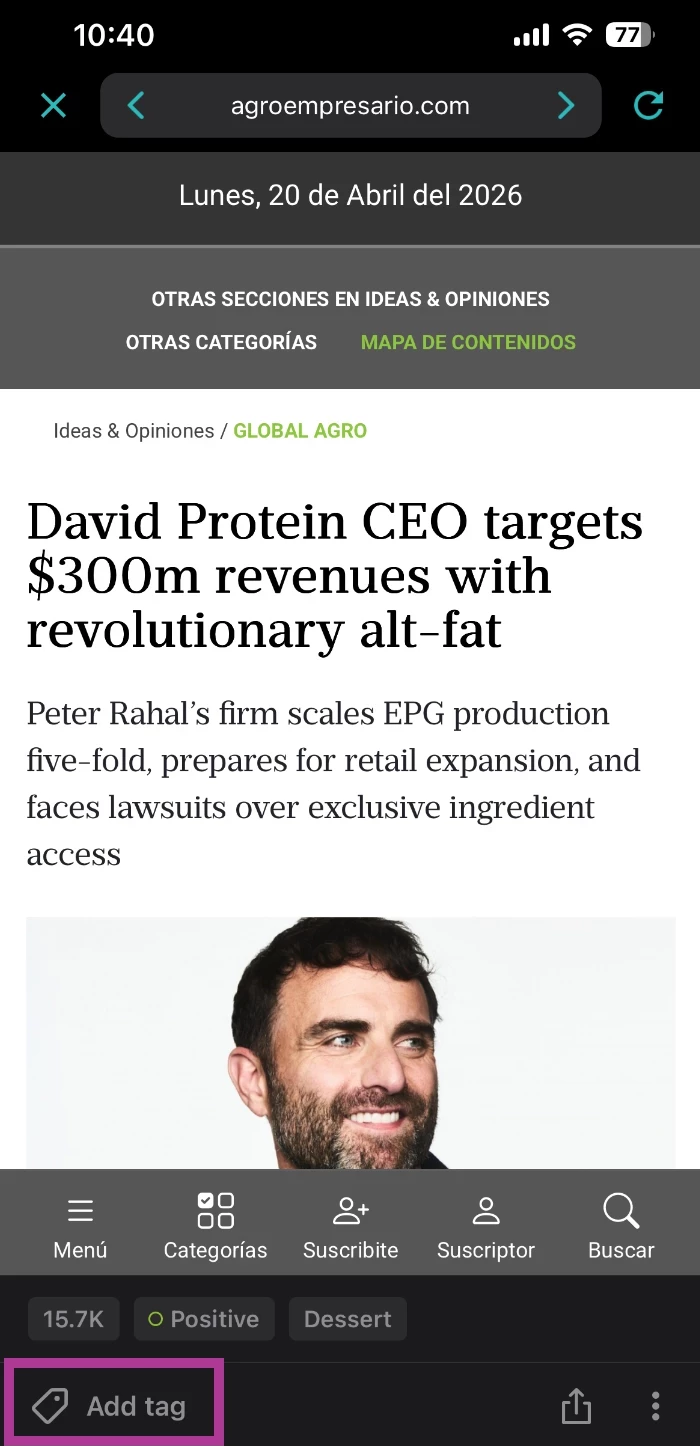
- Choose one or more existing tags.
- Select Done.
Change article sentiment
If an article's assigned sentiment doesn't reflect the tone of the coverage, you can update it.
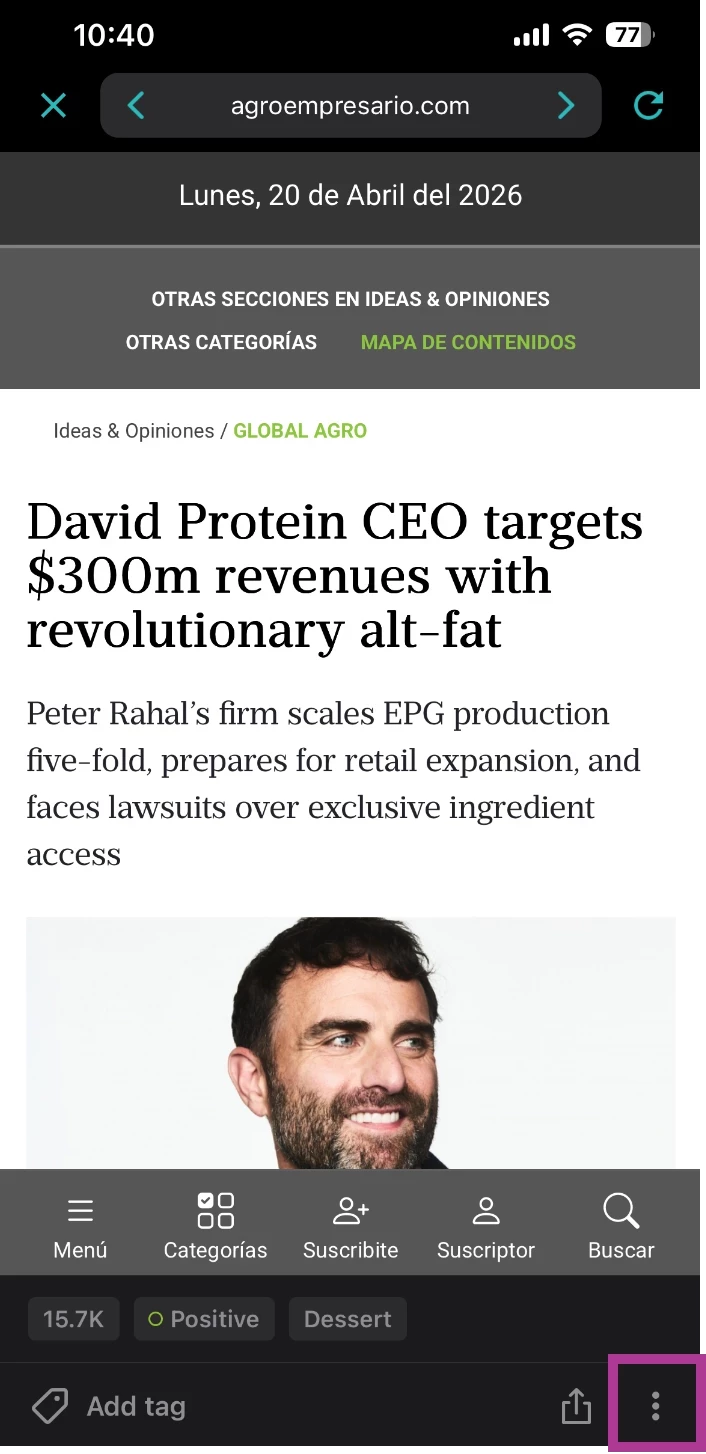
- Open the article.
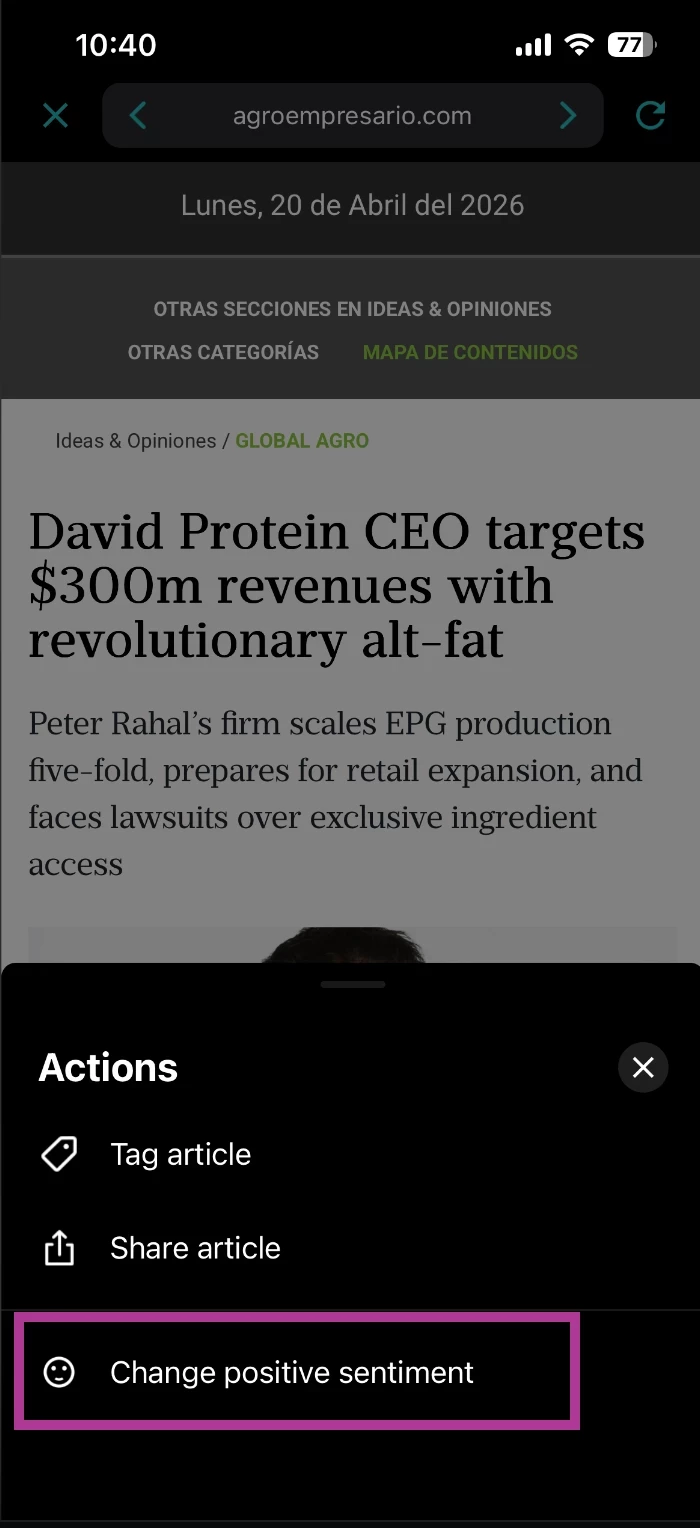
- Select the kebab menu.
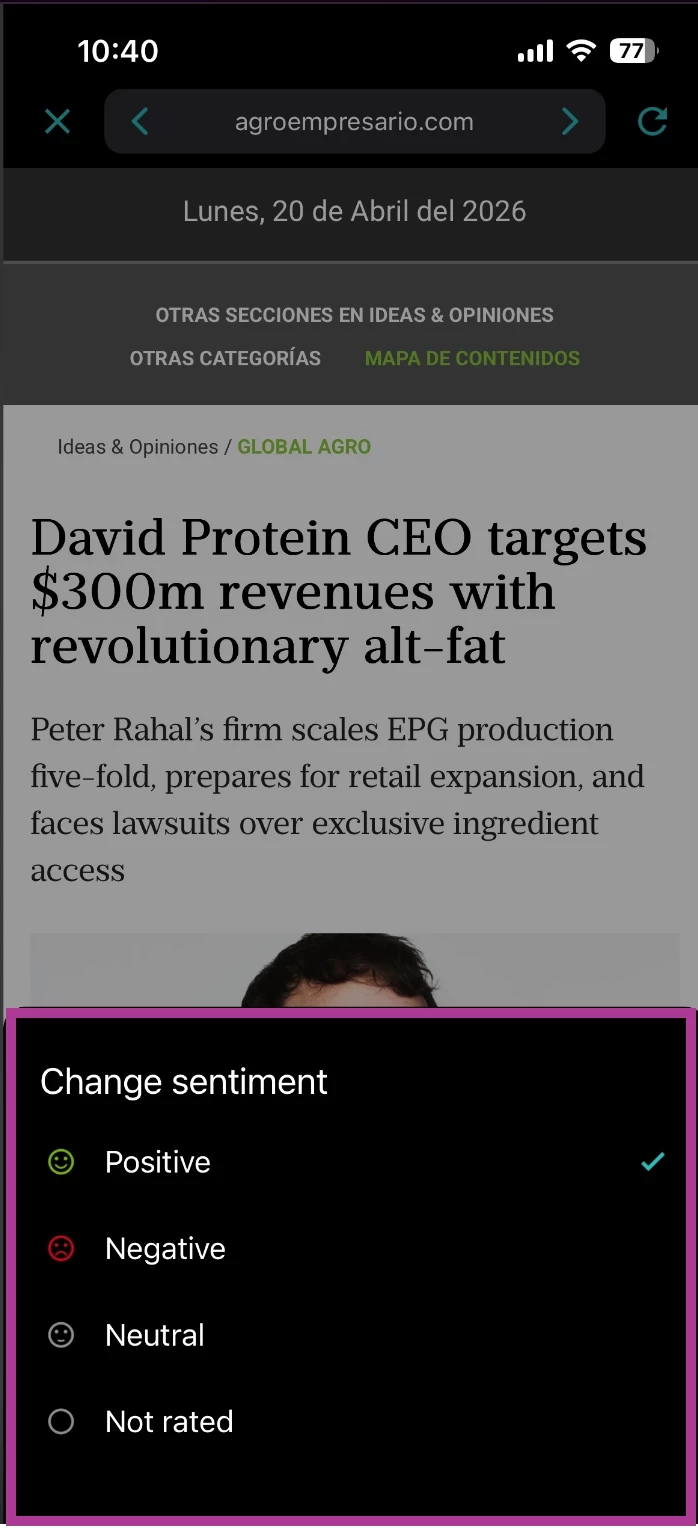
- Select Change Sentiment.
- Choose the appropriate sentiment.
Put It Into Practice: Investigate a Spike in Coverage
Scenario: You notice an unexpected increase in media coverage about your brand.
- Click What's New.
- Select the Updates drop-dwon
- Sort by Volume % to identify the largest changes.
- Click Apply
- Select your brand search.
- Review the latest articles to understand what's driving the increase.
- Open Mira and ask:
"What is driving the increase in coverage about our brand over the past 24 hours? Summarize the key themes and identify any potential risks." - Share important articles with your team.
Outcome: Move from spotting a change in coverage to understanding what happened and deciding whether action is needed.