
kelly.bebenek
mEmployee
mEmployee
Sep 21, 2026 4:30 PM UTC
Sticky

Launch Mission 1: Build & Edit a Media Monitoring Search

  • Oct 14, 2026 6:39 PM UTC
  • 12 Replies
  • 484 views
  • Translate All


Your first search has already been set up for you.  It’s best practice to review your searches monthly, or anytime something changes with your brand or organization - a new product, campaign launch, or a competitor worth watching.


Complete your Training:


Pick one — either earns 100 points.

Prefer hands-on learning? The live workshop lets you build alongside others and ask questions in real time.


Mission 1:
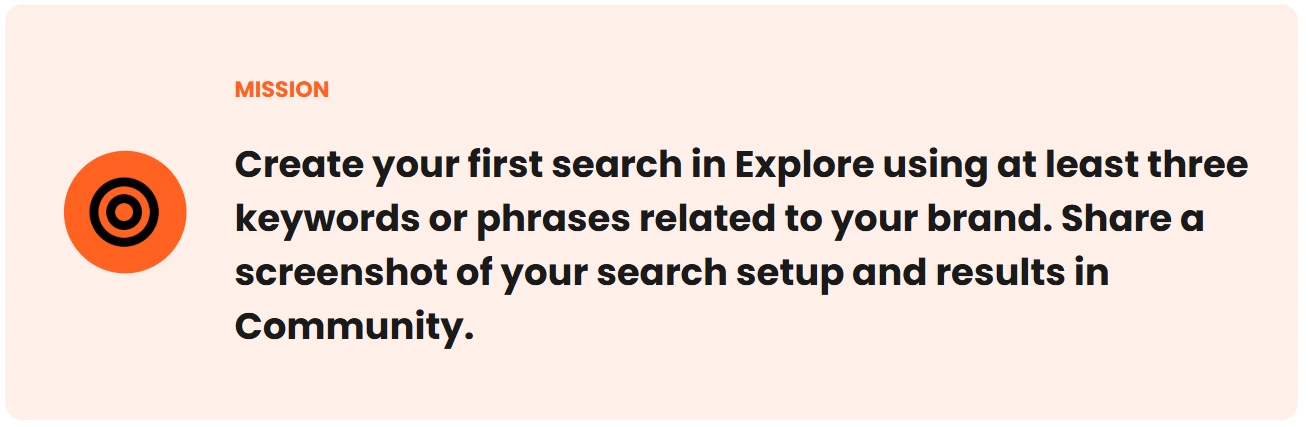
 

How to Complete this mission:


1. Build your search


Use the AI Search Assistant in Explore to help you build your first query.

2. Refine your search with filters


Search building is iterative — this step is your quality check. Preview your results and ask yourself:

  • Are these mentions actually about my brand?
  • Am I missing obvious coverage?
  • Is there too much noise?

Then use AI, filters, or refine manually:

3. Save your search

Once you're happy with your results, save your search.

🎥 Watch how to save your search

Saving unlocks the rest of Meltwater — alerts, digests, reports, and dashboards all run off a saved search.


4. Share it in Community

Post your work to get feedback from our product experts and your peers.

  1. Comment on this post
  2. Add a line or two on what you built.
  3. Attach a screenshot of your search setup and results.

Blur out any information you don't want to share.

👀 Once you've posted, see what your peers have shared.


    12 replies

    mChampion Level 1
    Oct 6, 2026 6:37 PM UTC

    Great refresher on searches! 

    Translate
    New Member
    Oct 20, 2026 5:04 PM UTC

    This was super helpful and Cris was an excellent instructor. 


    Translate
    Zach_Lepard
    mEmployee
    Oct 20, 2026 5:52 PM UTC

    This is such a solid search ​@natalie.kfoury, great job! I like that you utilized the exclusions and dropped keywords into the “None of These” box. This sets you up so well for more advanced boolean queries! 

    Translate
    Zachary Lepard
    Explorer
    Oct 20, 2026 5:13 PM UTC

    Great training by Cris today!

    Translate
    New Member
    Oct 21, 2026 3:17 PM UTC

    Great Training!

    Translate
    Explorer
    Oct 27, 2026 6:31 PM UTC

    Great info, thanks!


    Translate
    Zach_Lepard
    mEmployee
    Oct 27, 2026 6:40 PM UTC

    Great search ​@mhutts!! Love that you took it beyond the basic keyword search and built out Boolean operators to help filter and refine the results 🔥

    Translate
    Zachary Lepard
    mChampion Level 1
    Oct 29, 2026 9:50 PM UTC

    I use the AI companion to add additional spelling variations to the search!  


    Translate
    New Member
    Nov 3, 2026 6:04 AM UTC

    Great and insightful session with Laura Stewart - go APAC!

    Appreciate the quick tips too.


    Translate
    Laura Stewart
    mEmployee
    mEmployee
    Nov 3, 2026 8:44 AM UTC

    ​@chewcheeyan thanks joining! So good having you in our APAC session. 

    Great job using different variations of ice cream to capture all your mentions - remember the top tip of the day: using Mira Companion to help you add more variation into your search words. 


    1. Click your search name in the left corner of the page
    2. Select convert to advance search
       
    3. Select refine with AI 


    4. Click Open Mira Companion
    5. Ask Mira to broaden your search terms 


    6. Select Apply to Search and the search terms will automatically update 


    This will widen the net of mentions you can capture in your search!

    Translate
    Explorer
    Nov 3, 2026 5:50 PM UTC

    I built a search on the Be Seen campaign which highlights the various disciplines of radiologic technology. thanks, Bernadette

    Translate
    Cris Rice
    mEmployee
    mEmployee
    Nov 3, 2026 6:30 PM UTC

    Great search here ​@BBell - using the Keyword search is easy when we have the company/entity detection that you already used for ASRT.


    One thing I’d suggest is expanding the “At least one” section with campaign-specific language you’re seeing in the results, including partner or sponsor names like Siemens and related themes such as Breast Cancer Awareness. I’d also review the results for any recurring terminology the campaign uses, those can be great additions for catching relevant coverage that may not explicitly mention “Be Seen.”


    As you review the results, keep an eye out for any repeated irrelevant mentions too; those can then be added under “None of these” box to make the search even cleaner.

    Translate