



Preparing to Connect Facebook and Instagram with Meta Business Login
Before a Facebook Page or Instagram account can appear as connectable in Social Connections, certain settings need to be configured correctly in your organization's Meta Business Portfolio.
If you haven't gone through the general connection steps in Meltwater yet, start with the Meltwater Community article on connecting social channels. Use this article as your companion reference for troubleshooting when a Page or account isn't appearing as an option, or for setting up access correctly ahead of time.
This article will cover:
Why this Matters
Meta Business Login authenticates through your organization's Business Portfolio rather than a single person's Facebook session - that's what makes the resulting connection non-expiring.
But the flow still works by checking what the logged-in person has Full Control over inside that Business Portfolio. If the Facebook Page or Instagram account isn't set up correctly at the Portfolio level, Facebook will not display the page as an connectable option.
Facebook Pages
What must be true before you connect
- The Page must be a real, existing Facebook Page. Any Page qualifies, including individual Pages that are part of a Global Page structure. One thing to watch for: localized Market Pages under a Global Page structure often share the same display name, which makes them hard to tell apart once connected, it’s worth renaming them for clarity before or after connecting.
- The person logging in must hold Full Control of the Page inside your Meta Business Portfolio - not just personal-profile access to the Page. During the login flow, Facebook surfaces only the Pages that person's account has Full Control over at the Portfolio level. Full Control also reduces the odds of a disconnection later from password resets or security changes on that person's account.
Checking and Granting Full Control
Full Control is managed in the Business Portfolio, not in the classic Facebook Page settings.
To check your own access, follow these steps
- Go to business.facebook.com
- Select the relevant Page from the left-hand menu.
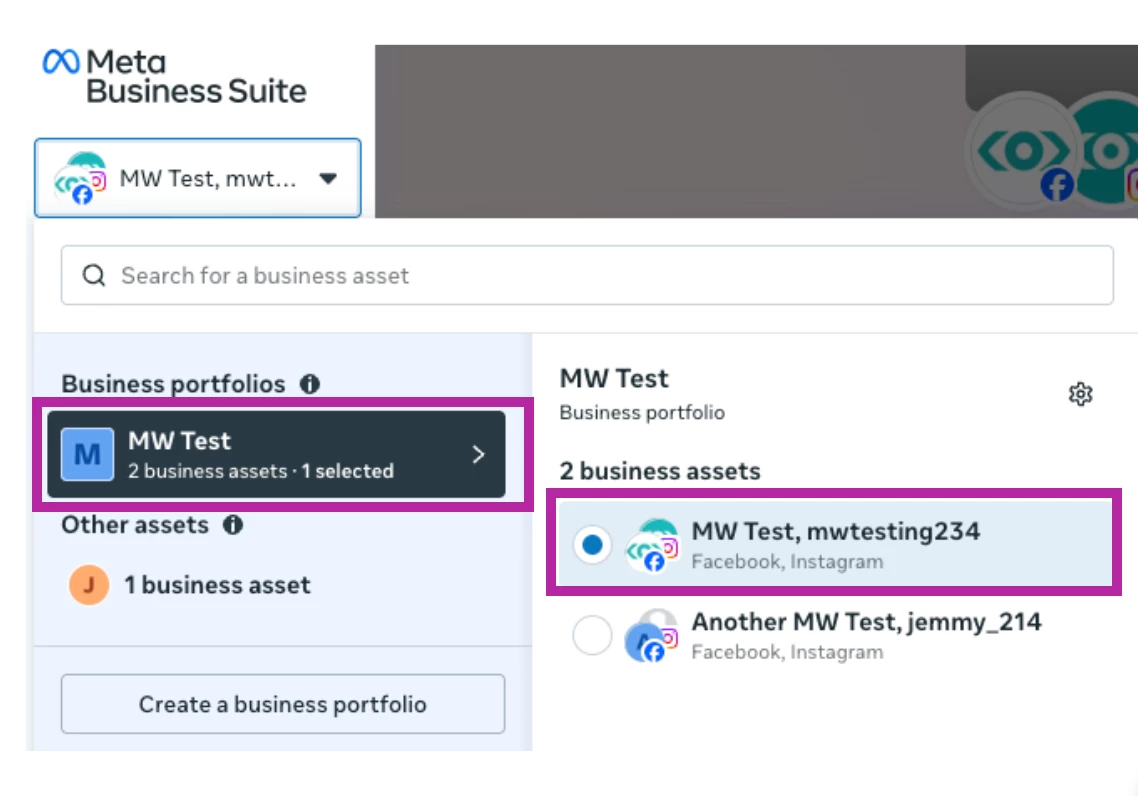
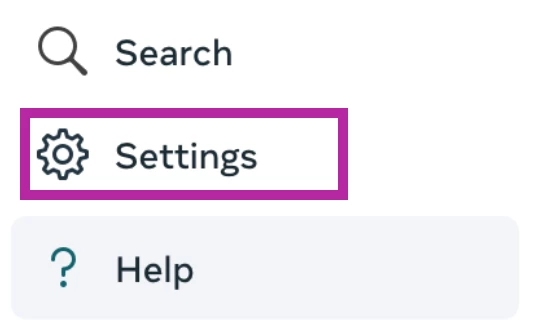
- Click Settings at the bottom of the left-hand navigation.
- Select People to see everyone with access and their current permission level.
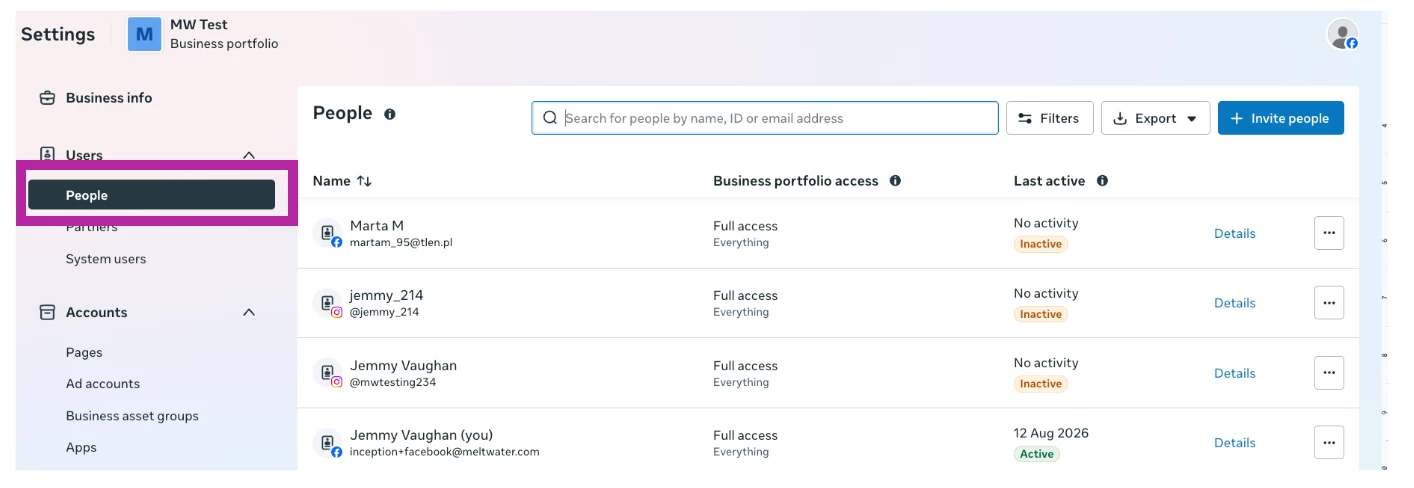
- Confirm your name is listed with the correct access permissions
Note: If clicking Settings takes you to a generic list of Pages instead of the Business Portfolio settings (as pictured above), you do not have Portfolio-level access. Someone with Full Control will need to grant you access or connect the Page for you.
To grant access, follow these steps:
- To invite someone new, click Invite people
- Enter their email address
- Assign them Full Control during the invite flow.
- To upgrade an existing person
- Click their name
- Select Manage under Business Portfolio Access
- Toggle on the Everything switch under Full Control. The Full Control toggle must be turned on. Enabling the individual permissions does not provide the same level of access.
Common Access Issues
- Page never added to a Business Portfolio. If a Page still lives entirely under a personal profile and hasn't been claimed into any Business Portfolio, it can't be assigned Full Control at all, and Meta Business Login will not surface it. See Meta's guide on adding Pages and people to a Business Portfolio.
- Page shared in as partner access, but only partial. If the Page belongs to another business's Portfolio and was shared into yours (common for agencies or regional teams), confirm the sharing partner has granted Full Control specifically.
- Wrong Portfolio. If your organization has more than one Business Portfolio, it's possible to have Full Control in one Portfolio while the Page actually lives in another. Double-check which Portfolio owns the Page before assuming access is the blocker.
- Access never transferred before someone left the company. If the person with Full Control has left and access wasn't reassigned first, there's currently no self-service way to recover it - you must contact Meta's support directly.
Troubleshooting
If your Page still won't show up as an option, follow these steps:
- Confirm you have Full Control using the steps 1-5 above.
- Check Meltwater’s access in your personal Facebook account. (Note: This is not in Meta Business Manager.) To do so,
- Log in to the personal Facebook profile you use to manage the Page.
- Click Settings & Privacy
- Select Settings
- Click Business Integrations
- Navigate to Meltwater
- Select View and Edit
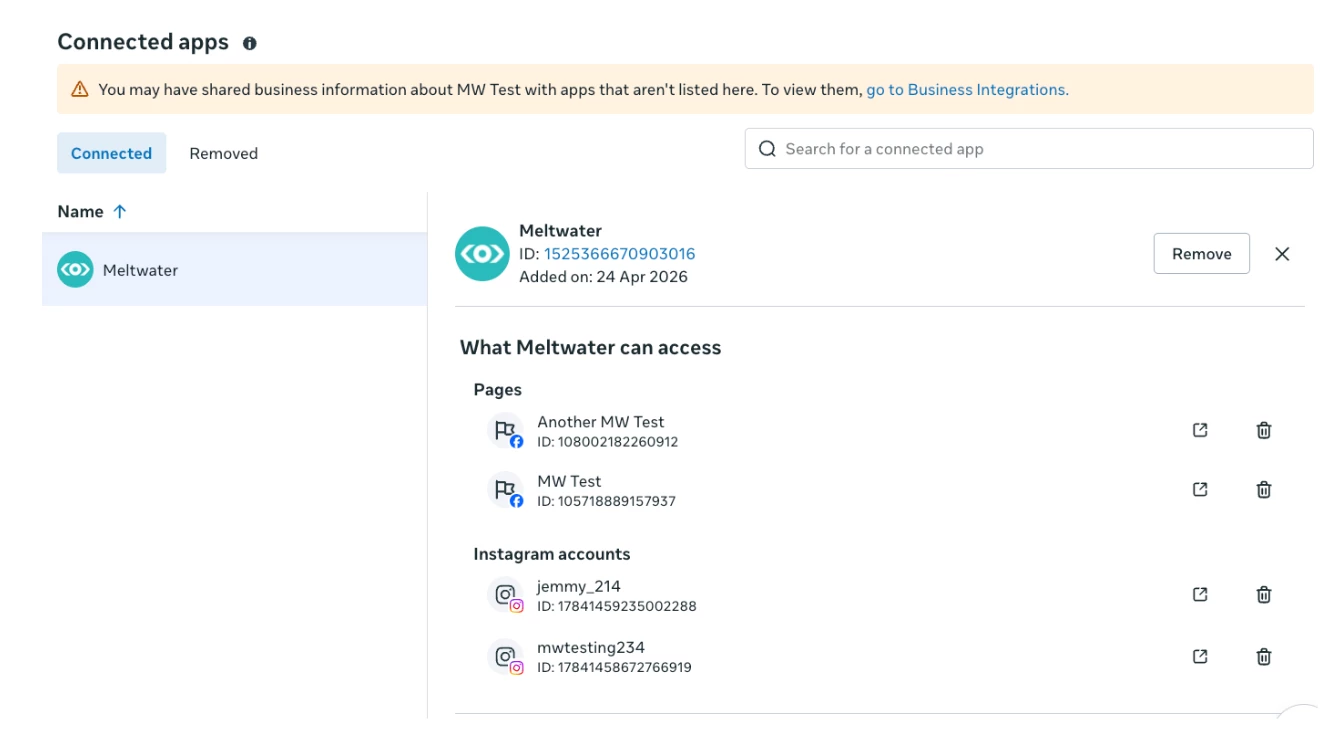
- Ensure Meltwater has access to the Page you want to connect.
- Check Meltwater’s access in your Meta Business Portfolio.
- Return to your Meta Business Portfolio
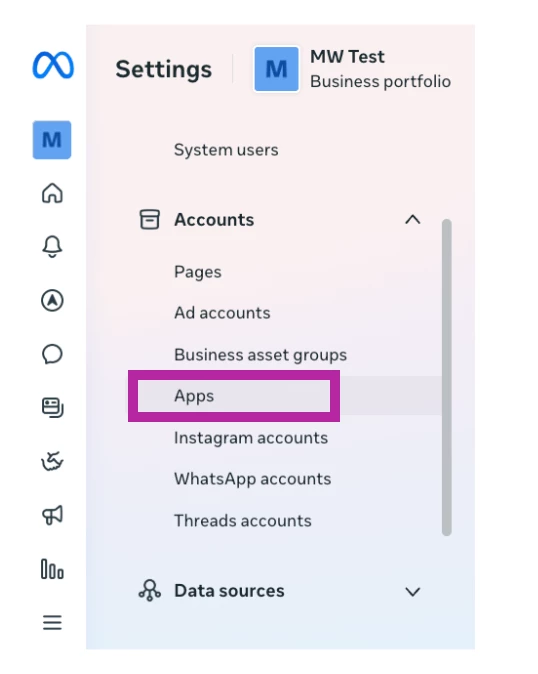
- Click Settings
- Select Apps. If Meltwater was previously connected but no longer has access to the Page or Portfolio, that access may have been removed and may need to be granted again.
- Return to Social Connections in Meltwater and try connecting again. If the Page is still missing, search using the Page ID or ask another person with Full Control to attempt the connection.
Note: If you've completed these steps and the Page still doesn't appear, contact Meltwater Support help@meltwater.com.
What must be true before you connect
- The account must be a Business or Creator account. Personal Instagram accounts can't be connected — this is an API-level restriction, not a Meltwater limitation.
- That account must be linked to a Facebook Page. This link is mandatory; Instagram accounts aren't authenticated independently.
- The linked Facebook Page must already meet the Full Control requirements above, and be connected in Social Connections. During Instagram's login flow, Facebook checks which Pages the logged-in person has Full Control over, then surfaces the Instagram accounts linked to those Pages.
Switching to a Business or Creator account
If the account is currently a Personal account, follow these steps:
- In the Instagram app, tap your profile picture
- Click the hamburger menu in the top right-hand corner
- Select Account type and tools
- Click Switch to Professional Account, and choose Business or Creator.
Linking the account to a Facebook Page
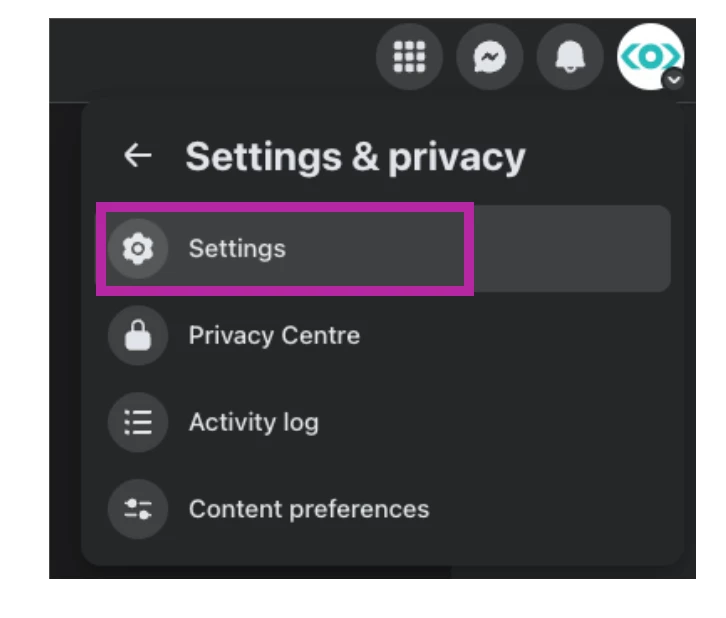
- From your Facebook Page, go to Settings & Privacy
- Click Settings
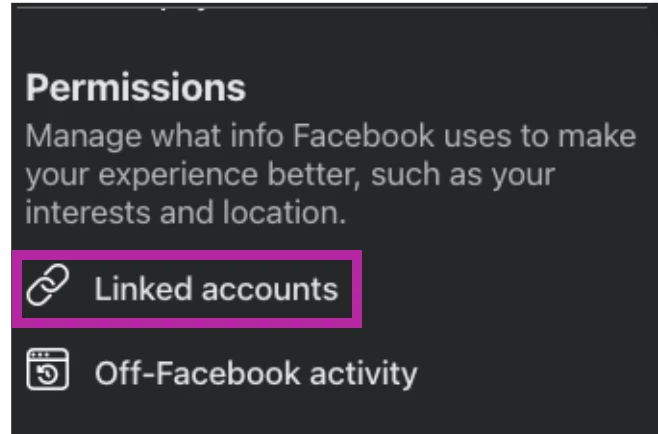
- Under Permissions, select Linked Accounts
- Navigate to Instagram
- Click View
- Select Connect account
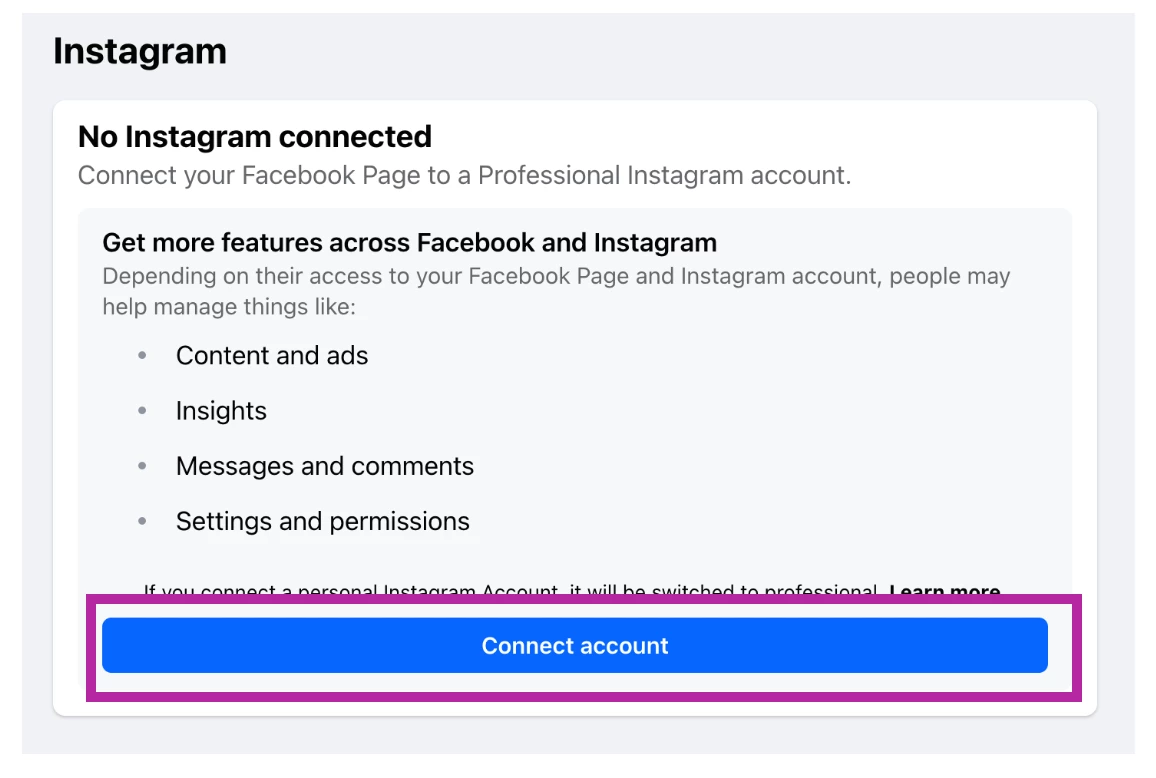
- Log in with your Instagram credentials when prompted
- Grant Facebook permission to add the account to the Business Portfolio
Alternatively, from the Instagram app:
- Click your profile icon
- Select Edit profile
- Click Page
- Connect, disconnect, or change the linked Facebook Page
Common Access Issues
- Business/Creator account linked to a different Facebook Page than the one connected in Social Connections. The link has to point to the specific Page that's already been connected — a valid link to any other Page won't work.
- Underlying Facebook Page loses Full Control access. Since Instagram's connection depends entirely on the linked Page's access, any of the Facebook-side issues above (Portfolio mismatch, offboarded admin, revoked integration access) will also block or break the Instagram connection.