



Meltwater Mobile App

Meltwater offers two separate mobile apps: Meltwater Mobile, and Meltwater Engage.
Downloading the Meltwater Mobile App
To download the Meltwater Mobile App, follow these steps:
- Navigate to your device’s App Store
- Search Meltwater Mobile
- Click Get or Download
Apple
Google Play Store
Meltwater Mobile App for iPhone
The Meltwater Mobile mobile app puts the power of Meltwater in your hands. Designed for Media Monitoring and Social Listening, view the latest updates on your saved searches, create an ad hoc search in Explore, view your analytics with dashboards, and read through your results via Inbox.
The mobile iPhone app for Meltwater includes:
What's New
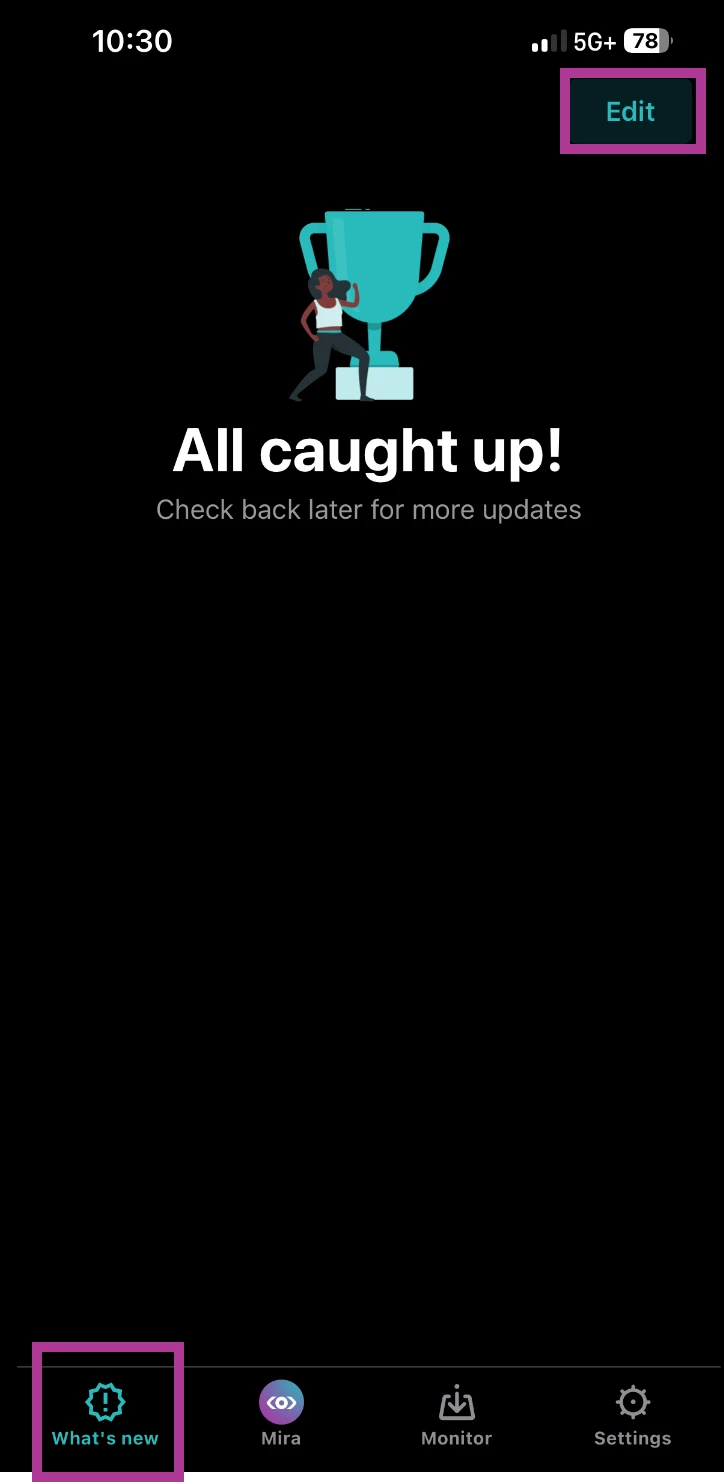
The Mobile iPhone App's feature, What's New, highlights all the relevant new stories since the last time you checked the app. This is the equivalent of a real-time interactive news digest.
Note: Searches must be added for articles to populate in the What’s New tab.
To add searches, follow these steps:
- Open your Meltwater Mobile app
- Ensure you are on the What’s New tab at the bottom of your screen
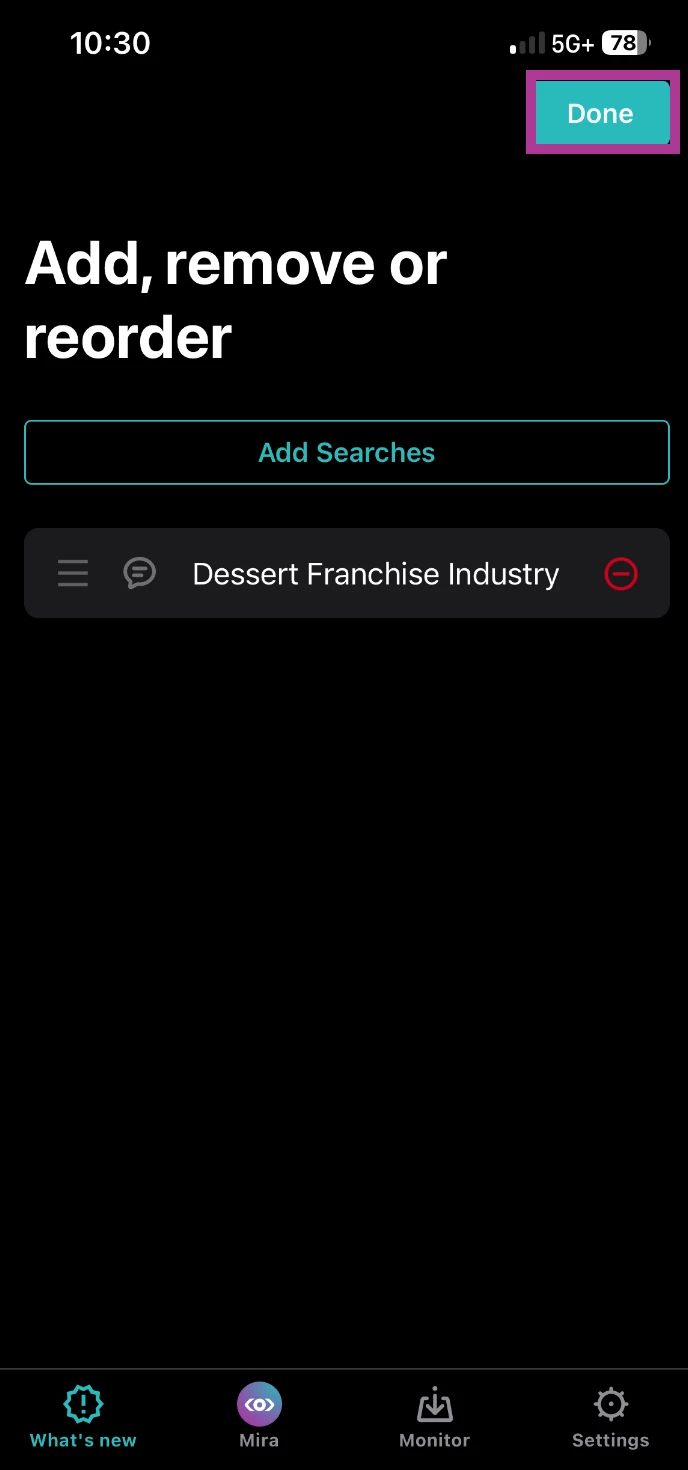
- Click Edit
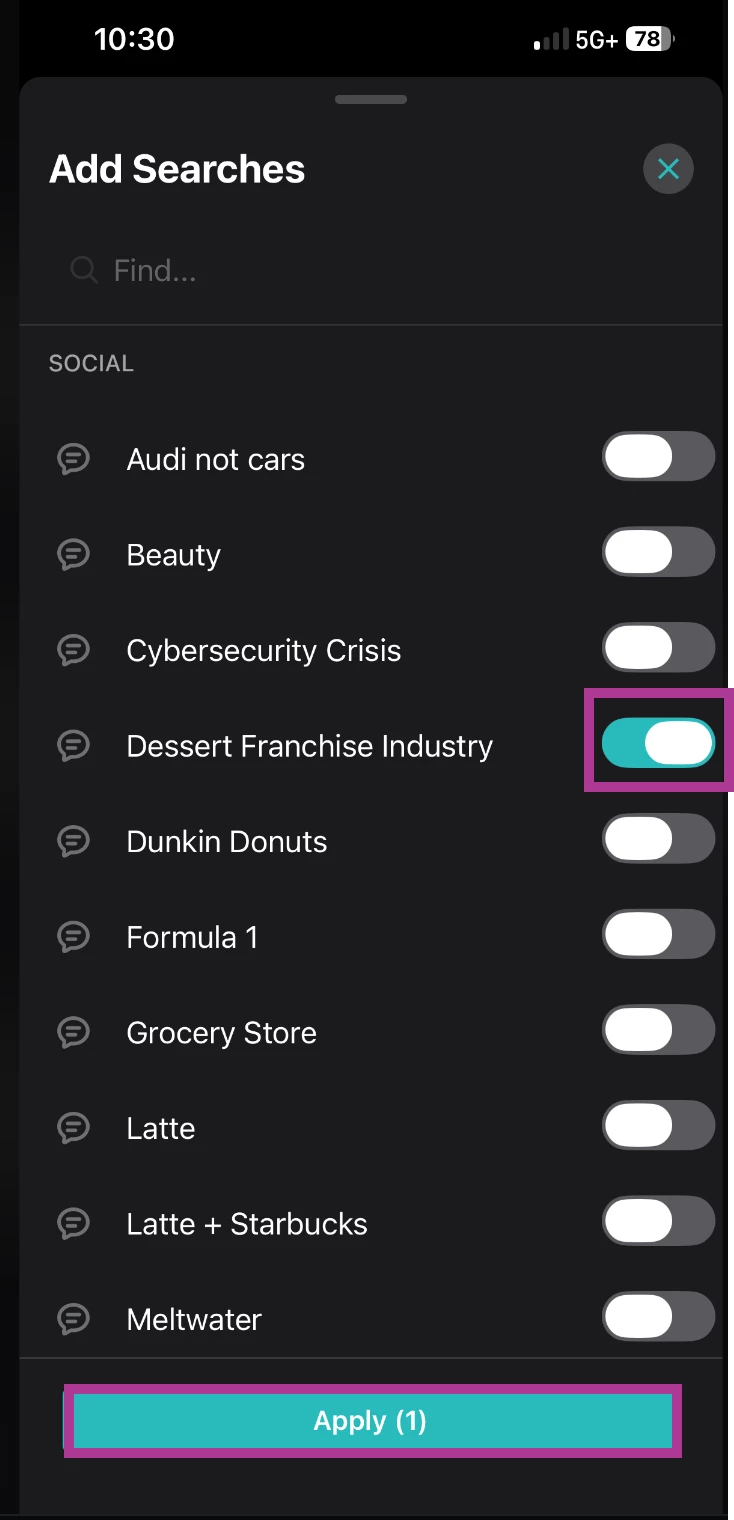
- Select Add Searches
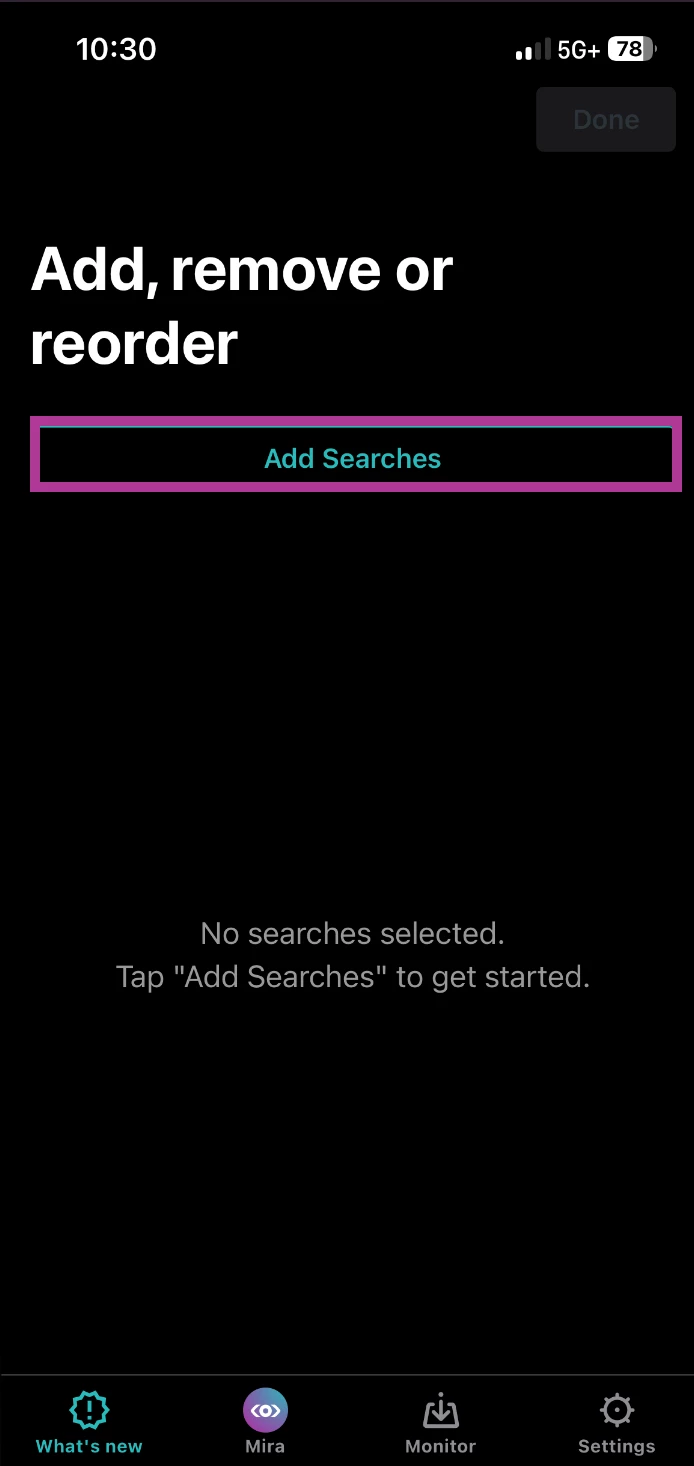
- Toggle on the searches you’d like to include
- Click Apply
- Click Done in the top right-hand corner
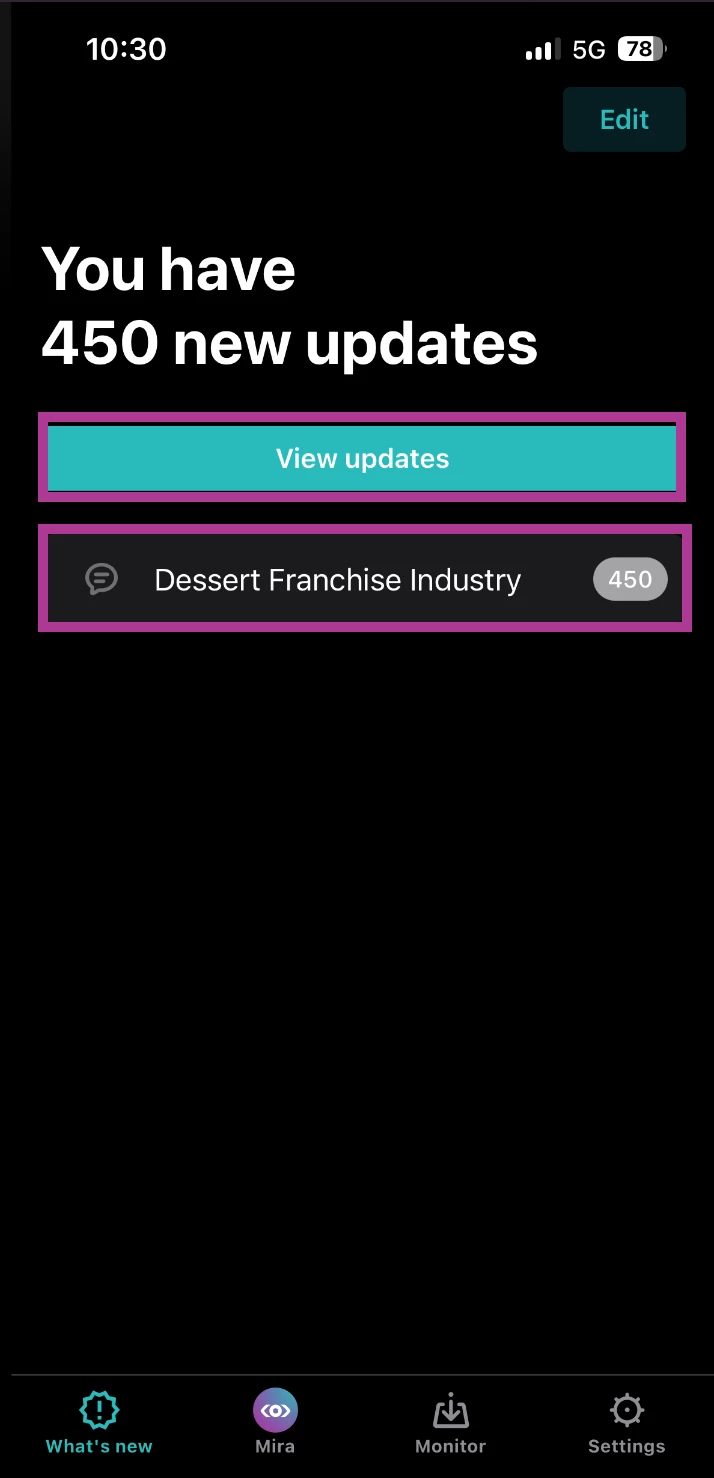
- To view updates from the searches selected, click View Updates
- Or, if multiple searches were selected, click into that search to view those specific updates
Mira
- Open your Meltwater Mobile app
- Ensure you are on the Mira tab at the bottom of your screen
- Select one of the prompts from the prompt library, or type in your custom prompt
- Add more context or answer questions from Mira as needed
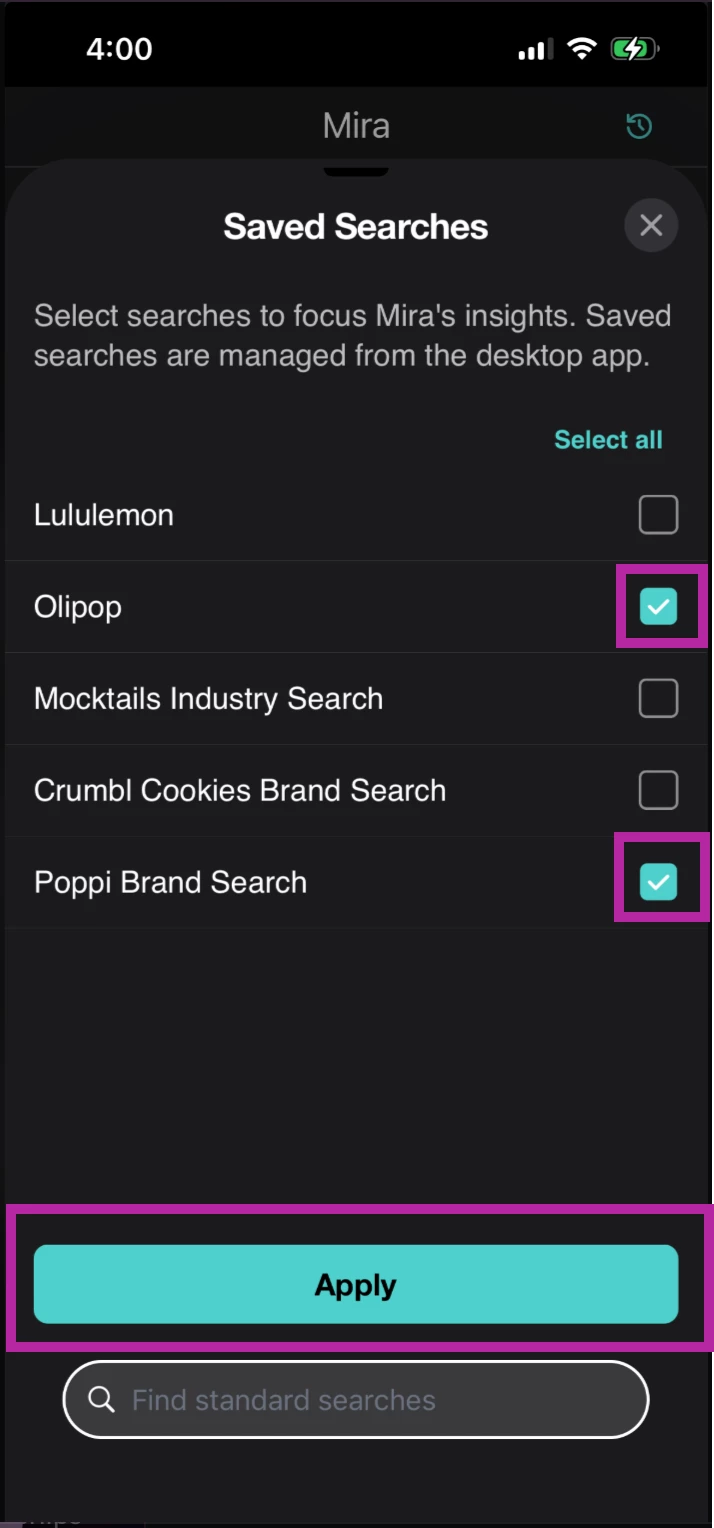
- To use a saved search
- Select +Saved Searches
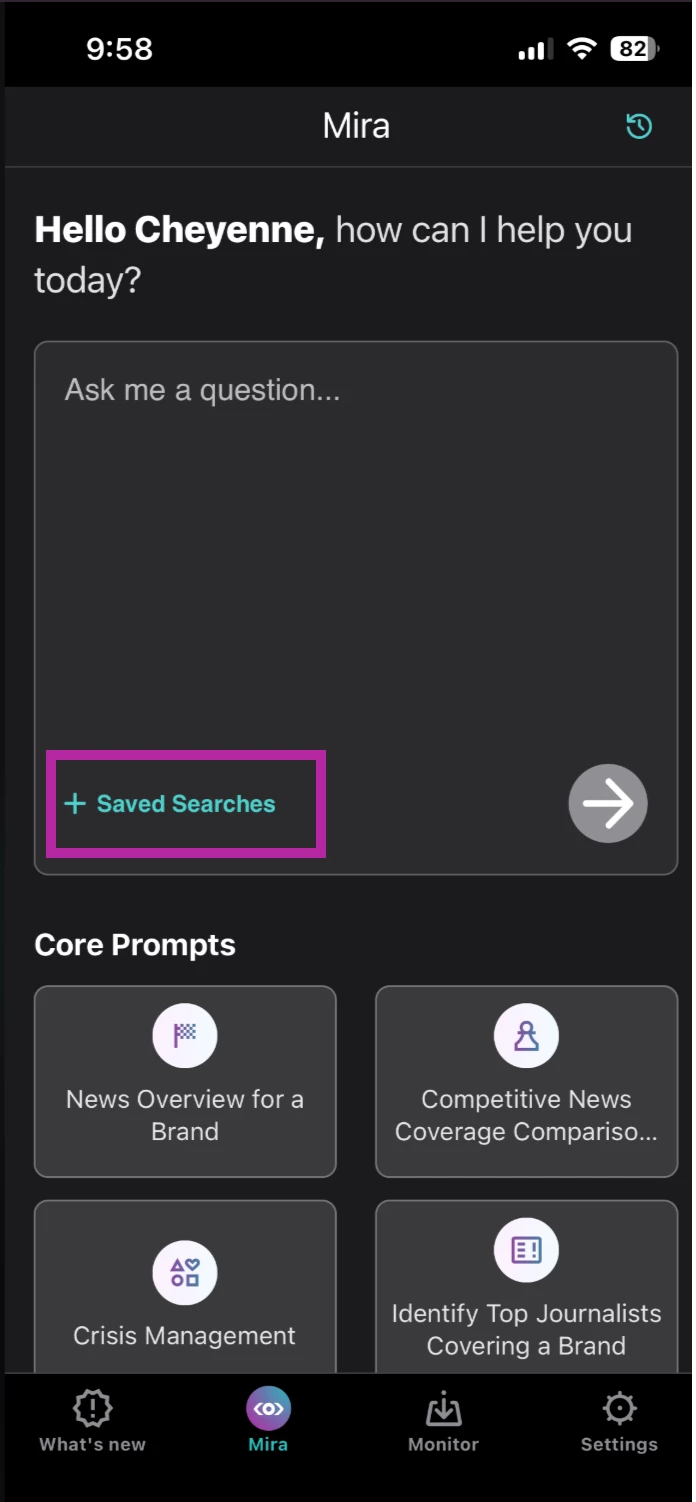
- Select one or more saved searches to focus Mira's responses using the checkbox(es)
- Click Apply
- Enter your prompt in the textbox
- Click the arrow
- Mira uses the selected saved searches as context for its response.
- Select +Saved Searches
- To view chat history
- Select Chat History in the top right-hand corner
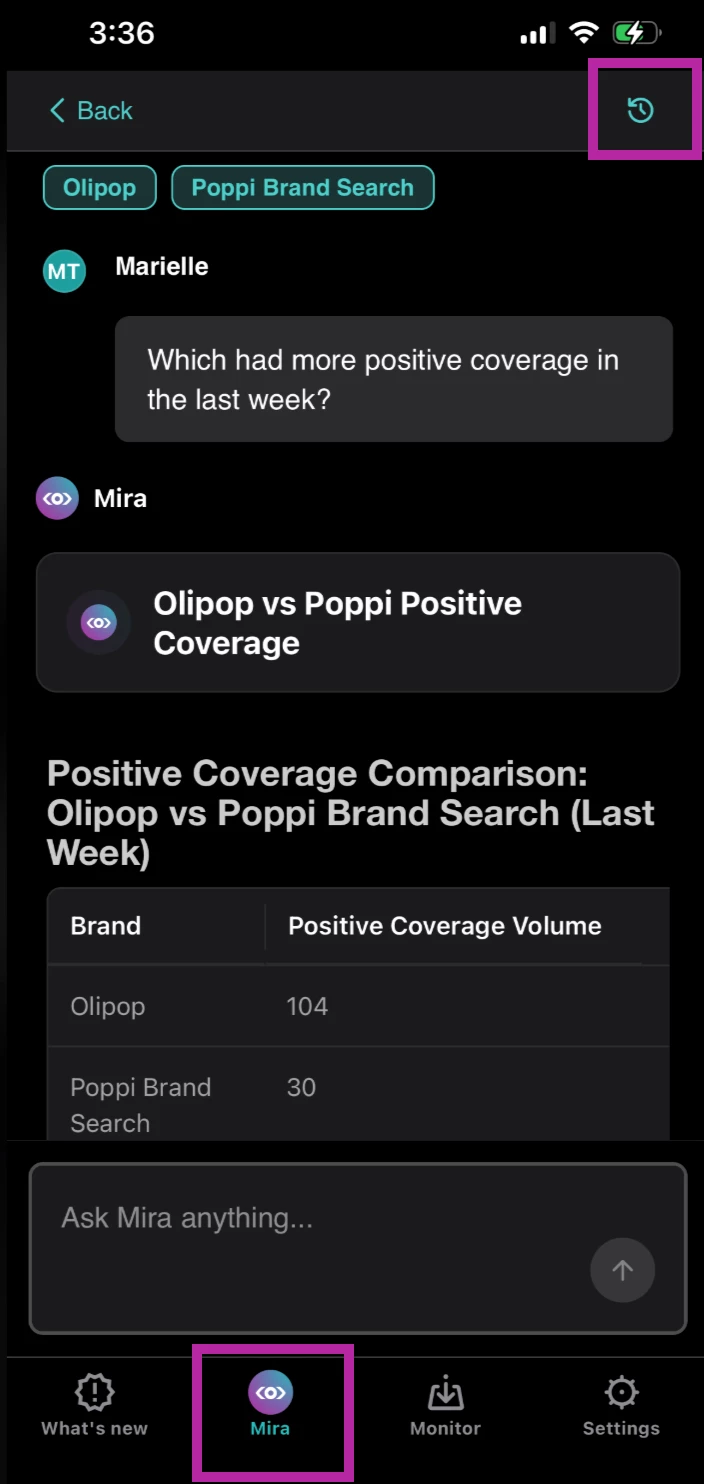
- Select a previous conversation
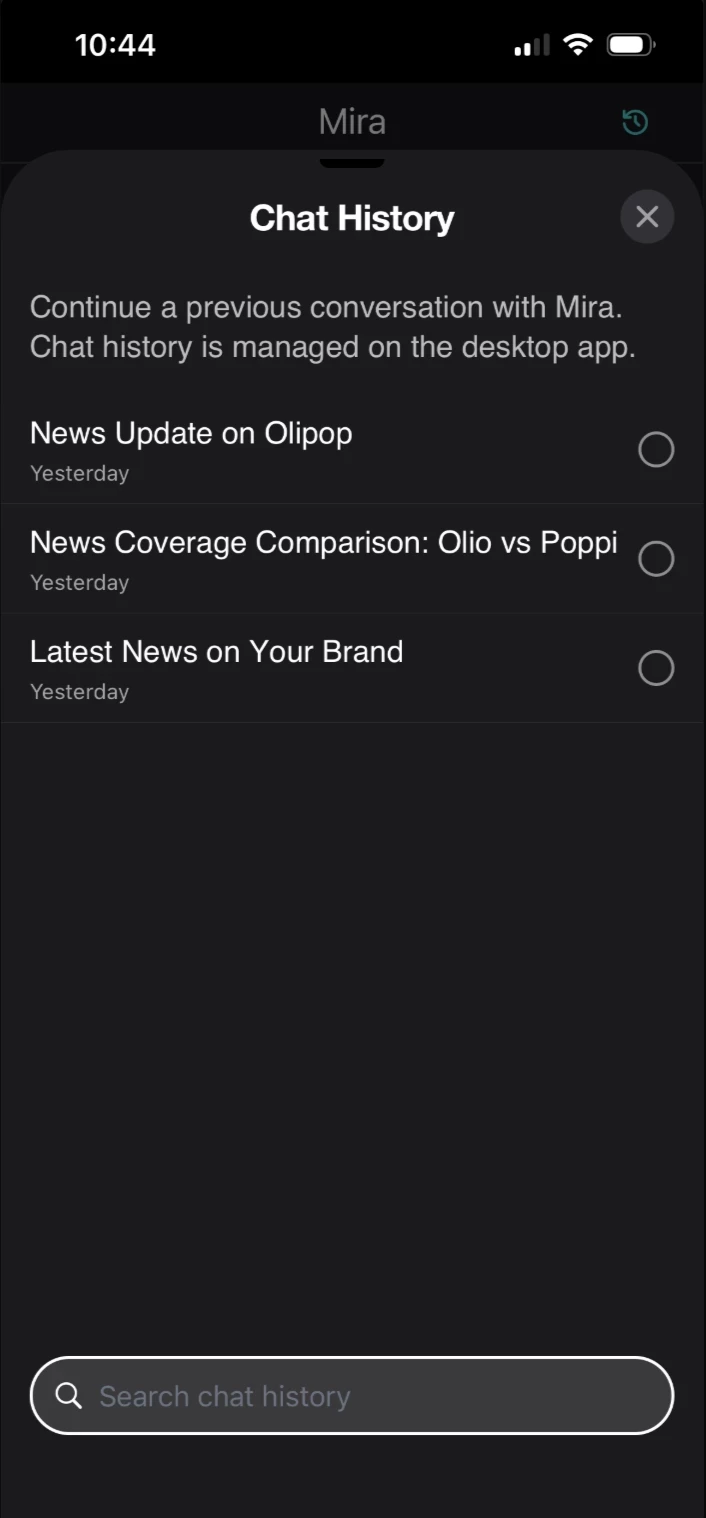
- Select Chat History in the top right-hand corner
In-App Article View (Web-view)
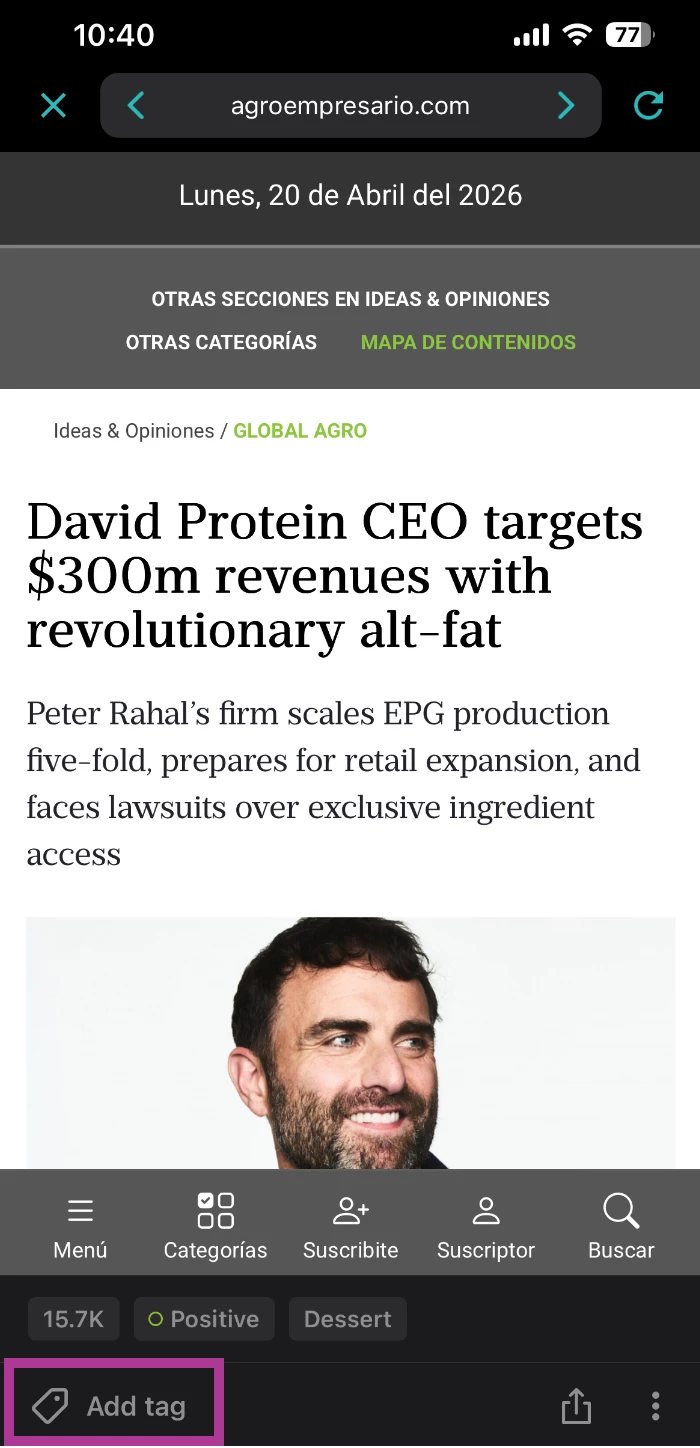
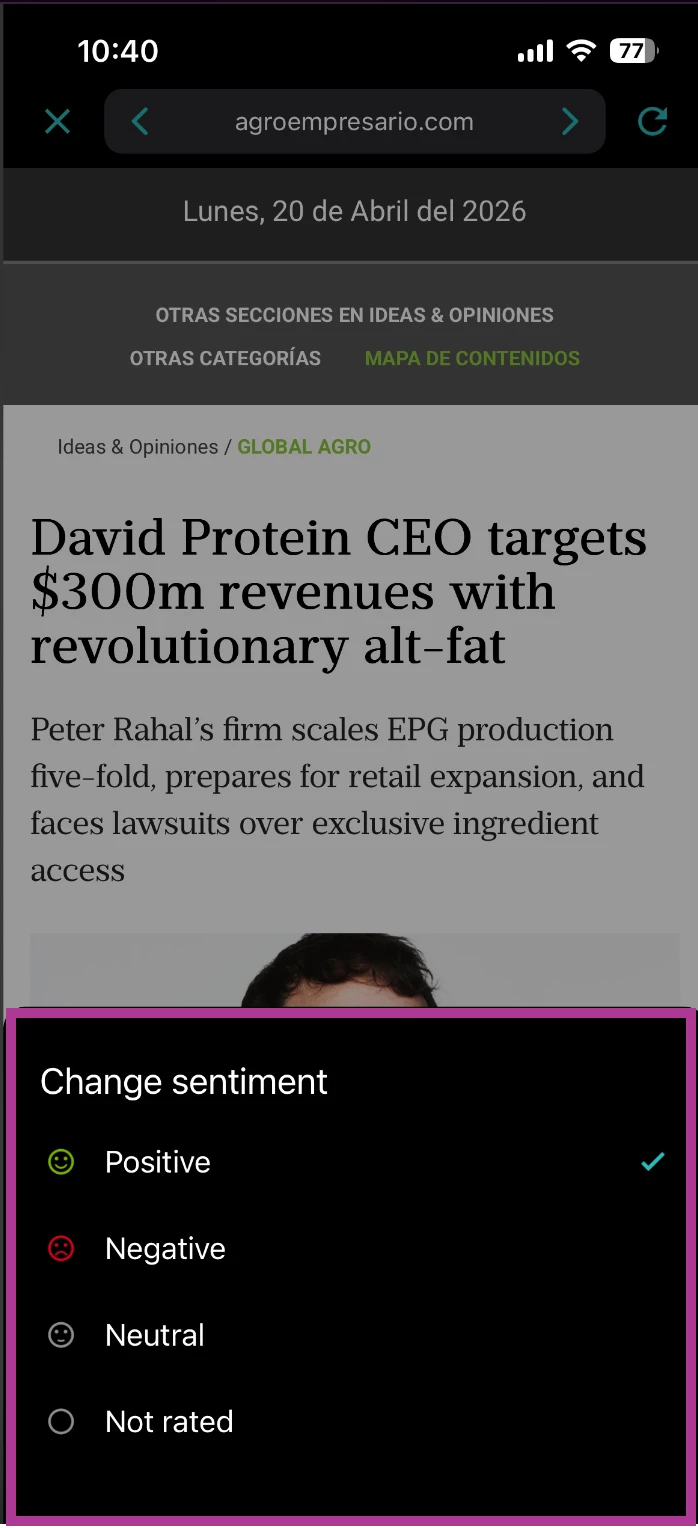
To read the full article click on a card and the article will load in the app. You may share, tag the article, or change the sentiment from the web-view.
- Open the Meltwater Mobile app
- Click into an article from the What’s New, Mira, or Monitor tab
- To share the article from the in-app web-view
- Click Share
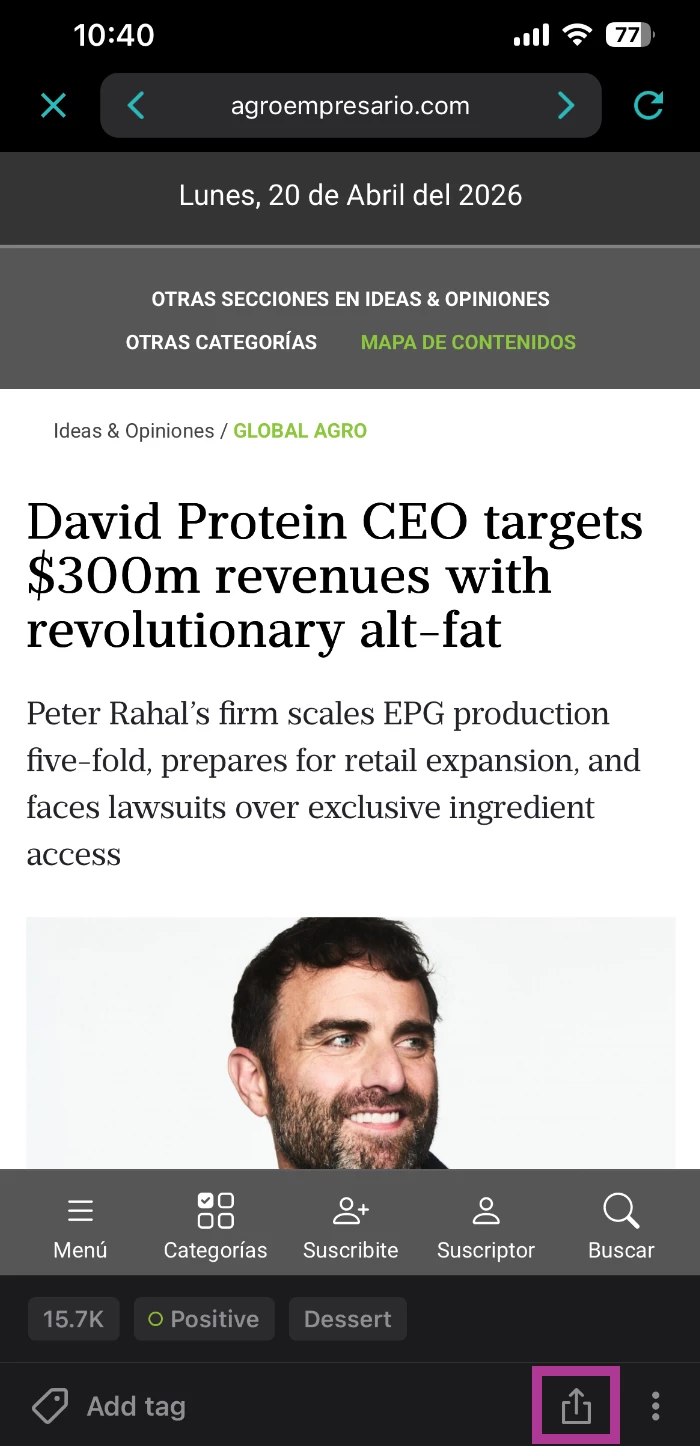
- Select a sharing method
- Click Share
- To tag an article
- Click Add Tag
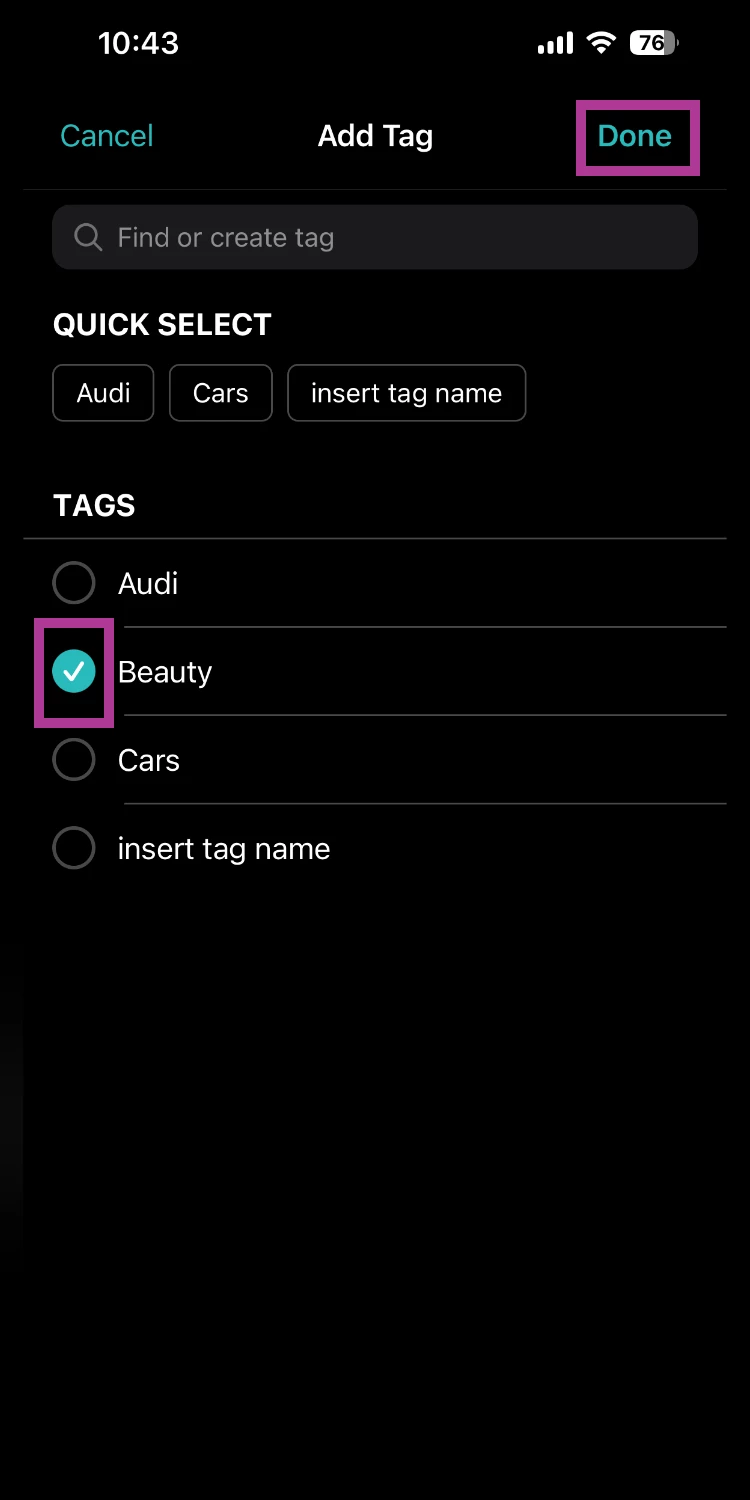
- Select an existing tag or tags
- Click Done
- Click Add Tag
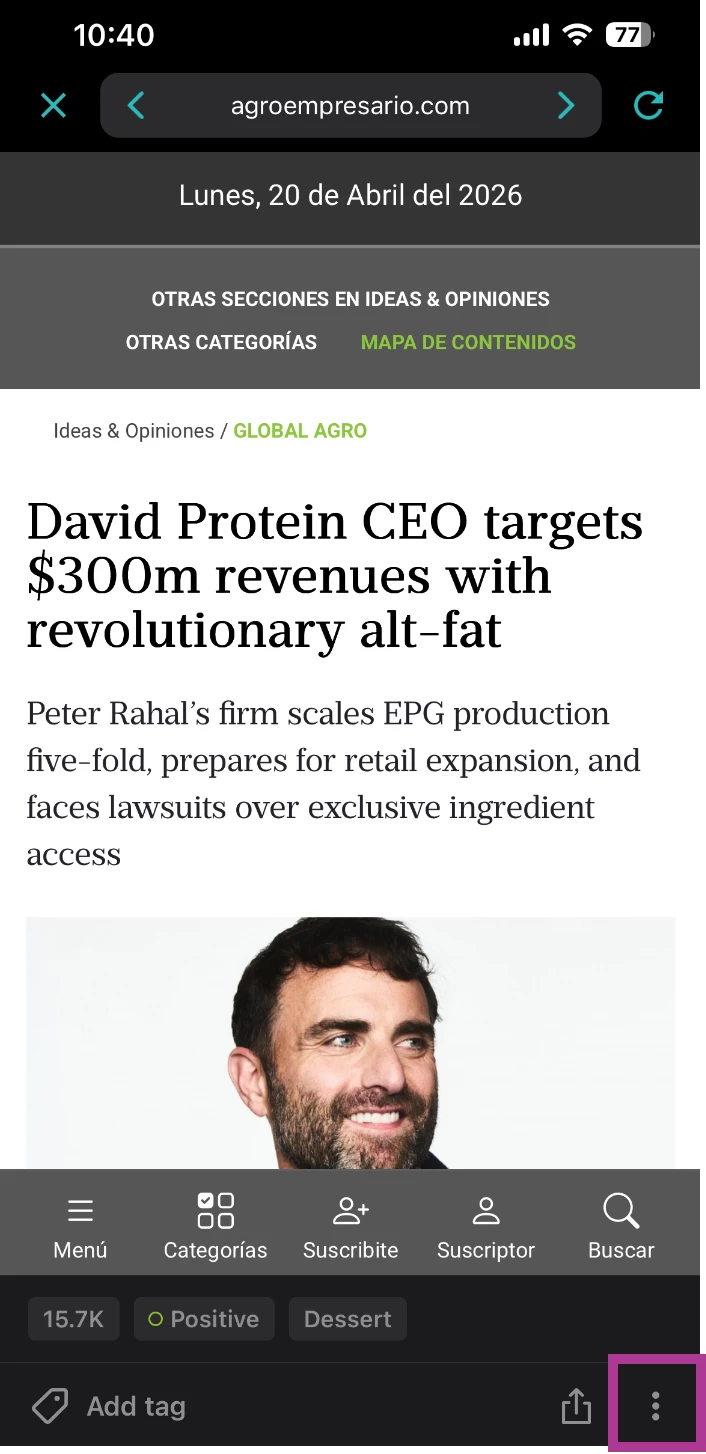
- To adjust the sentiment of an article
- Click the kebab menu
- Click Change Sentiment
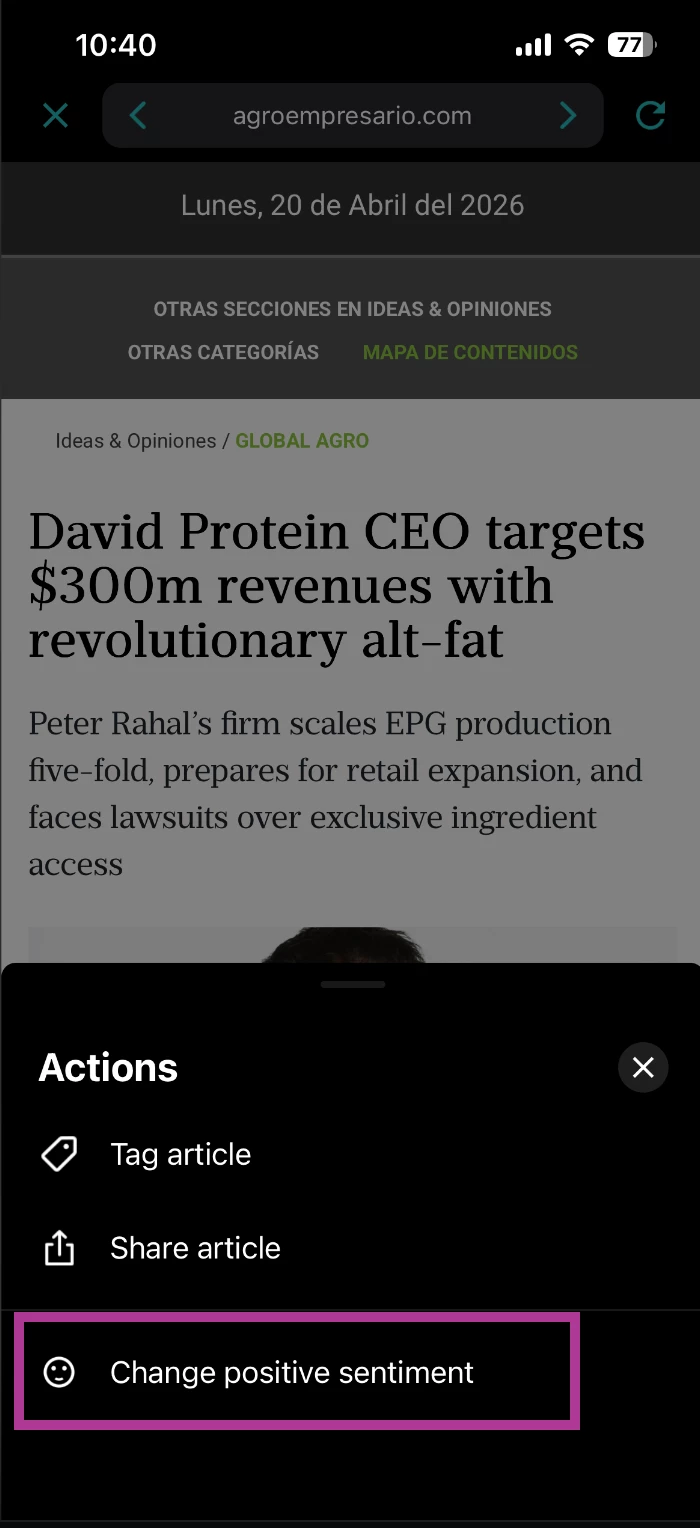
- Select a new sentiment
- Click the kebab menu
Monitor
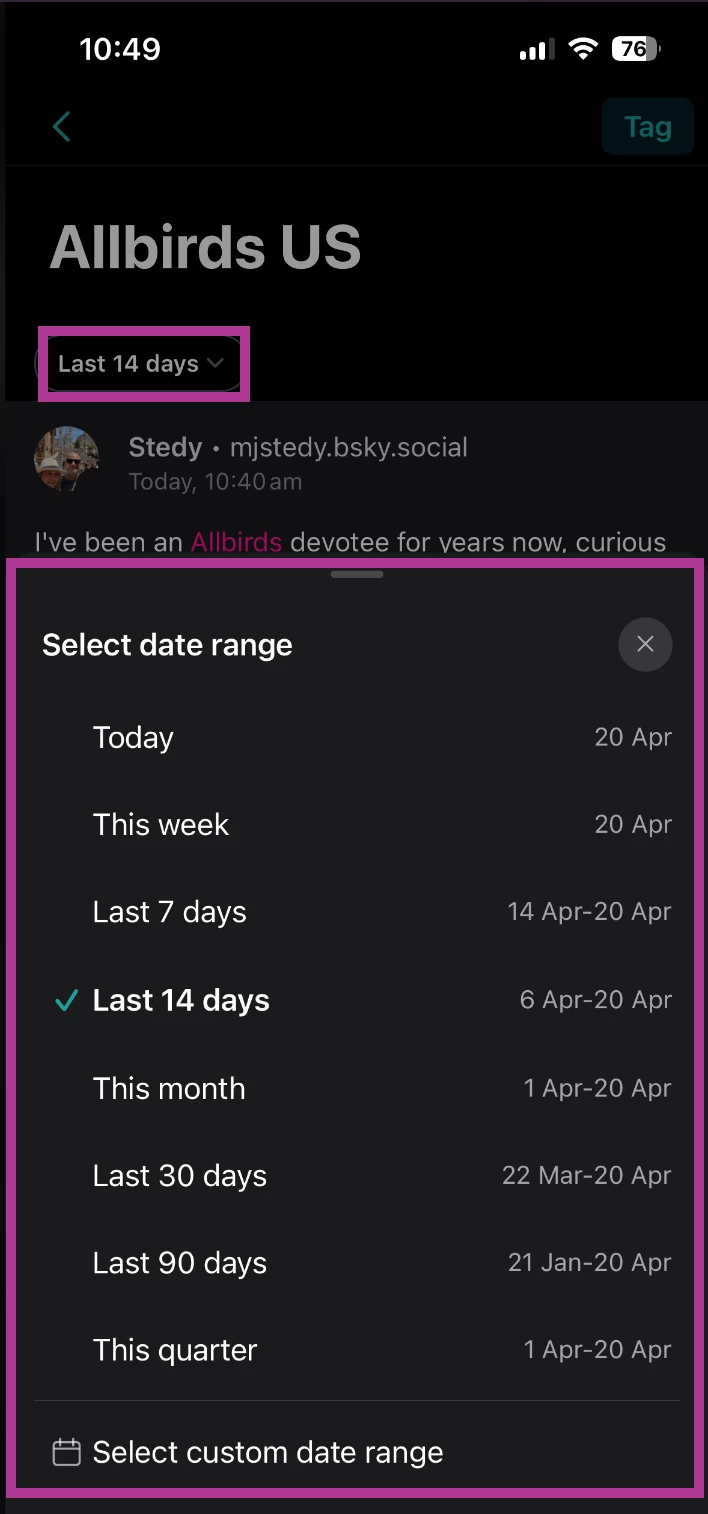
The Monitor tab shows all of your saved searches and tags in one place, allowing you to explore your media coverage in more detail. You can browse and read articles, making it easy to review trends, track ongoing stories, and catch anything you may have missed.
- Open the Meltwater Mobile app
- Click Monitor at the bottom of your screen
- Select a search
- Adjust the date range by selecting Last 14 Days and selecting a new date range
Settings
Turn notifications on and off for What's New Summaries, Inbox Searches, and Events. You can also access the Live Chat or Log Out in Settings.
- Open the Meltwater Mobile app
- Click Settings at the bottom of your screen
- Click into What’s New Summary, Monitor Searches, or Events to toggle on or off notifications
- To access the Live Chat
- Navigate to Support
- Click Live Chat
- Click Send us a message
- Click I need assistance
- Type your message
- Click Enter
- To Log Out
- Scroll to the bottom of your screen
- Click Log Out