



How do I share a dashboard?

To share your dashboard, follow these steps:
- Select Analyze in the left-hand navigation bar
- Click on the dashboard you want to share
- Click the Share drop-down in the top right-hand corner
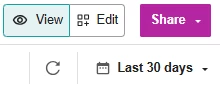
Note: If you do not see a purple Share button, you are in Edit mode. To exit Edit mode and share your dashboard, click View.
- Select the way you want share the report:
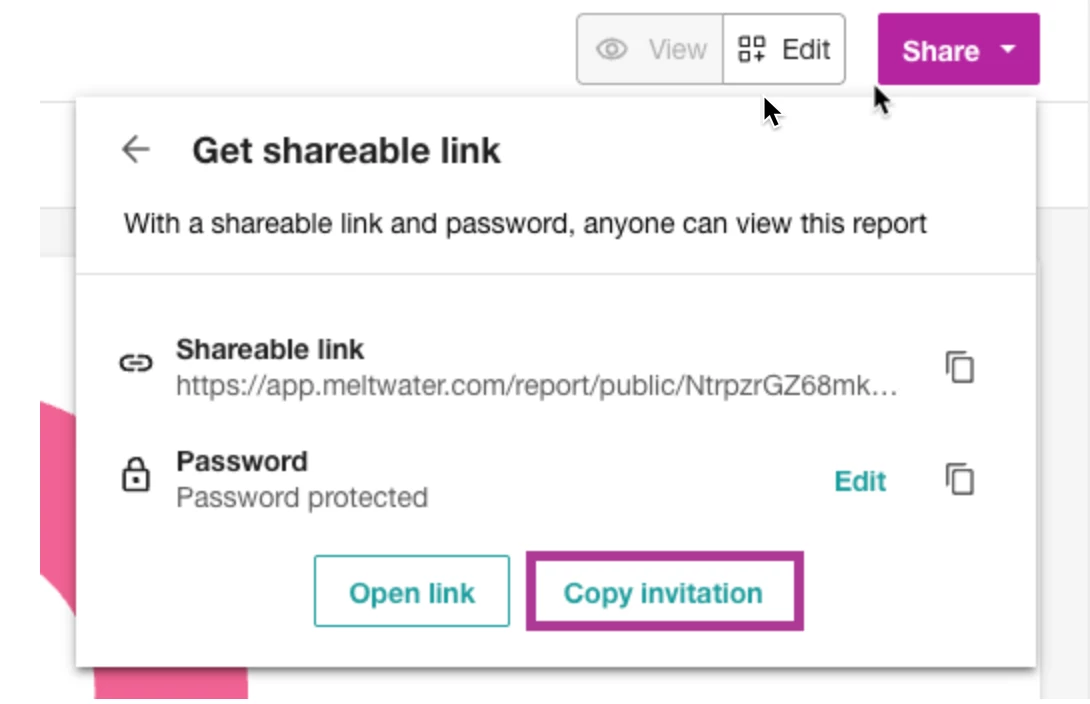
- Shareable link: With a shareable link and password, anyone can view this report
- Update Frequency: Select the frequency at which you want the data in your link to be updated
- Never
- Every 15 minutes
- Every 30 minutes
- Link Expiration: Select how long you want this link to remain viewable to those you share it with
- 24 hours
- 7 days
- 30 days
- 6 months
- Click Generate
- To edit the password
- Click Edit
- Enter a new password in the textbox
- Click Save
- Click Copy Invitation to copy and share both the shareable link and password
- Update Frequency: Select the frequency at which you want the data in your link to be updated
- Report Schedules: Schedule dashboards to be generated and shared as PDFs or PPTs on a recurring cadence (daily, weekly, or monthly) directly from the dashboard. These reports can be viewed by internal users who have a seat in your Meltwater account.

- Click an existing schedule or select Create New Schedule
- Enter a Schedule Name
- Select your recipients. Recipients of scheduled Dashboards must have a seat in your Meltwater account.
- Select a Report Frequency
- Daily
- Weekly
- Monthly
- Select a Report Type
- PPT
- Select a Language
- Click Save

Note: Once scheduled, reports are generated automatically and delivered on time.
- PDF (Current Tab)
- PowerPoint (Current Tab)
- Add to Google Slides (Current Tab)
- Shareable link: With a shareable link and password, anyone can view this report
Note: Multi-tab dashboards must be exported one tab at a time. Click Share on each tab individually.
📌 Tip: Toggle on Slide Preview to display your dashboard breakpoints for exported presentations (PowerPoint & Google).
