



How do I export articles?

Before exporting articles, it’s important to know…
CSV and Excel exports in Meltwater are subject to a monthly limit of 30,000 documents per account. This limit resets at the start of each month and applies across all users within the same account.
These limits help ensure fair and consistent access for all customers, while also giving your team better visibility into overall document usage.
If your team frequently exports large volumes of data, we recommend monitoring usage throughout the month to avoid interruptions.
To track your exports, follow these steps:
- Click Account in the left-hand navigation (not the drop-down)
- Navigate to Downloads
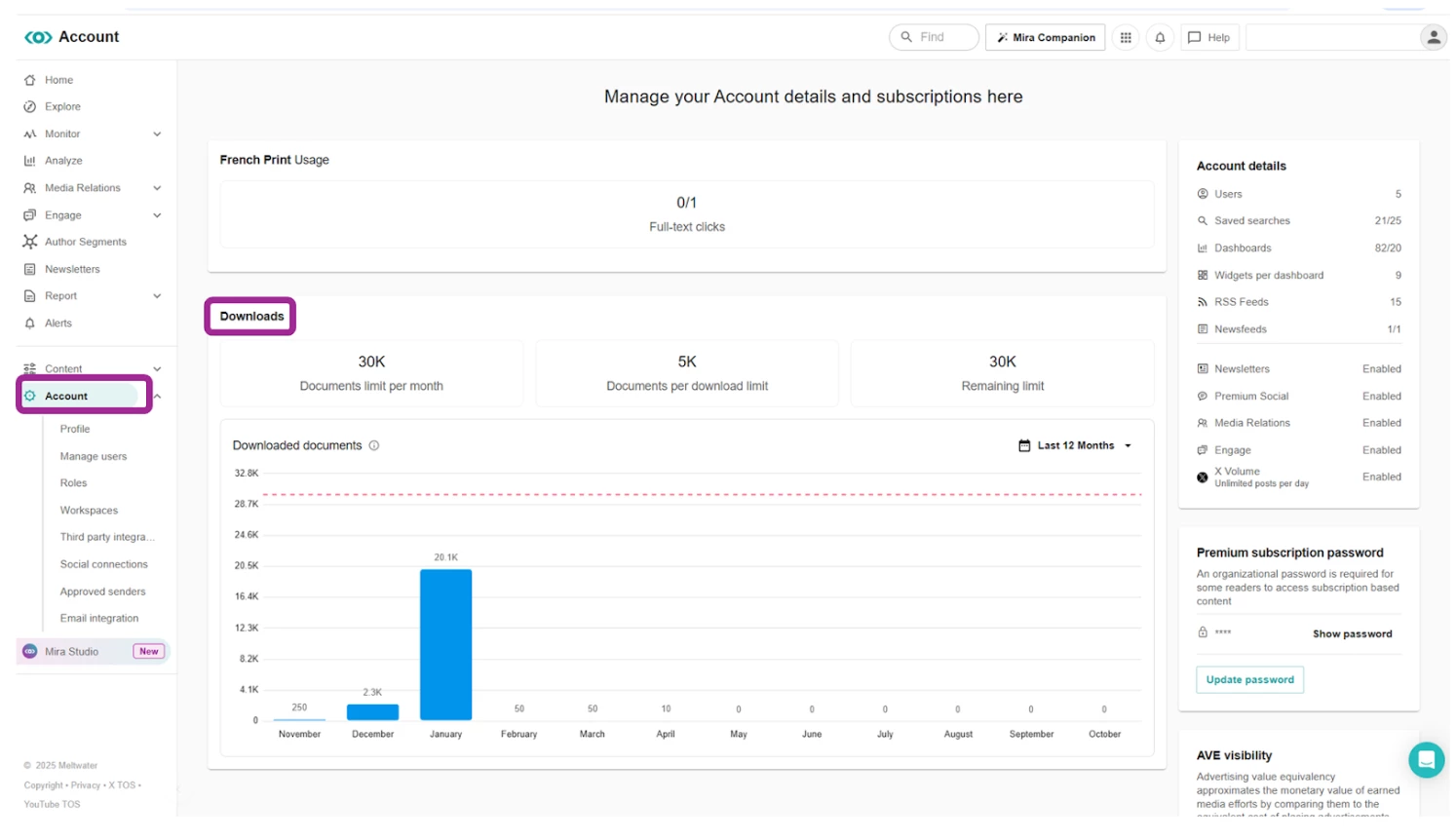
Note: You can also find your per-download exports on this page. This is the amount of documents allowed in each download based on your Meltwater subscription.

To export articles, follow these steps:
-
Navigate to a content stream within an Explore search or Monitor
-
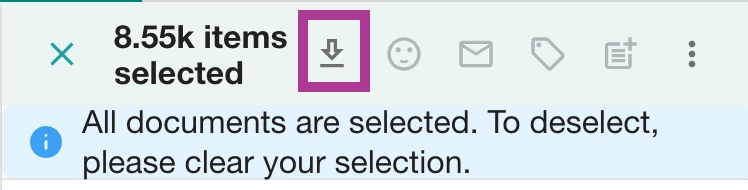
Select the results via the tick box. If you are in Explore and have used the Select All option, please note the alert with a prompt to Select All.
-
Select Download Options
-
Select from the following options:
-
Select a Format
-
CSV
-
Excel
-
PDF
-
-
Select a Template
-
Popular fields and metrics
-
Legacy
Note: Learn more about Details Included in Your Exports.
-
-
-
Click Download

-
A spreadsheet or PDF file will be emailed to the address you use to log in.
-
Alternatively, when your download is ready, you'll receive an alert icon at the top of your page.
-
Select the Alerts icon in the top right-hand corner

-
Click Download

Learn more about Exporting Content and Data from Explore & Monitor.