



🤖 April AI Prompt Challenge: Run Your First Coverage Report Agent
Each month, we run a short challenge designed to help you get more comfortable using Mira Studio and Meltwater Agent in Microsoft. The goal is simple: share practical examples you can actually use in your day-to-day work to save time and make better decisions.
This month, we’re introducing something brand new: Mira Studio Agents. And we’re kicking things off with the Coverage Report Agent — the fastest way to produce a polished monthly PR performance summary, without any prompt engineering required.
What Are Mira Studio Agents?
An Agent is an automated workflow in Mira Studio that generates a complete report based on a predefined prompt structure. Instead of manually crafting long prompts or issuing multiple follow-up requests, you simply select an Agent, fill in your details, and Mira handles the rest.
Here’s how it works:
- Breaks your request into smaller, structured tasks
- Runs each task in sequence
- Collects supporting sources
- Produces a structured, polished report — consistently, every time
The result: a complete, repeatable output without any prompt engineering expertise required.
Real-World Examples 💡
To show you what’s possible, we tested the Coverage Report Agent with two non-profits — one large and national, one small and local. Here’s a snapshot of what came back.
Example 1: Habitat for Humanity (Large Non-Profit)
| Habitat for Humanity — Q1 2026 Coverage Snapshot Social volume fell 28.8% (to 19,016 posts) — but social engagement rose 27.7% (to 320,434). Social reach dropped 73.6%, yet net sentiment increased 7.6pp (to 26.8%). Key insight: “We are trading passive impressions for active advocates. A smaller audience is interacting with our brand much more deeply.” Sentiment driver: 68.5% positive coverage rooted in community partnerships, volunteer empowerment, and successful fundraising.
Check out this Meltwater result! Report link: https://app.meltwater.com/p/mira/69cc0ab4746de9bf3018a862 Password: Community |
Example 2: The 519 Community Centre (Local Non-Profit, Toronto)
| The 519 Community — Q1 2026 Coverage Snapshot 4 news mentions with 246,820 reach — 50% positive sentiment, 0% negative. 39 social posts (+69.6% volume), 29 unique authors (+107.1%). Key insight: “Our formal media footprint is highly positive, but our grassroots channels reflect deep community anxieties.” Driver: Cultural events and advocacy drove earned media; a localized community crisis drove social conversation.
Check out this Meltwater result! Report link: https://app.meltwater.com/p/mira/69cc0aec746de9bf3018a89c Password: Community |
How to Participate
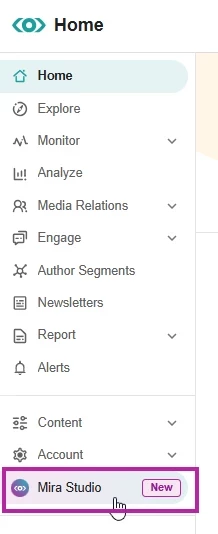
Step 1: Open Mira Studio
Click Mira Studio in the left-hand navigation bar.
⭐️ If you don’t have Mira Studio yet, you can sign up for a free 90-day trial using this form.
Step 2: Select the Coverage Agent
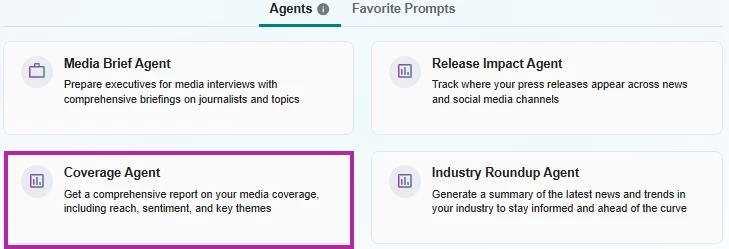
Select Agents Tab at the top of the panel and then the Coverage Agent
Step 3: Fill In Your Details
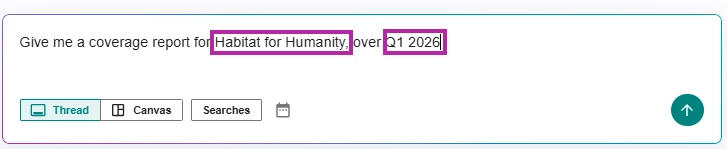
In the text box, add your brand’s specific information in all [ ] placeholders (for example, your brand name, region, or any focus areas relevant to your reporting).
Tip: You can also have it use any Saved Searches, click on the Searches button and select the saved searches it should use.
Then click the Arrow Icon to Send Message.
Step 4: Confirm Your Parameters
Mira Studio may summarize the parameters it’s working with and ask you to verify them. Click Confirm if everything looks correct, or adjust as needed. Mira will then begin generating your report.
Step 5: Review Your Coverage Report
Your report will be delivered as a single, complete output. Scan through the insights, highlights, and recommendations Mira has surfaced.
👎If you don’t like the output make sure to click on the thumbs down icon below the results.
⚠️ Important: Coverage Reports are generated as a single, complete output. Because of the depth and length of the output, follow-up prompts or regeneration within the same conversation should not be attempted as they won’t produce a successful response. To generate a new report, select New Chat to start fresh.
🌟 Bonus Step: Turn Your Report into a Presentation
Once you have your coverage report, take it one step further. You can download your Mira Agent results as a PDF
and then paste your pdf output into NotebookLM and ask it to generate a Slide Deck. The results are striking — as you can see from the example slides below from Habitat for Humanity.
Here’s how:
- Download your coverage report output from Mira Studio as a PDF
- Open NotebookLM and create a new notebook
- Add the pdf report as a source
- Under Sources Select the pdf source and under the Studio section select “Slide Deck”
🔒 Security note: Some organizations restrict access to NotebookLM. If that applies to you, no worries — Meltwater Analyze will integrate with Mira Studio soon. Stay tuned.
Check out the Slide Deck NotebookLM created based on the Habitat for Humanity Coverage Report
To Earn Your April Badge 🏅
Once you’ve run the Coverage Report Agent, comment on this post with:
- One insight from your report that surprised you or that you’ll use in your next team update
- Bonus: If you tried the NotebookLM step, share a screenshot of your deck!
You’ll receive your April AI Prompt Challenge Community Badge at month-end.
(Challenge ends on April 30, 2026)