



Getting Started with the Meltwater Agent for Slack
The Meltwater Agent for Slack, powered by Mira, brings trusted PR, communications, and marketing insights directly into Slack, so your team can ask questions, get answers, and share updates without leaving their daily conversations. Embedded right where you already collaborate, the Agent delivers real-time media insights, summaries, and briefs powered by Meltwater's proprietary global dataset, without switching tools or waiting on reports. This article walks you through how to set up and use the Meltwater Agent for Slack.
This article will cover:
Prerequisites
In order to take advantage of the Meltwater Agent for Slack (MAS), it must be included in your Meltwater subscription and have it added as an app to your Slack environment. If you do not have permission to add apps to Slack, reach out to your internal IT department for assistance
Enabling the Meltwater Agent for Slack in Meltwater
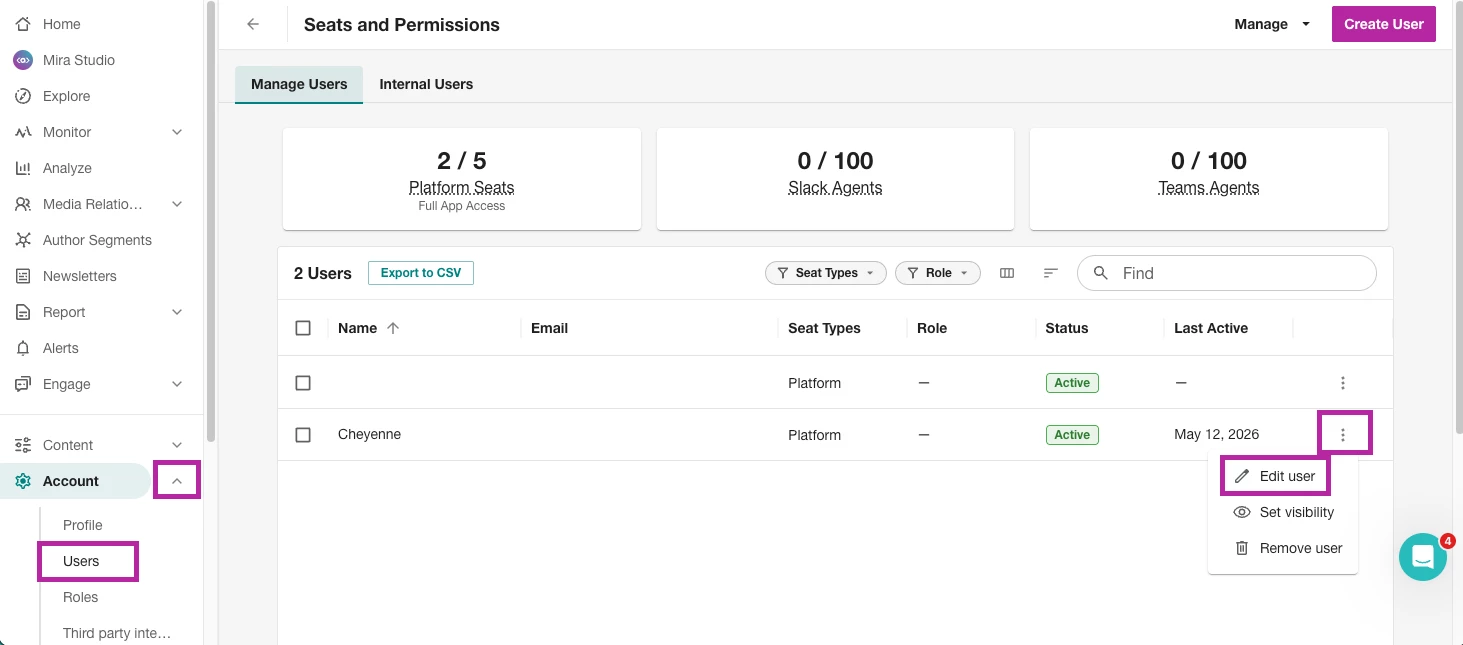
- In Meltwater, click the Account drop-down in the left-hand navigation bar
- Select Users
- Navigate to the user you want to give MAS access to
- Select the kebab menu
- Click Edit User
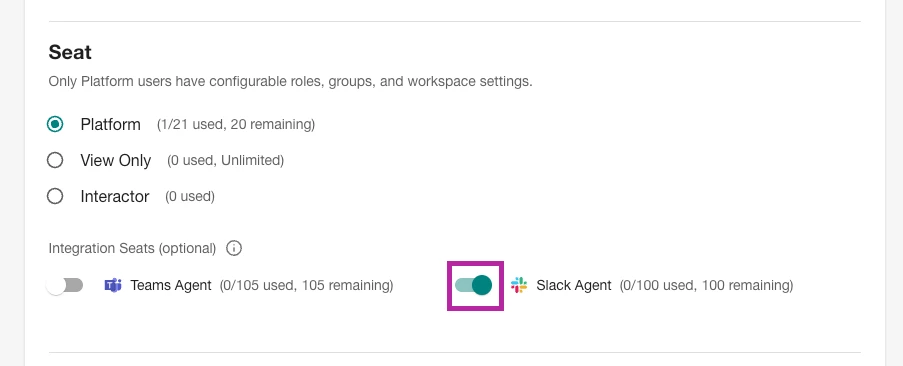
- Using the toggle, turn on Slack Agent
Adding the Meltwater Agent for Slack (MAS) to Slack
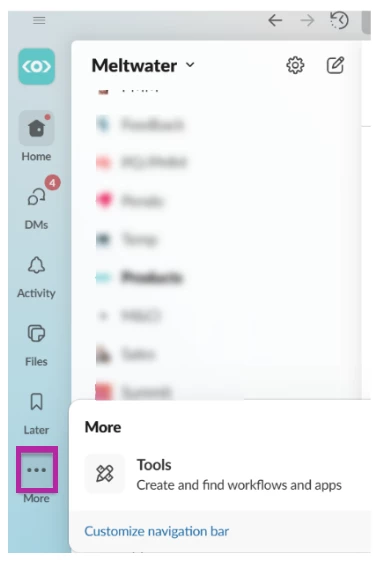
- In Slack, click Tools
Note: You may need to click More to open the Tools option.
- Select Apps
- In the search bar, enter Meltwater
- Select Meltwater in the search results
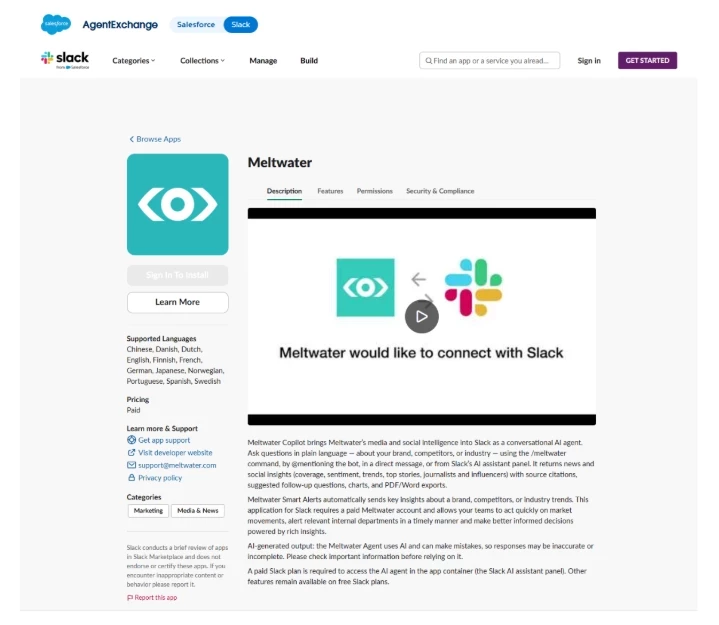
- Click Open App to add it to your Slack instance
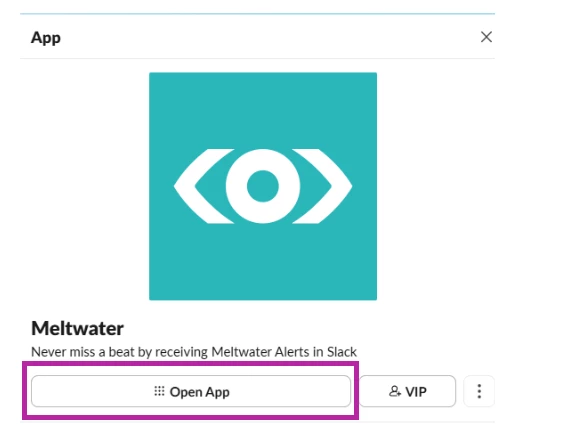
Connecting your Meltwater Account to Slack
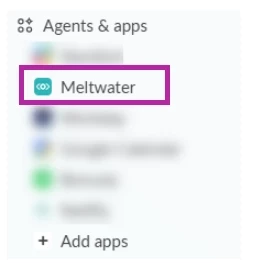
- Open the Meltwater app
- Click on the Home tab
- Select Sign In
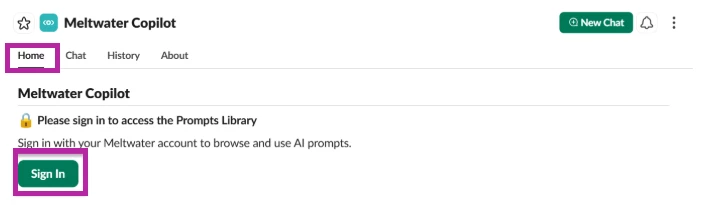
- Meltwater will open in a new tab. Log in to your Meltwater account
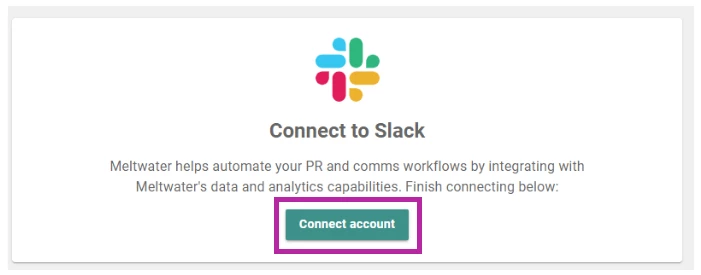
- Click Connect Account
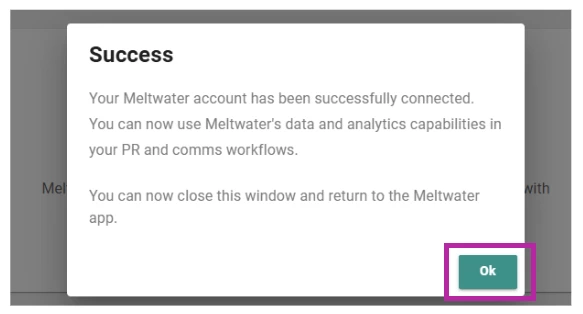
- Select Ok after successfully connecting Meltwater to Slack
Navigating the Meltwater Agent for Slack
There are four tabs for the Agent:
- Home
- Chat
- History
- About
Home
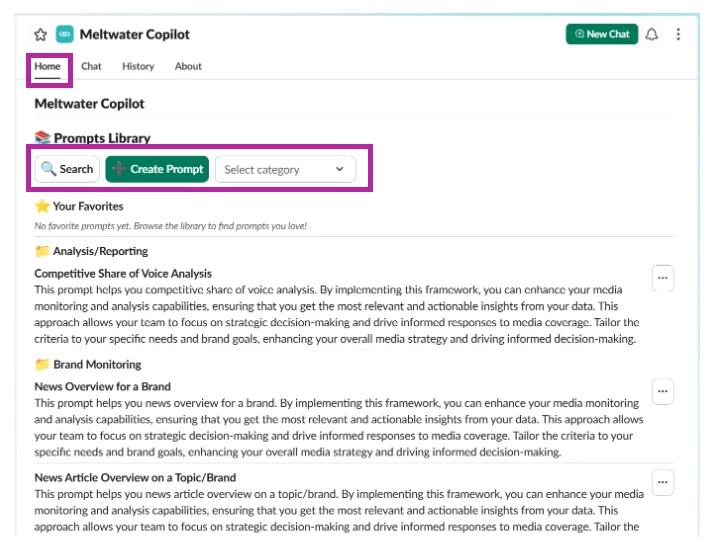
The Home tab contains the Prompts Library. Here you can:
- Search the Prompts Library
- Create Prompts
- Filter prompts by Category
- Add to Favorites
Chat
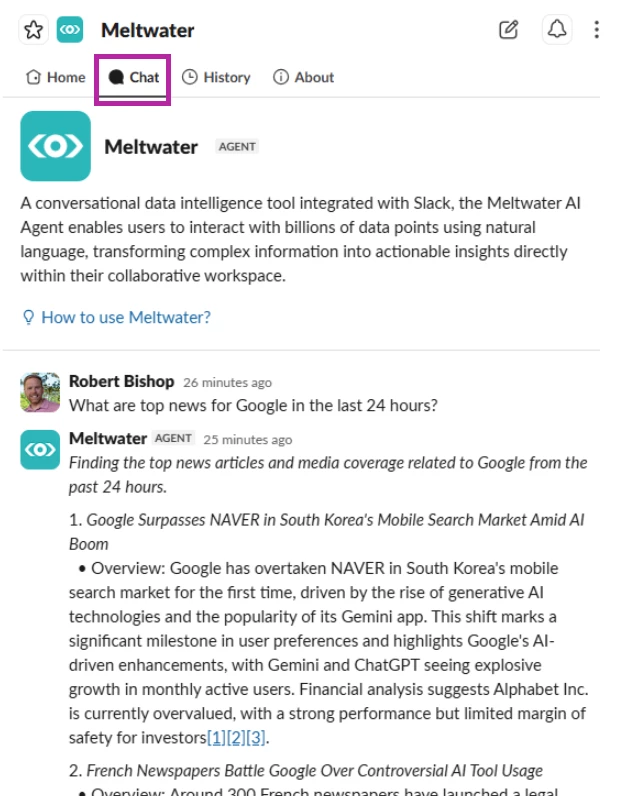
In the Chat tab, you can ask questions and use prompts in the text box and receive responses. This is the main chatbot for the Agent.
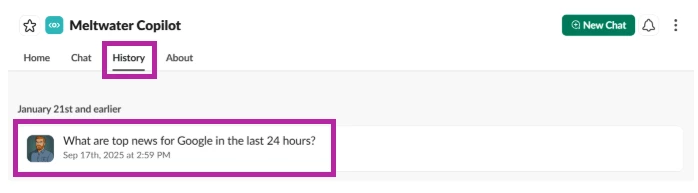
History
In the History tab, you can view see all previous chats with the Agent, sorted by date. Click into a chat to view that chat history, or jump back into that conversation
About
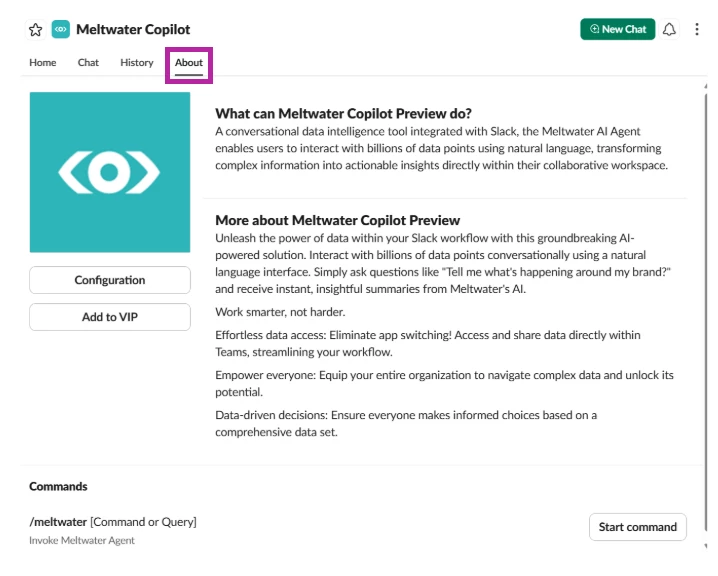
In the About tab, view all details about the agent. This tab includes:
- Configuration
- Descriptions of the Agent
- Command Instructions
Chatting with the Meltwater Agent for Slack
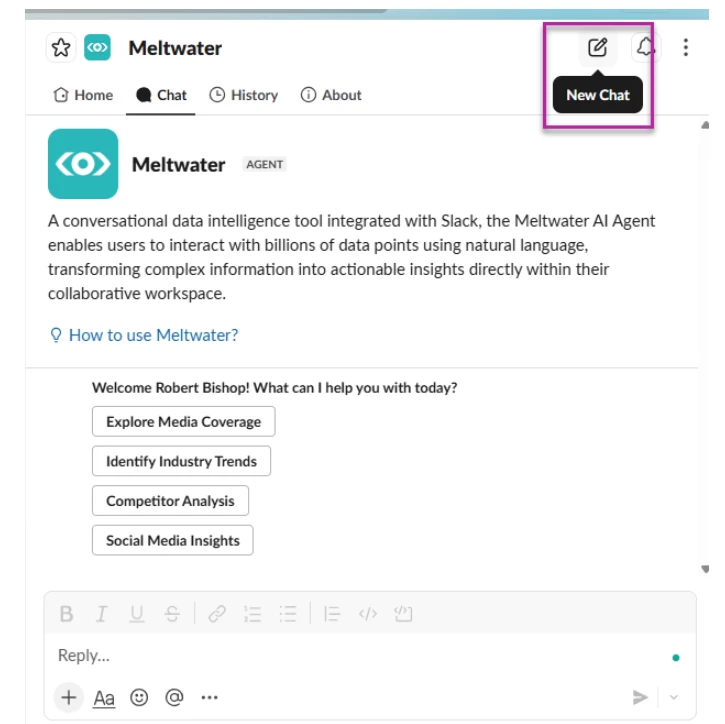
The Meltwater Agent for Slack brings the power of Mira Studio directly into Slack. To create a new chat,
- Click New Chat in the top right-hand corner
- Use a pre-built prompt from the prompt library or ask your own questions in the text box at the bottom of your screen
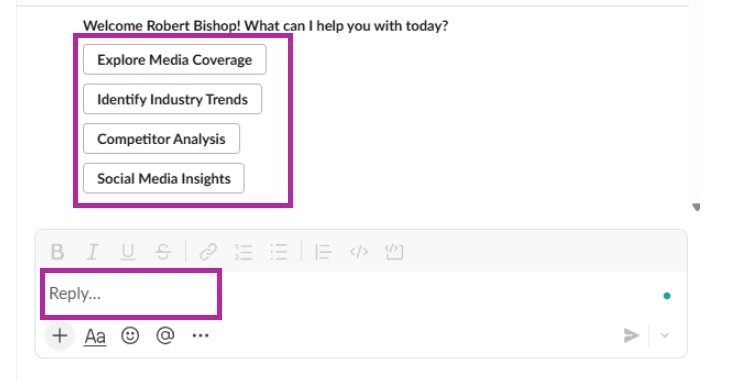
- Click Enter. The Agent responds conversationally with curated insights and sourced information, including links to cited sources, top relevant articles (when applicable), and related follow-up questions.
- To provide feedback, use the thumbs up/down in the chat
- To open a previous conversation
- Click the History tab
- Select a conversation
- Continue the conversation in the right-hand slide-out
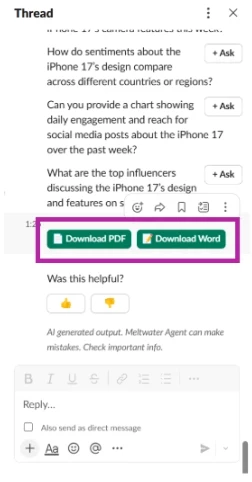
- To download Agent responses
- Click Download PDF or Download Word
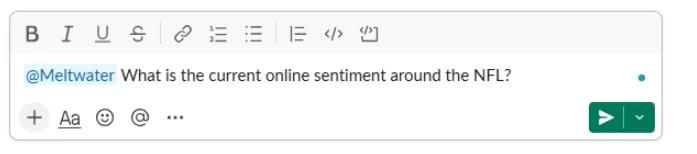
- The Meltwater Agent can also be added to and used in any Slack channel or conversation.
- In the textbox, @mention the Agent (@Meltwater) and ask your question
- Click Enter
-
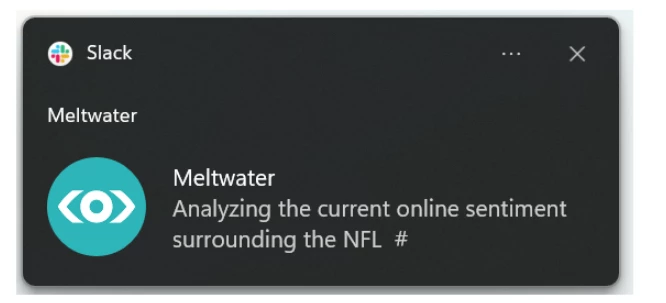
Responses from the Agent are delivered as Slack notifications, just like any other message.
FAQs
What’s different between Slack and Microsoft Meltwater Agents?
While the Meltwater Agent for Slack delivers the same trusted insights as the Meltwater Agent for Microsoft, the Slack experience includes a few Slack-specific enhancements:
- Chat history, built in: Slack includes a dedicated Chat History tab, making it easy to revisit past conversations, insights, and responses from the Meltwater Agent—all in one place.
- This view is not available in Microsoft Teams.
- More ways to access the Agent: In Slack, users can:
- Open and interact with the Agent directly inside the app
- @mention the Meltwater Agent (@Meltwater) in channels or conversations to pull insights into the flow of team discussions
- This makes it easier to bring real-time media intelligence into shared conversations as they happen.
- Richer, more visual responses: The Slack Agent supports rich text formatting, making insights easier to scan, share, and act on—especially in fast-moving channels and collaborative workflows.